

Conversation summaries and transcripts help you quickly understand interactions without reviewing full message threads. By enabling this feature, you can automatically generate summaries, store them, and trigger follow-up actions. This improves efficiency, enhances visibility, and supports better decision-making.
TABLE OF CONTENTS
- What is Conversation Summary & Transcript?
- Key Benefits of Conversation Summary & Transcript
- Enable Conversation Summary
- Configure Workflow Trigger for Summary
- Conversation Summary Settings
- Save Summary to Contact Record
- Trigger Automation Using Summary
- Access Summary & Transcript Data
- Email Notifications for Summaries
- Important Behavior & Rules
- Frequently Asked Questions
- Need Help?
What is Conversation Summary & Transcript?
Conversation summaries and transcripts automatically capture key insights and full message logs from interactions. This allows you to review outcomes, track engagement, and automate actions based on conversation activity without manually reading each message.
Key Benefits of Conversation Summary & Transcript
Using summaries and transcripts effectively improves visibility and automation across conversations.
-
Quick insights: Instantly understand conversation outcomes
-
Automation-ready: Trigger workflows based on summaries
-
Improved tracking: Monitor interactions across sessions
-
Better follow-ups: Take action based on conversation results
-
Centralized data: Store summaries directly with contact records
Enable Conversation Summary
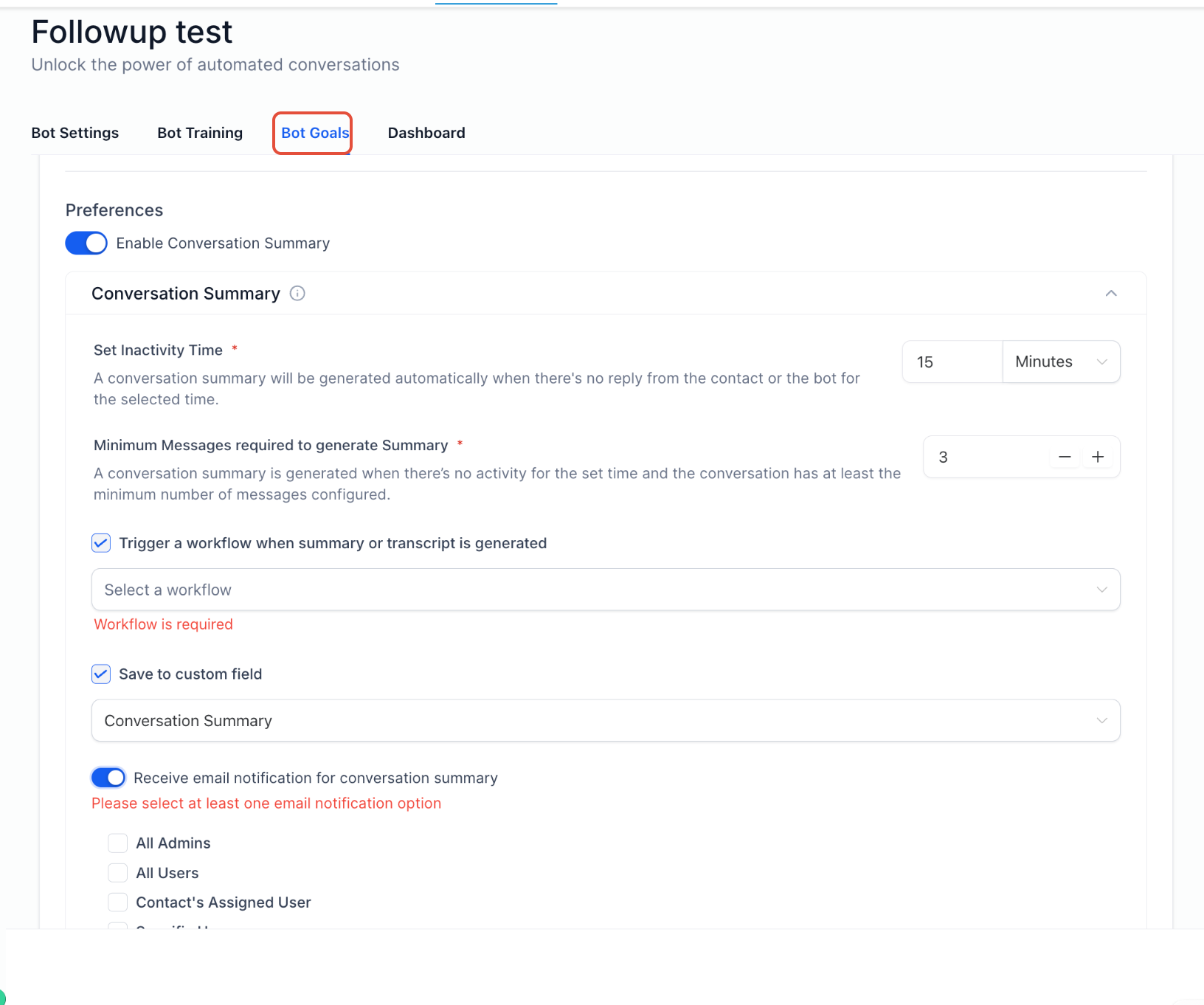
Turning on this feature ensures summaries are generated automatically based on inactivity or defined conditions.
-
Locate the Conversation Summary section
-
Toggle Enable Conversation Summary ON
-
Set inactivity time (e.g., 15 minutes)
-
Set minimum message count (e.g., 3 messages)
-
Enable options like saving to a contact field or triggering workflows
-
Click Save to apply changes
Configure Workflow Trigger for Summary
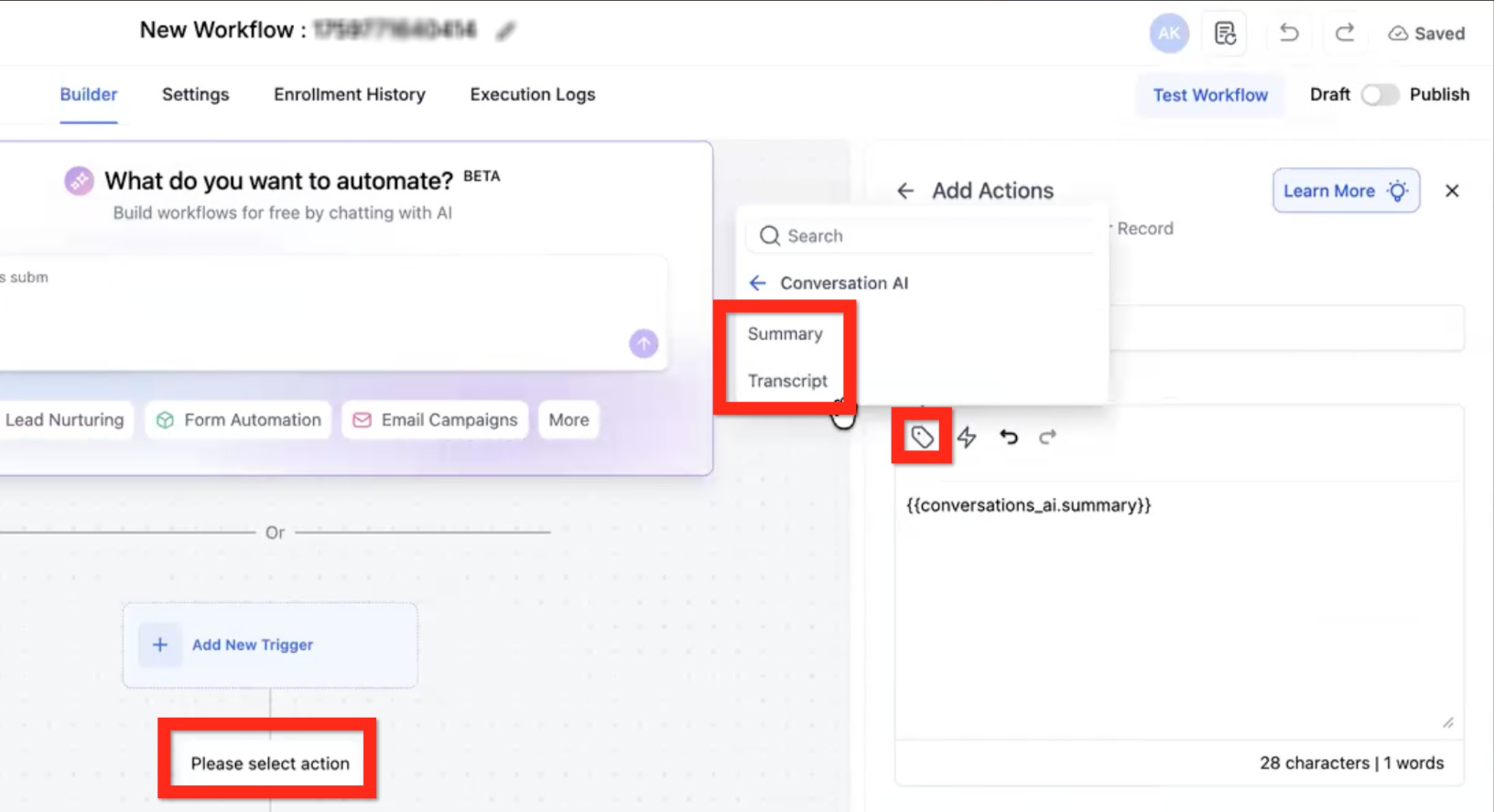
You can automate actions when a summary or transcript is created.
-
Open your workflow builder
-
Click Please select action
-
Search and select Summary or Transcript
-
Insert the variable into your workflow
-
Save and publish the workflow
Conversation Summary Settings
Proper configuration ensures summaries are generated at the right time and with meaningful data.
Inactivity Time
Defines how long the system waits before generating a summary after no activity.
Example: If set to 15 minutes, the summary is created after 15 minutes of no messages.
Minimum Messages Requirement
Ensures summaries are only created for meaningful conversations.
If the conversation has fewer messages than this number, no summary will be generated.
Instant Summary on Bot Sleep
A summary is generated immediately when the conversation ends due to:
-
Message limits reached
-
Manual or automated intervention
-
Stop conditions
-
Handover or inactivity
Save Summary to Contact Record
Saving summaries ensures important conversation insights are always accessible.
-
Enable the option to save to a contact field
-
Select the field where the summary should be stored
-
Each new summary replaces the previous one
Trigger Automation Using Summary
Summaries can automatically trigger workflows for follow-ups and actions.
-
Enable workflow trigger option
-
Select an existing workflow
-
Use summaries to create tasks, update records, or send notifications
Access Summary & Transcript Data
You can use summary and transcript data in automation for advanced actions.
-
Use variables like:
-
Conversation Summary
-
Conversation Transcript
-
-
Apply data to:
-
Update contact details
-
Generate insights
-
Trigger automation
-
Email Notifications for Summaries
Stay informed when summaries are generated.
-
Enable email notifications
-
Select recipients such as:
-
Admin users
-
Assigned users
-
Specific recipients
-
-
Save settings
Important Behavior & Rules
Understanding how summaries work helps avoid confusion and ensures proper usage.
-
Summaries are generated per session
-
Each new summary replaces the previous one
-
Only messages after enabling the feature are included
-
Messages during disabled periods are ignored
-
Both inbound and outbound messages are included
-
Each new summary includes only messages since the last summary
Frequently Asked Questions
Q: When is a conversation summary created?
A summary is generated after inactivity or instantly when certain conditions end the conversation.
Q: Does it include all past messages?
No, it only includes messages after the feature is enabled or after the last summary.
Q: Can summaries trigger automation?
Yes, workflows can be triggered automatically when summaries are generated.
Q: Can I store summaries for later use?
Yes, summaries can be saved to a selected contact field.
Q: What happens if there are not enough messages?
No summary will be generated if the minimum message requirement is not met.
Need Help?
-
No summary showing? Turn ON the summary toggle and ensure inactivity + minimum messages are met.
-
Missing messages? Only messages after enabling the feature are included.
-
Workflow not triggering? Select a published workflow.
-
Not saving to contact? Enable “Save to custom field” and pick a field.
-
No email alerts? Select at least one recipient.
If it still doesn’t work, test with a new conversation.