TABLE OF CONTENTS
What are the new Triggers?
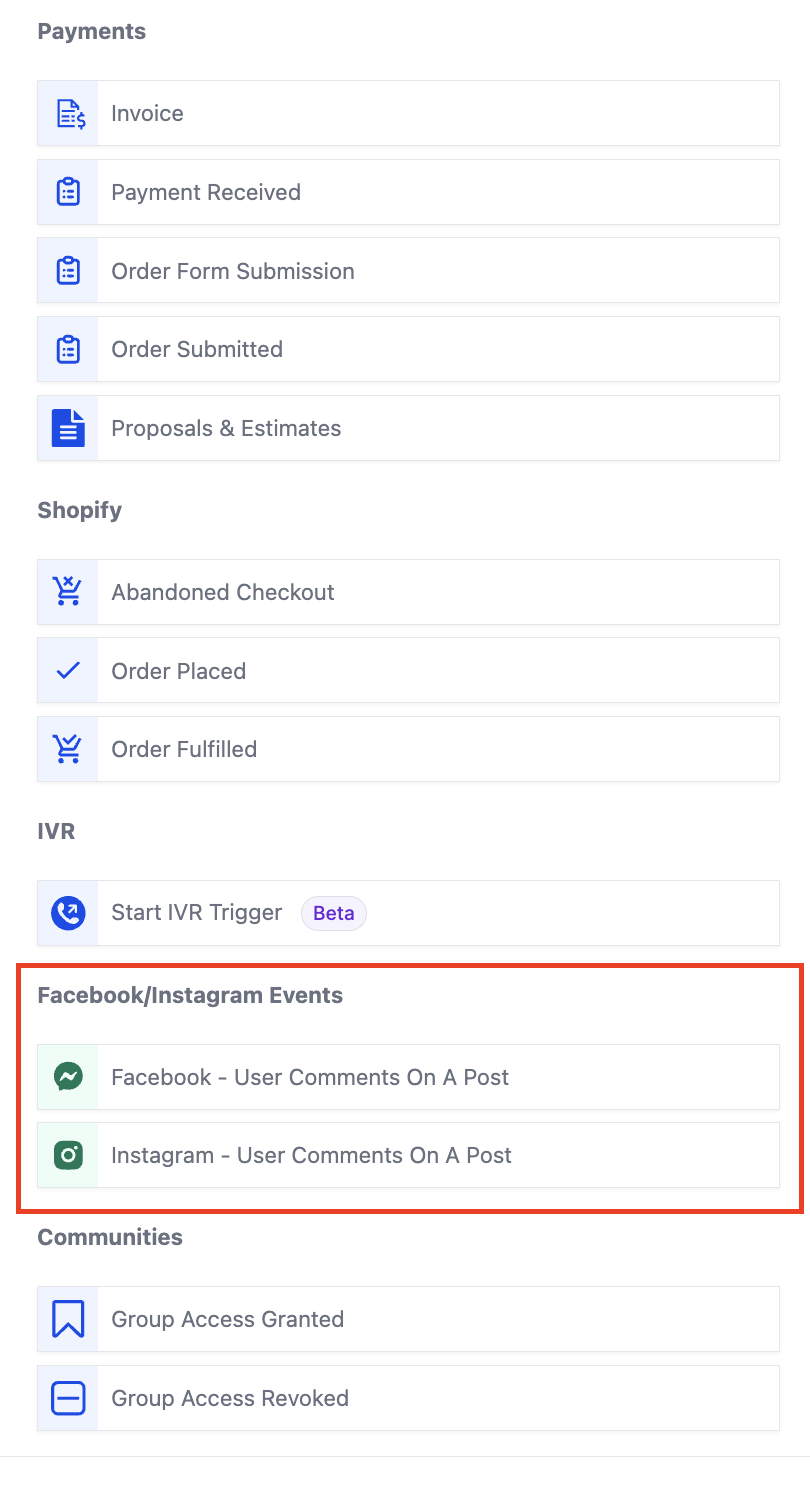
When creating a workflow click on “Add Trigger”. The triggers related to comment automation are present in the “Facebook/Instagram events” category. You can directly search for the trigger or scroll down to the category.
- Facebook – User comments on a post
- Instagram – User comments on a post
1. New Triggers
Go to triggers and select from the available triggers based on your use case.
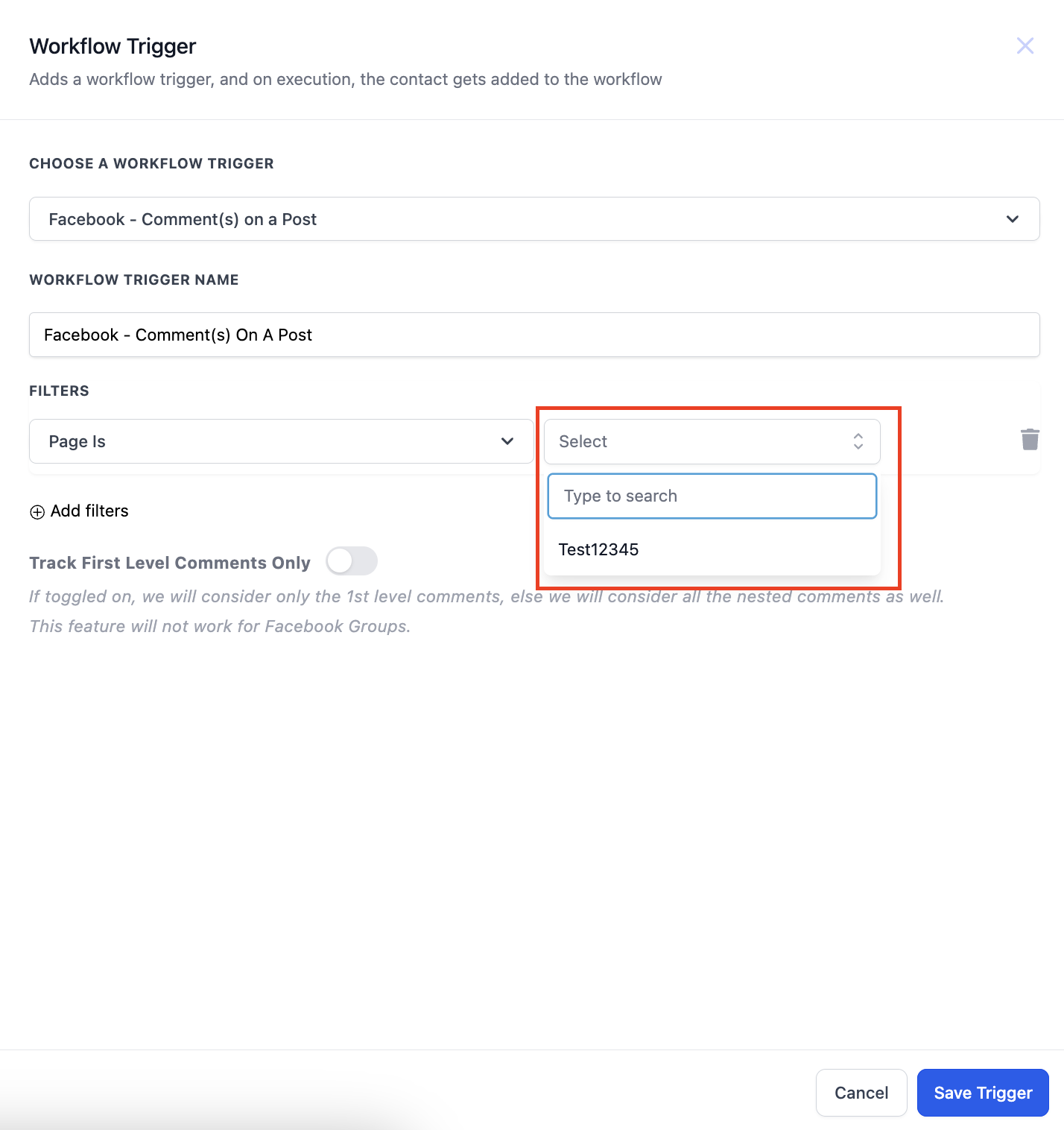
2. Page is
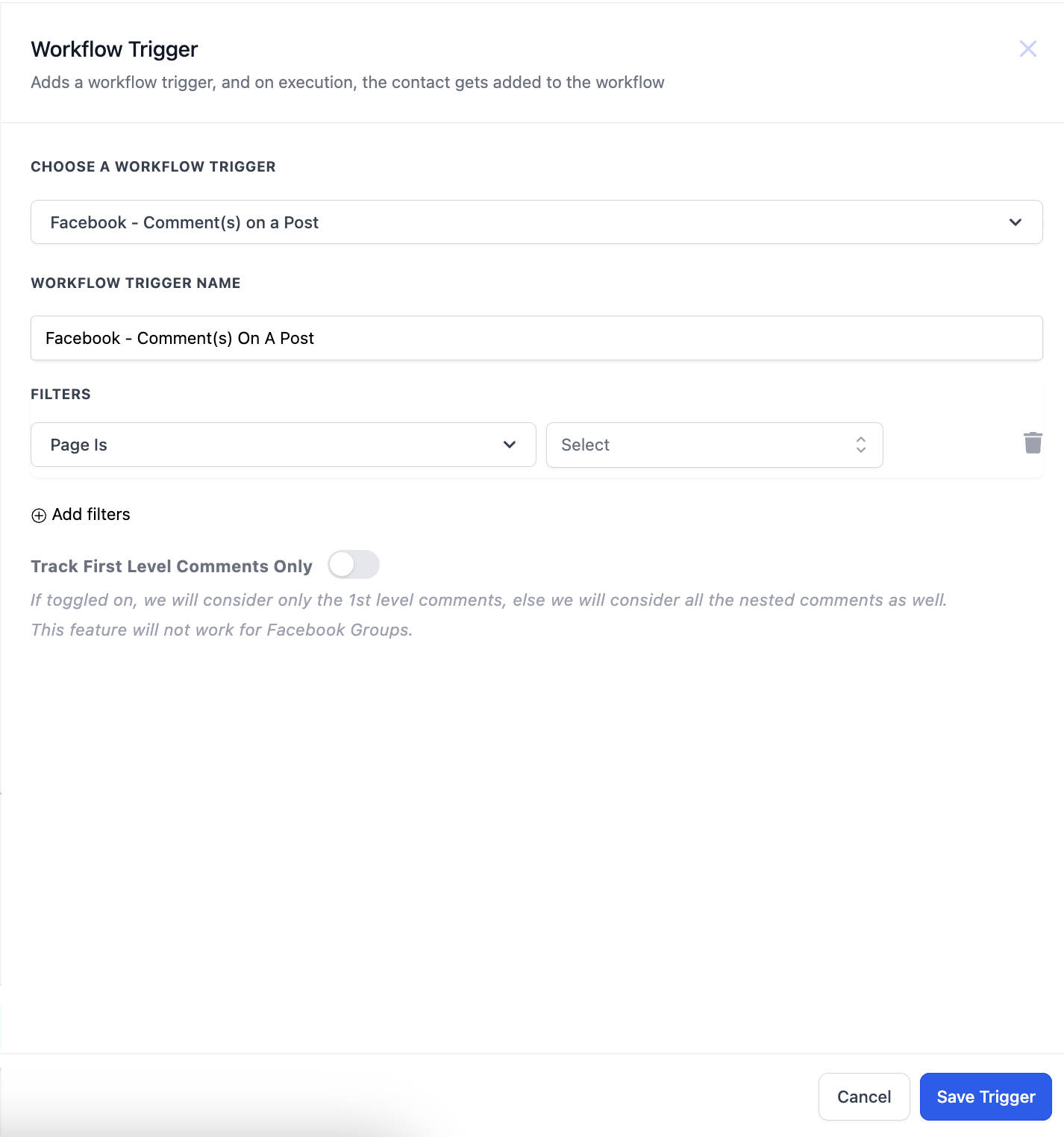
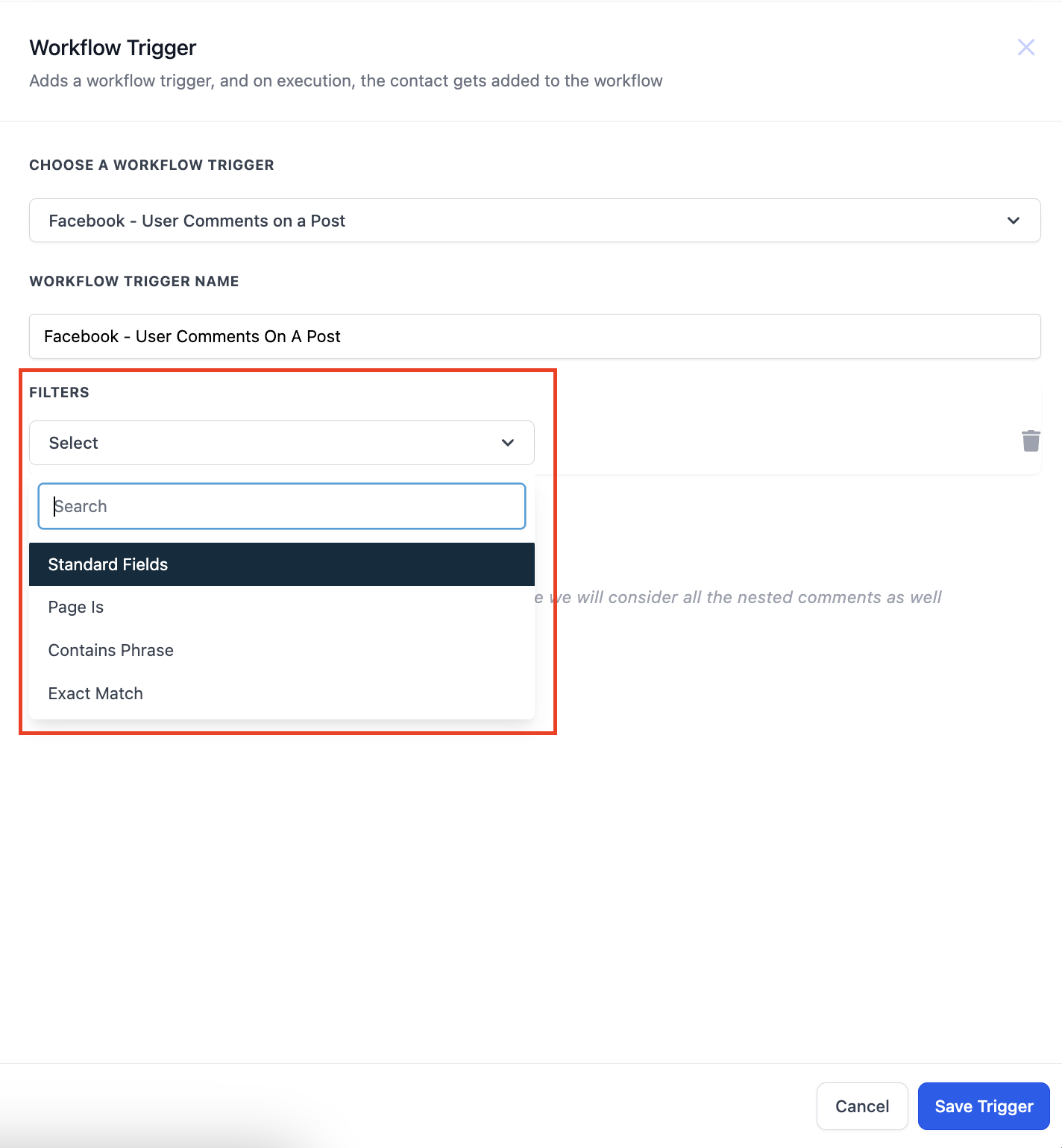
After clicking on the trigger the sidebar will open. There are multiple filters present here. The first step is to select the Page.
3. Post Type
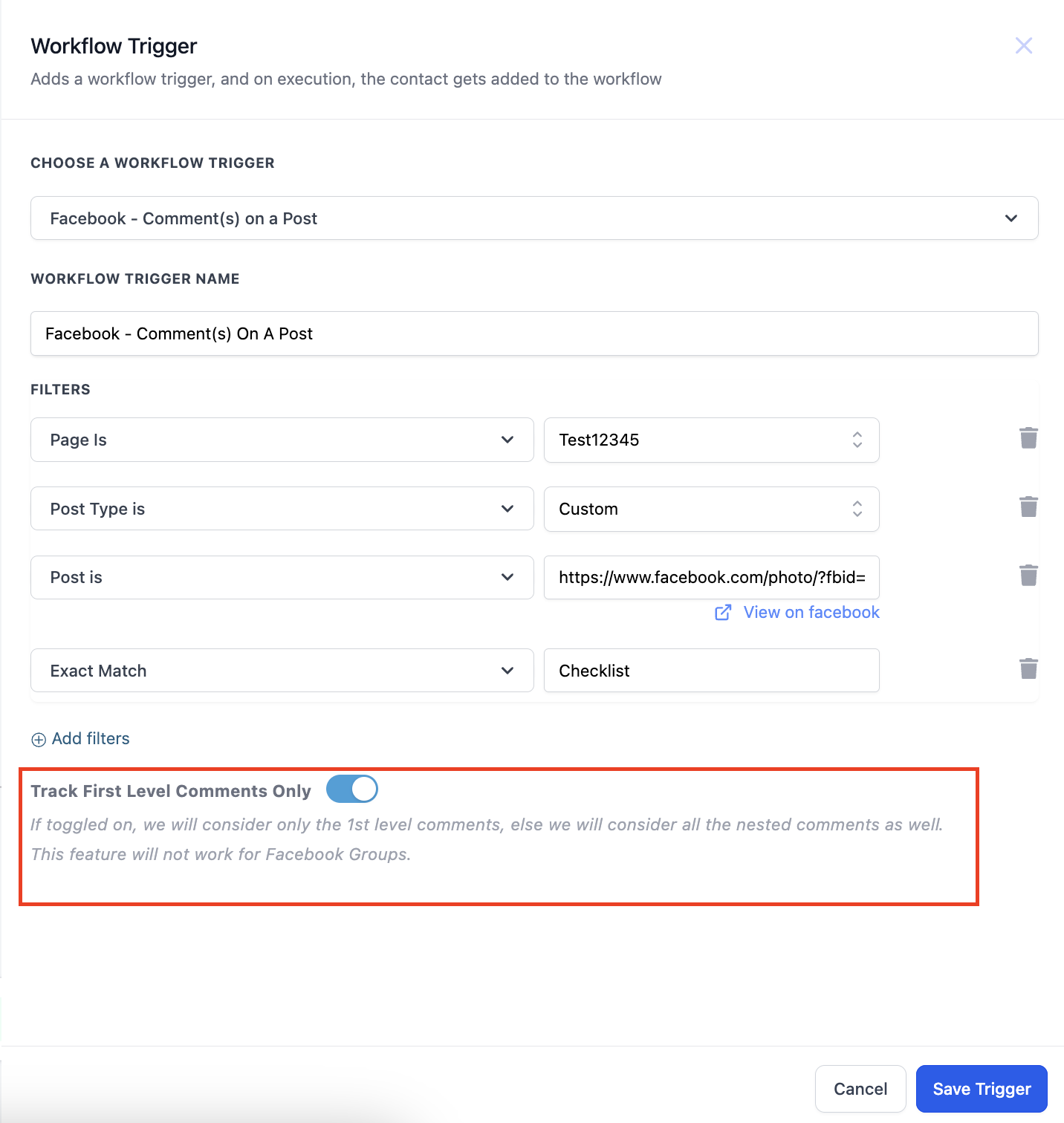
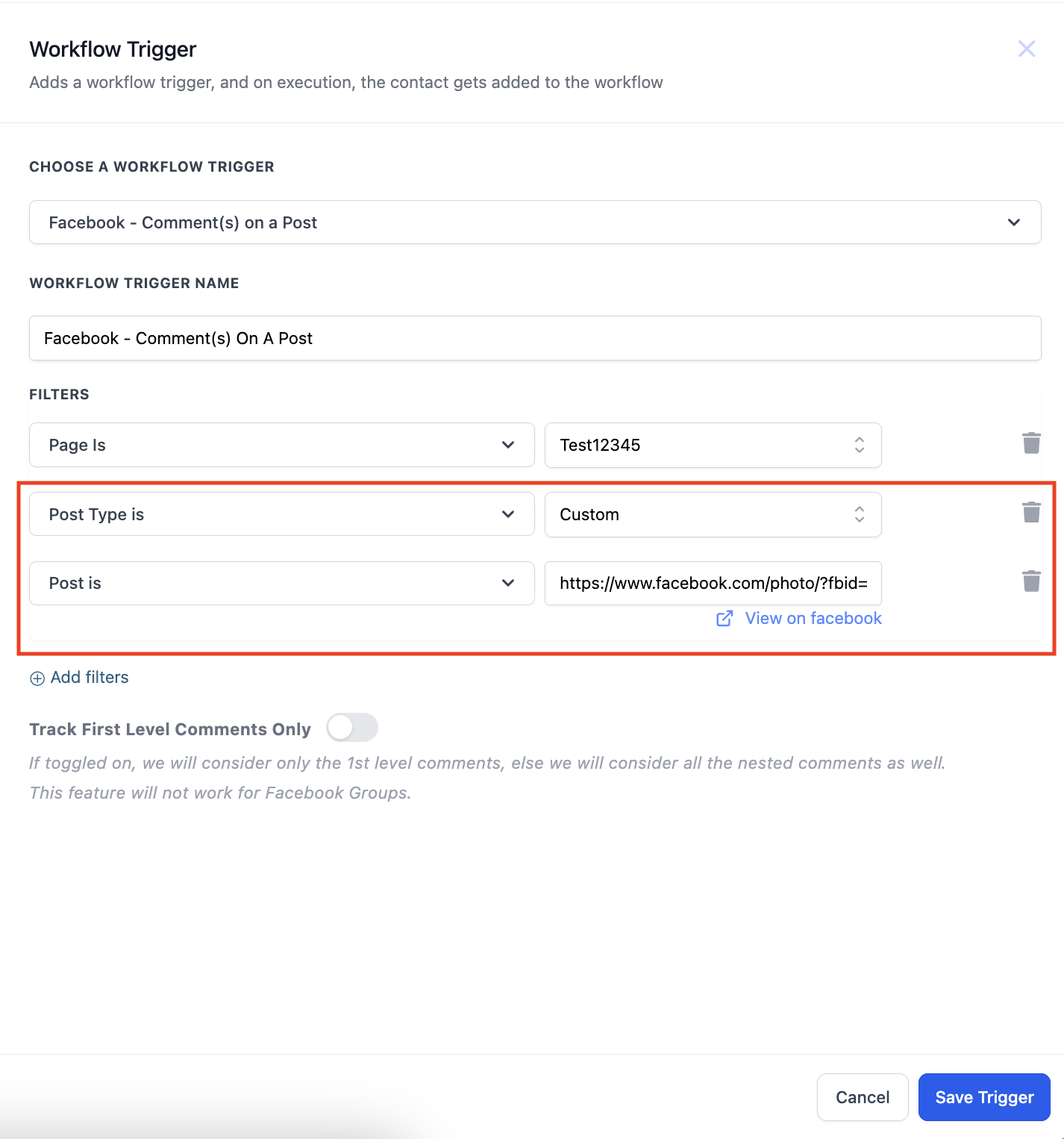
After selecting the Page you have to select the Post Type. Post type can be “Published” or “Custom”
a. Published Post –
‘Published Posts’ tab includes all posts on your business page – it could be text, photo, video or live video types of posts. You can also select the “View on Facebook” hyperlink to take you to the post.


b. Custom Post
‘Custom’ tab allows you to find and connect the post by entering the Facebook post’s URL or ID. Select Custom in Post type, add the “Post is” filter and paste the URL of the post in the field against Post is field.
4. Comment Phrase/Word
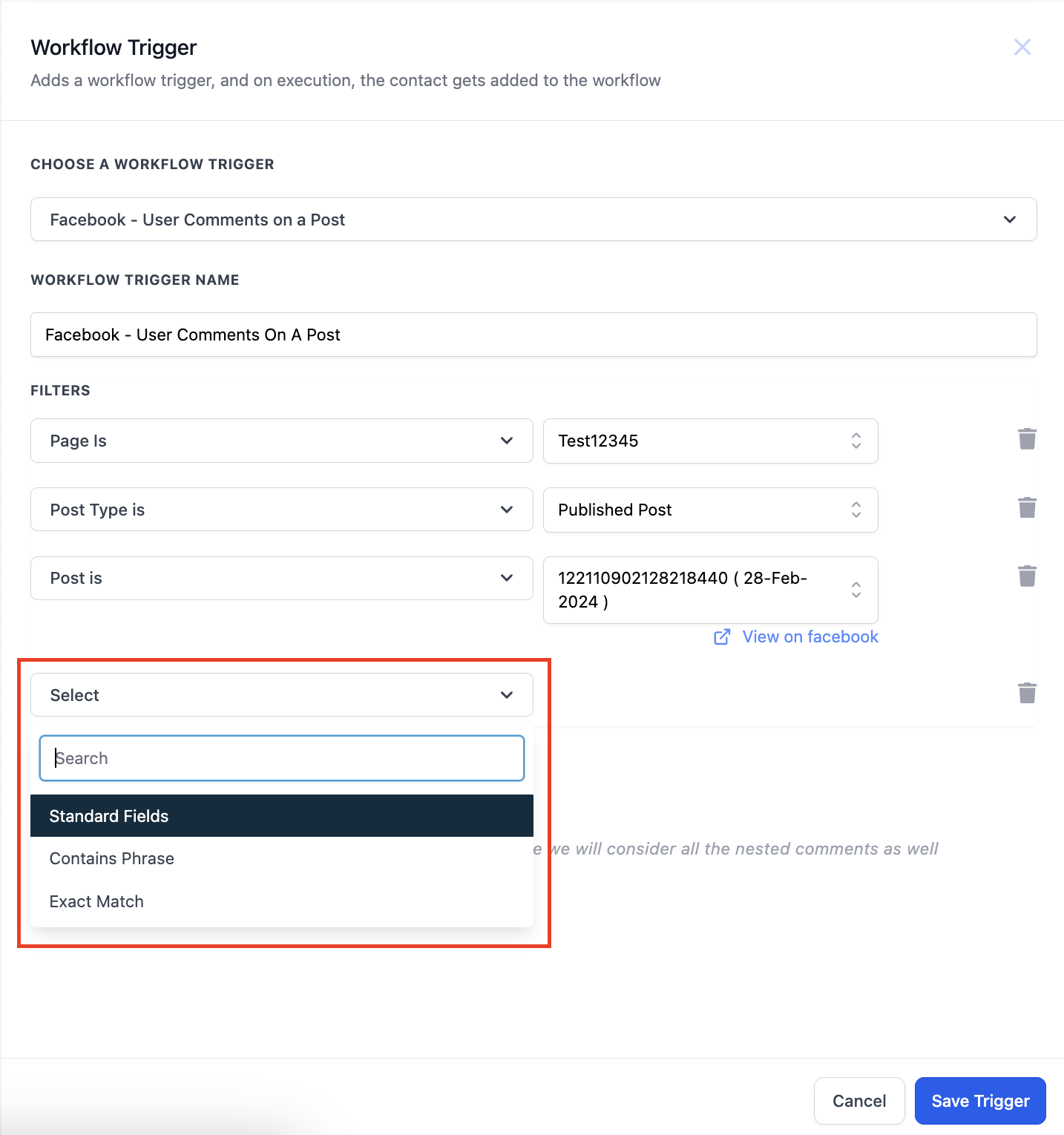
After selecting the post you have to enter what are you looking for in the comment. You can select from 2 options “Contains Phrase” and “Exact Match”. Below are some examples to understand these 2 dropdown better.
Exact Match – Price
Inbound message – Price
Result – Pass
Exact Match – Share the Price
Inbound message – Share the Price
Result – Pass
Exact Match – Share the Price
Inbound message – Please share the Price
Result – Fail
Contains Exact Phrase – I bought from you
Inbound message – I bought from you
Result – Pass
Contains Exact Phrase – I bought from you
Inbound message – I bought from you yesterday
Result – Pass
Contains Exact Phrase – I bought from you
Inbound message – I bought one from you
Result – Fail
5. Tracking first level comments
You can also use the toggle to turn on tracking of only first level comments. If this is turned on only first level of comments will trigger the workflow.