Adding GIFs to your emails can make them more engaging and fun. Here’s a simple guide to help you easily insert GIFs into your emails, making your messages stand out and grab attention.
Where can you add GIFs?
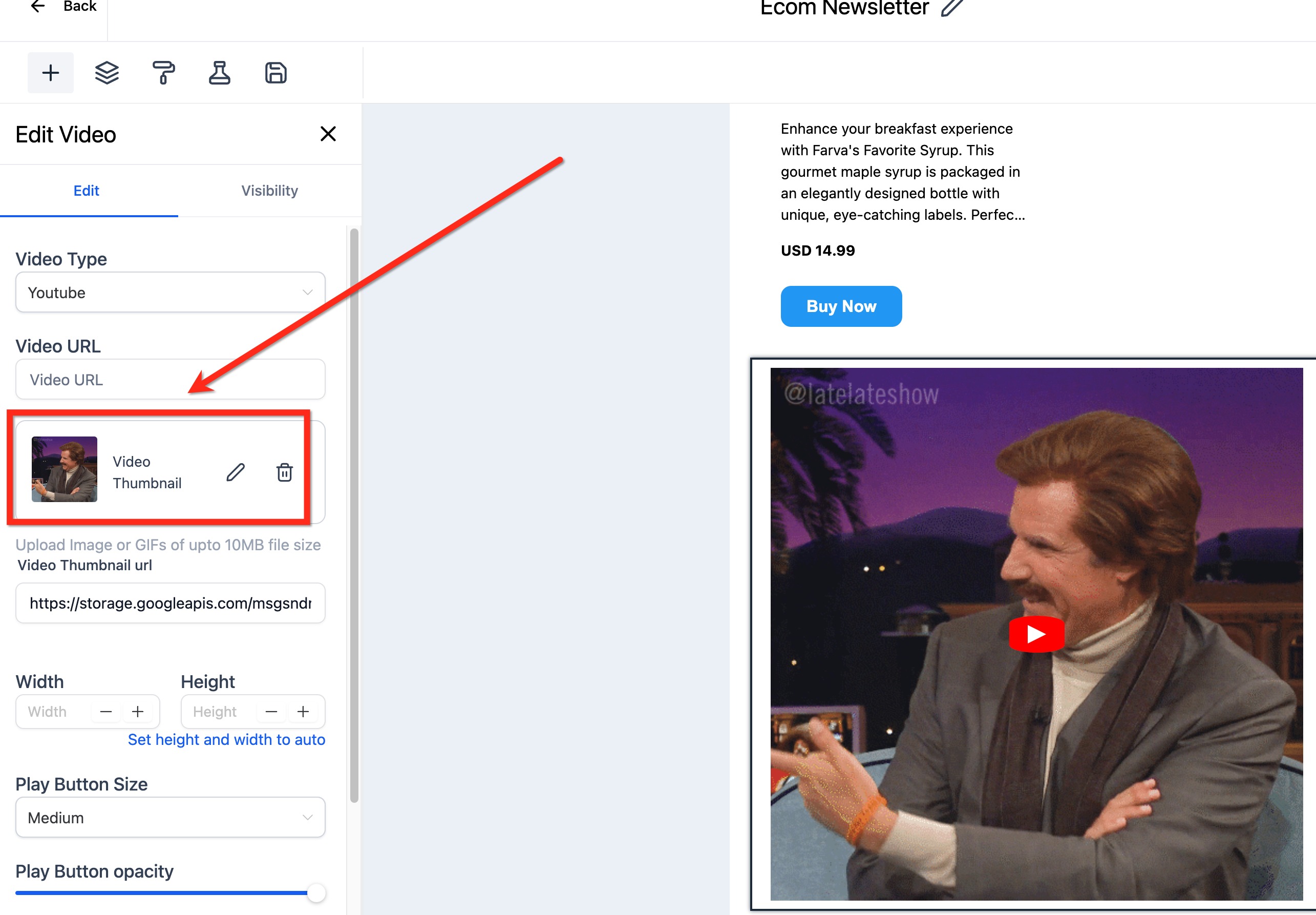
1. Video Thumbnails can have a GIF
2. You can also directly use an GIF similar to images
Steps to add GIFsto your email
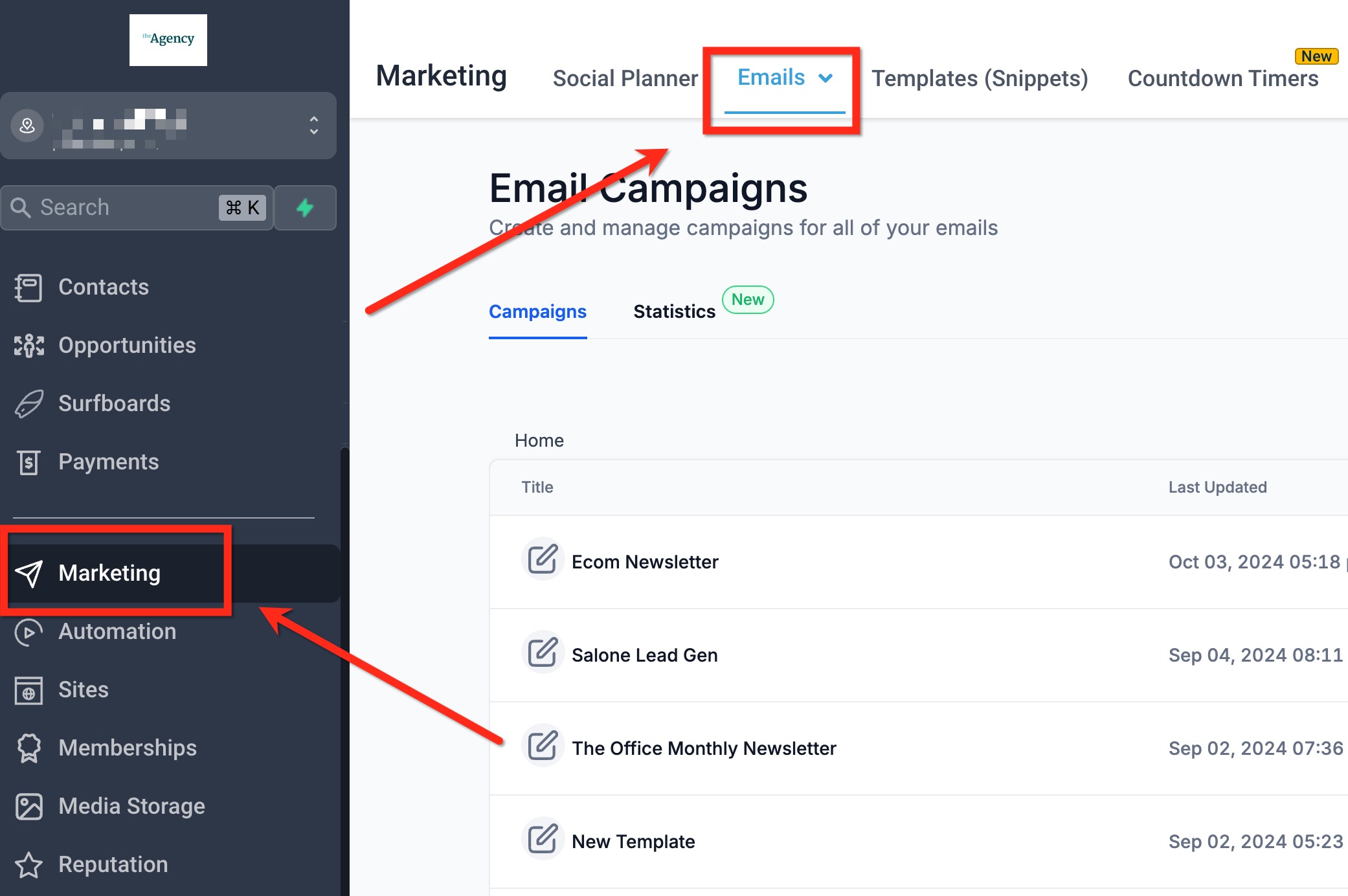
Step 1| Navigate to Marketing -> Email Marketing and open any campaign or template.
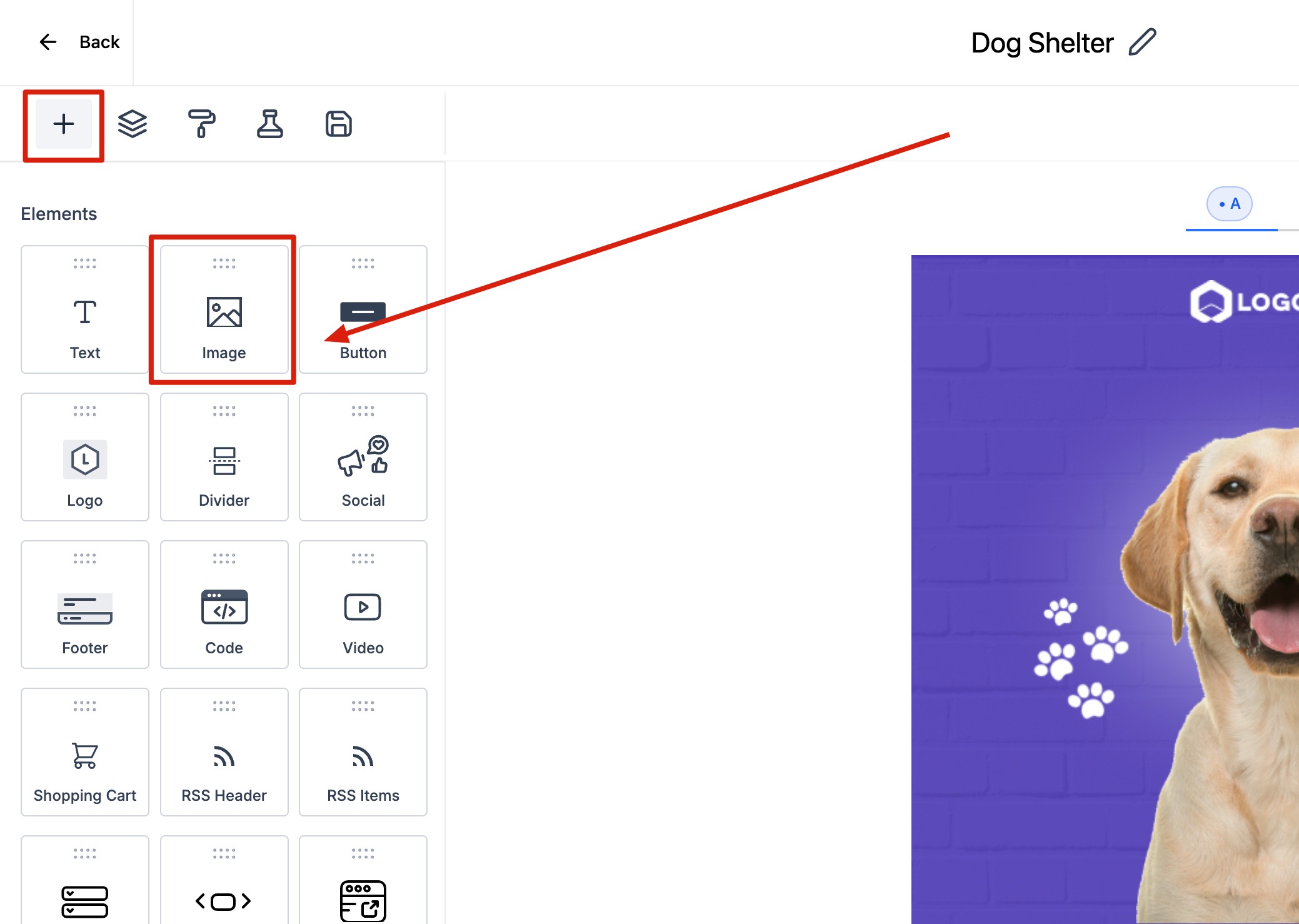
Step 2| Drag and drop the image element.
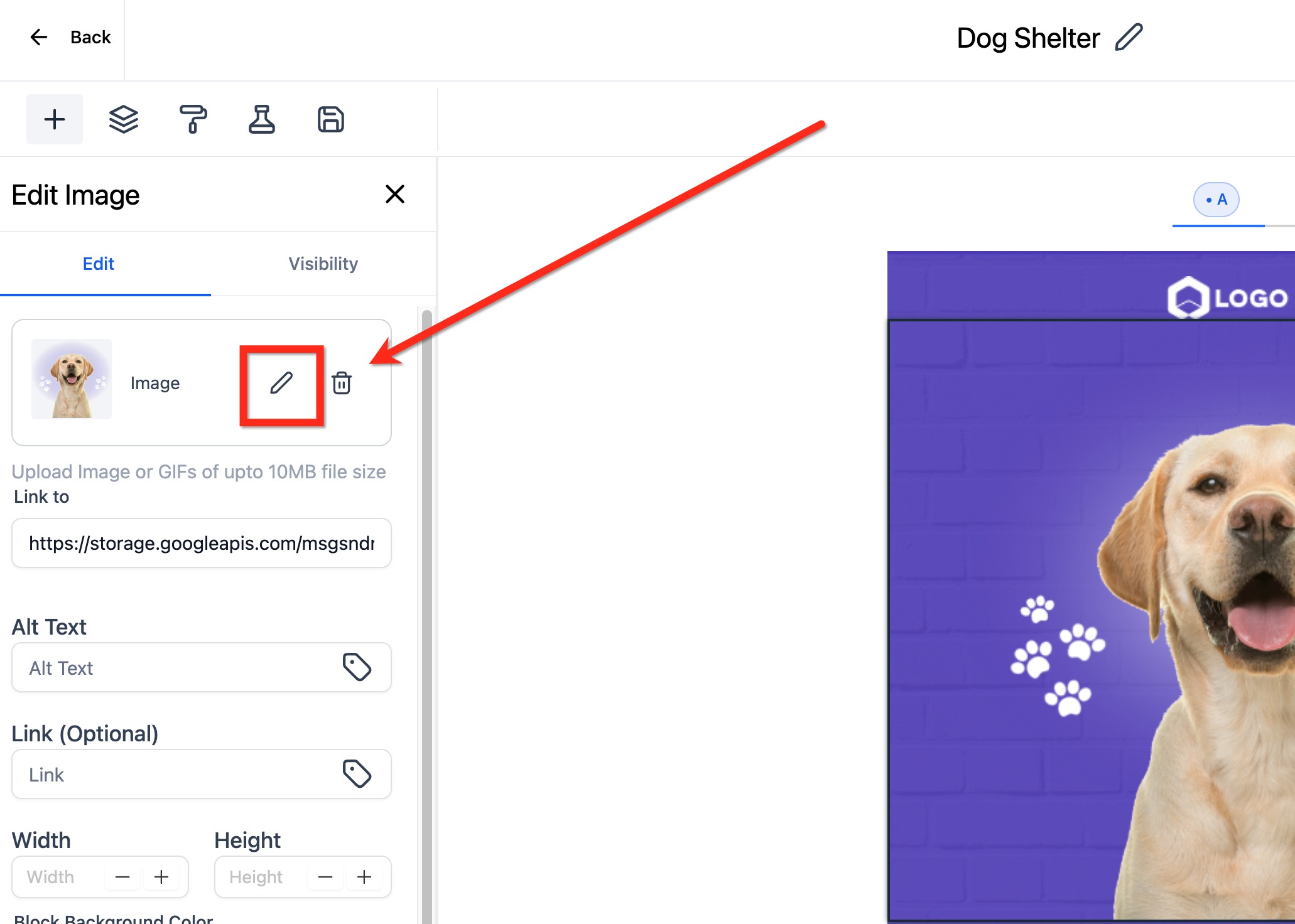
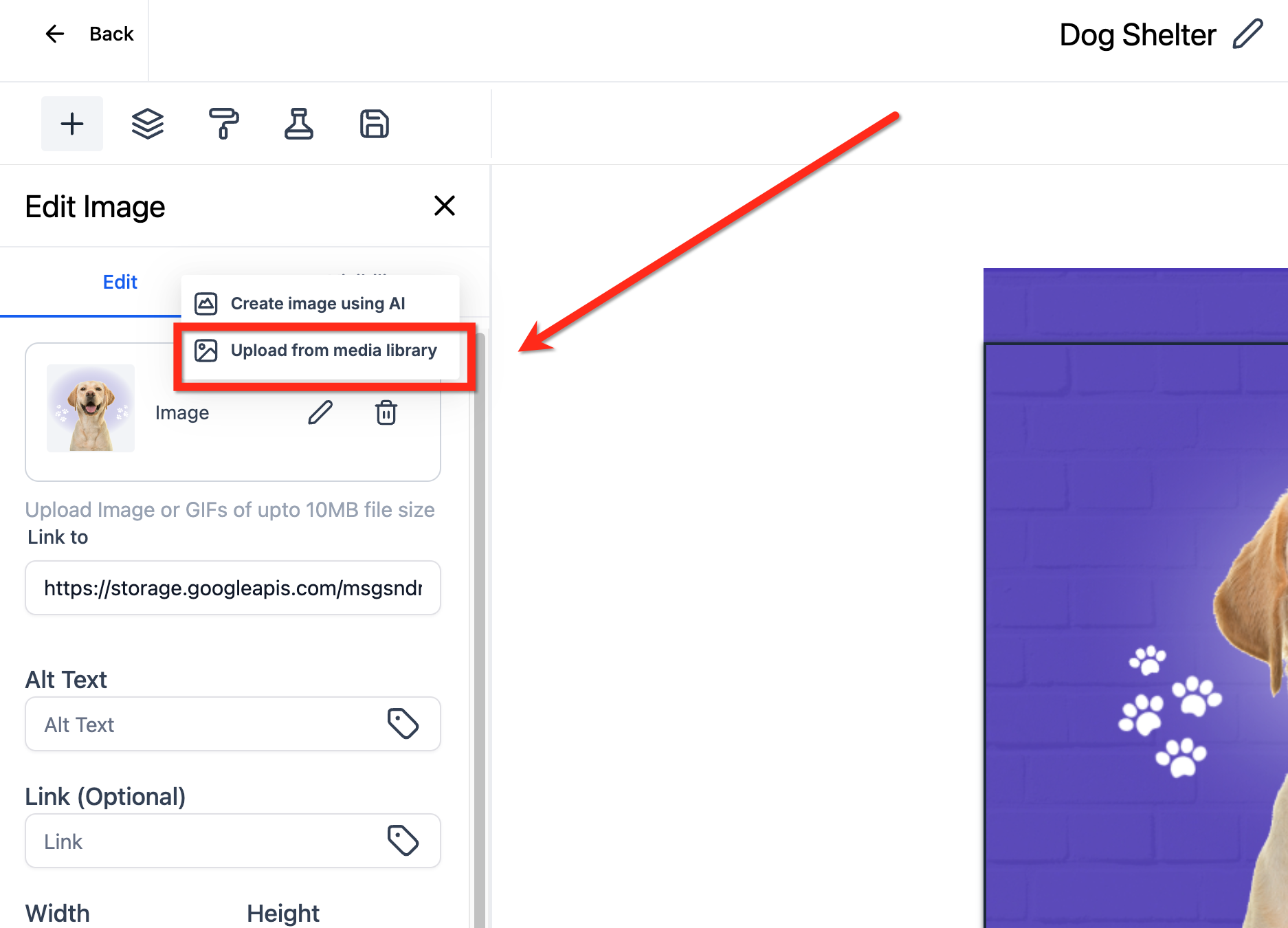
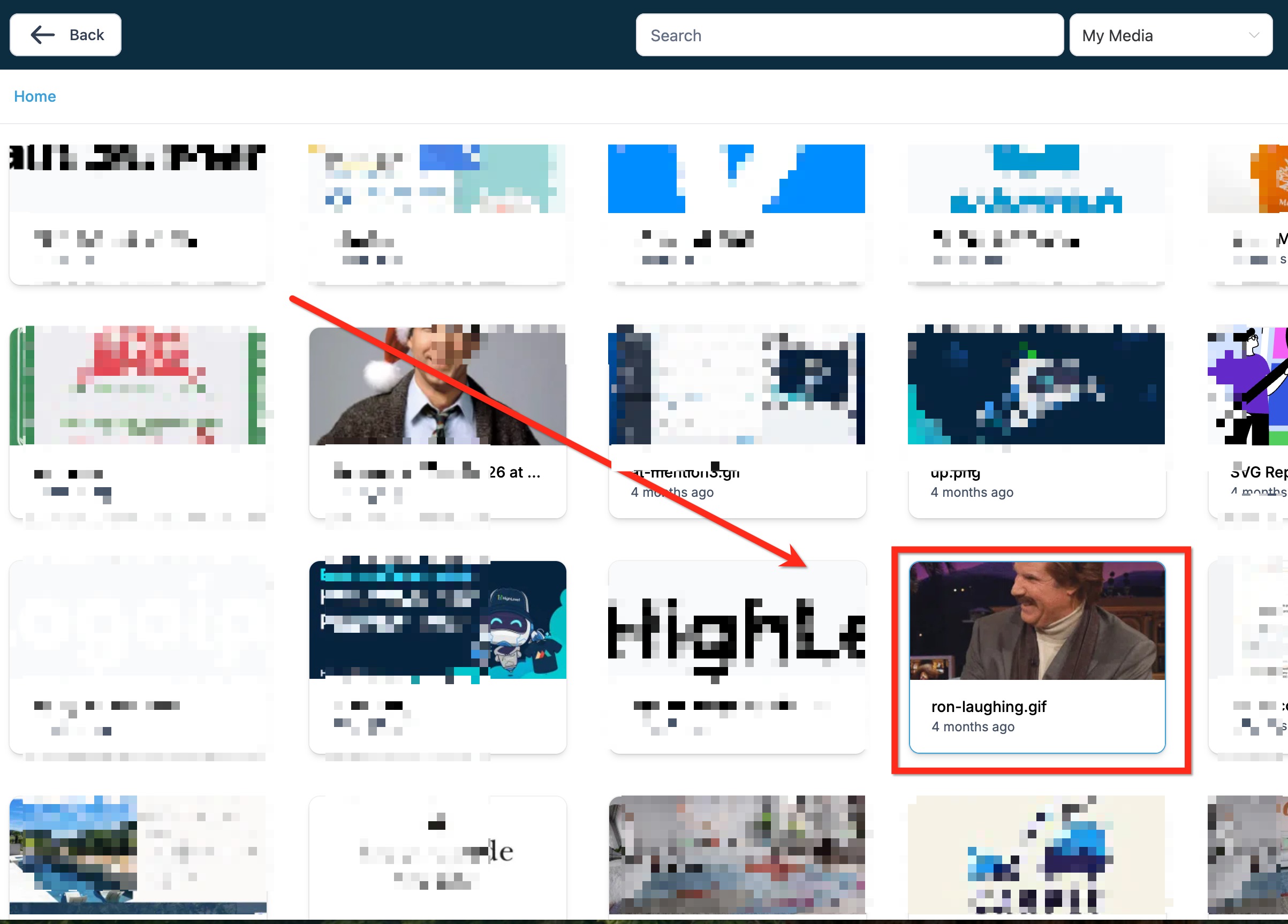
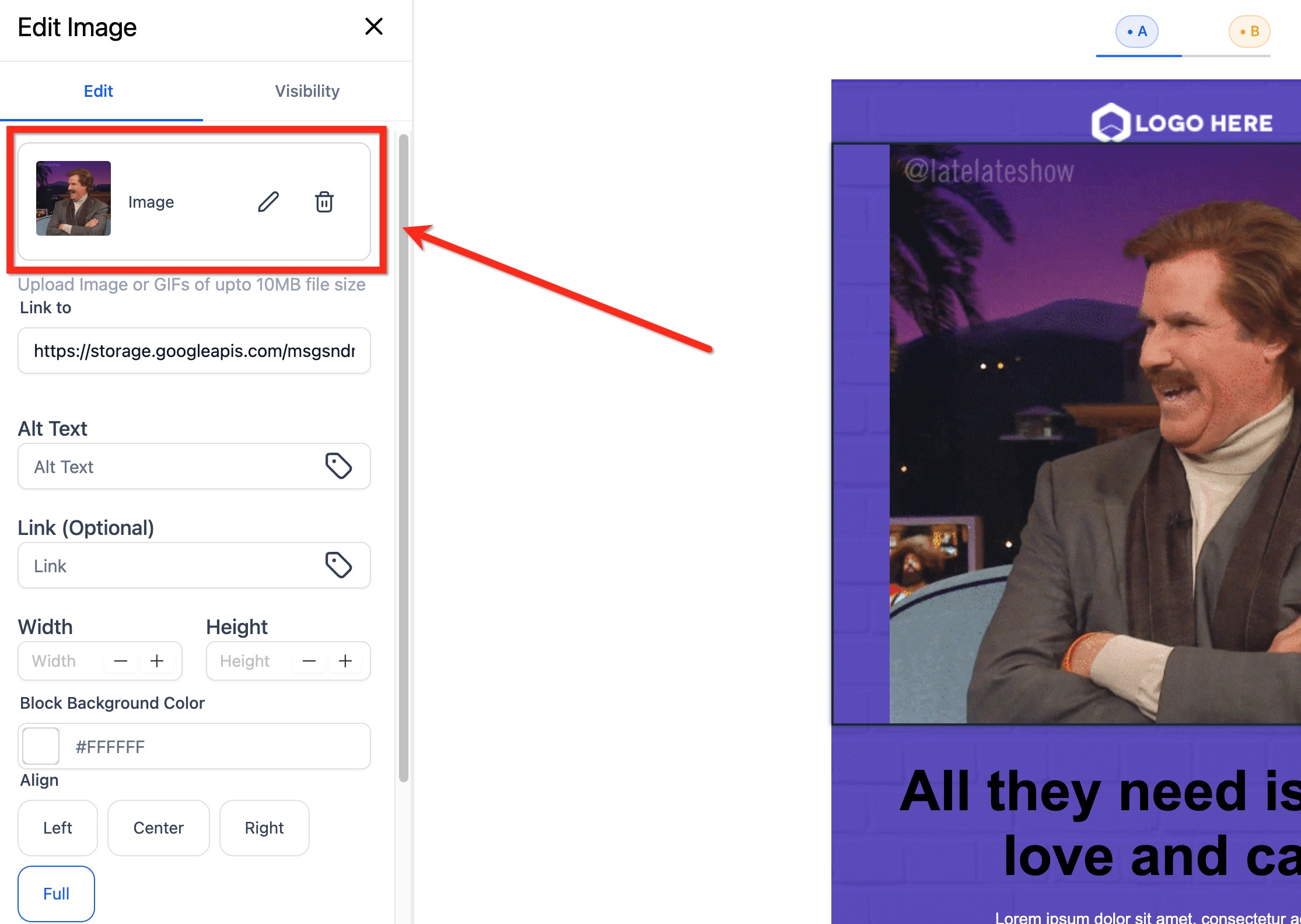
Step 3| Edit the Image and add a GIF file upto 10MB
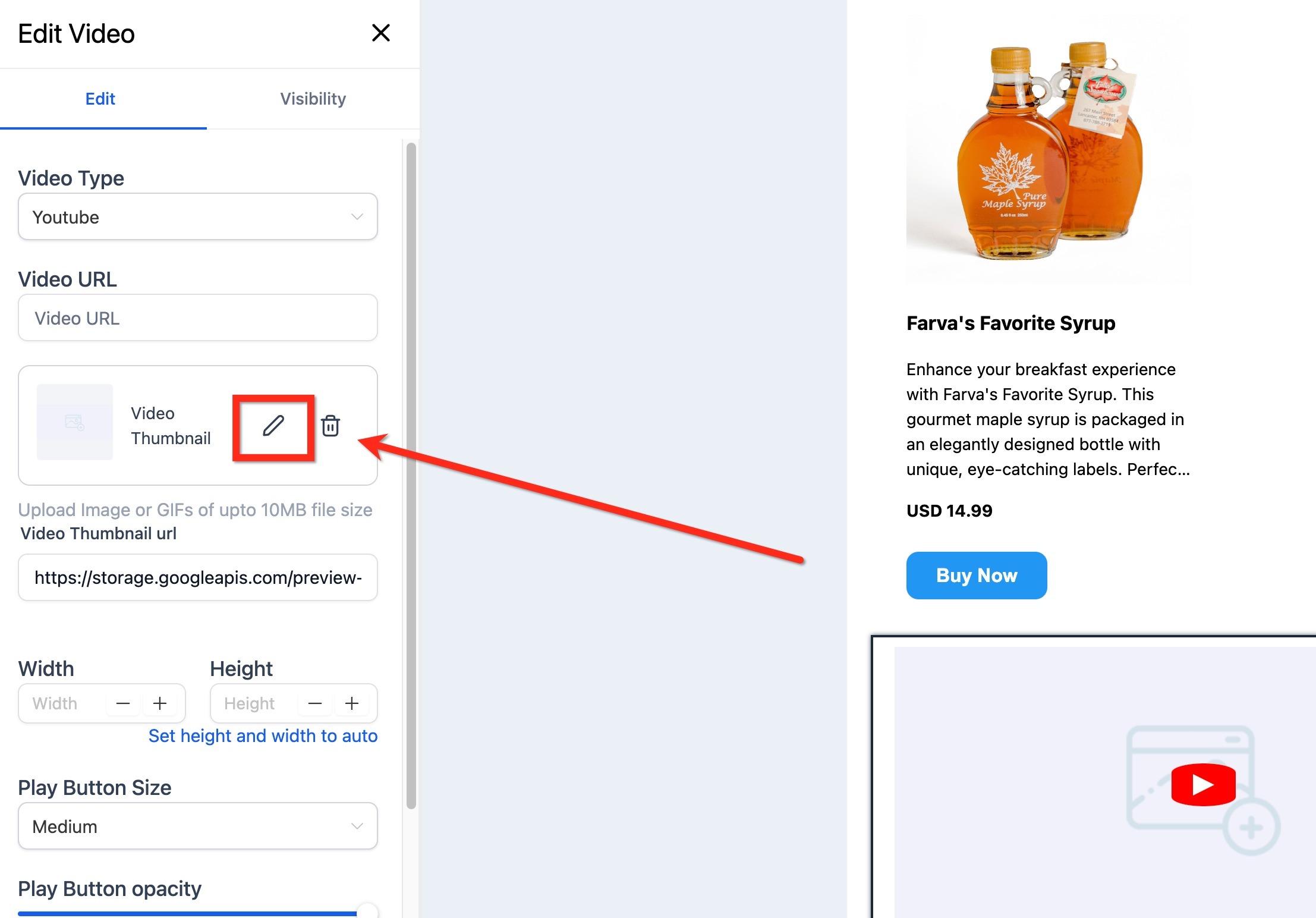
Step 2| Drag and drop the video element
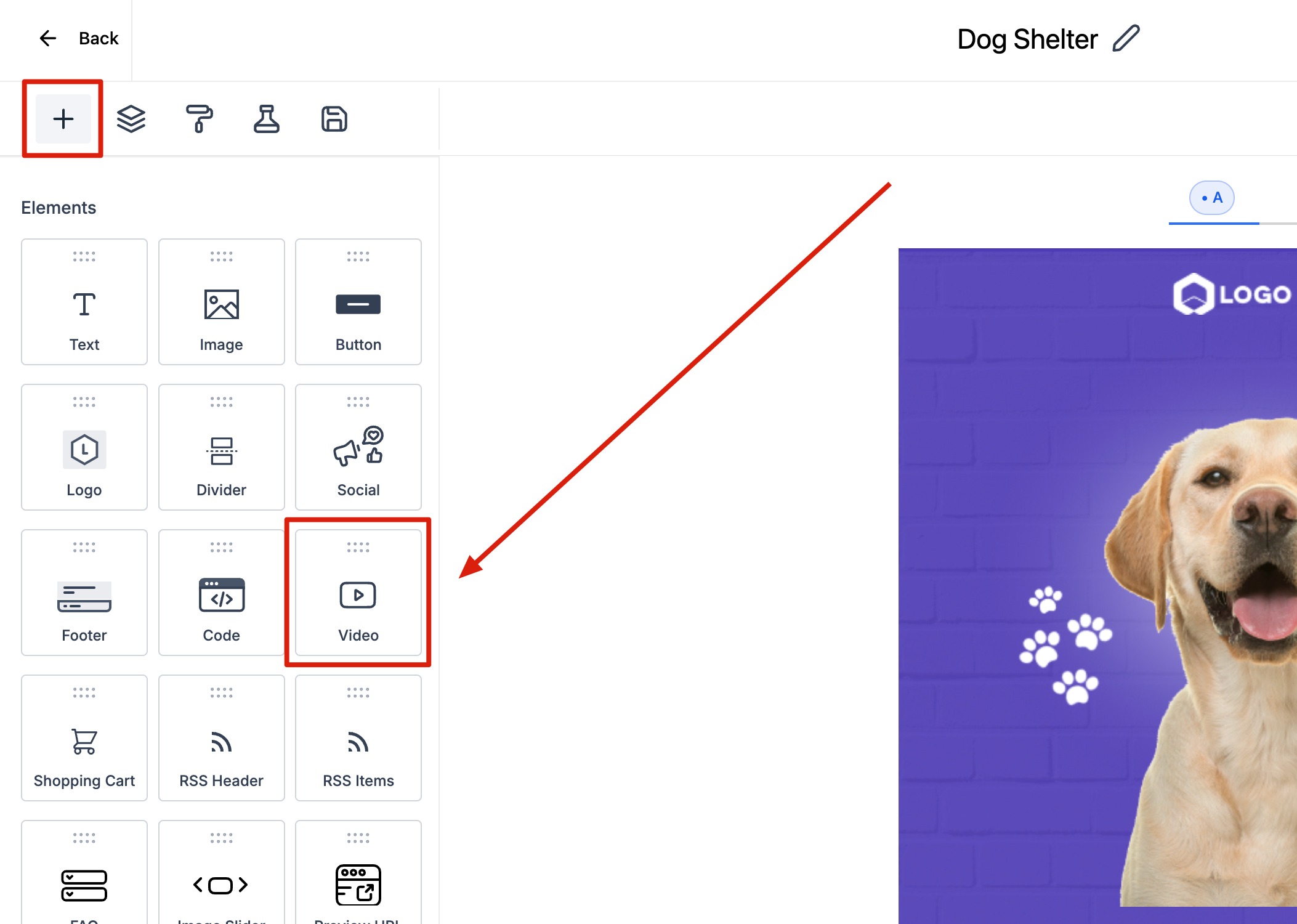
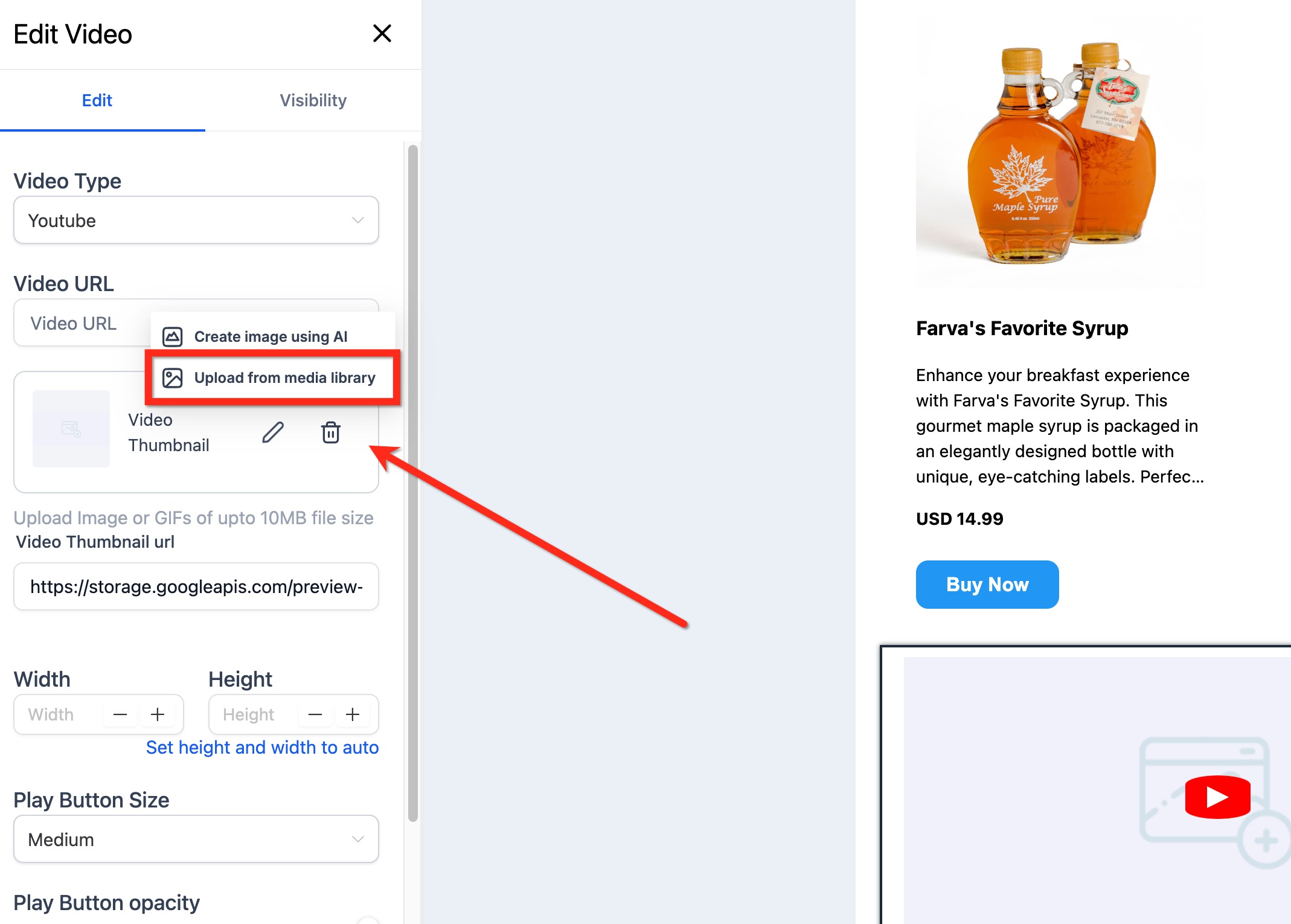
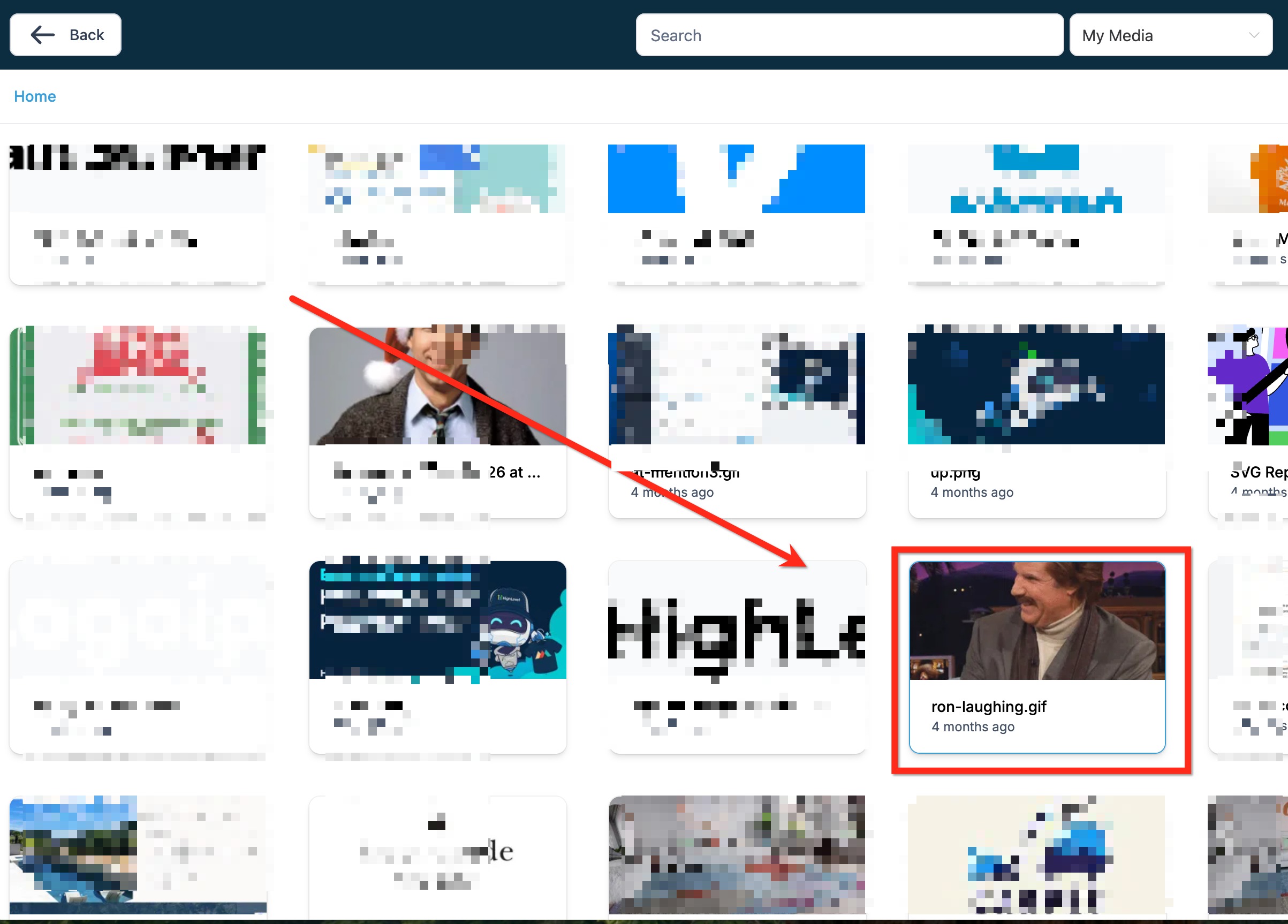
Step 3| Edit the video thumbnail to add a GIF file upto 10MB