

Gift Cards let you sell prepaid balances your customers can buy for themselves or send to others. You can sell via a dedicated checkout link, embed, QR code, or existing checkouts like Funnels, Forms, Stores, Websites, Payment Links, Invoices, and Calendars.
This article walks you through each selling method, what customers experience, and best practices for smooth delivery and redemption.
TABLE OF CONTENTS
- Overview of Selling Gift Cards
Overview of Selling Gift Cards
Selling Gift Cards is the process of offering a prepaid balance as a product. You can sell a gift card through its own checkout or by adding it to your existing selling workflows (Funnels, Forms, Stores, Websites, Payment Links, Invoices, and Calendars). This allows you to sell gift cards wherever your customers already buy!
When a customer completes a purchase, it creates a Gift Card Order and delivers the gift card based on the delivery option selected at checkout (immediate or scheduled). Each Gift Card includes:
-
A dedicated checkout link
-
An embed code
-
A QR code
-
The ability to be added to any checkout that supports product selection
Key Benefits of Selling Gift Cards
- Multiple Sales Channels: Sell via a dedicated link, embed, QR code, or existing checkouts for maximum reach.
- Gifting Built In: “Myself or Someone Else” flows make it simple to buy for others with scheduled delivery.
- Safe Testing & Rollout: Separate Test and Live links help you validate pricing, denominations, and flows without affecting real balances.
- Immediate Cash Flow: Collect revenue before redemption occurs.
- Brand-Aligned Design: Upload custom artwork and choose gradients to create gift cards that match your branding.
Prerequisites
Confirm these items to ensure a smooth launch process! Before you can sell gift cards, make sure you have:
- At least one Gift Card Product is created and active
- Before selling gift cards, you must first create and activate at least one gift card. This can be done within Payments → Gift Cards → Create Gift Card.
- A connected payment method
- You must have a payment method setup in order to collect payments when selling gift cards.
Test Mode vs Live Mode
Test Mode is a safe sandbox with separate checkout links and payment keys. Use it to simulate purchases, validate pricing/taxes, check inventory behavior, preview delivery messages, and test redemption. Live Mode is for real transactions.
Gift cards purchased in:
- Test Mode → redeemable only in test mode checkouts
- Live Mode → redeemable only in live mode checkouts
Supported Channels
See every surface where Gift Cards can be sold and click the links below to jump directly to the setup steps for each. Choose one or combine multiple sales channels to match your strategy!
- Dedicated Checkout Link: a standalone page for each Gift Card product.
- Embed Code: place the checkout directly on a website page.
- QR Code: ideal for in‑person or print; opens the dedicated checkout link.
- Existing Checkouts: add the Gift Card as a product to:
Selling Gift Cards Using the Dedicated Checkout Link
The dedicated checkout link is a standalone purchase page that comes with every Gift Card product. It’s the fastest way to start selling, perfect for sharing in emails, SMS, social posts, or as a button on your website, without building a funnel or form. Each Gift Card Product has its own unique checkout link in both Test and Live modes.
How to Access the Dedicated Checkout Link to Sell Gift Cards
Use these steps to grab the Live Dedicated Checkout Link you can share with customers right away.
Step 1: Navigate to Gift Cards
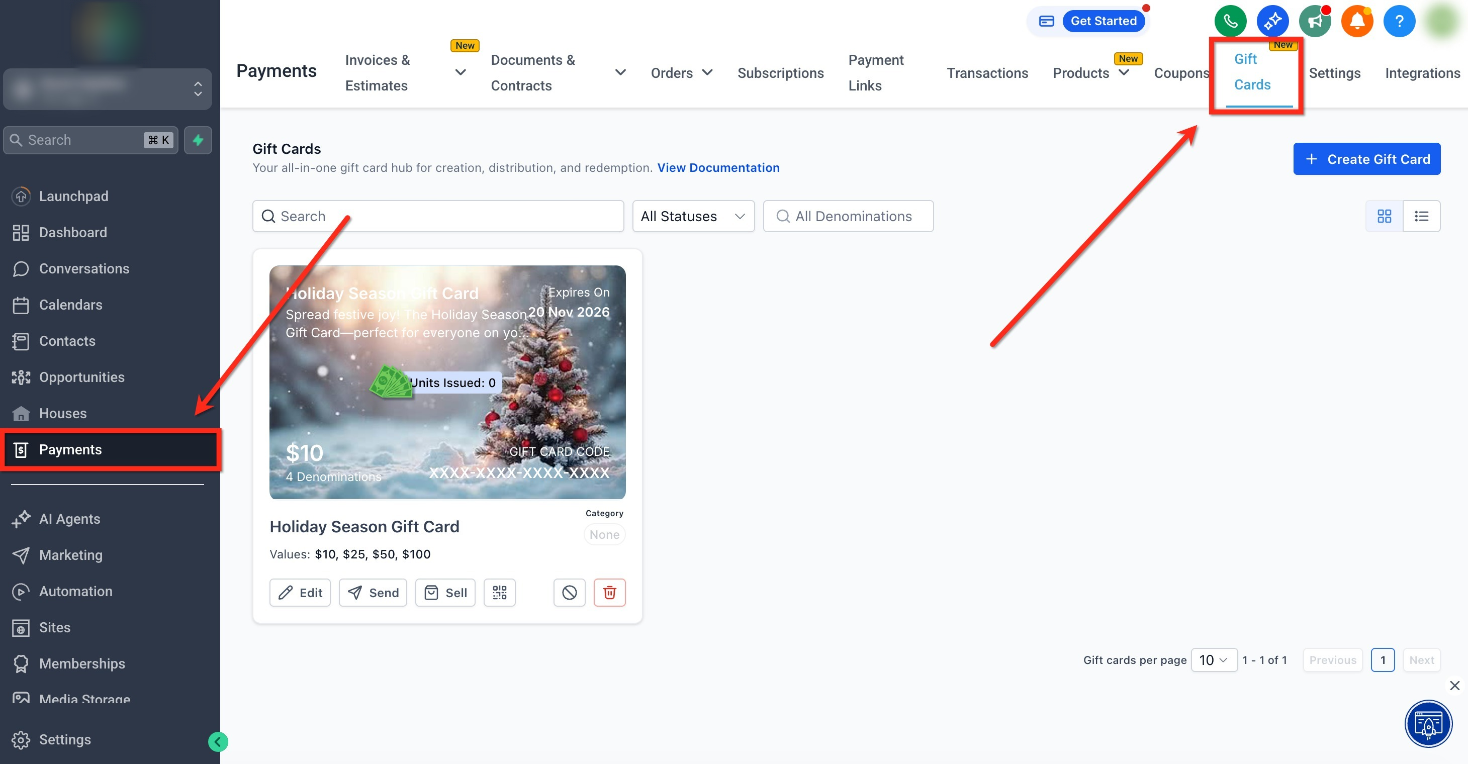
In the left menu, click the Payments tab. Then in the top ribbon, click Gift Cards to open the Gift Cards dashboard.
Step 2: Choose a Gift Card
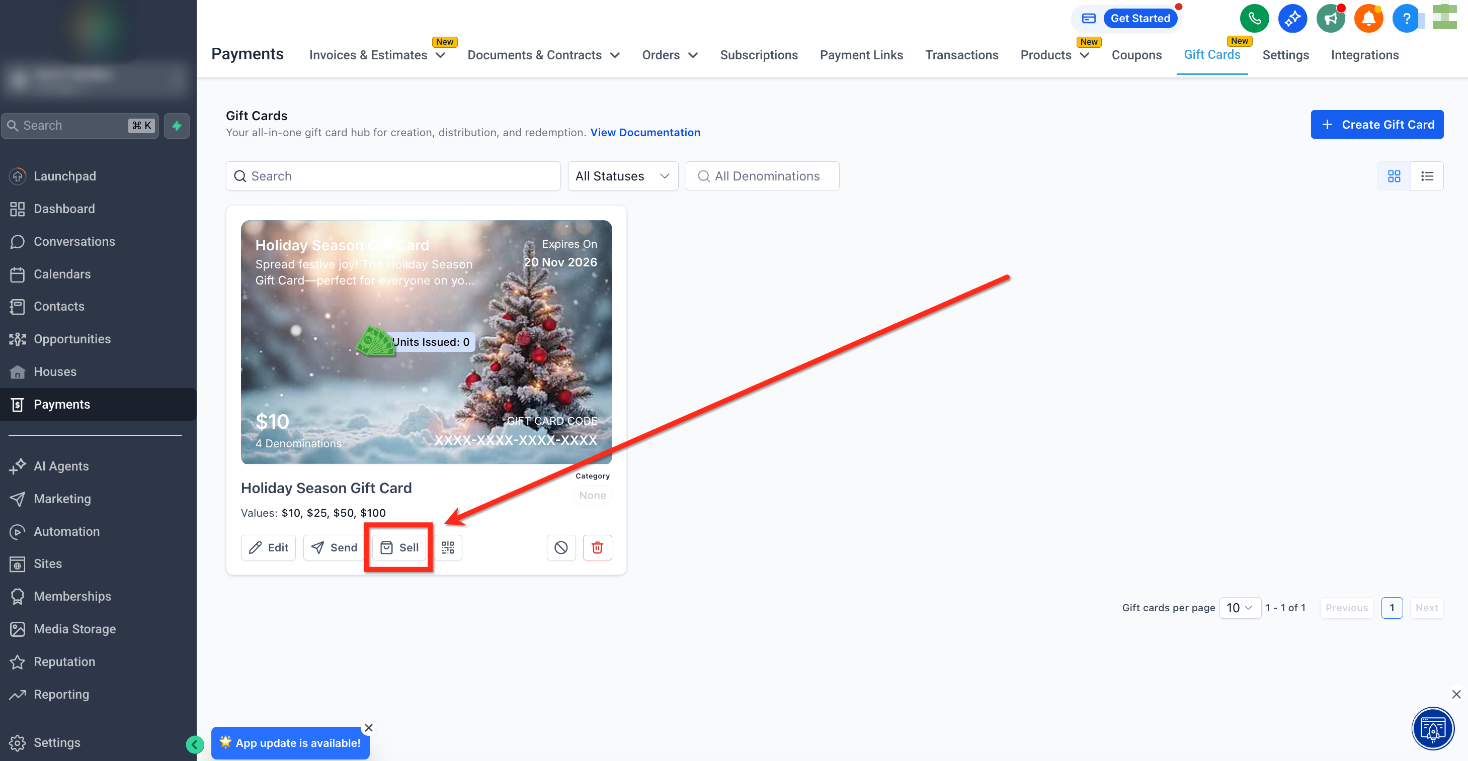
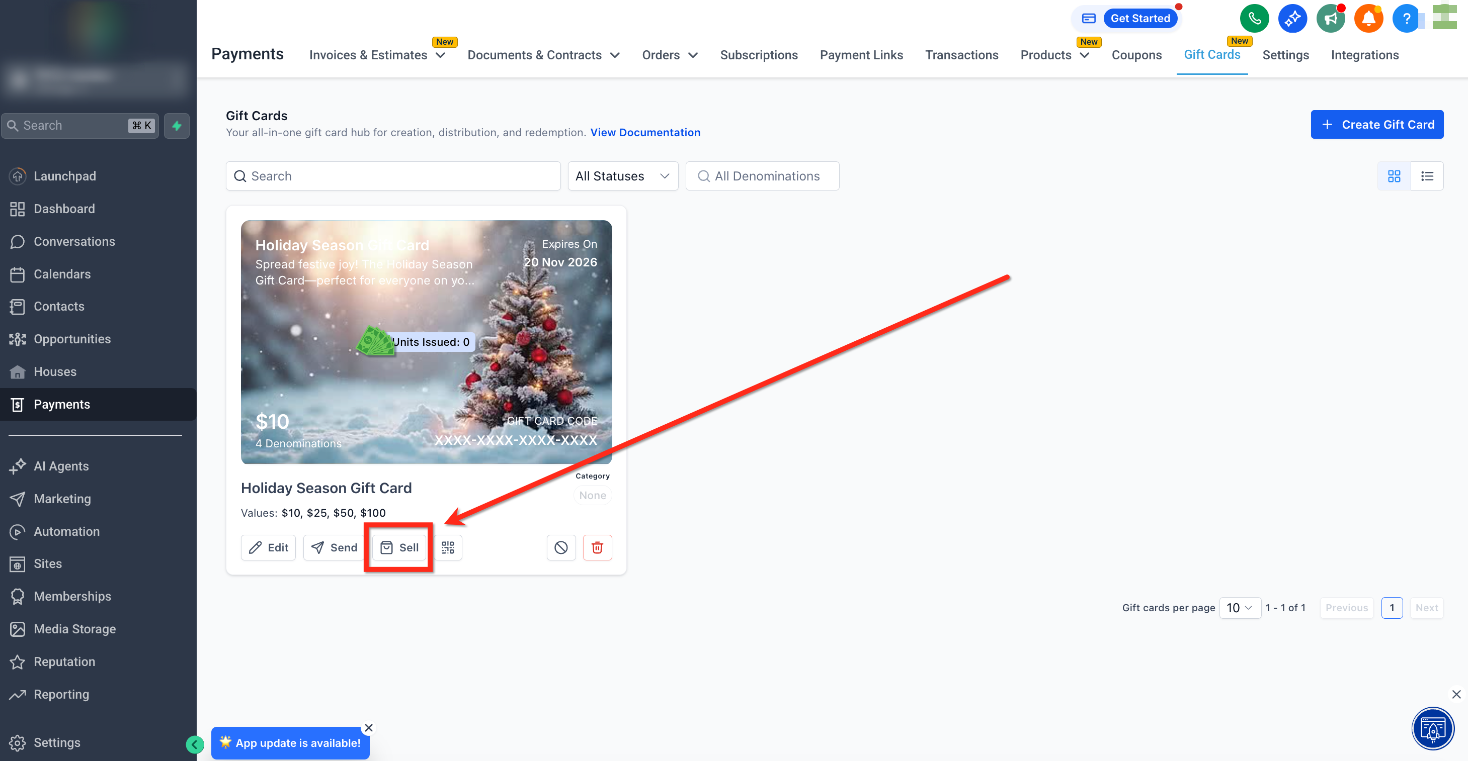
Locate your card you would like to open the Dedicated Checkout Link for. On the Gift Card tile, click Sell.
Step 3: Copy Dedicated Checkout Link
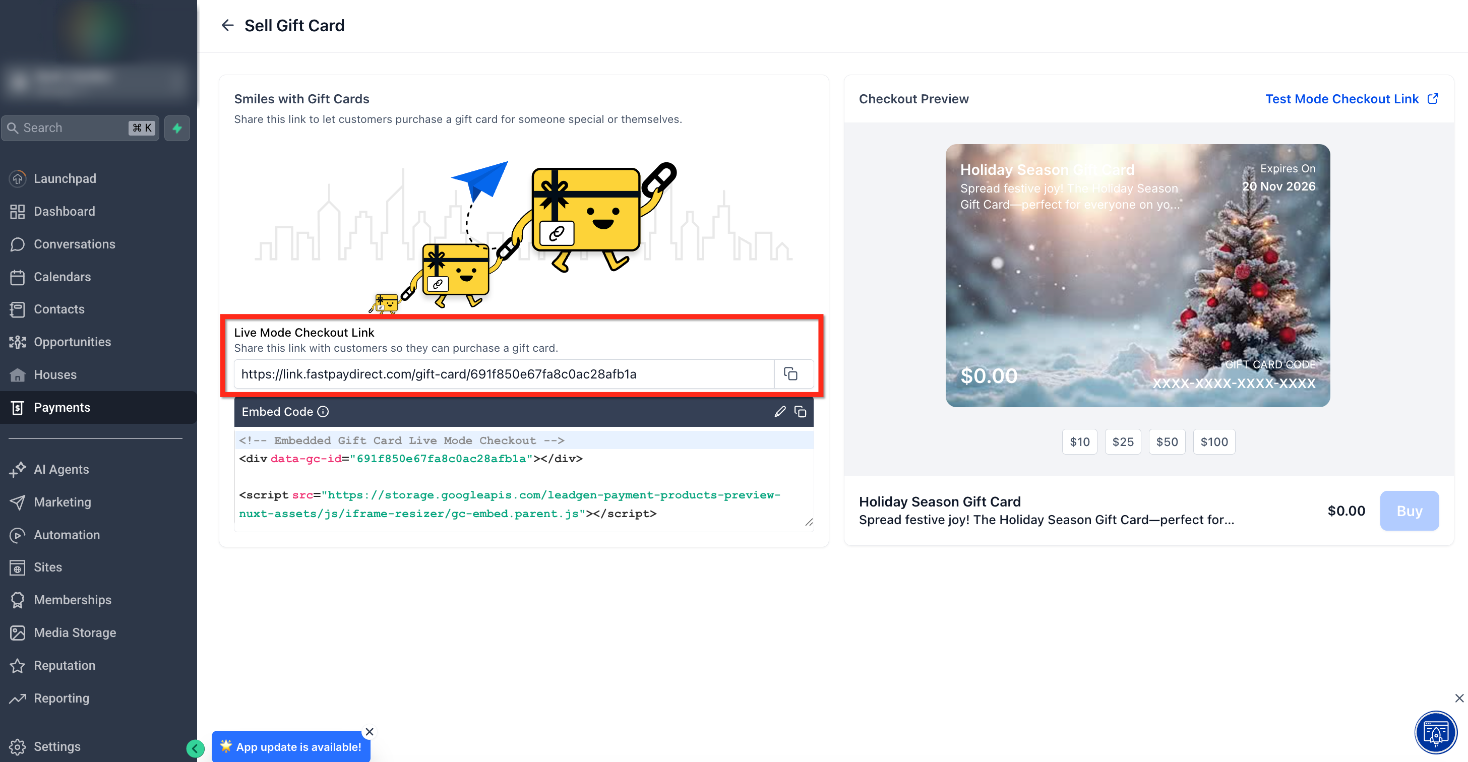
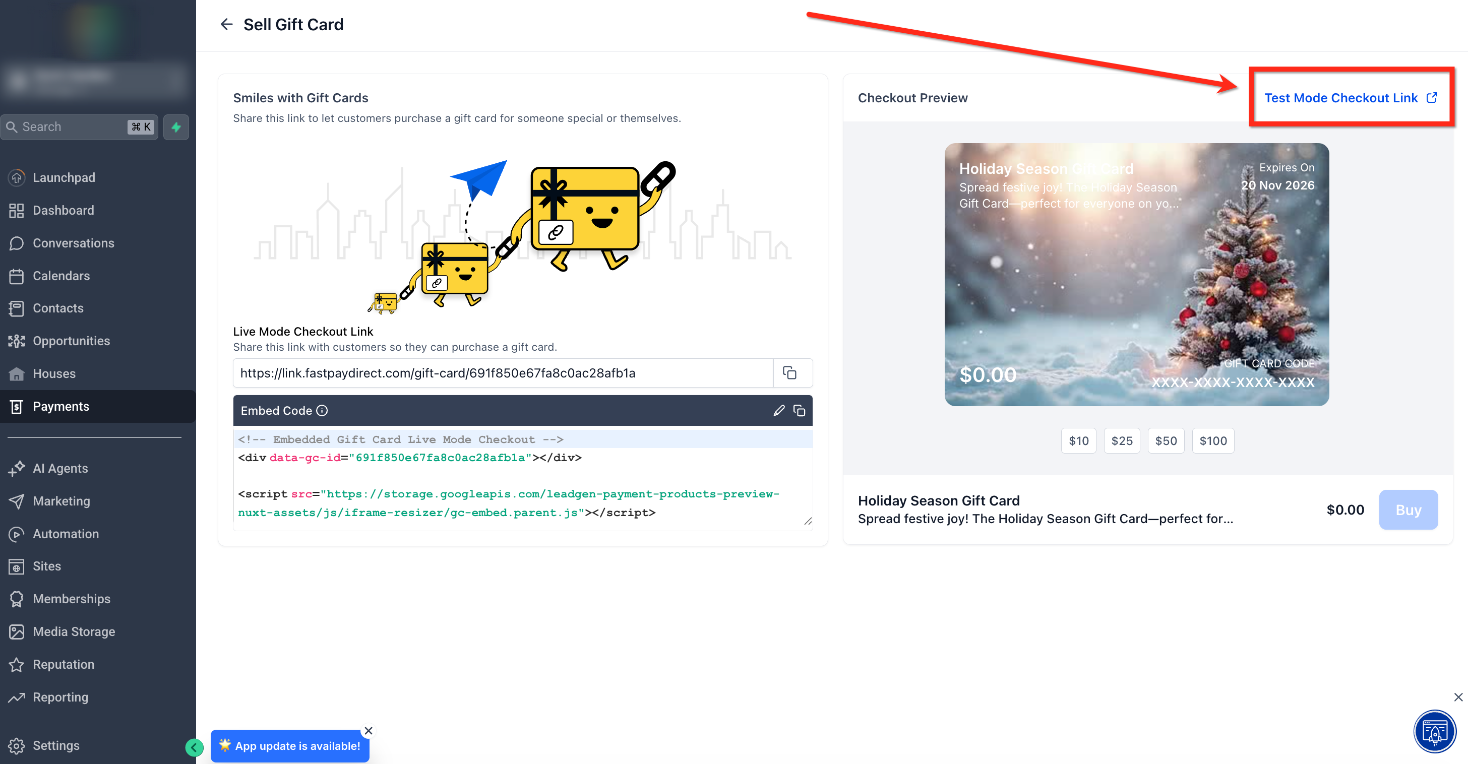
Click the Copy icon to copy the Live Mode Checkout Link to your clipboard. Share this link with your customers so they can purchase the gift card
How to Access the ‘Test’ Link to Sell ‘Test’ Gift Cards
Use these steps to copy a Test link for internal QA without affecting real balances.
Step 1: Navigate to Gift Cards
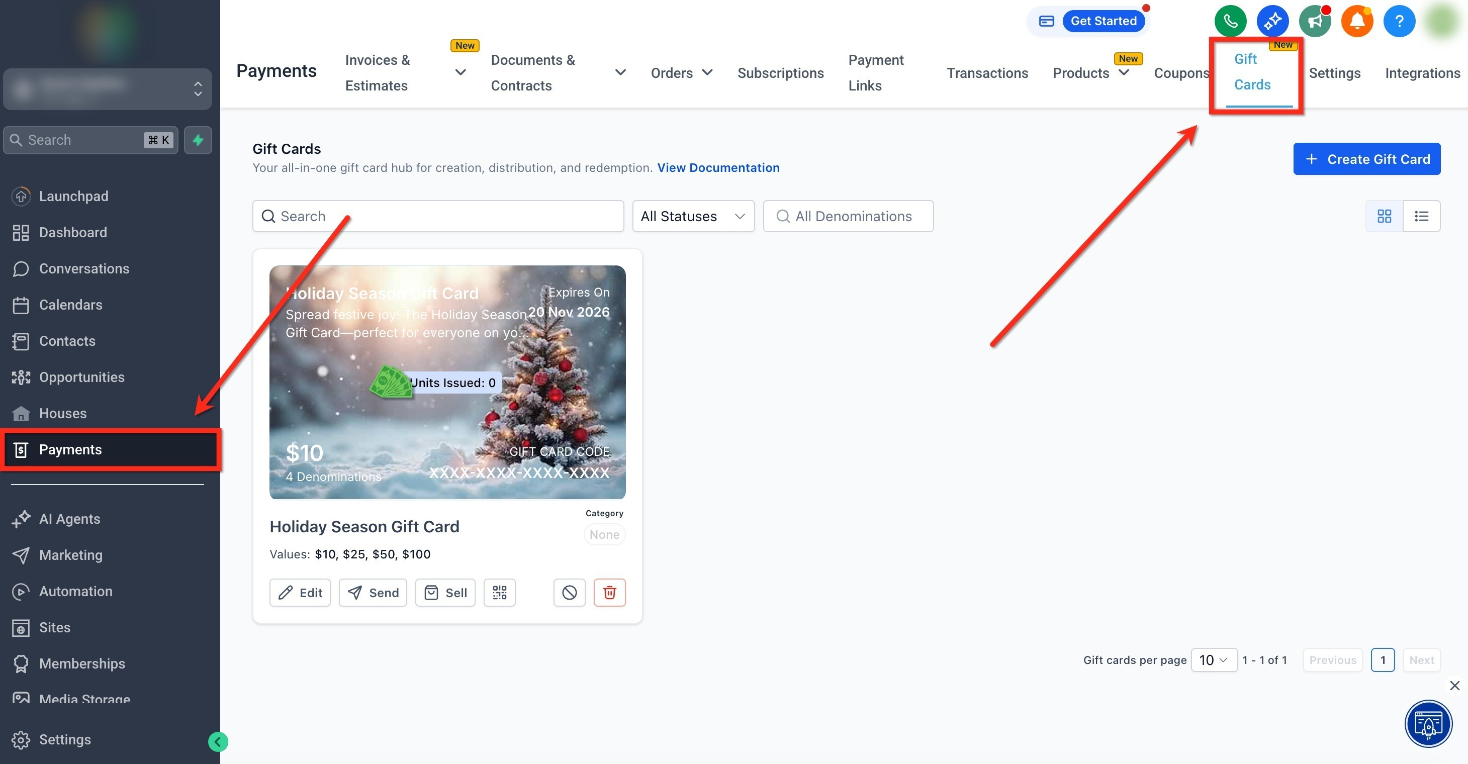
In the left menu, click the Payments tab. Then in the top ribbon, click Gift Cards to open the Gift Cards dashboard.
Step 2: Choose a Gift Card
Locate your card you would like to open the Dedicated Checkout Link for. On the Gift Card tile, click Sell.
Step 3: Click Test Mode Checkout Link
Click Test Mode Checkout Link in the upper-right corner to open the Test Mode Checkout Link. This link can be used for internal testing!
Customer Experience in the Dedicated Checkout Link
This summary describes the flow that buyers will go through when purchasing a gift card using the Dedicated Purchase Link.
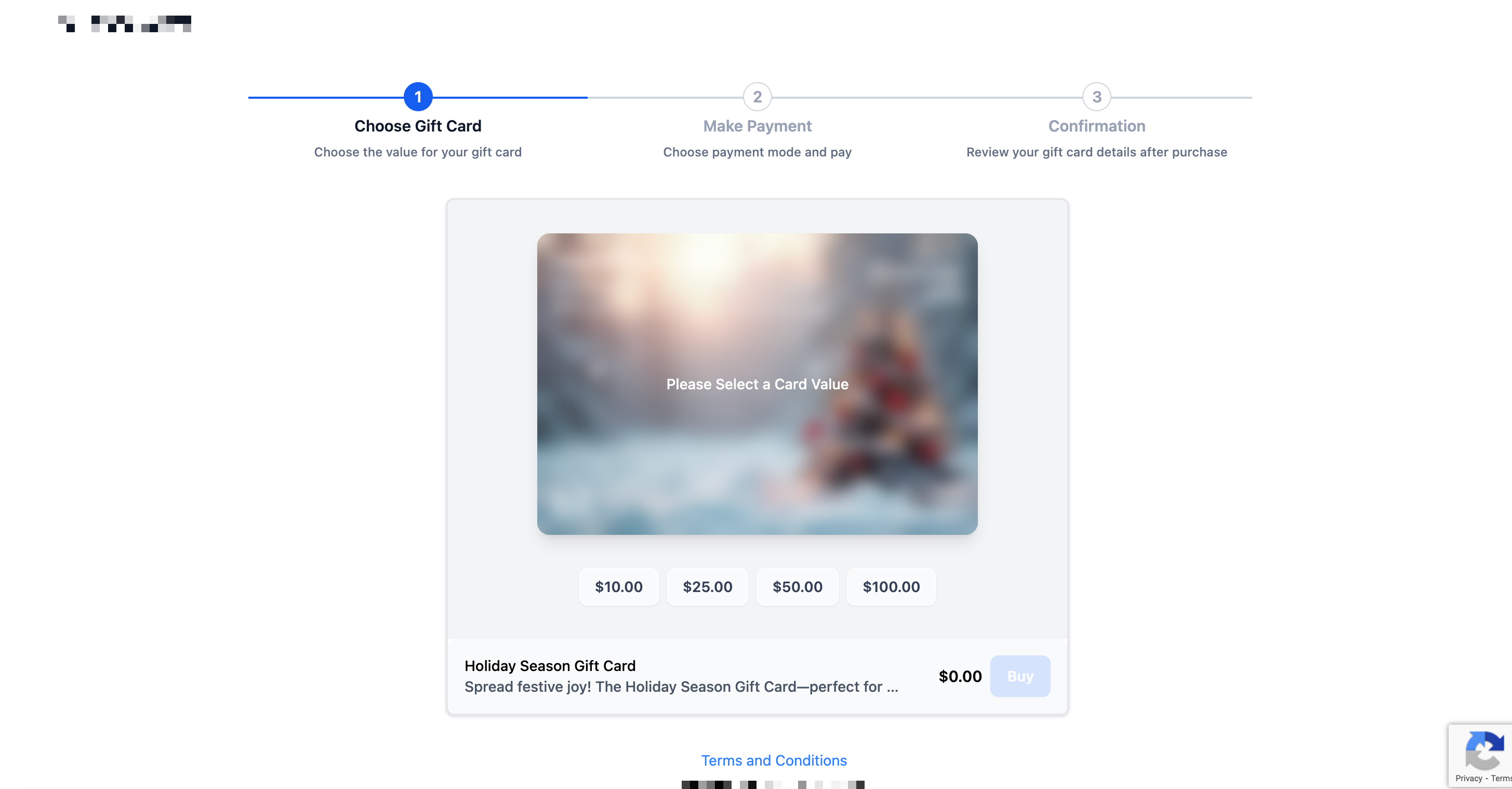
Step 1: Select a Denomination
The buyer selects one of the available values (e.g., $10, $25, $50, $100).
Step 2: Select Who the Gift Card is For
The buyer chooses who the gift card is for by selecting Myself or Someone Else
- If the gift is for someone else: the checkout collects the recipient’s name and email, plus the sender’s name and email.
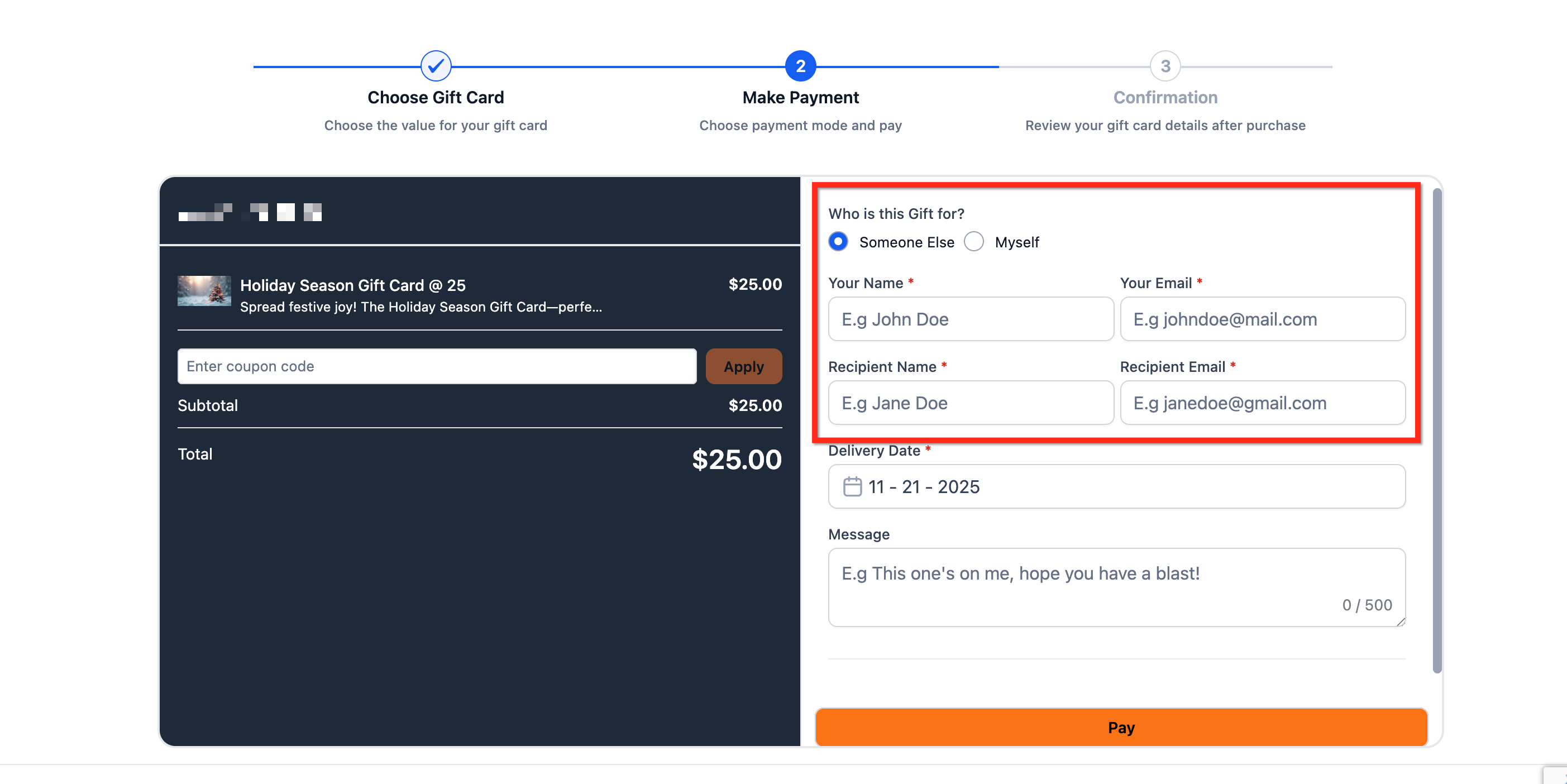
- If the gift is for myself: the checkout collects the buyers name and email.
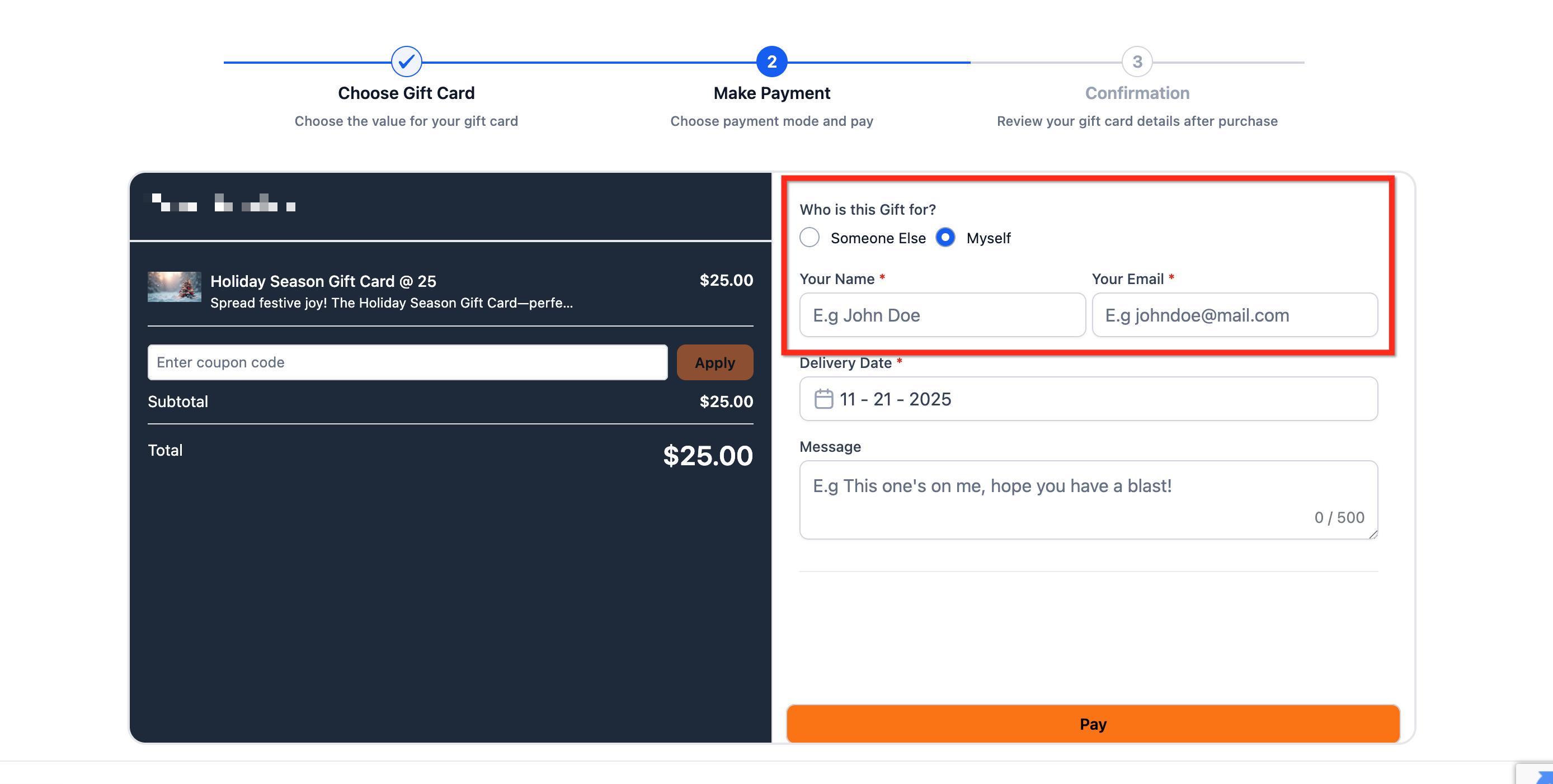
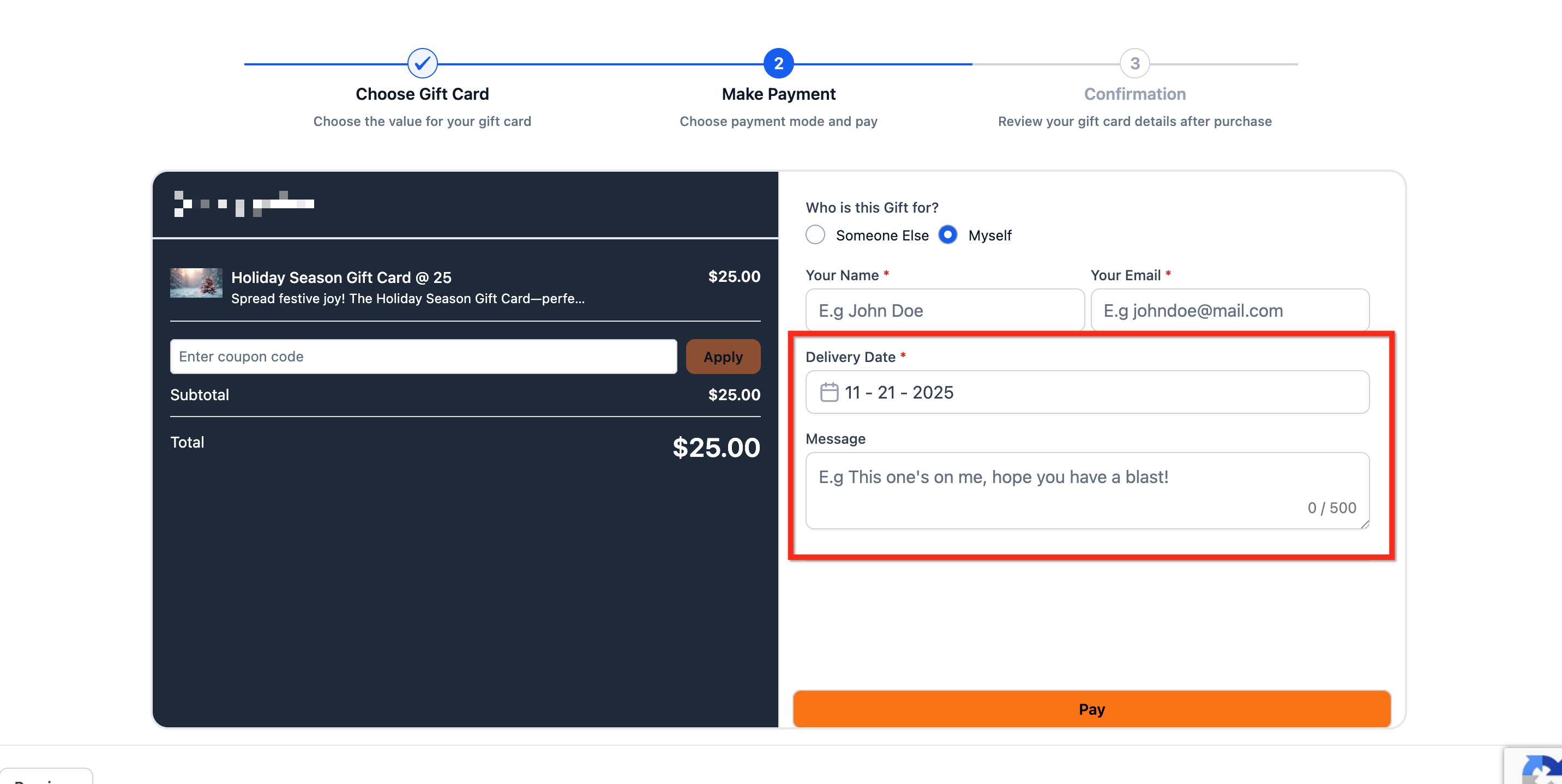
Step 3: Add Delivery Date
Choose Deliver Now (immediate) or Schedule for later and pick a date (and time, if shown).
Add an optional message for the recipient.
Important: Scheduled gift cards are only sent later but if the code is accessed and used on any checkout for redemption, it will allow to be redeemed
Step 4: Complete Payment & Confirmation
The buyer selects an available payment method and clicks Pay.
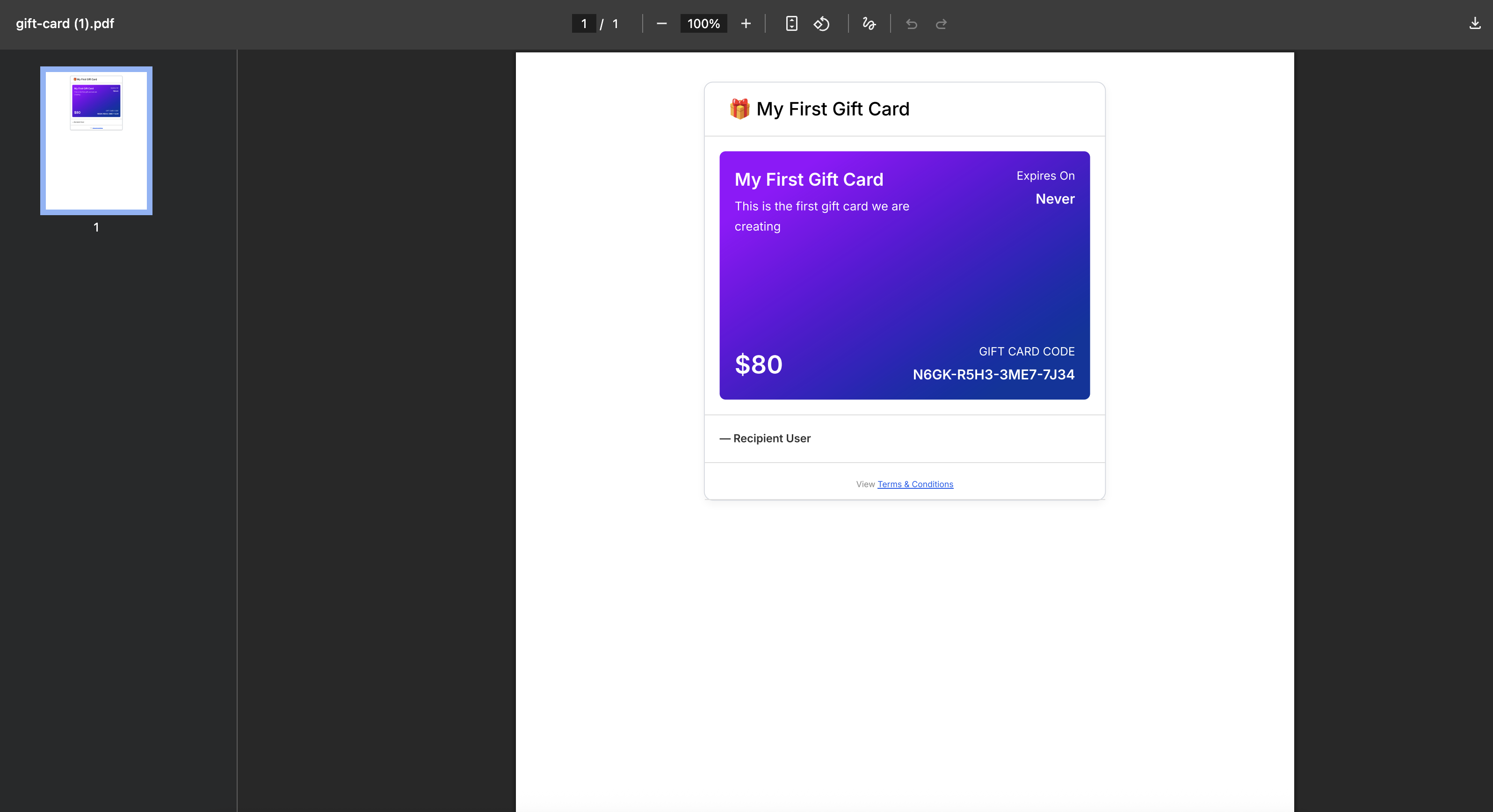
Once payment is confirmed, the buyer is able to download the gift card from this screen.

Step 5: Delivery
If buying for someone else, the recipient receives the gift card via email at the chosen time (immediate or at a scheduled date)
Selling Gift Cards Using the Embed Code
Add the dedicated checkout to any external webpage without custom development! Once embedded, customers can browse gift cards and complete purchases without leaving your website. This code can be embedded into:
- WordPress websites
- HTML landing pages
- Blog pages
- Custom portals
- Link-in-bio pages
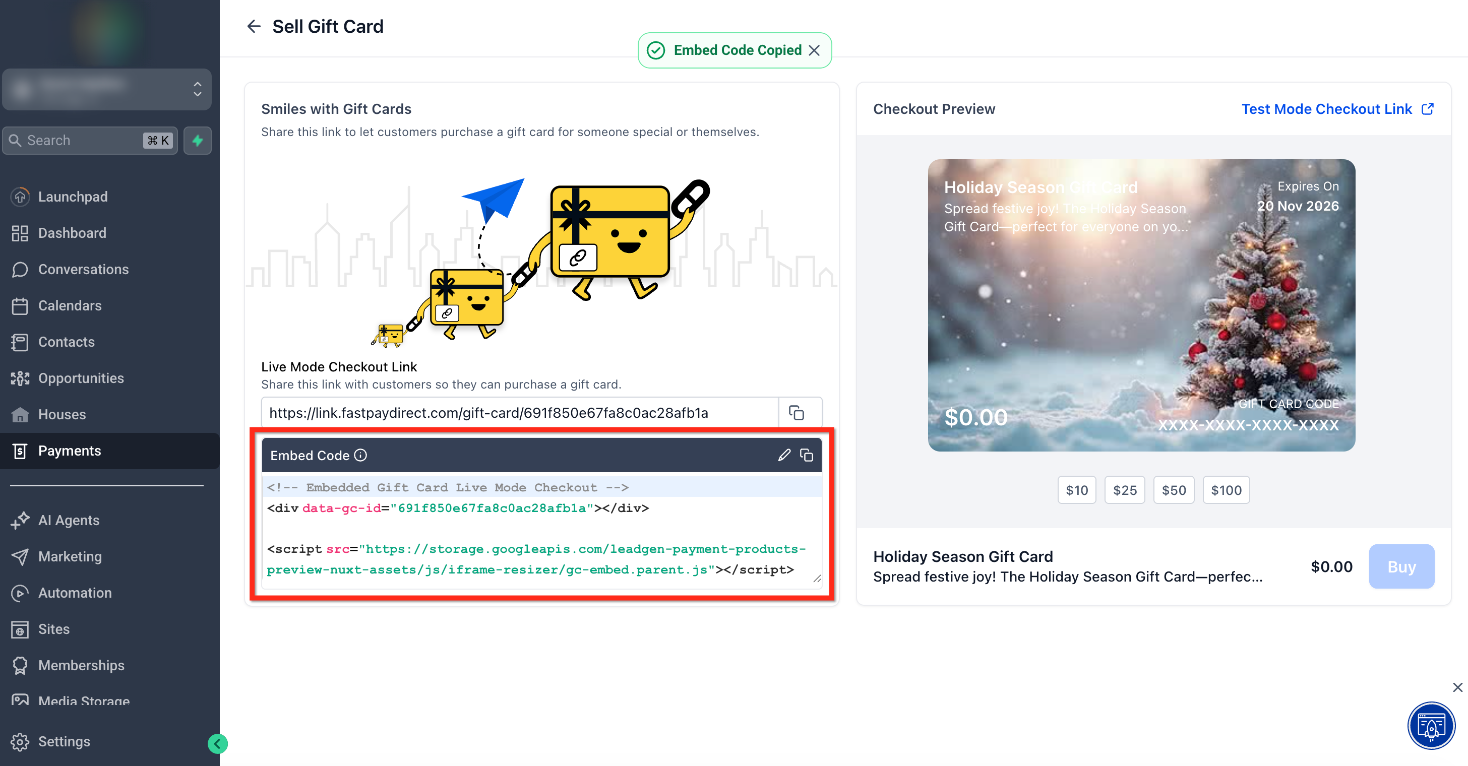
Follow the steps below to embed the dedicated gift card checkout directly onto any external webpage:
Step 1: Navigate to Gift Cards
In the left menu, click the Payments tab. Then in the top ribbon, click Gift Cards to open the Gift Cards dashboard.
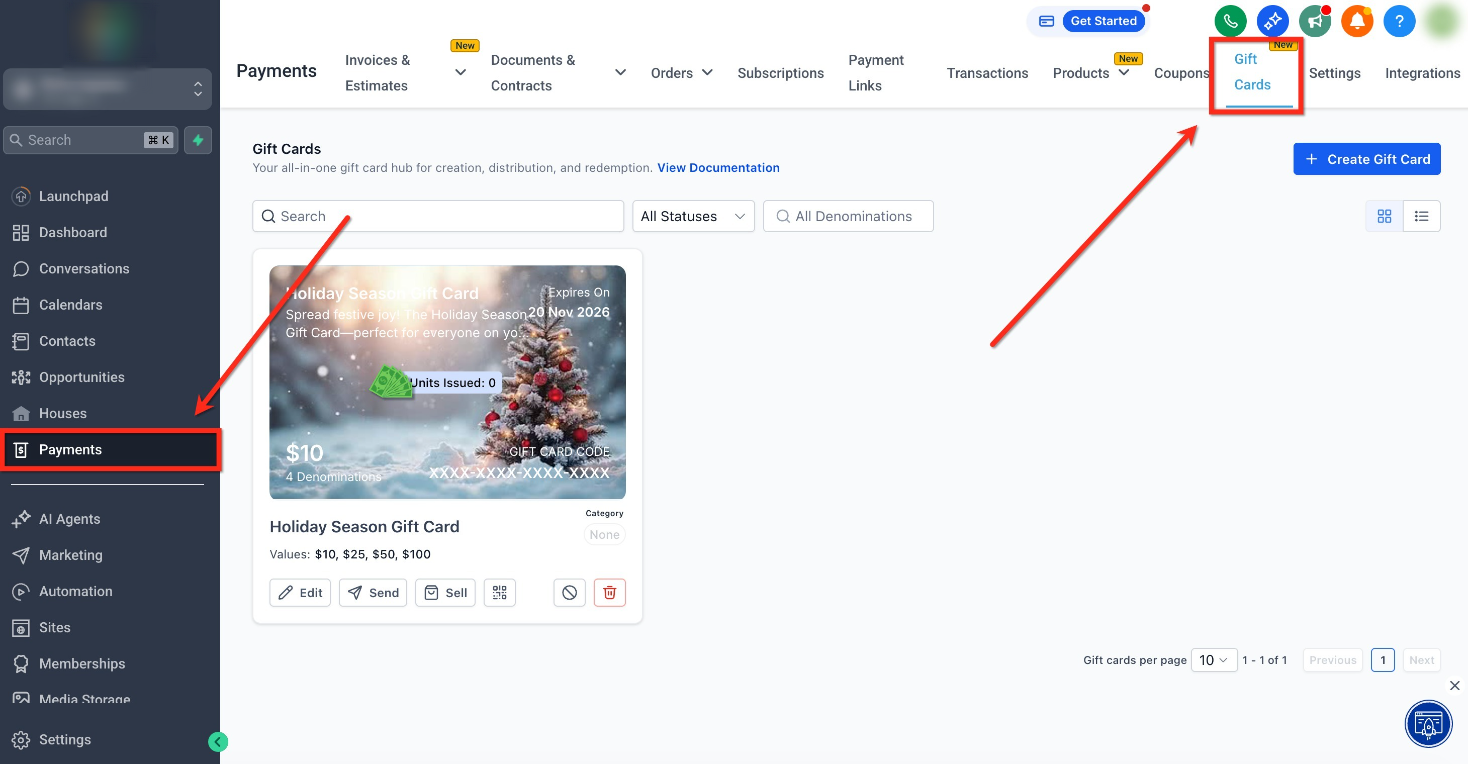
Step 2: Click Sell
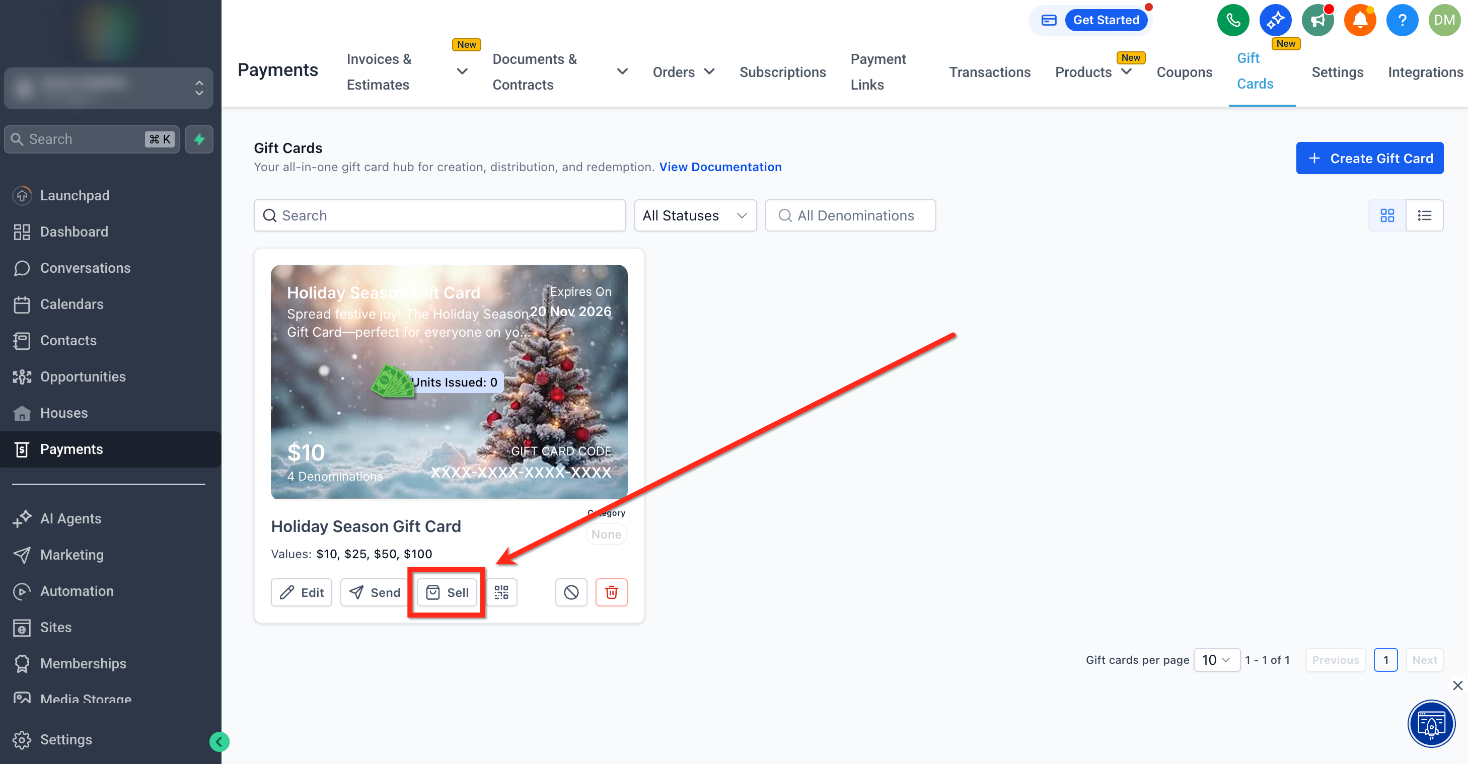
Locate your card you would like to find the Embed Code for. On the Gift Card tile, click Sell.
Step 3: Copy the Embed Code
Click the Copy button to copy the embed code. Use this code to embed the dedicated gift card checkout directly onto any external webpage.
Selling Gift Cards Using QR Codes
QR codes make in-person and offline selling easy. Scanning the code opens your same dedicated checkout link. This is perfect for in-store displays, print campaigns or on any medium that’s not clickable. To access this QR Code, follow the steps below:
Step 1: Navigate to Gift Cards
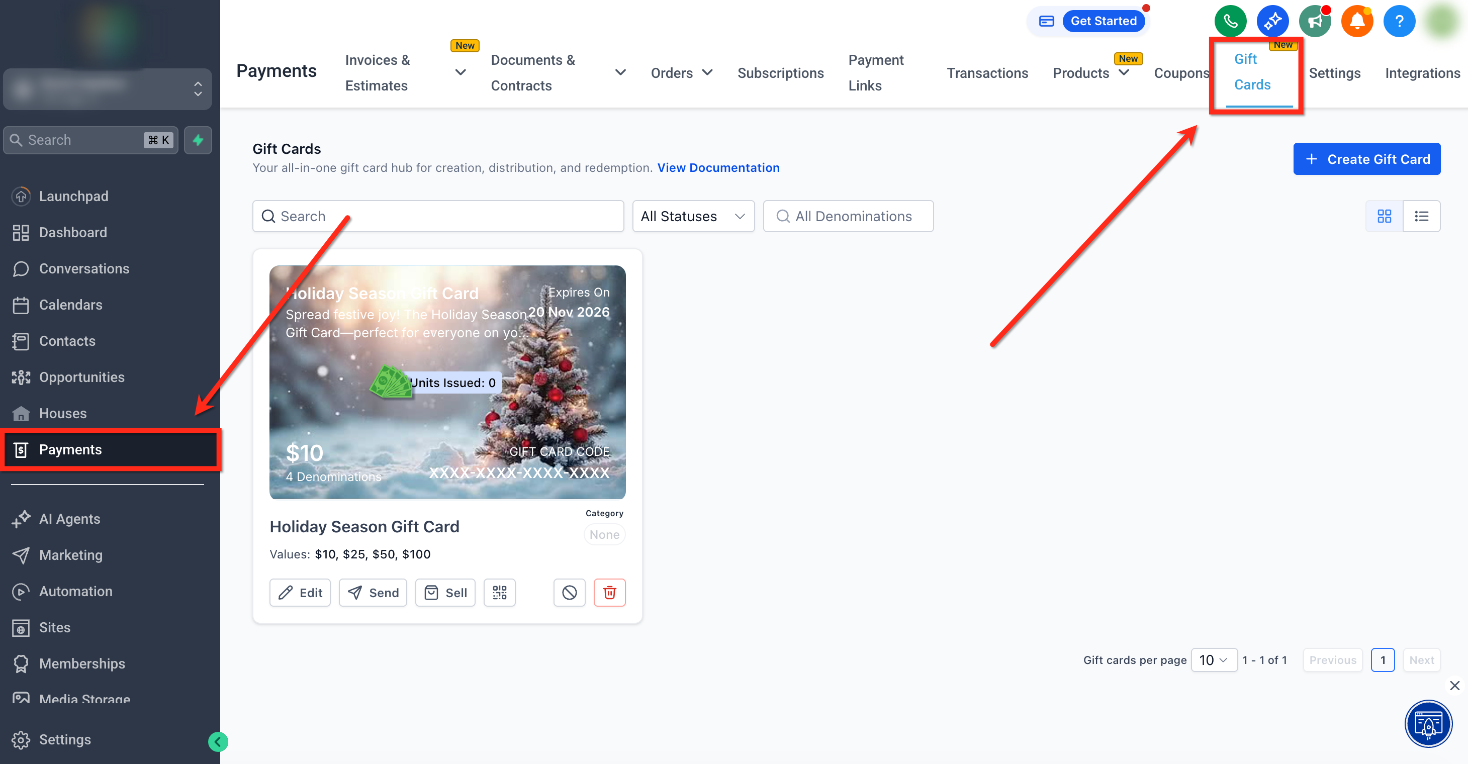
In the left menu, click the Payments tab. Then in the top ribbon, click Gift Cards to open the Gift Cards dashboard.
Step 2: Open QR Code
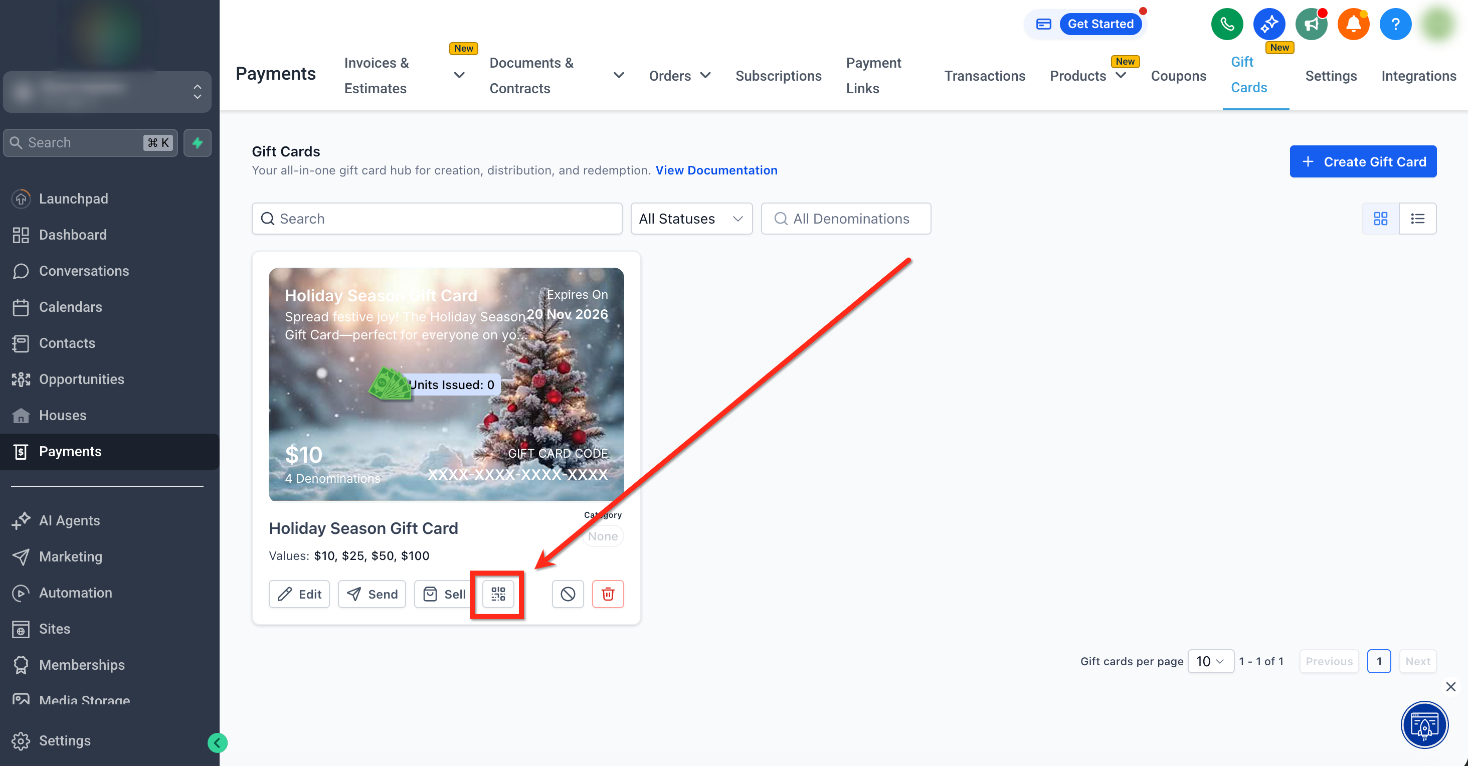
Locate your card you would like to find the QR Code for. On the Gift Card tile, click QR Code.
Step 3: Share QR Code
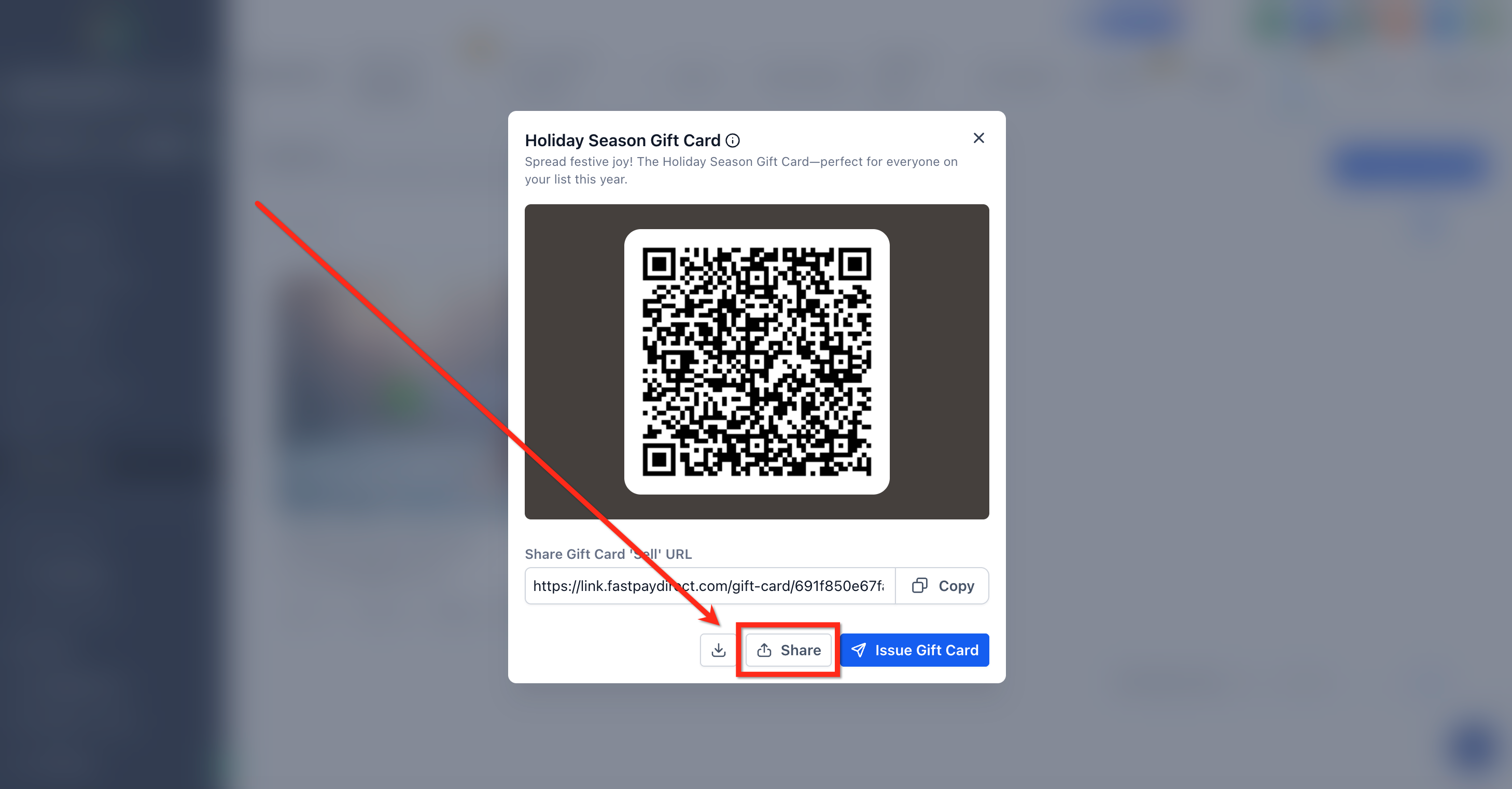
From here you are able to download and share the QR Code!
- Click Download to save the QR image. This file can then be used in print media and other campaigns!
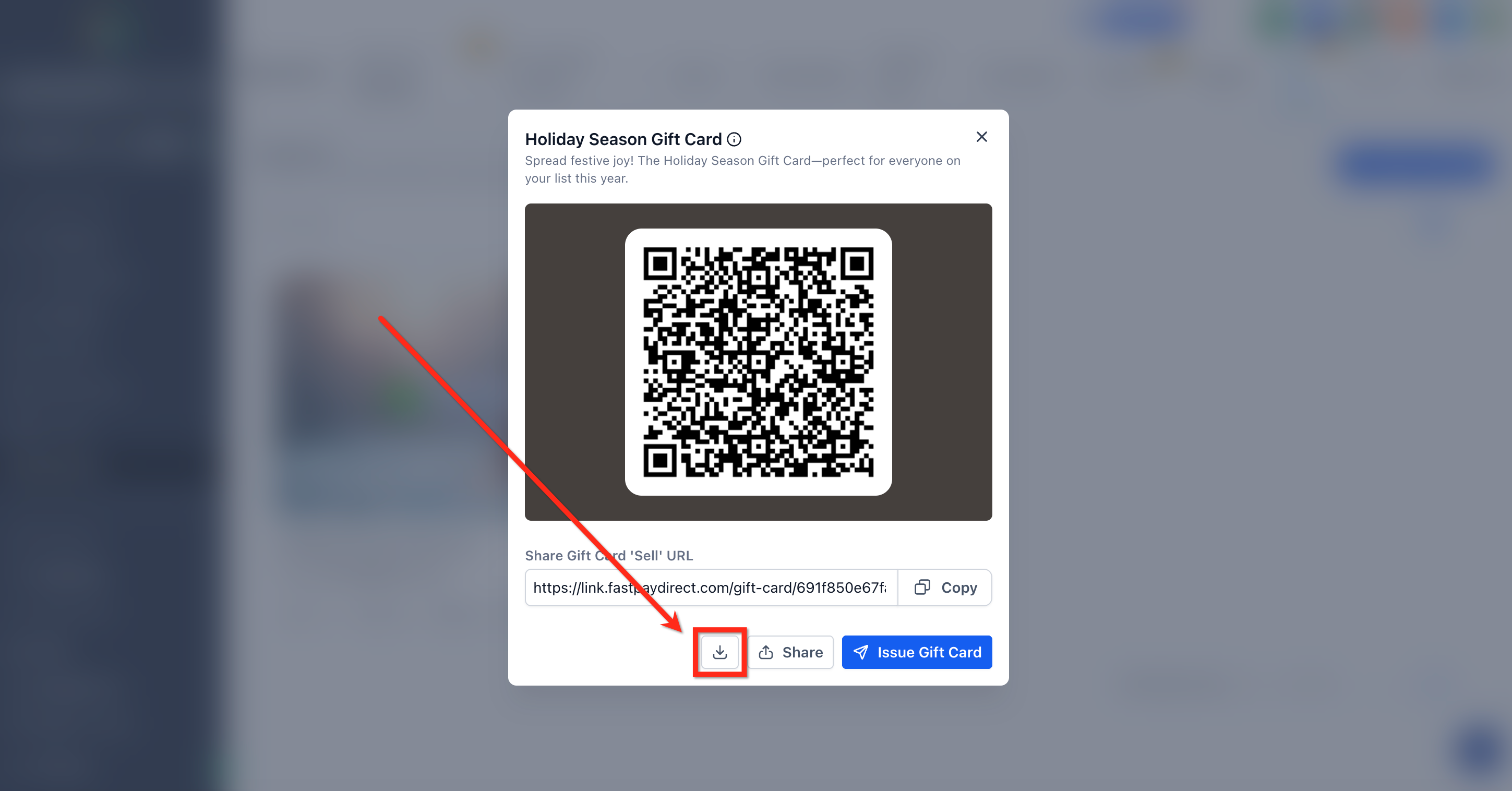
- Click Share, then from the dropdown select Copy to copy the QR Code link. This link can then be shared!
Selling Gift Cards Through Existing Checkouts
Gift Cards can be sold as a product on all supported checkouts. This option gives you full flexibility to bundle gift cards along with your other items. Adding a Gift Card Product is supported in the following channels:
- Forms
- Funnels
- Store
- Payment Links
- Websites
- Invoices
- Calendars (if the calendar supports products)
Follow the steps below to learn how to sell gift cards on each supported checkout channel!
Selling Through Forms
Use the Payment Element in Forms to sell Gift Cards in lead capture and lightweight checkout scenarios.
Collect payment and sell a gift card in a single form submission
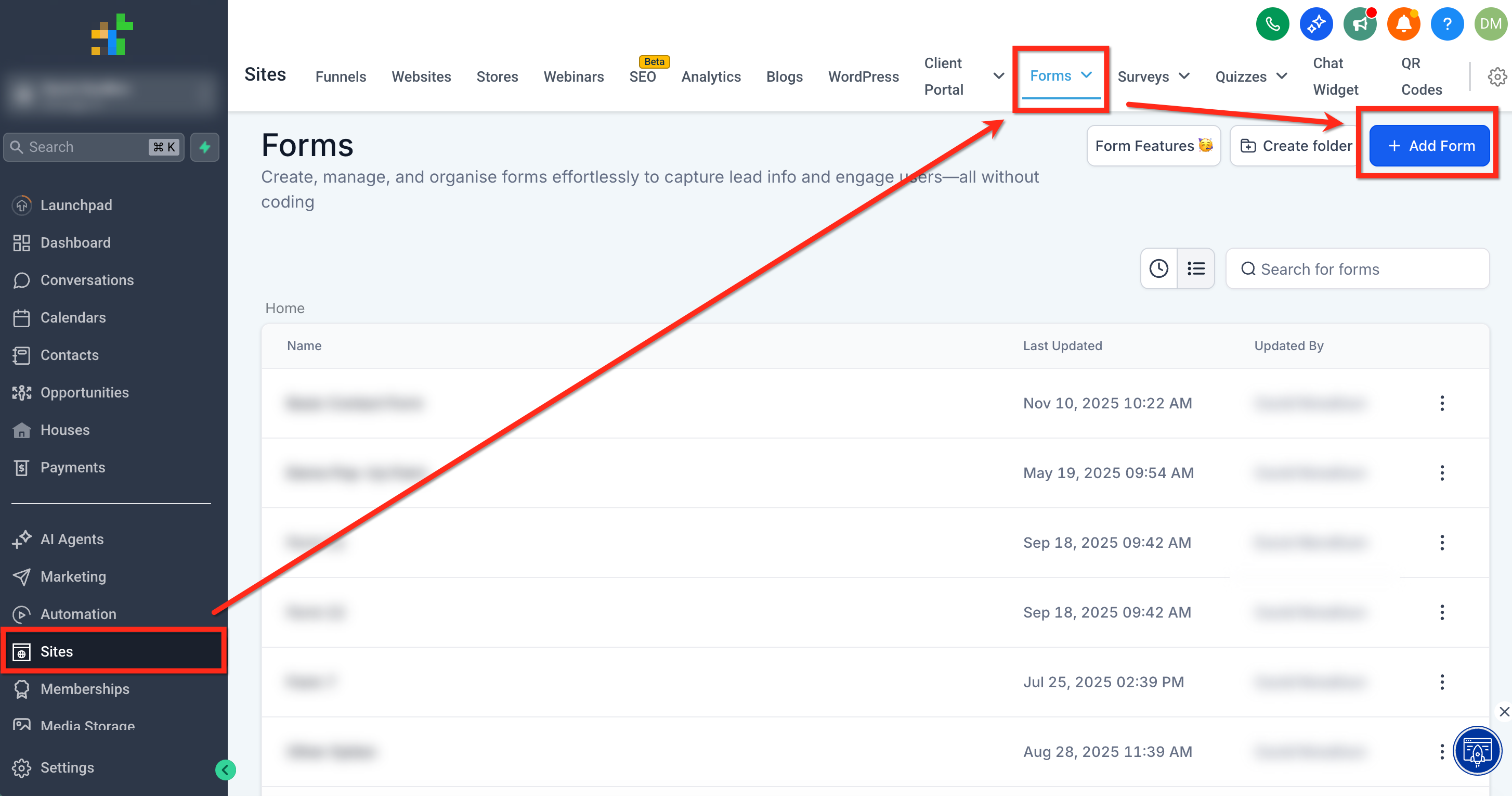
Step 1: Open or Create a Form
Navigate to Sites → Forms and either open an existing form or create a new form.
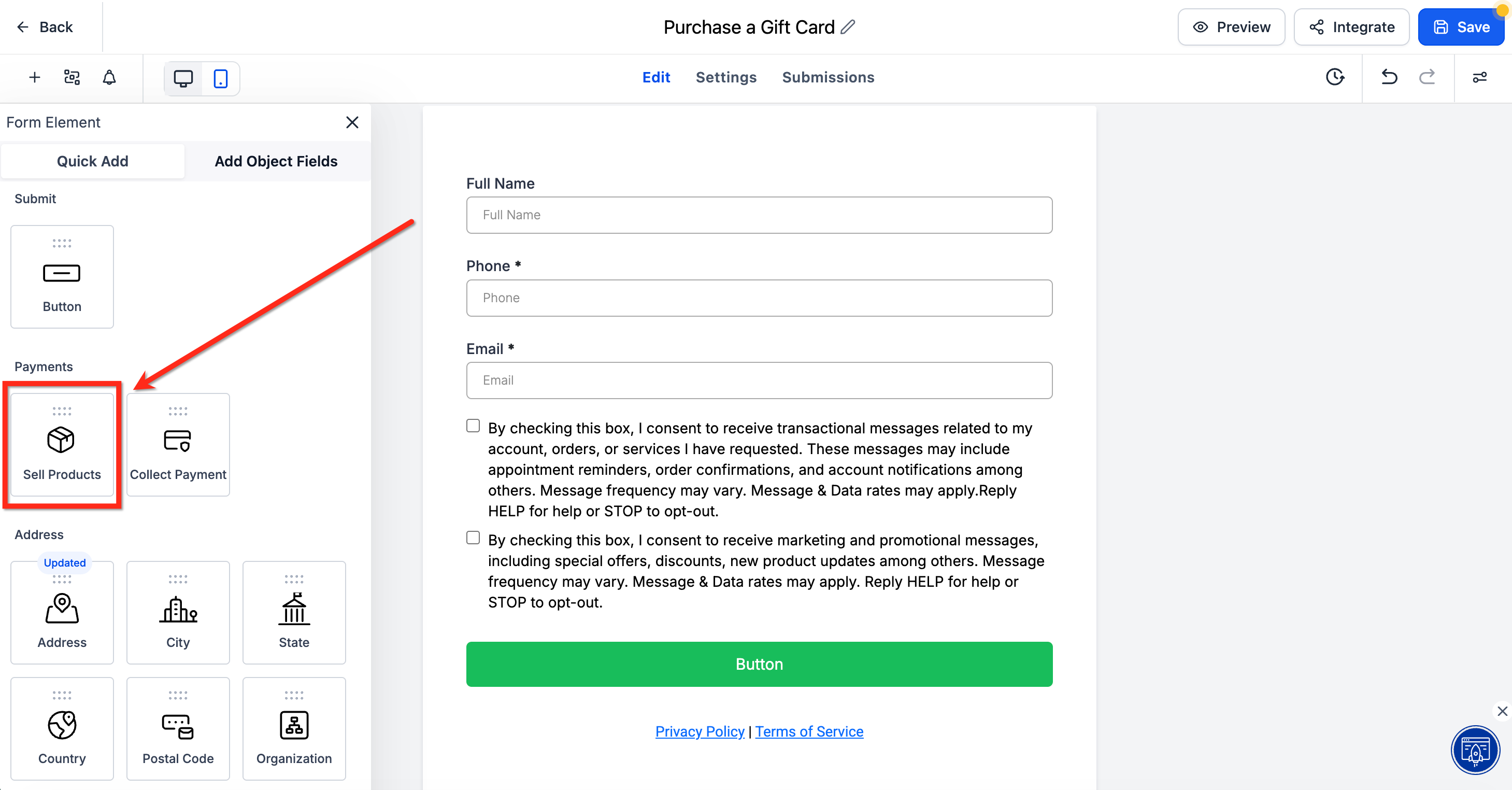
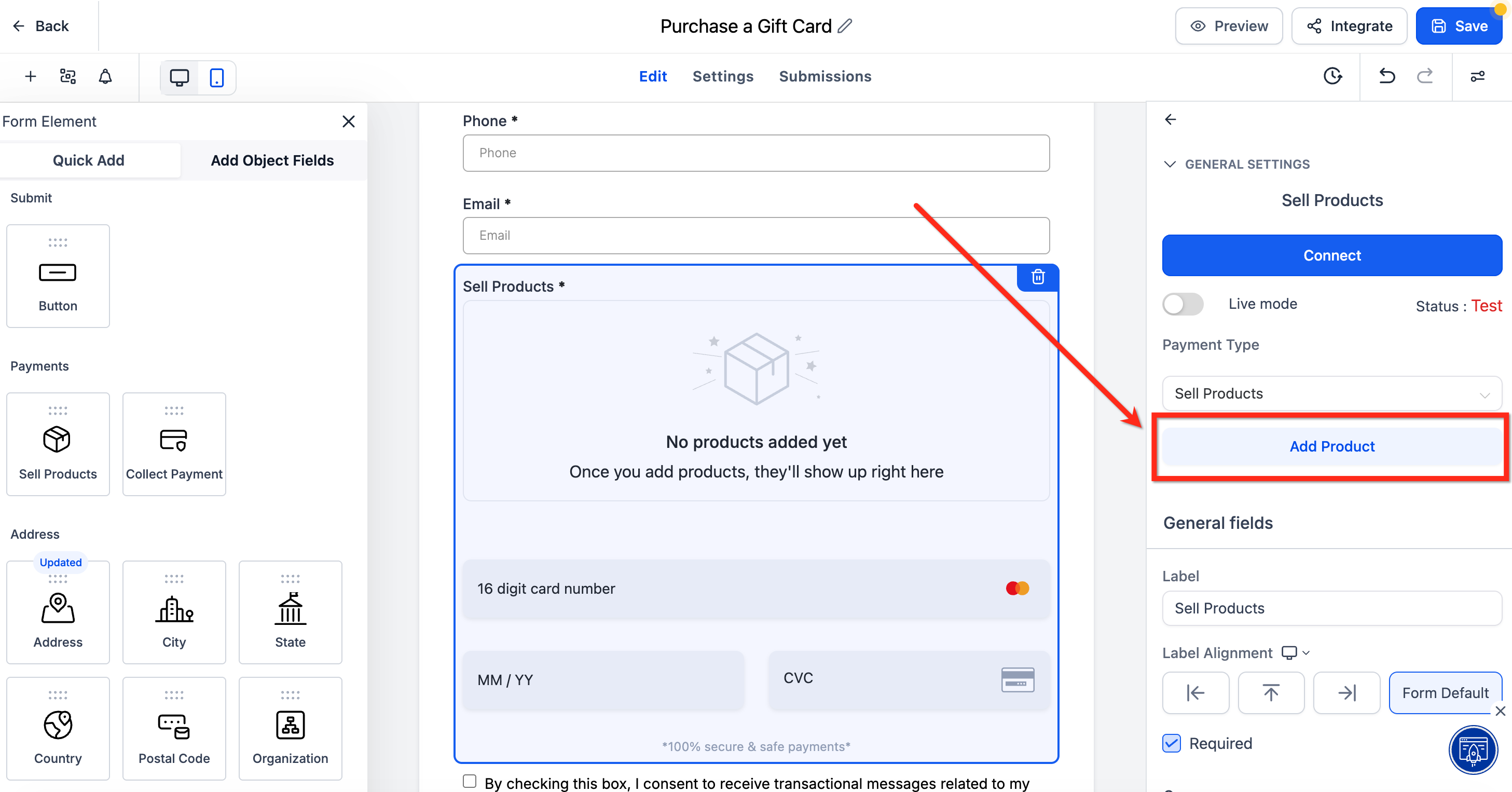
Step 2: Add Sell Products Element
Locate the Sell Products element under Payments and drag the element to your form.
Step 3: Choose the Gift Card Product
Click on the Sell Products element to open the element settings. From here, click Add Product and select your gift card from the list.
Once the gift card has been added as a product, click the blue Save button to save your changes.
Selling Through Funnels
Offer gift cards on one-step or two-step order forms within a funnel. Customers buying through a funnel will receive the gift card automatically after successful payment!
Tip: If you add gift cards to a test-mode funnel, customers will receive test gift cards only.
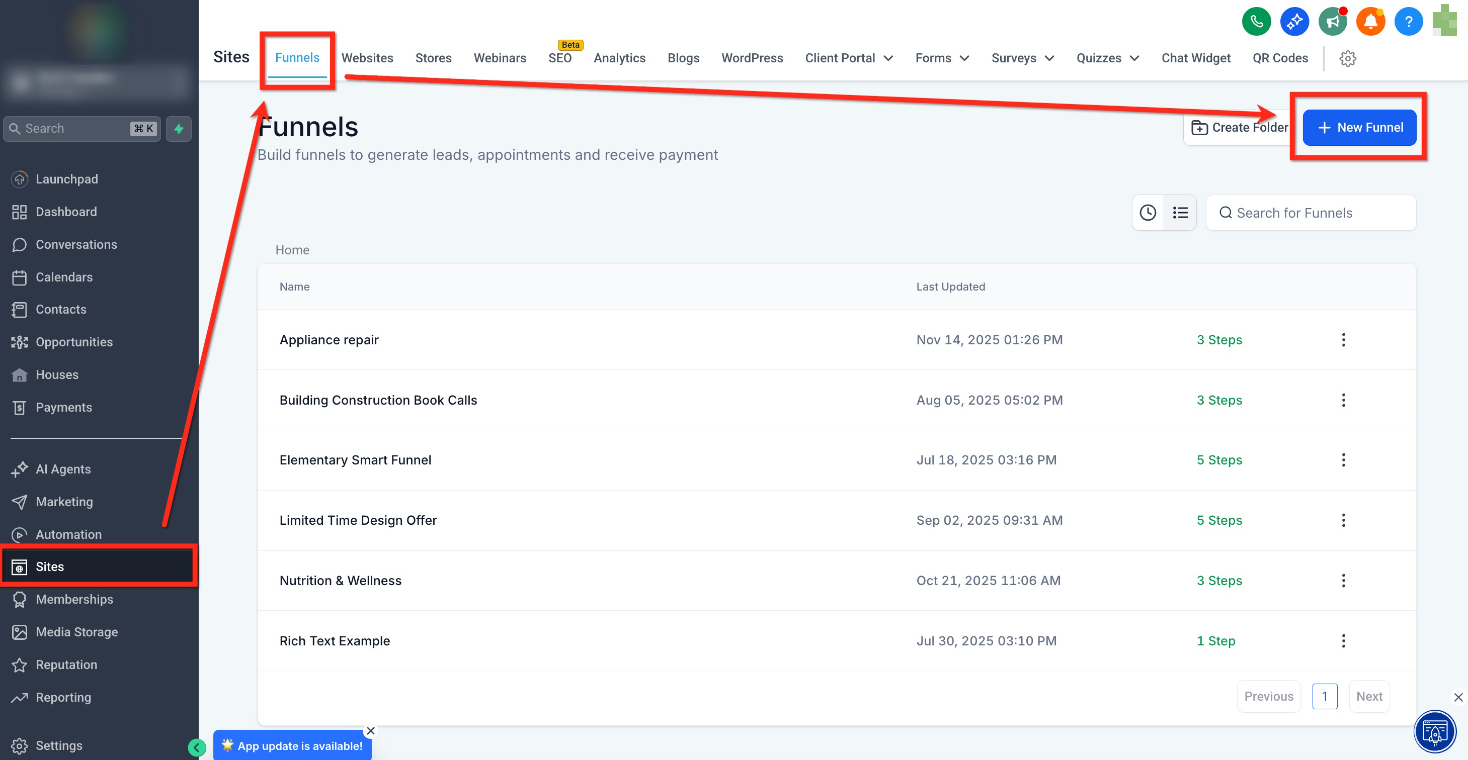
Step 1: Open Your Funnel
Navigate to Sites → Funnels and either open an existing funnel or create a new funnel.
Step 2: Add the Form Element
Locate the Form element and drag the element into your page.
Step 3: Select Form
Click on the Form element and use the dropdown to select the form you previously set up for purchasing gift cards. If you do not have a form for the gift card, click on the link to create a new form. For more information on creating a form to purchase gift cards, click here.
Once the form has been added and all edits have been completed, publish your funnel.
Selling Through Stores
Display gift cards in your online storefront so customers can browse and buy like any other product.
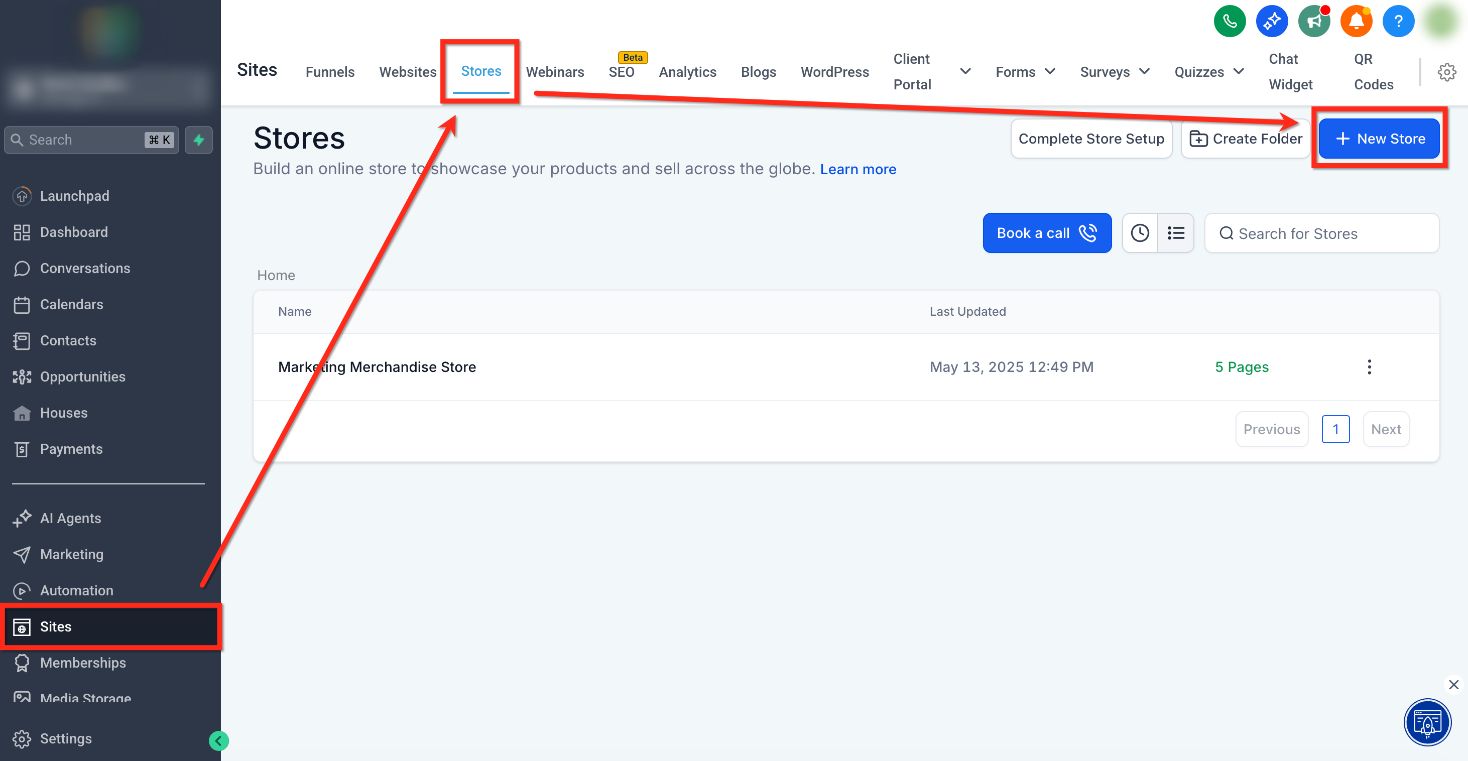
Step 1: Open or Create a Store
Navigate to Sites → Stores and either open an existing store or create a new store.
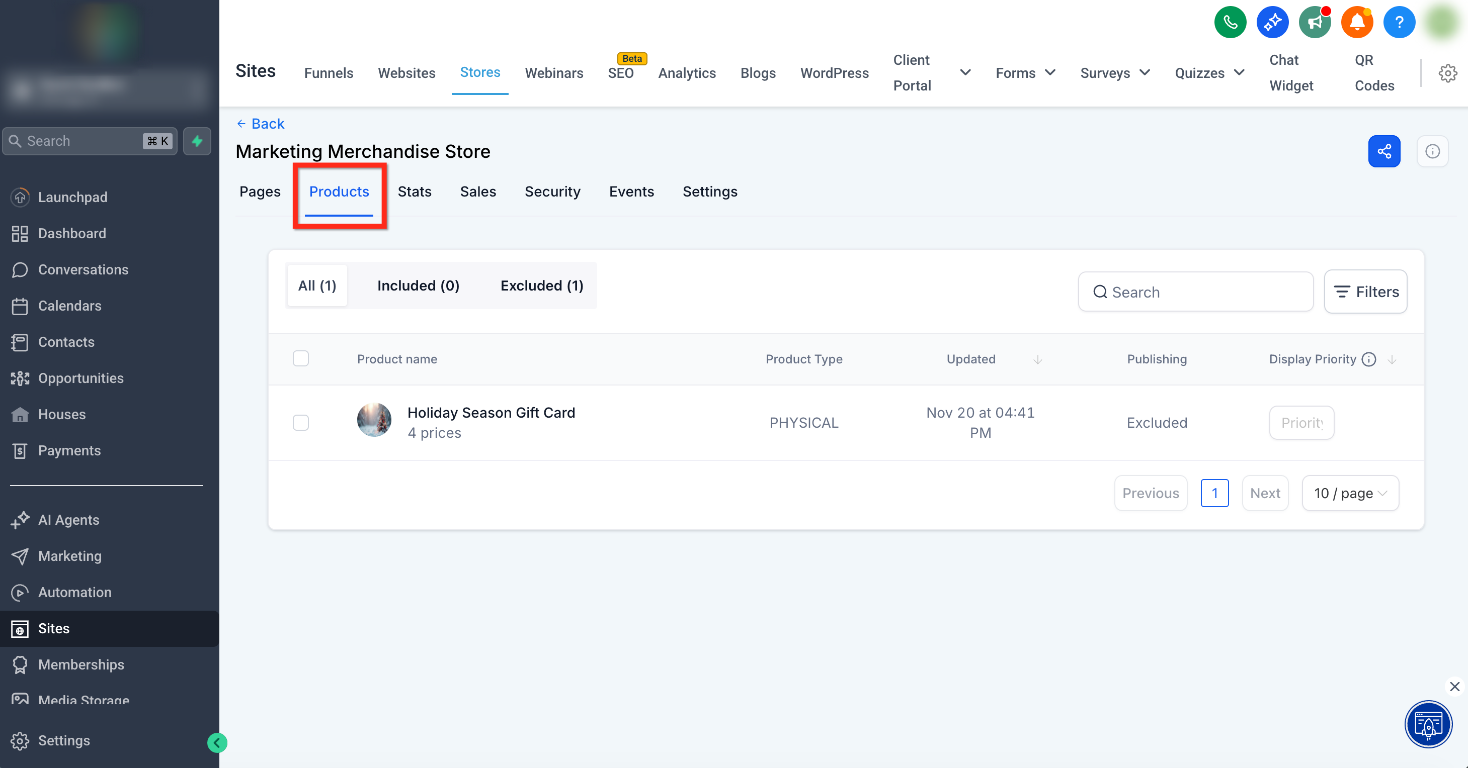
Step 2: Navigate to Products
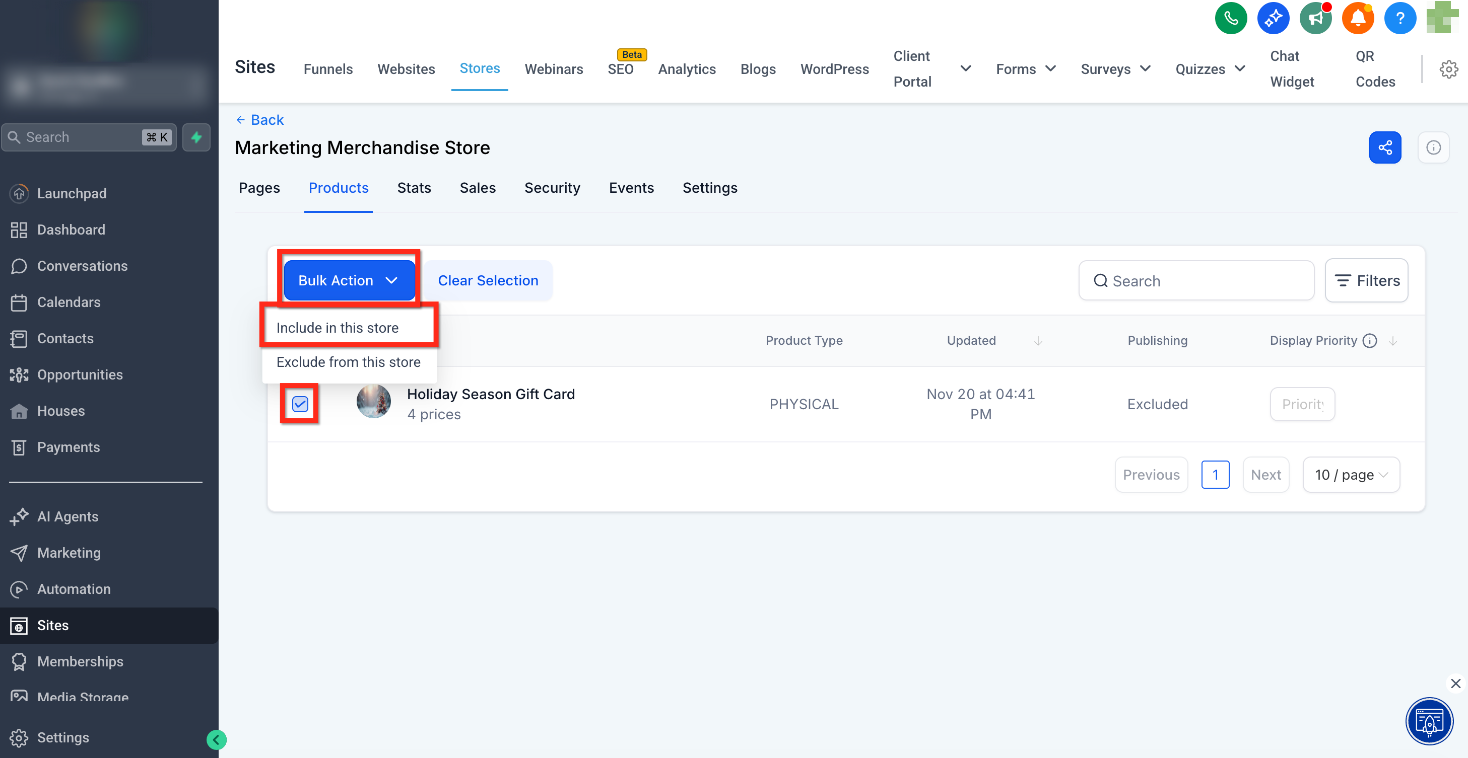
From the store page, navigate to the Products tab.
Step 3: Add to Store
Click the Checkbox next to the gift card you would like to add to the store. Then click Bulk Actions and from the dropdown, select Include in this store.
Step 4: Preview
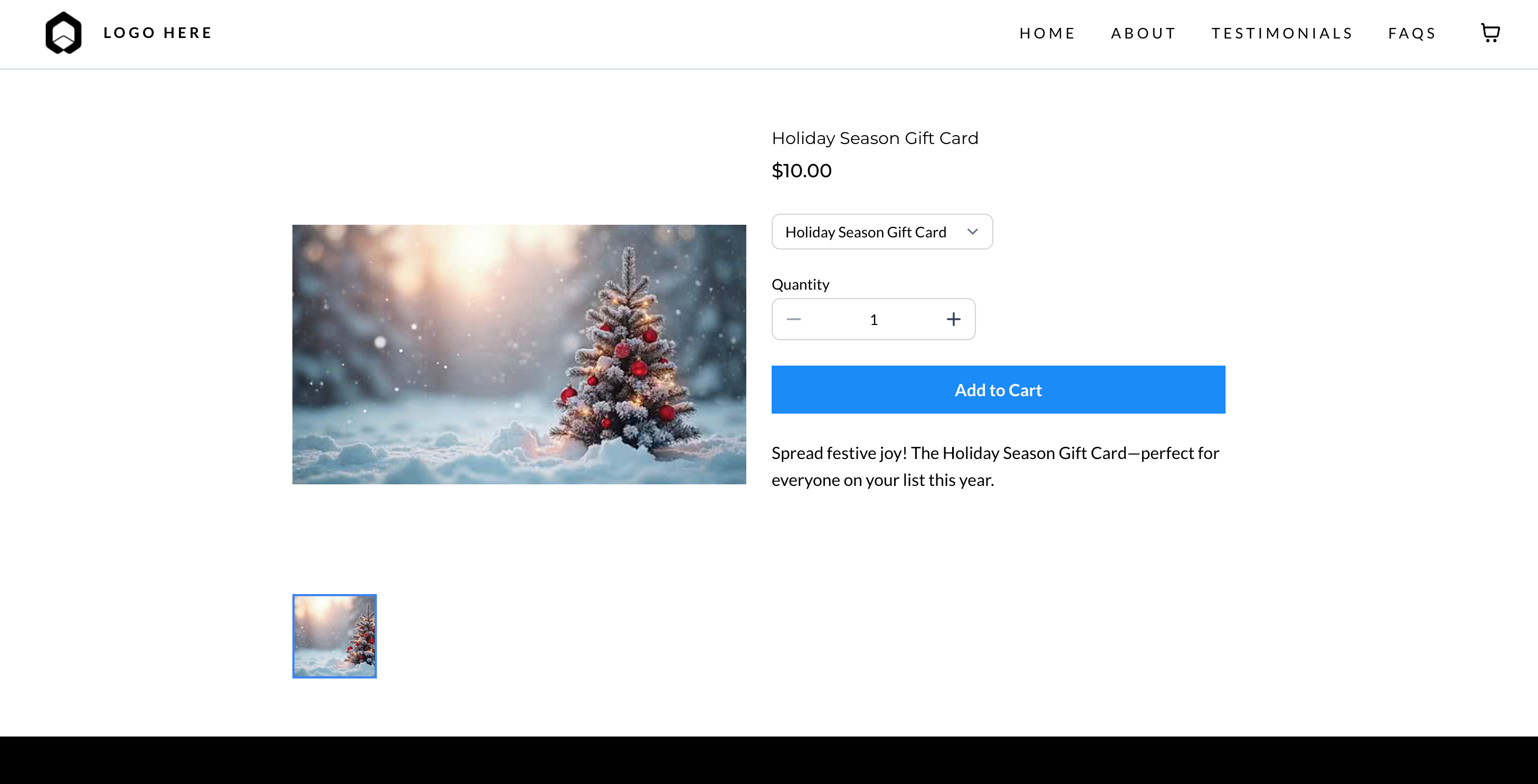
Customers can browse and purchase gift cards like any other item!
Selling Through Payment Links
Payment Links are fast to create and easy to share, making them great for email or chat.
Step 1: Create New Payment Link
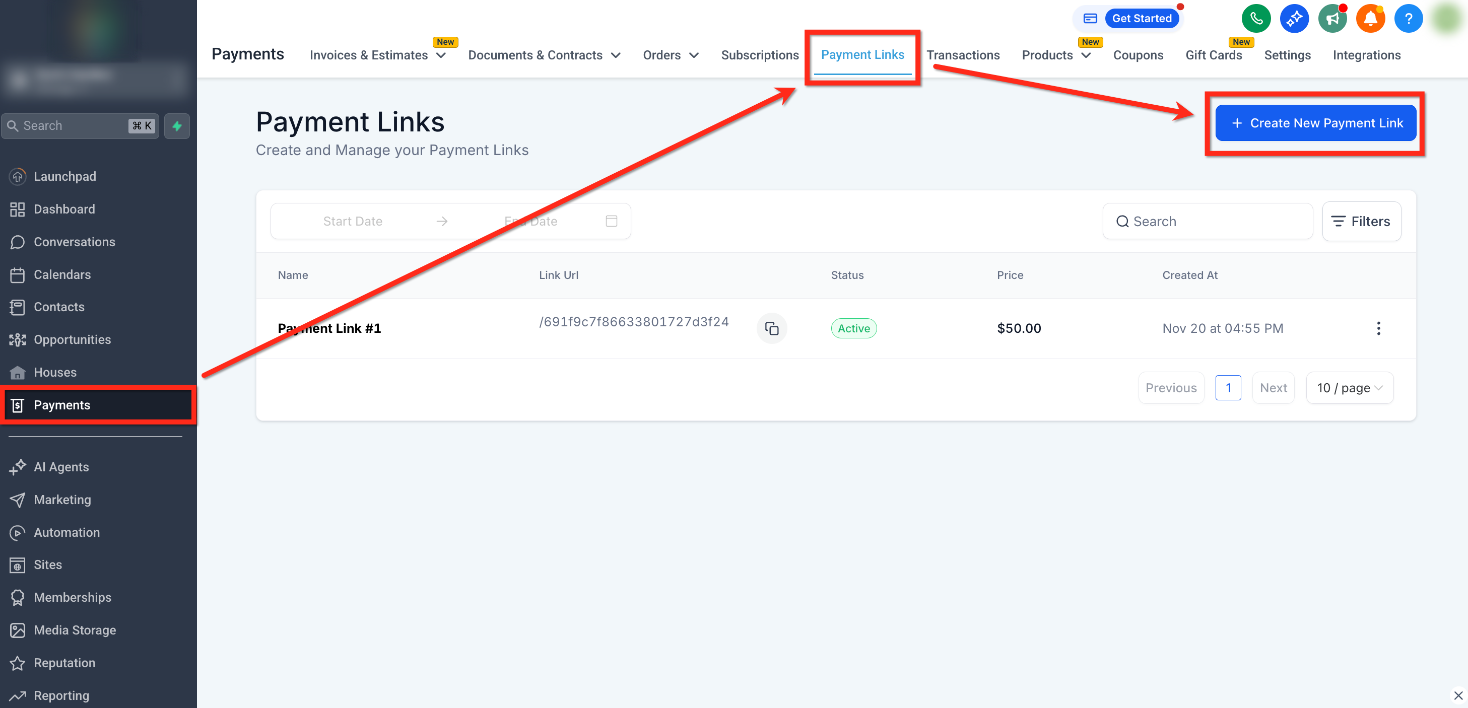
Navigate to Payments → Payment Links and create a new Payment Link.
Step 2: Add Gift Card as a Product
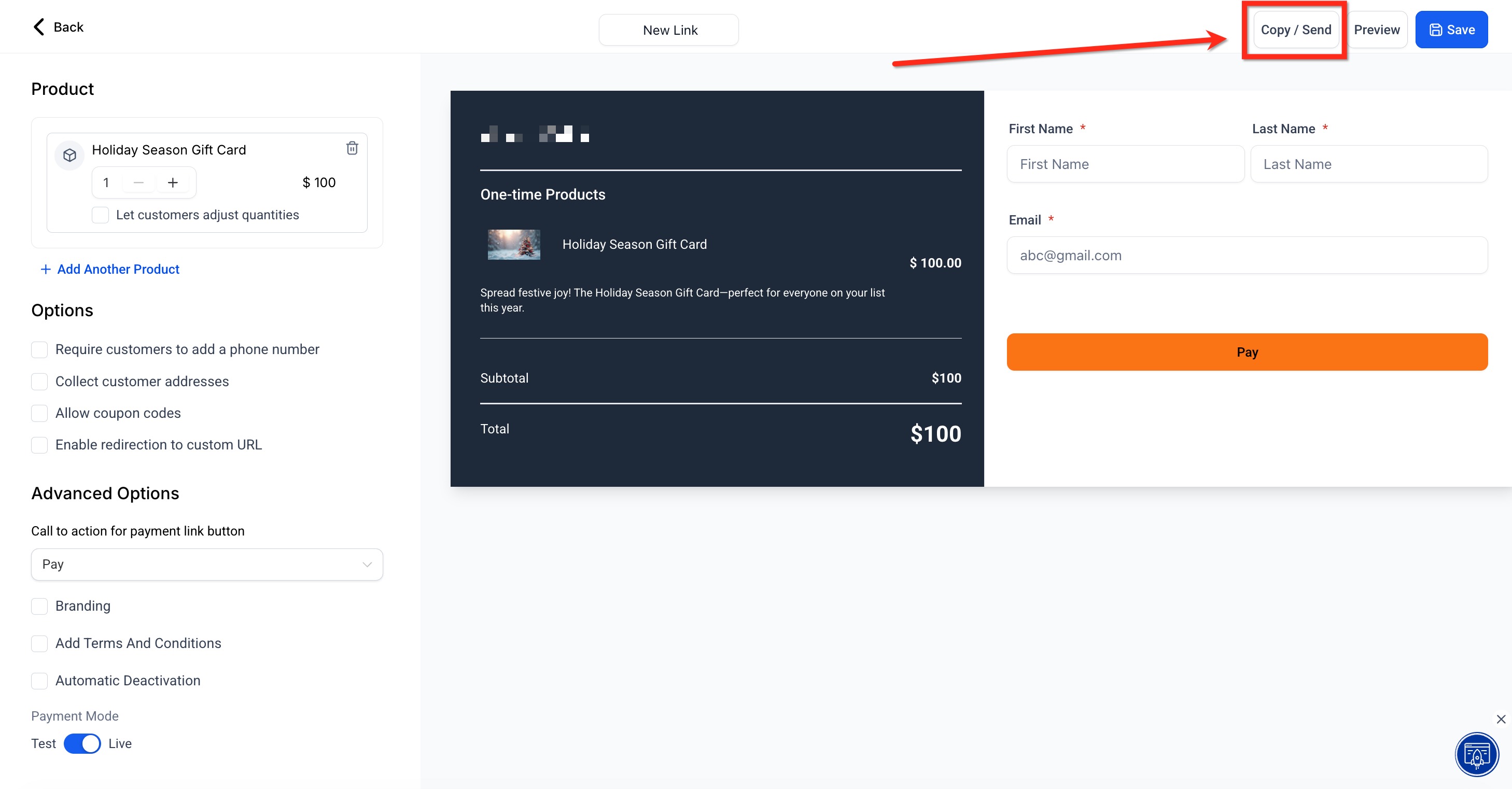
Click Select a Product and from the dropdown, choose the gift card you would like to add. Once the gift card has been added, click the blue Save button.

Step 3: Share Payment Link
Click the Copy/Send button to get the new shareable payment link that you have created. You can now share this payment link with customers!
Selling Through Invoices
Add Gift Cards to invoices for customers who prefer invoicing and accounts payable workflows. When the invoice is paid, a Gift Card Order is created automatically.
Step 1: Open or Create an Invoice
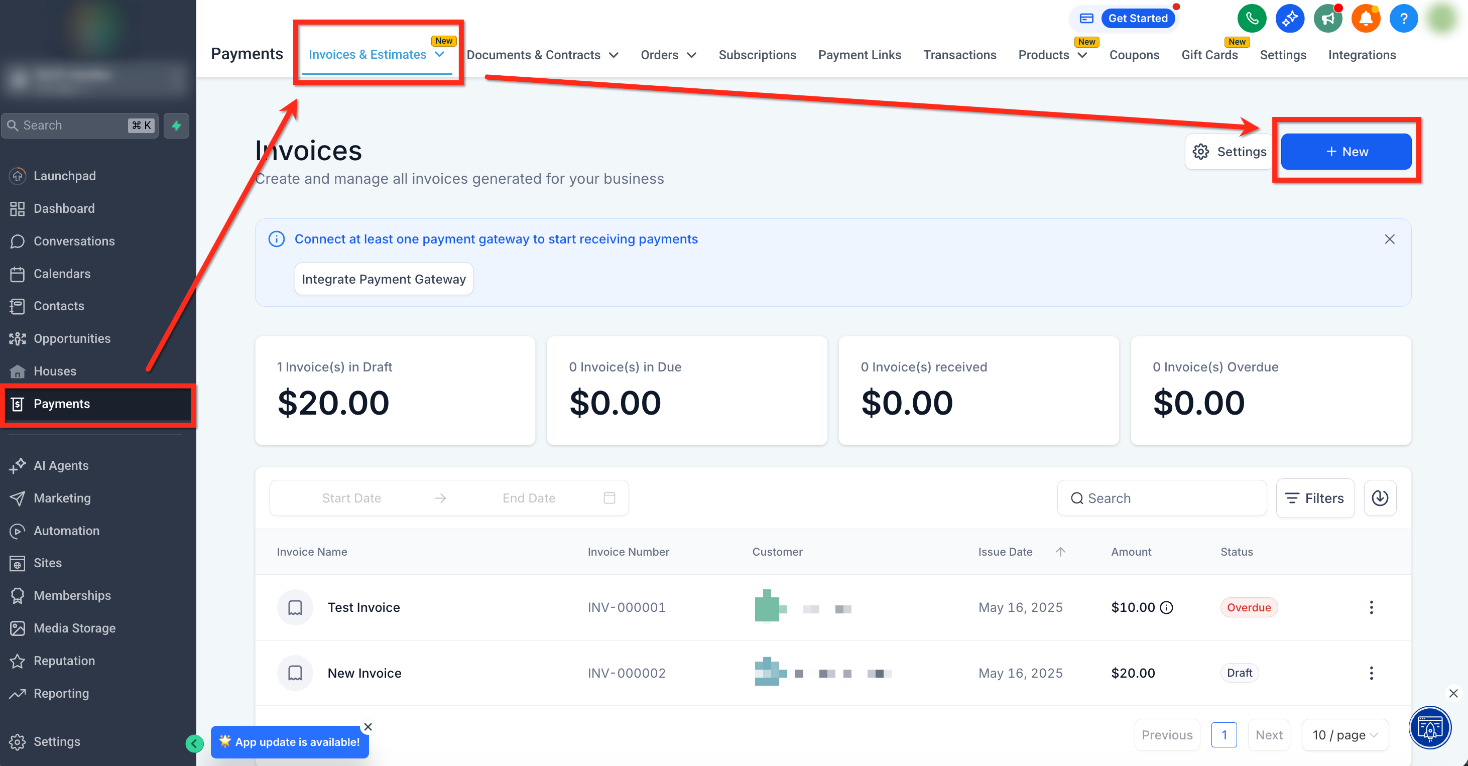
Navigate to Payments → Invoices & Estimates and open and existing or create a new Invoice.
Step 2: Add Gift Card as Product
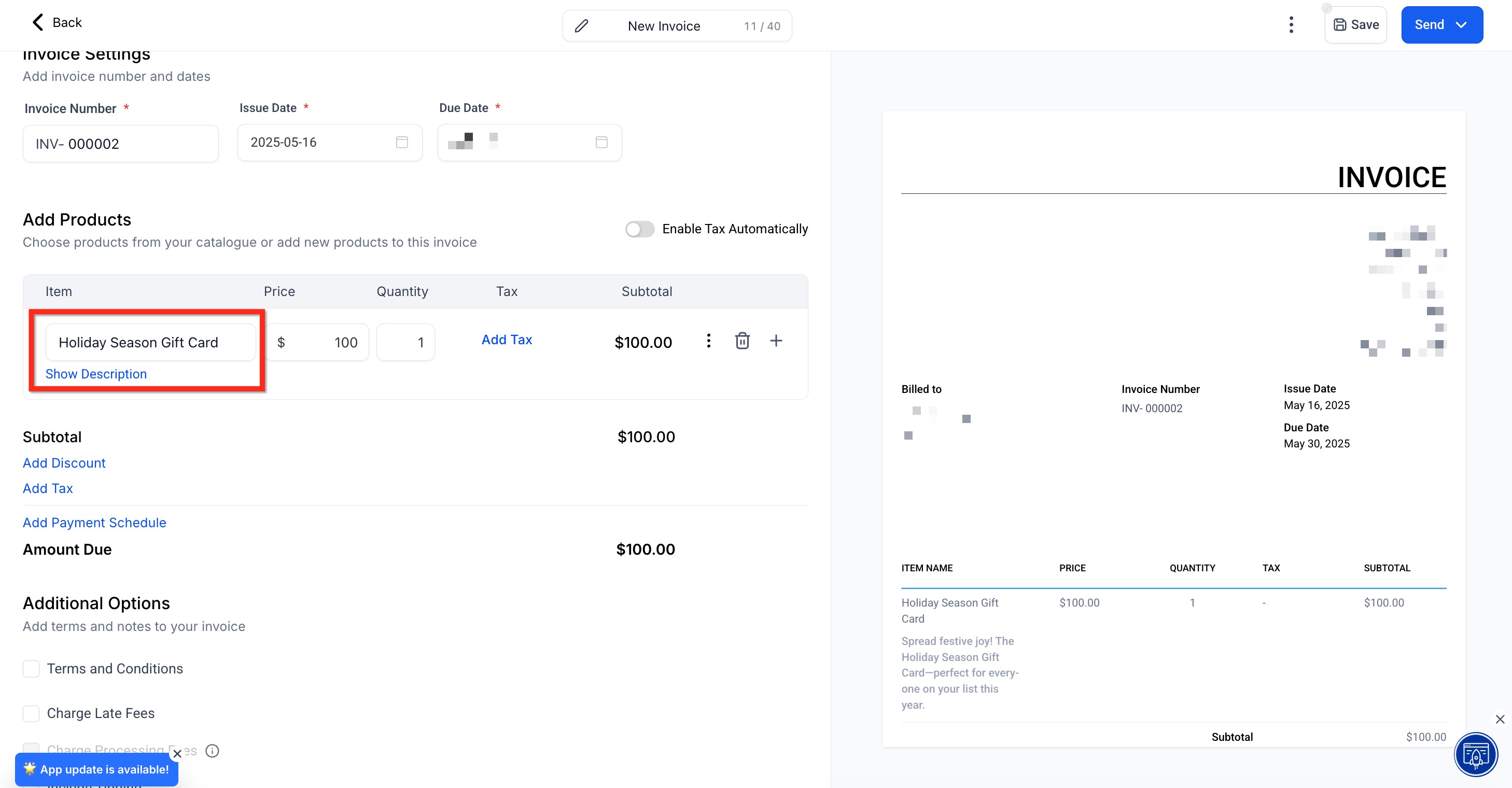
Under Add Products, select the gift card(s) you would like to be included in the invoice. Once all details and products have been added, click Send to send the invoice to a customer.
Step 3: Delivery Upon Payment
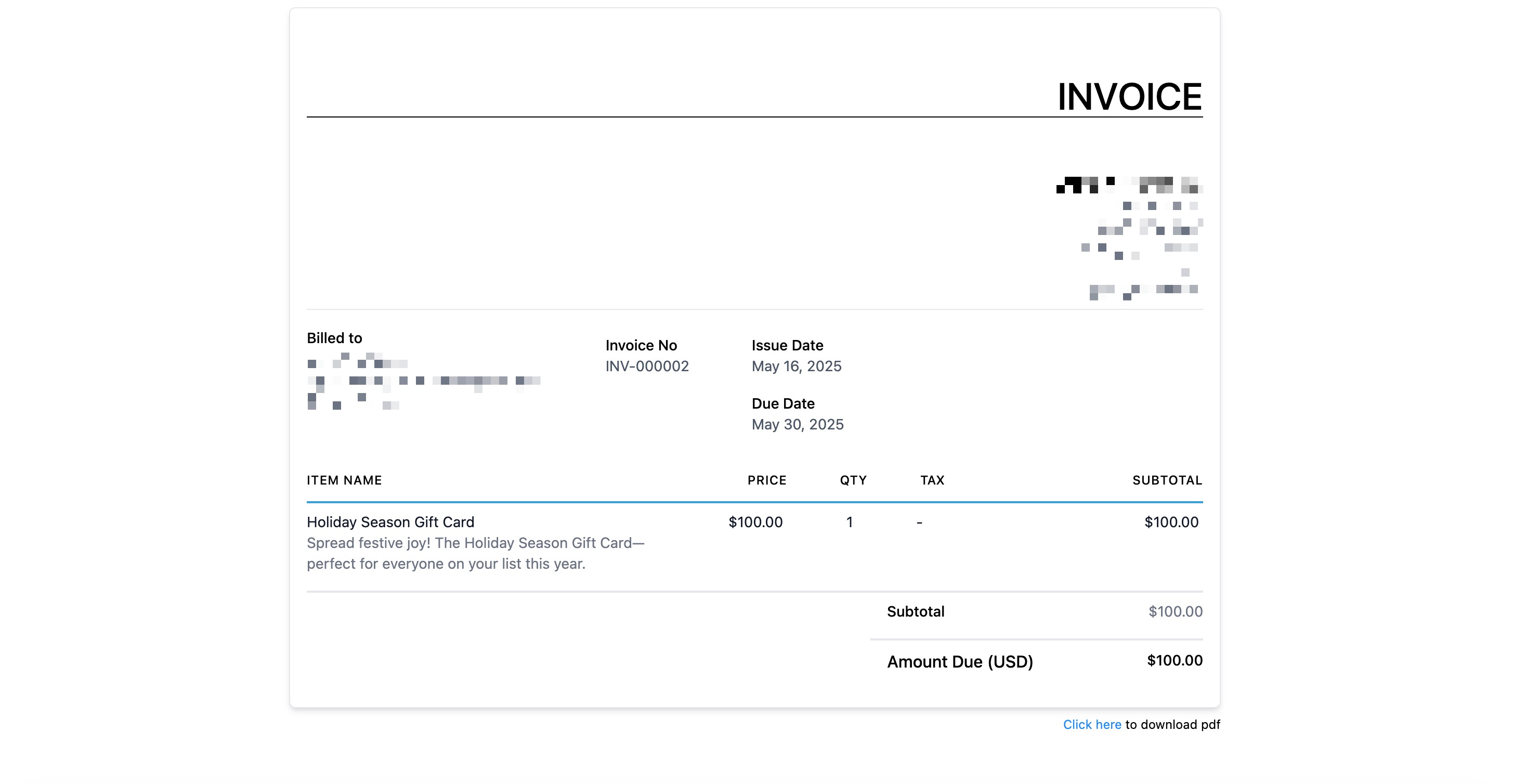
Once invoice is paid, the gift card is delivered to the buyer!
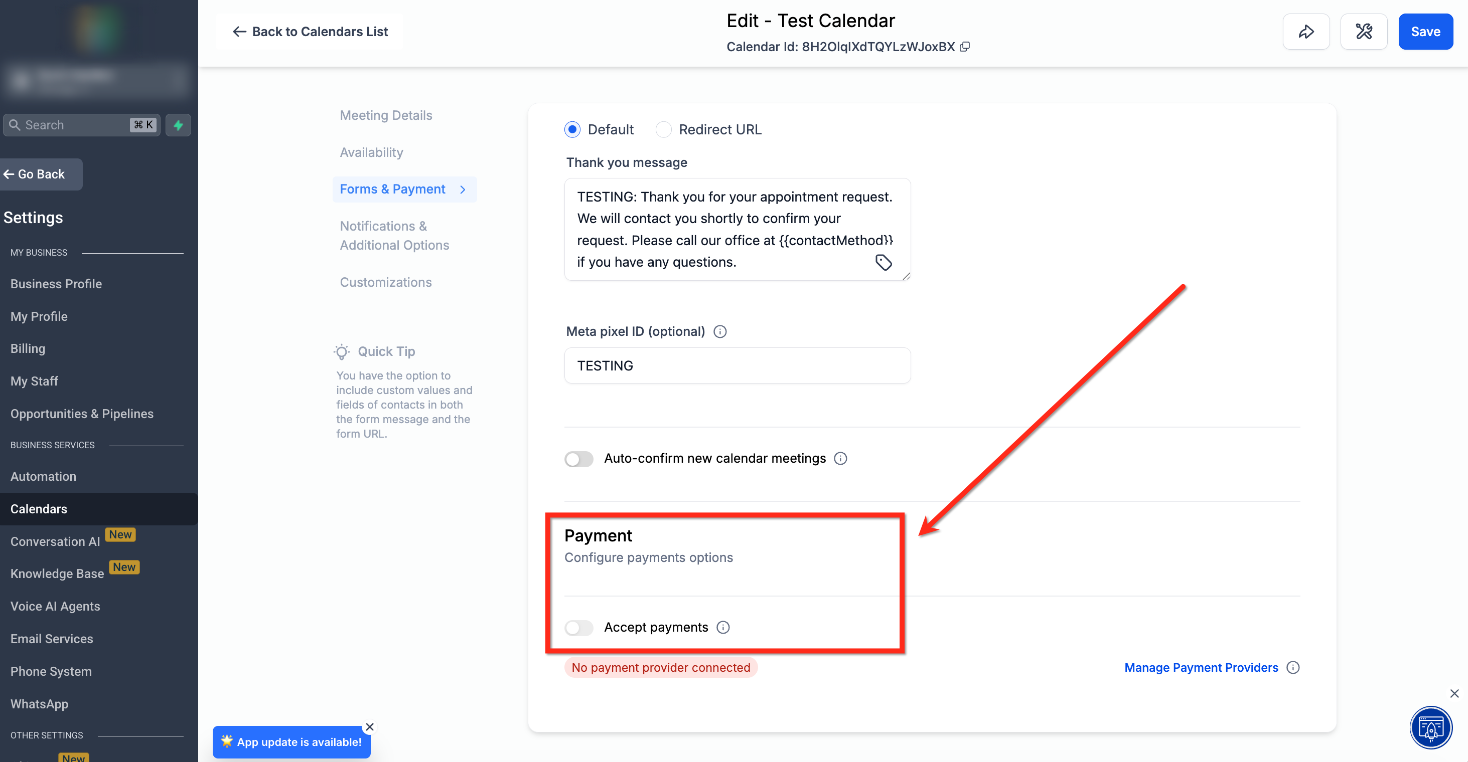
Selling Through Calendars
If your calendar supports product-based payments, you can add your Gift Card Product to the appointment flow. In order to sell gift cards through the calendar flow, you must first create a form.
Step 1: Open Calendar Settings
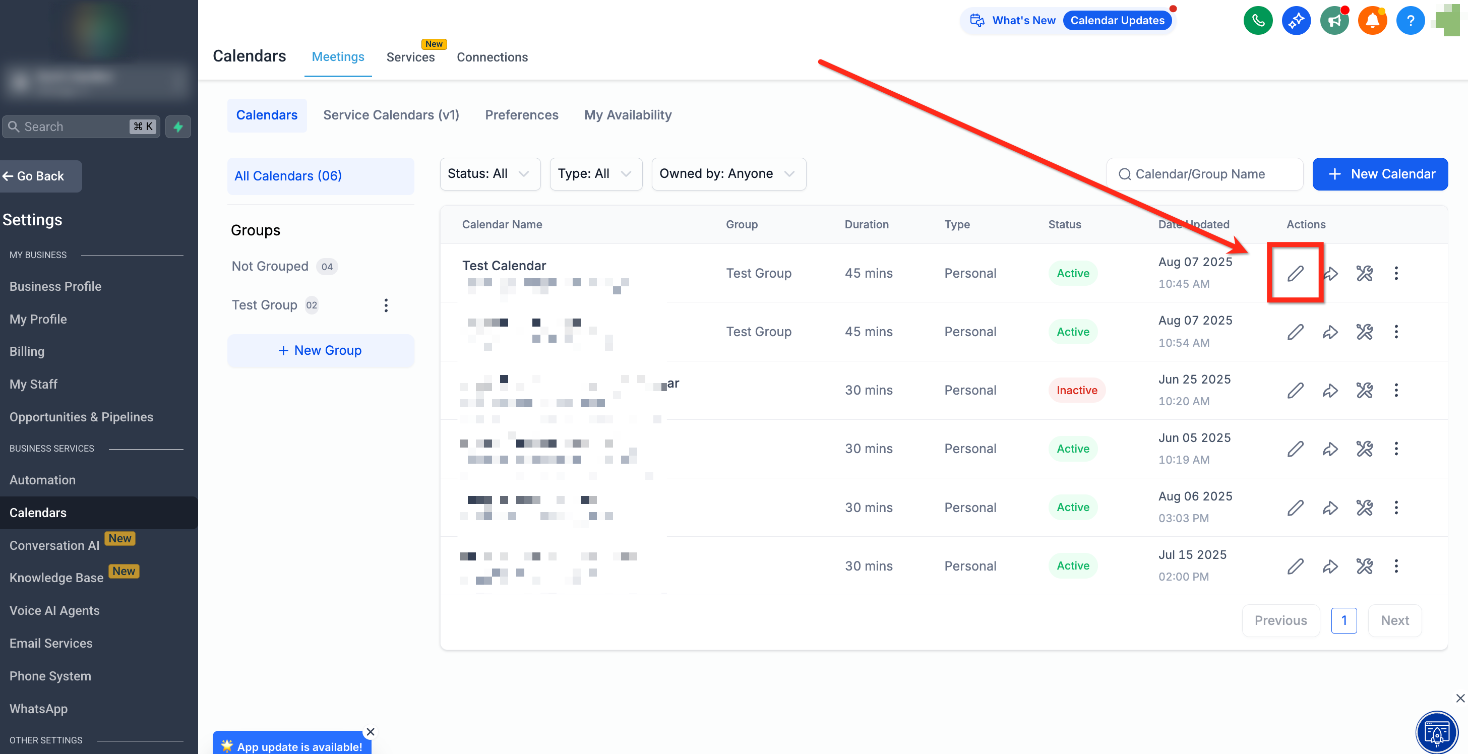
Navigate to Calendar Settings and click Edit on the calendar you would like to add Gift Cards to.
Step 2: Select the Form
Under the Forms & Payments tab, use the Select Form dropdown to select the form you previously set up for purchasing gift cards.

Step 3: Enable Payments
Under Payments, toggle on Accept Payments. Once these edits are completed, click Save.
Frequently Asked Questions
Q: Can I sell the same gift card through multiple channels simultaneously?
Yes. A gift card can be sold via its link, QR, embed, and through any existing checkout. Inventory will keep on depleting as more sales happen for the gift card.
Q: What happens if a Gift Card Product is deactivated?
Its Sell flow stops working — the checkout link becomes invalid, and it cannot be purchased from Stores but rest of the checkouts where it is already added continue to operate sales and the products have to be manually removed from such checkouts when the card is deactivated.
Q: Can I sell gift card products through all payment providers?
Yes. Gift card can be sold through any of your default checkout payment providers. However redemption on all types of products and scenarios can only be done in case of Stripe, NMI, Authorize.net and Square.
Q: Can customers use one gift card to buy another gift card?
No. Gift cards can’t be used to purchase more gift cards.