

This article explains how to bulk import Companies and Custom Object records using a CSV file. You can create new records, update existing ones, or perform both actions in a single import.
This feature is useful when migrating data from another CRM, onboarding new clients, or maintaining structured records at scale.
IMPORTANT
Import supports only CSV (.csv) files.
Excel (.xlsx) and Google Sheets links are not supported.
TABLE OF CONTENTS
- Prerequisites
- Common Mistakes to Avoid
- Import Modes Explained
- How to Import Companies or Custom Objects
- Duplicate Handling & Unique Fields
- Update Empty Values Restrictions
- Monitor Import Status
- Frequently Asked Questions
Prerequisites
Before starting your import:
User Permissions
You must have Admin access to perform imports.
File Requirements
-
File format must be .csv
-
Maximum file size: 30 MB
-
Only one sheet/tab
-
The first row must contain headers
-
Headers should match existing standard or custom fields
Field Preparation
-
Required fields must contain valid values
-
Custom fields must already exist in your account
-
If updating records, ensure you include the correct identifier (e.g., Record ID)
Common Mistakes to Avoid
❌ Missing required fields
❌ Blank primary field values
❌ Incorrect Record IDs when using Update mode
❌ Unique field conflicts
❌ CSV headers that don’t match CRM field names
Always test with a small file first.
Import Modes Explained
When uploading your CSV, you’ll choose one of three modes:
1️⃣ Create
Creates new records only.
-
Requires the Primary field
-
Existing records will not be updated
-
Duplicate handling follows unique field rules (if applicable)
2️⃣ Update
Updates existing records only.
-
Requires Record ID or unique fields in case of custom objects
-
Rows without a matching Record ID/unique field will be skipped
3️⃣ Create & Update
Creates new records and updates existing ones.
-
If Record ID or unique field matches → record updates
-
If no match → record is created
-
Unique field rules apply if configured
How to Import Companies or Custom Objects
Step 1: Navigate to Import
For Companies
-
Go to Companies
-
Click Import on the top right
For Custom Objects
-
Go to Custom Object
-
Click Import on the top right
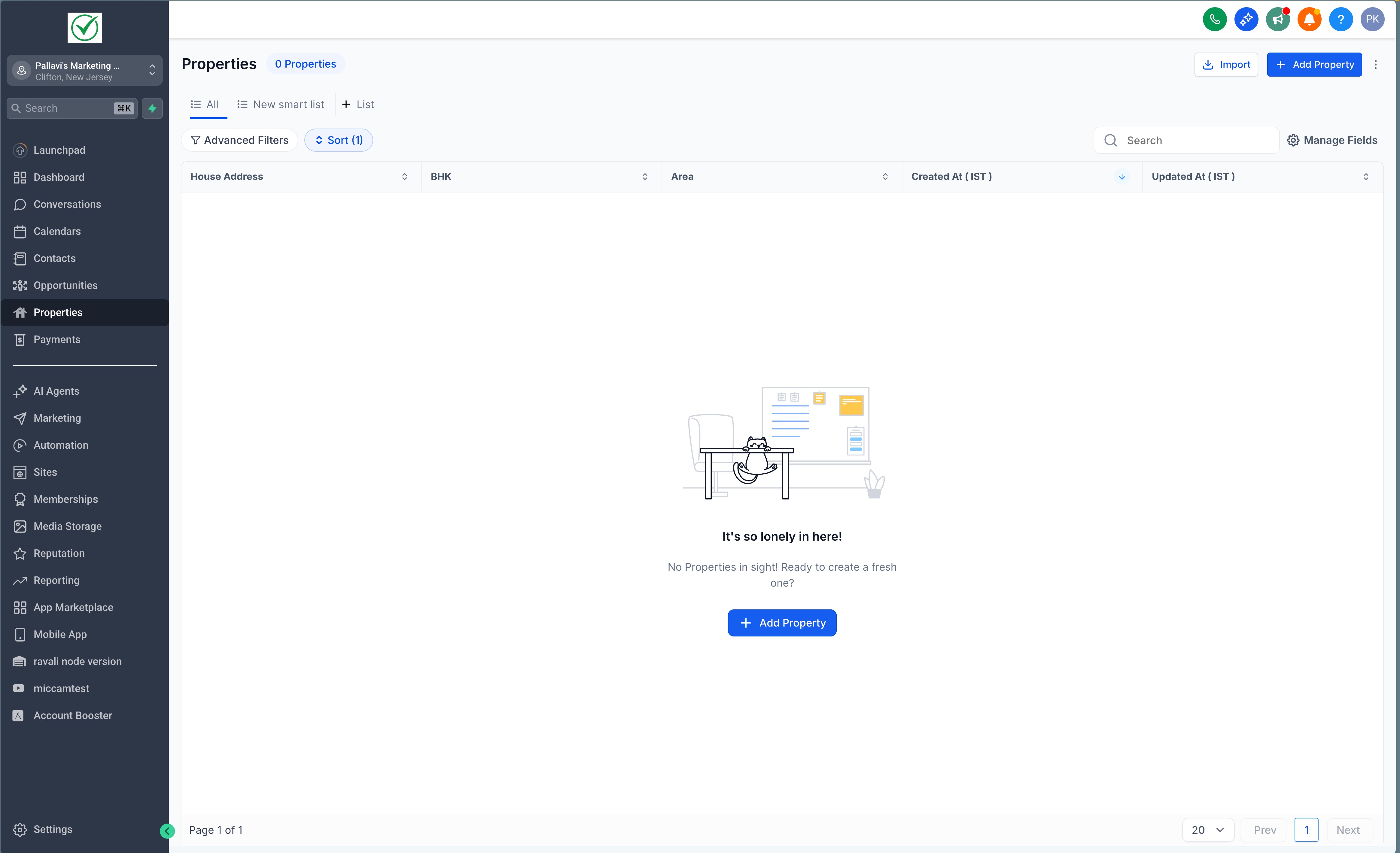
Step 2: Select Object
-
Choose the Company or Custom Object you want to import
-
Only one Custom Object can be imported at a time

Step 3: Upload CSV File
-
Upload your CSV
-
Choose your import mode
-
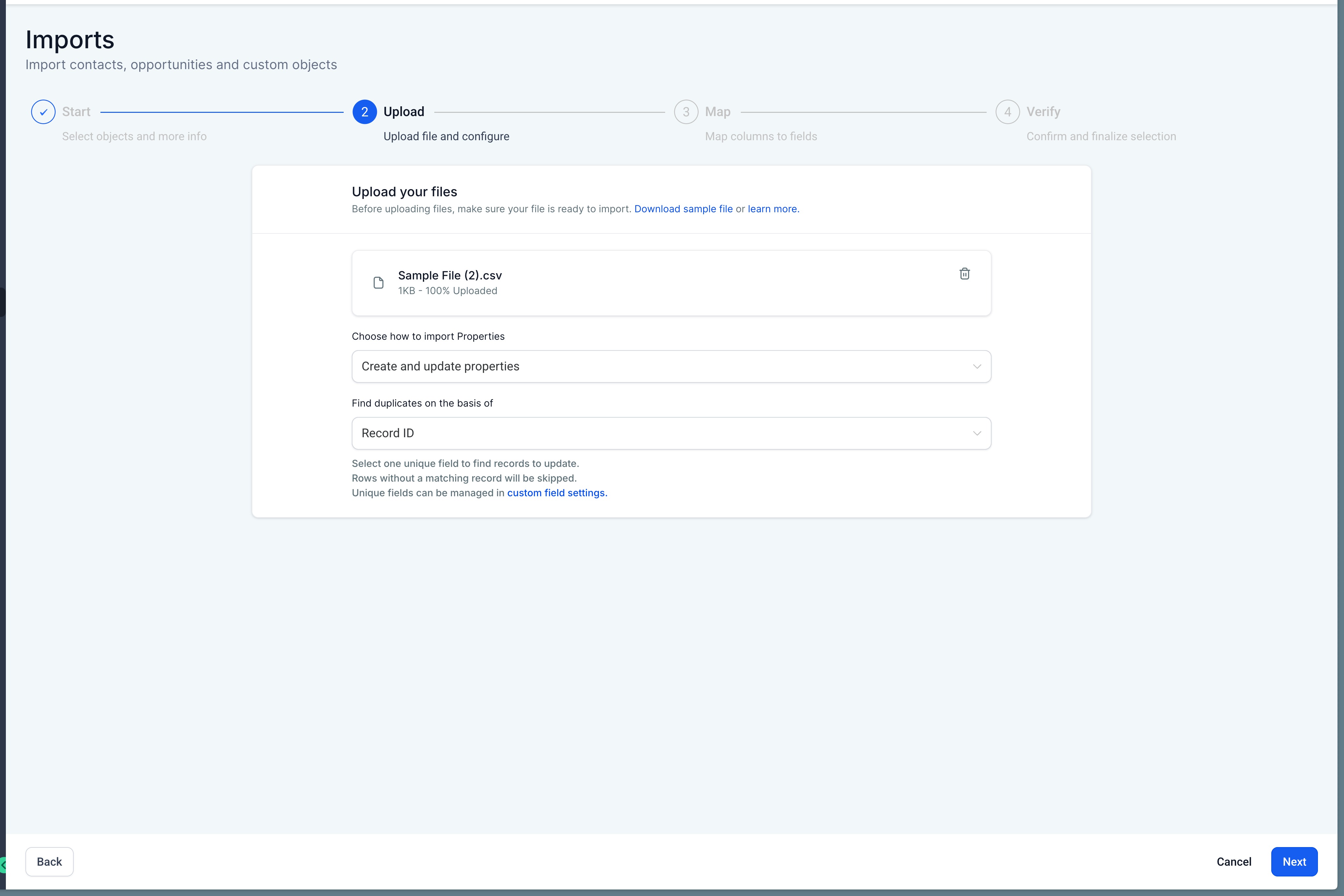
-
If applicable, select the unique field to deduplicate on
Step 4: Map Columns to Fields
Match each CSV column to the correct CRM field.
-
Required fields must be mapped
-
Unmapped columns can be ignored
-
Fields successfully mapped will show a green indicator
-
Errors or warnings will be highlighted
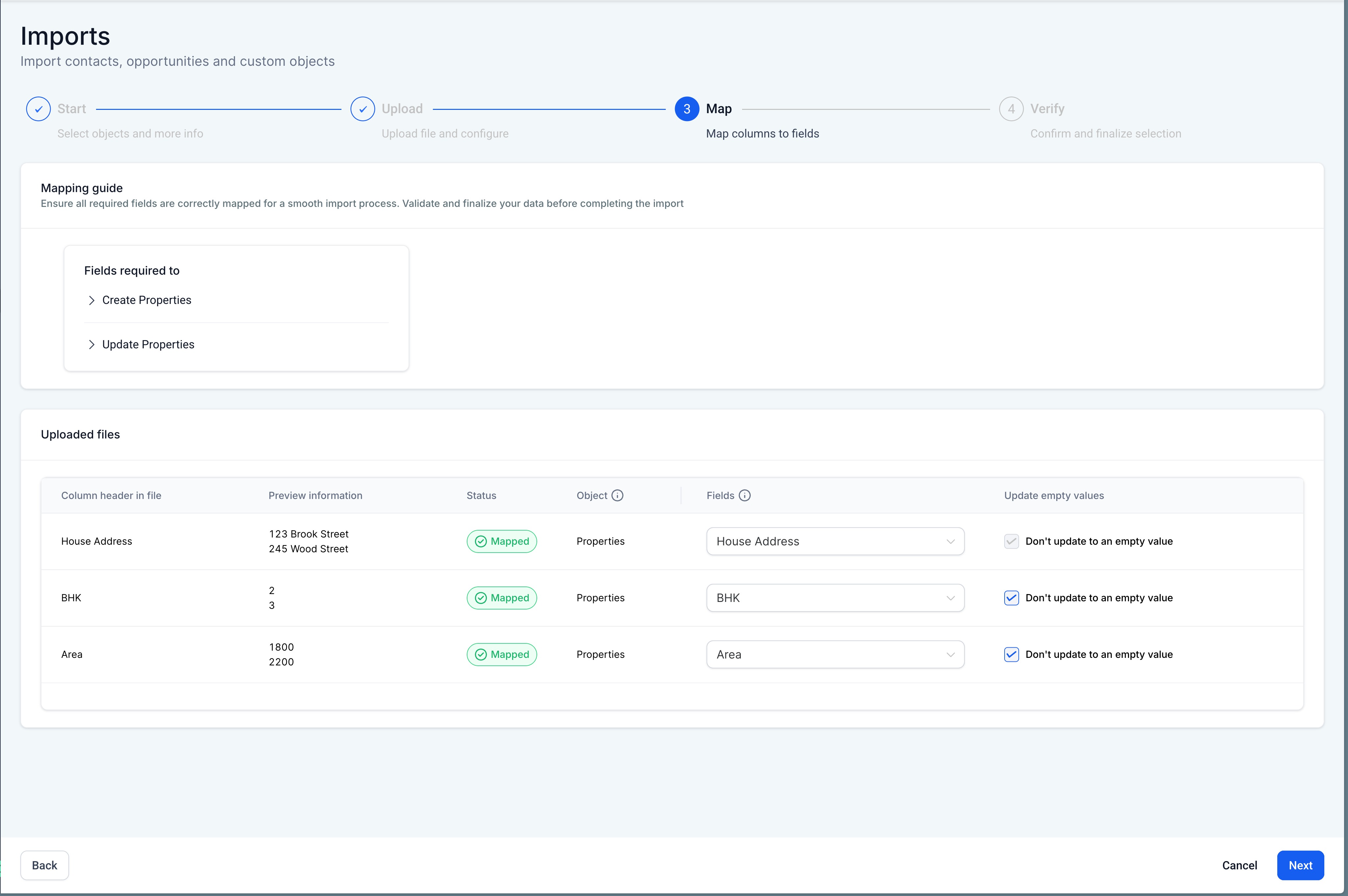
“Don’t Update Empty Values”
If enabled:
-
Blank cells in your CSV will NOT overwrite existing values.
If disabled:
-
Blank cells will clear existing values (except restricted fields).
Duplicate Handling & Unique Fields
If your Company or Custom Object contains unique fields:
-
You must select Record ID or one unique field as the deduplication field (if multiple are mapped)
-
The system checks other unique fields for conflicts
-
If a non-selected unique field conflicts, that row will fail

This ensures clean, conflict-free data.
Update Empty Values Restrictions
The following cannot be updated to empty:
-
Primary field
-
Required fields
These protections prevent accidental data loss.
Monitor Import Status
All imports can be tracked in Bulk Actions.
From Bulk Actions you can:
-
View status (Processing, Completed, Failed)
-
Pause, Resume, or Cancel (while running)
-
View detailed statistics
-
Download error logs
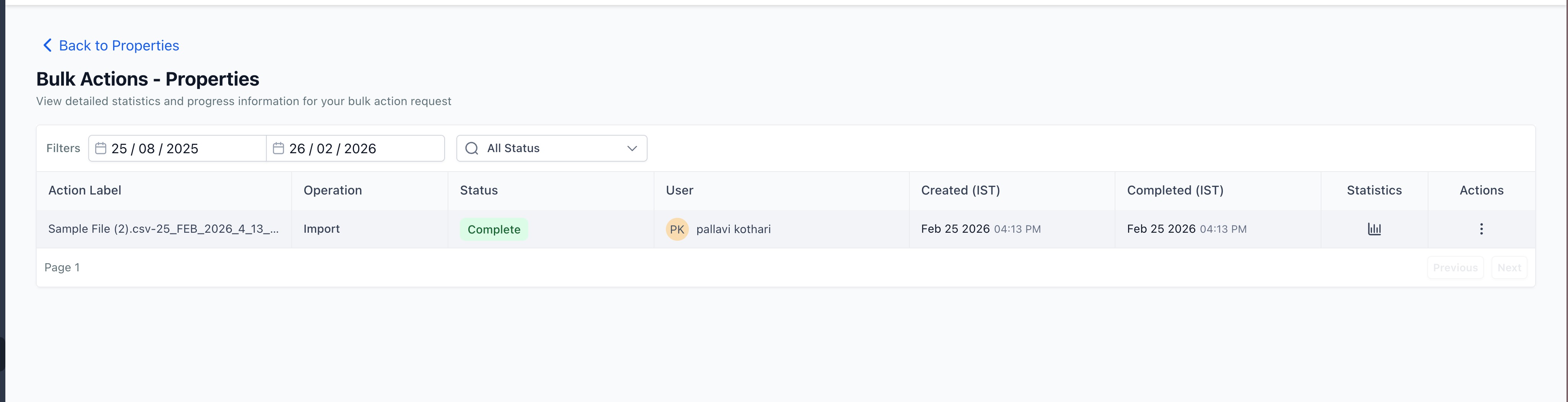
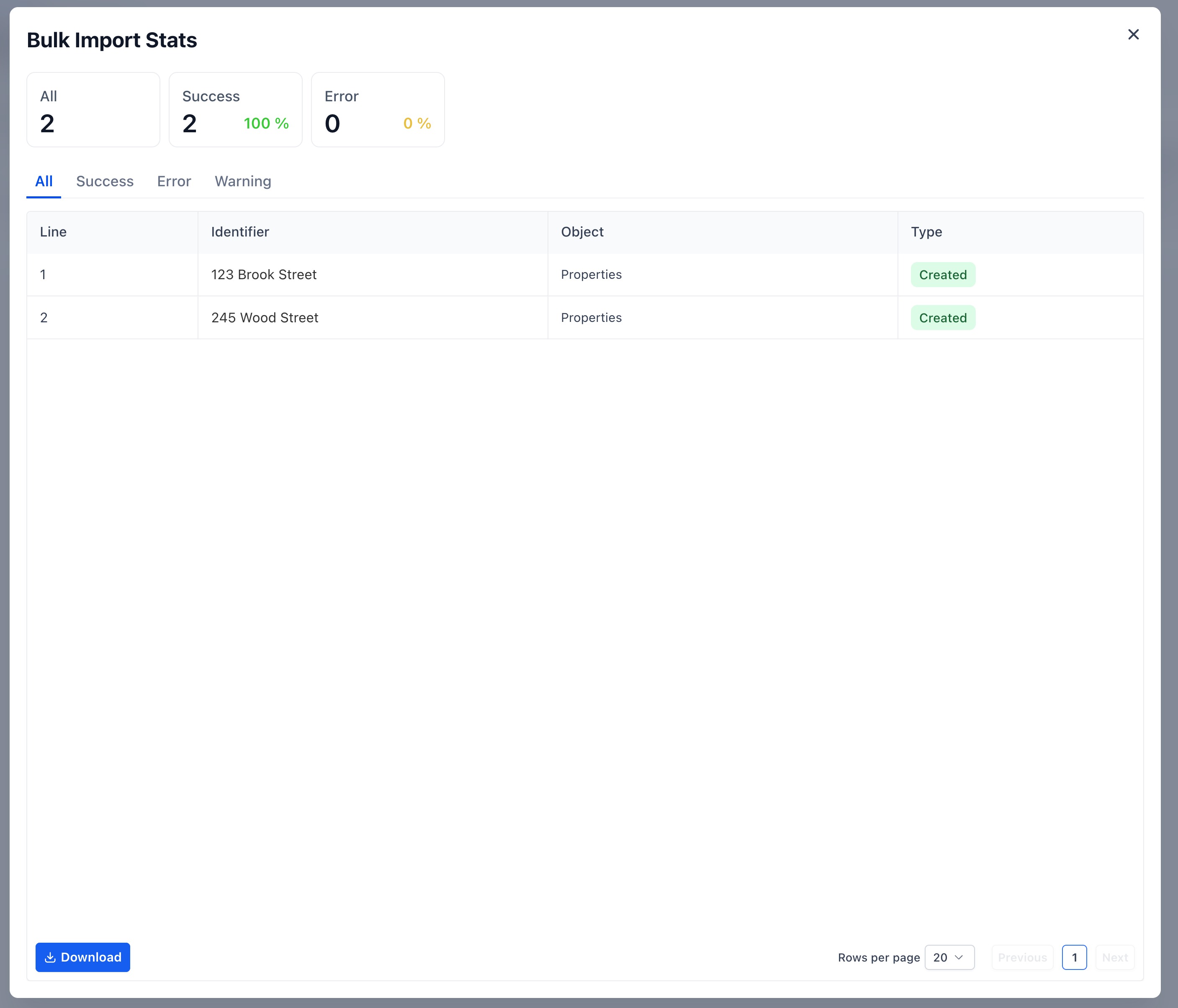
Import Stats
Each import provides:
Tabs:
-
All
-
Success
-
Error
-
Warning
Row-level details:
-
Line number
-
Record ID
-
Primary field
-
Status
-
Error/Warning message
-
Resolution guidance
Frequently Asked Questions
Q: Can I import multiple Custom Objects at once?
No. Only one Custom Object can be imported at a time.
Q: Can I import system fields like Created At?
No. System fields cannot be modified through imports.
Q: What happens if unique fields conflict?
That specific row will fail. The rest of the import continues.
Q: Can I undo an import?
No. Imports cannot be reversed. Always validate your CSV before starting.
Q: Where do I see past imports?
Go to Bulk Actions to view import history and statistics.