

Managing a large catalog of products manually can take significant time. Bulk product import allows you to quickly add multiple products at once by uploading a structured CSV file. This method is useful when migrating products from another system or uploading large inventories efficiently.
Using a CSV import ensures products are created with consistent data, including pricing, descriptions, variants, and inventory tracking settings.
TABLE OF CONTENTS
- Overview
- Prerequisites
- Preparing Your Product CSV File
- Importing Products with a CSV File
- Downloading the Sample CSV Template
- Uploading Your CSV File
- Previewing and Confirming Imported Products
- Importing Products into Your Inventory
- Important Notes and Tips
- Troubleshooting Common Issues
- Frequently Asked Questions
- Need Help
- SEO Properties
Overview
Bulk product import allows you to upload multiple products at once using a CSV file.
Instead of creating products individually, you can prepare a spreadsheet containing product data and import it directly into the system. Once imported, products become immediately available for use in orders, checkout pages, invoices, and product catalogs.
This process is commonly used when:
-
Migrating products from another ecommerce system
-
Uploading large product inventories
-
Updating product pricing or variants in bulk
-
Quickly launching new product catalogs
Prerequisites
Before starting the import process, ensure the following requirements are met:
-
Access to the Payments → Products section
-
A properly formatted CSV file
-
The sample CSV template downloaded from the import window
-
Product details prepared in the correct column format
Using the sample CSV template ensures your file structure matches the system requirements.
Preparing Your Product CSV File
Before uploading your CSV file, you should prepare your product data using the correct format.
Typical fields in the product import template may include:
-
Product Handle or Identifier
-
Product Title
-
Product Description
-
Variant Options (such as size or color)
-
Variant Price
-
Compare-at Price
-
Inventory Tracking
-
Image URLs
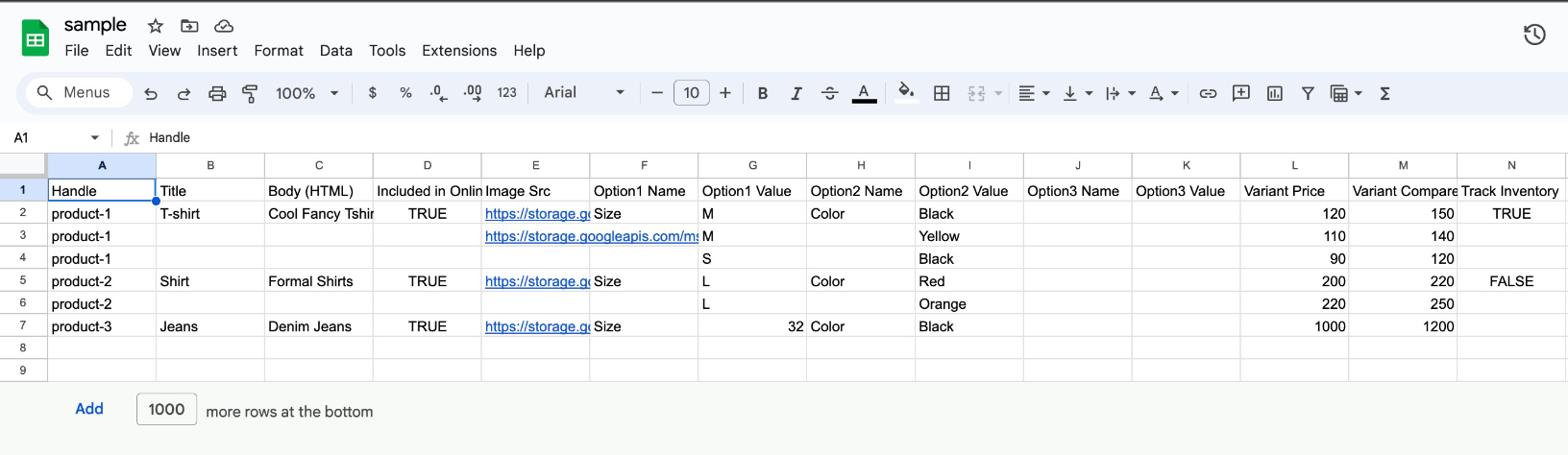
Each row represents either a product or a product variant.
For products with multiple variants (such as sizes or colors), multiple rows will reference the same product handle.
This image shows how product information should be organized in a spreadsheet before importing. Each column represents a product field such as title, description, variant options, pricing, and inventory tracking.
Ensure your spreadsheet structure matches the sample template before uploading.
Importing Products with a CSV File
Once your CSV file is ready, you can begin the import process.
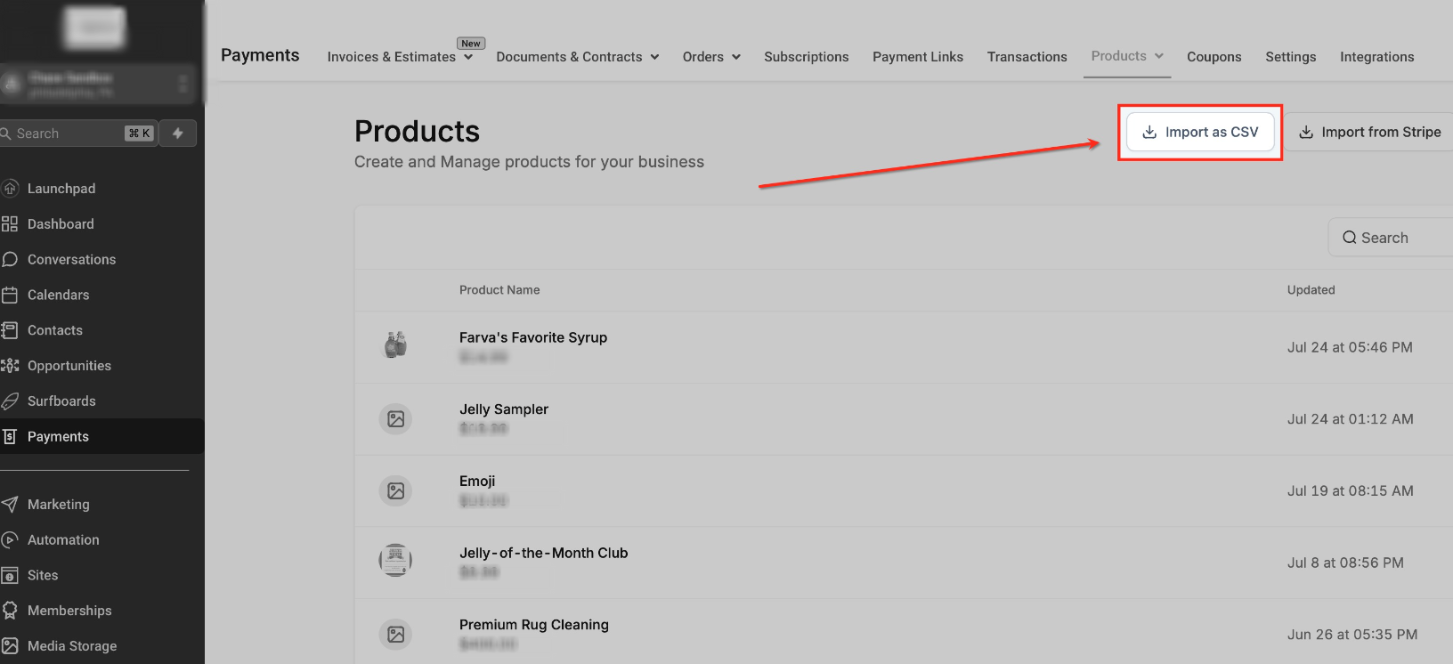
Navigate to the product management area and open the product list. From there, you can begin the CSV import process.
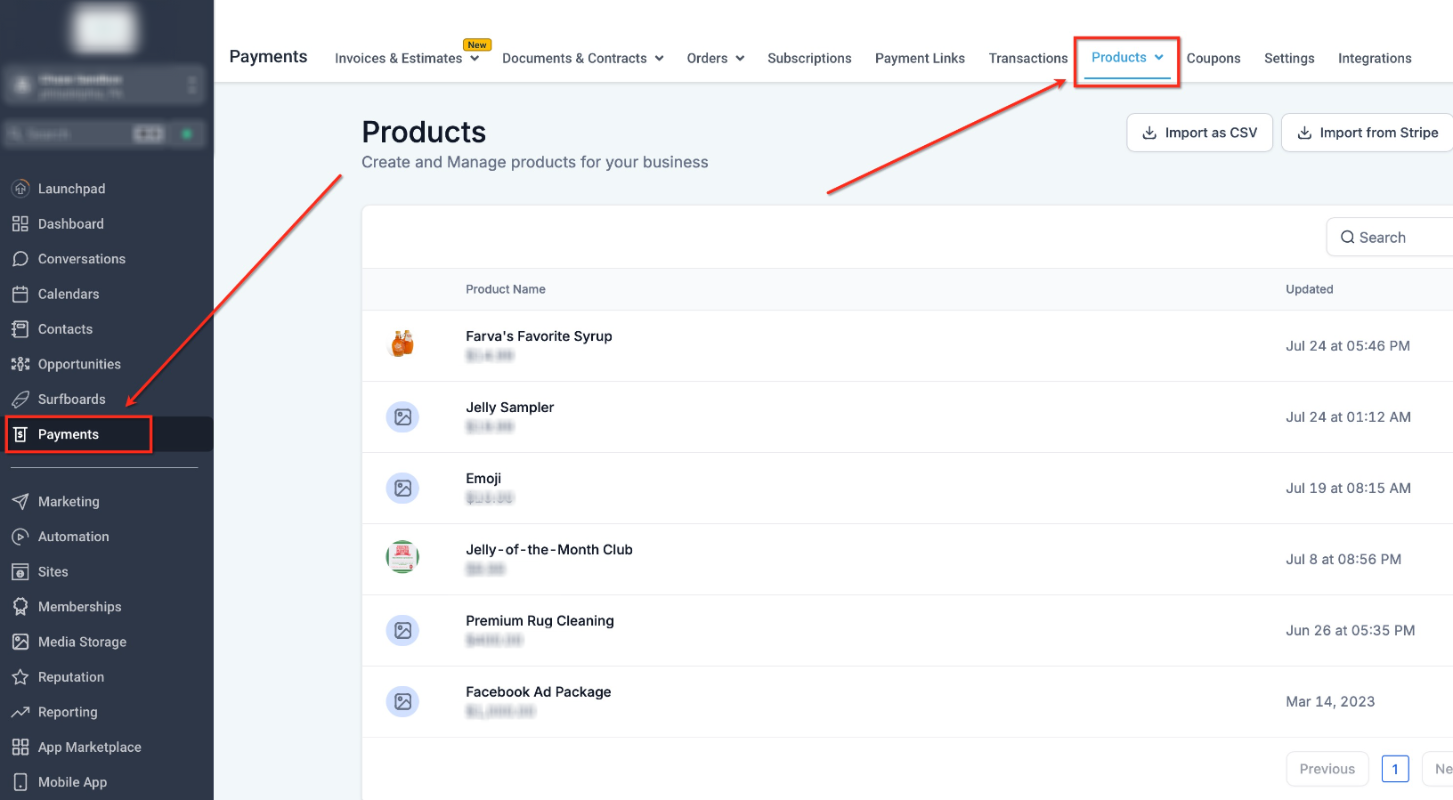
This image shows where to locate the Products section inside the Payments area. Open this page to view existing products and access product import tools.
Downloading the Sample CSV Template
Before uploading your CSV file, download the sample template to understand the correct column structure.
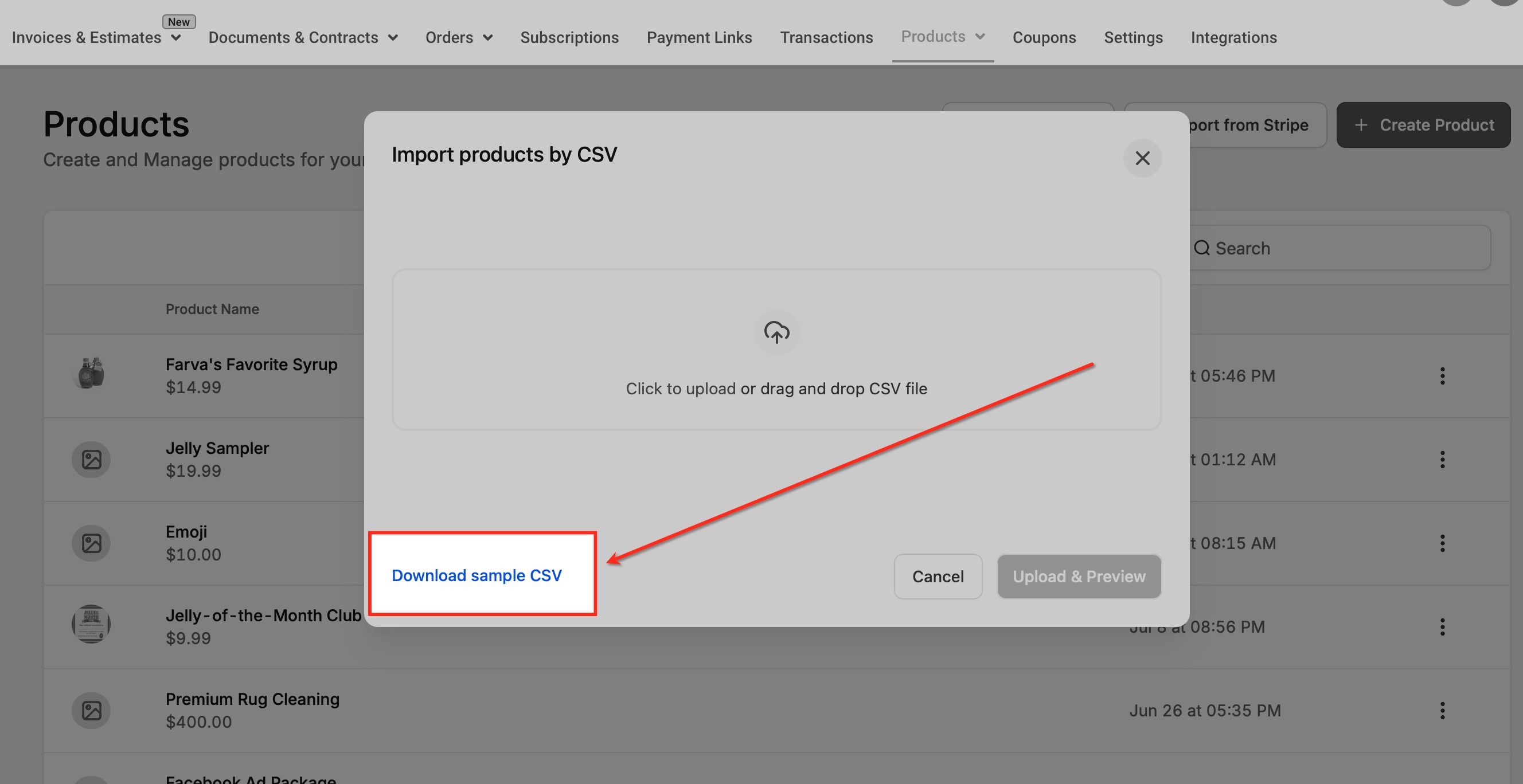
This screen displays the Import Products by CSV window. Use the Download sample CSV option to download the template file used for formatting product data correctly.
Using the template helps prevent formatting errors during import.
Uploading Your CSV File
Once your product CSV file is ready, return to the import window and upload the file.
This screen shows where to upload or drag and drop your CSV file. Select your prepared CSV file from your device to begin the preview process.
The system will automatically read the file and generate a preview of the products.
Previewing and Confirming Imported Products
Before finalizing the import, you will be shown a preview of the first product and its variants.
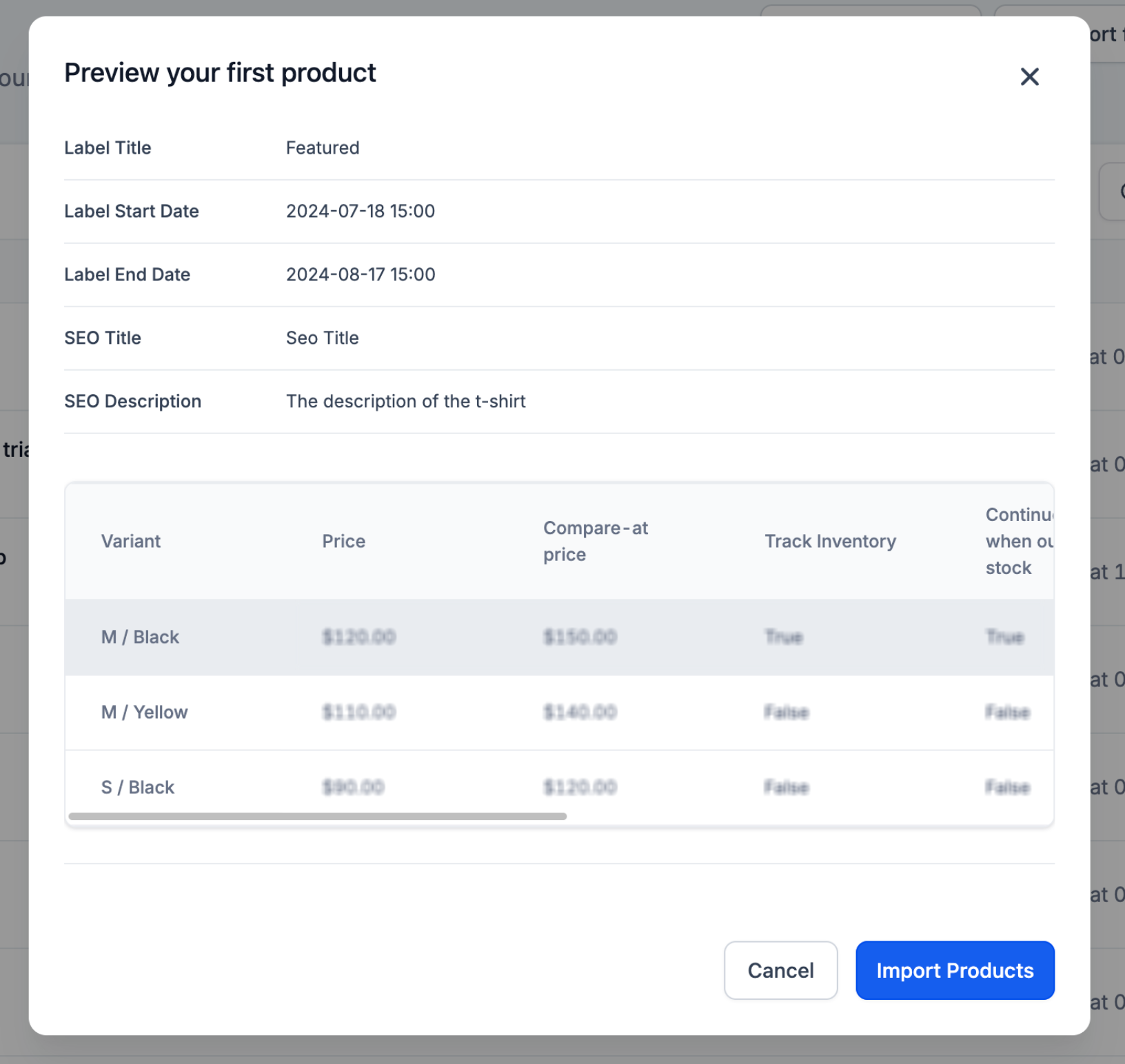
This preview screen allows you to verify:
-
Product titles
-
Variant pricing
-
Compare-at pricing
-
Inventory tracking
-
Product variants
Review the information carefully before completing the import.
If everything appears correct, proceed with the import.
Importing Products into Your Inventory
Once you confirm the preview:
-
Click Import Products
-
The system will process the CSV file
-
All products and variants will be added to your product catalog
After completion, the imported products will appear in your product list and will be ready for use in payments and checkout.
Important Notes and Tips
Follow these best practices to ensure a smooth import process:
-
Always use the sample CSV template for formatting.
-
Avoid duplicate product handles unless creating variants.
-
Ensure price fields contain only numeric values.
-
Remove special characters that could break CSV formatting.
-
Confirm image URLs are publicly accessible.
Large product imports may take a few moments to complete depending on the number of items in your file.
Troubleshooting Common Issues
If you encounter errors during import, review the following common causes.
CSV File Format Errors
Ensure your file is saved as .csv and not another spreadsheet format.
Missing Required Fields
Check that required fields such as product name or price are included.
Incorrect Variant Formatting
Variants must reference the same product handle across multiple rows.
Special Characters
Remove unsupported characters or formatting issues within spreadsheet cells.
Correct the issue in your CSV file and upload it again.
Frequently Asked Questions
Q: What file format is required for product import?
Only CSV files are supported for bulk product imports.
Q: Can I update existing products using CSV import?
Yes. If the product identifiers match existing products, the import can update their details.
Q: Can products have multiple variants in the import file?
Yes. Multiple rows referencing the same product handle allow you to create variants such as size or color.
Q: Why is my CSV file not importing correctly?
The most common causes are incorrect column formatting, missing required fields, or invalid characters in spreadsheet cells.
Need Help
If your product import fails or products are not appearing as expected, review the following steps:
-
Confirm your file follows the sample CSV format.
-
Ensure required product fields are included.
-
Verify the CSV file was saved correctly before uploading.
-
Re-upload the file after correcting formatting issues.
If problems continue, contact support with your CSV file and a description of the issue so the import data can be reviewed.