

For Resolving the LC Plugin creating too many cron jobs/crashing your website please follow the steps provided below.
Step 1 –
Deactivate the LC plugin by going to Plugins -> Installed Plugins. Skip if already in Inactive state.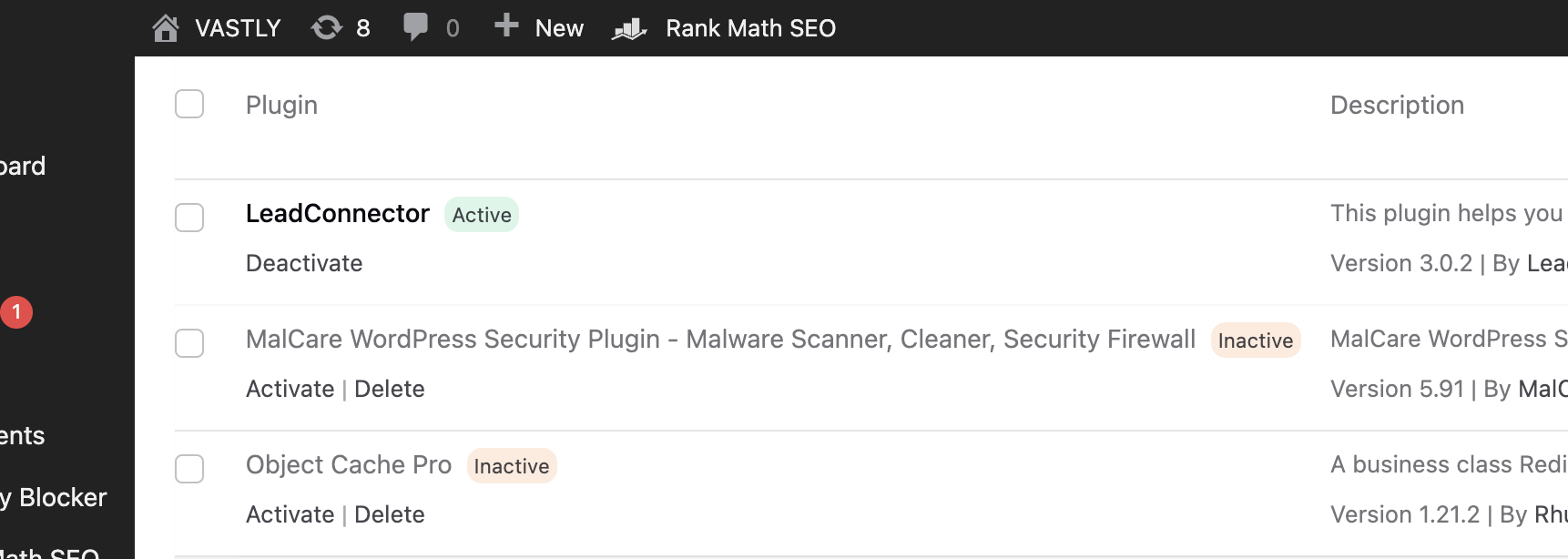
Step 2 –
Download the leadconnector-cron-fix plugin by clicking here
( MD5 Checksum – 5a80c8666c97f834392a0465726c219a )
Step 3 –
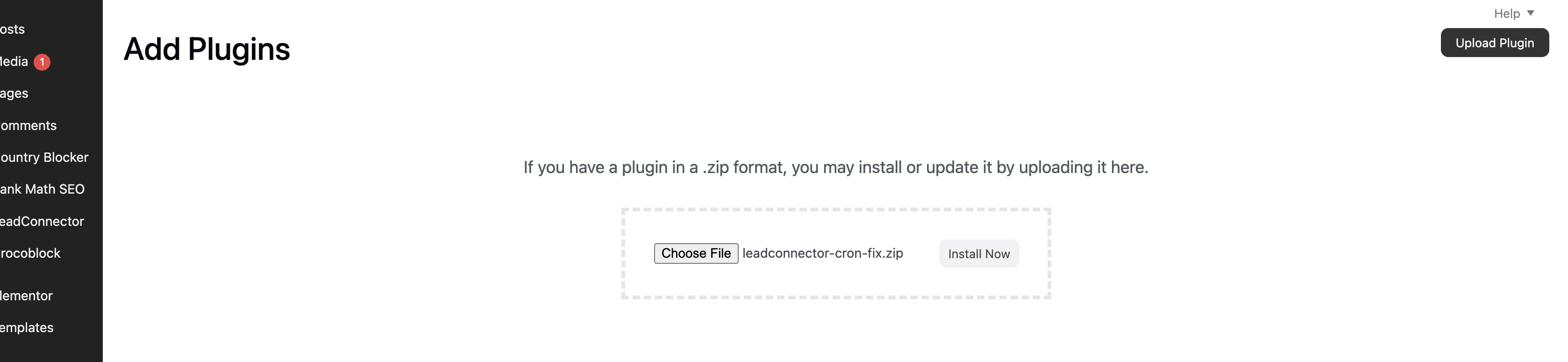
Install the new plugin by going to Plugins -> Add new plugin -> Upload plugin.
Step 4 –
Next Click on Activate Plugin.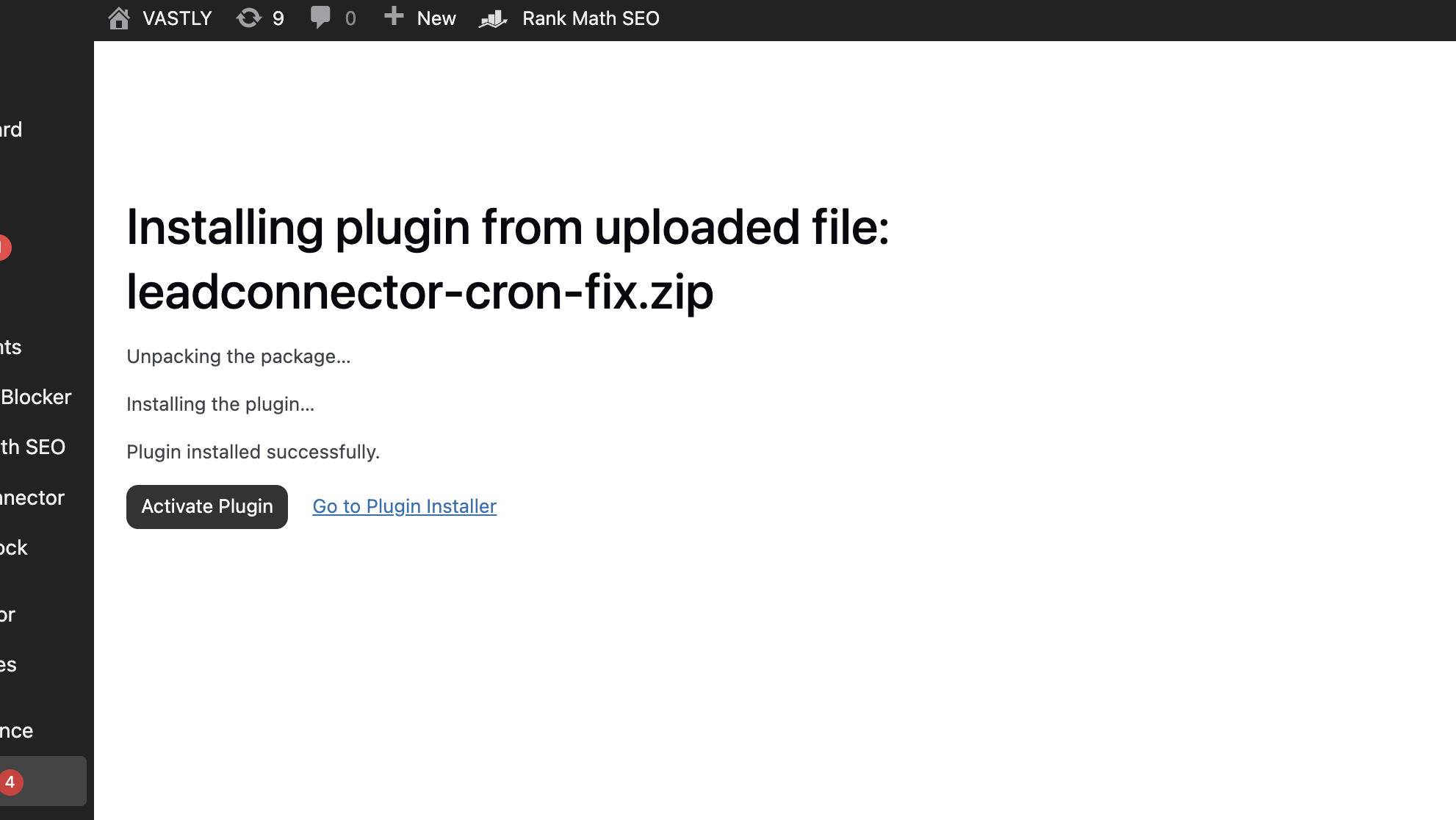
Step 5 –
After activating the plugin Go to Tools -> LC Cron Fixer
If you see this screen you are good to activate the main LC Plugin now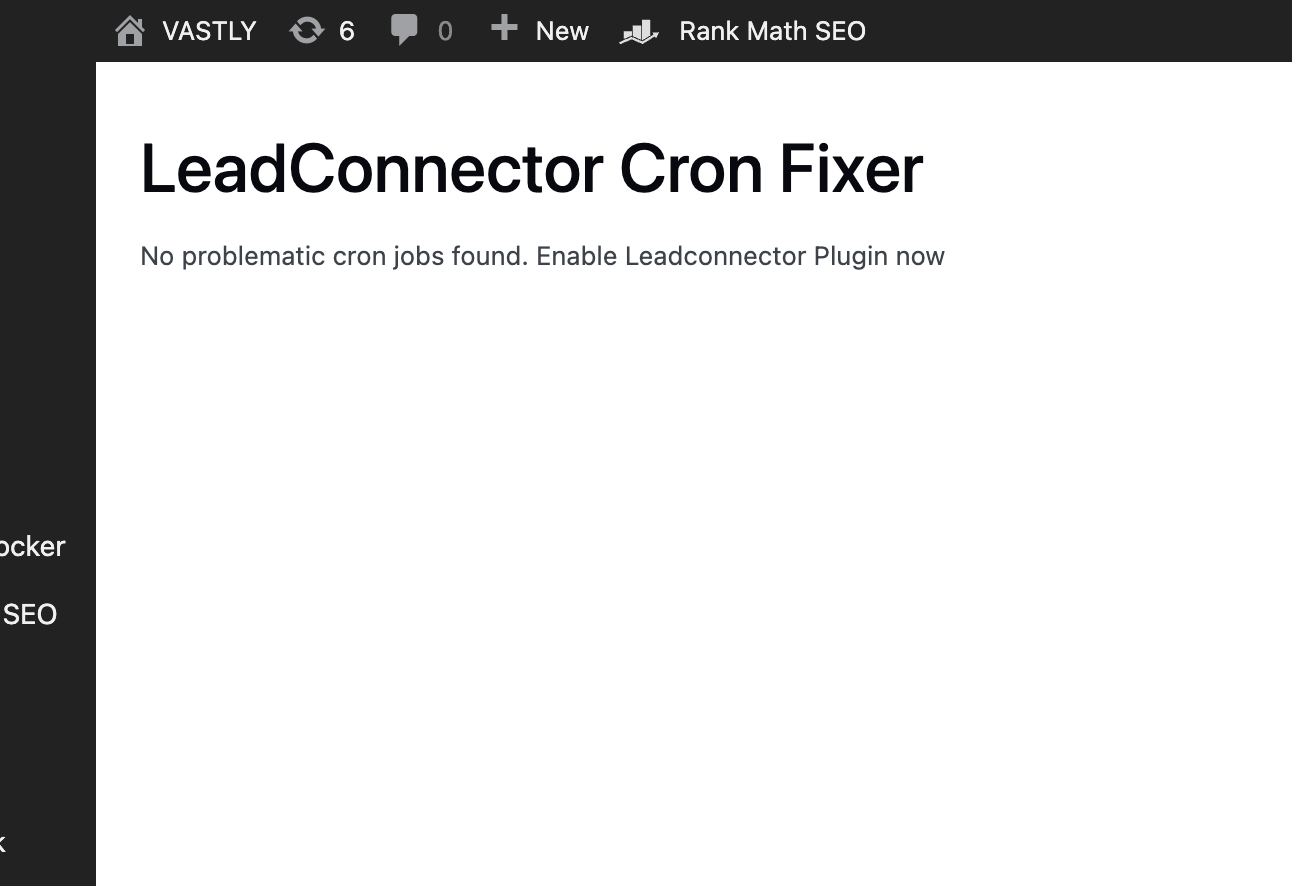
or if you see this screen you can click on the “fix cron jobs” button.

if incase you do not see the first screen after multiple attempts please reach out to LeadConnector Support we will help you resolve the issue further.
Step 6 –
Go Back to Plugins -> List Plugins and click on Activate against LC Plugin. ( If incase your plugin is not on the latest version please do update the same aswell.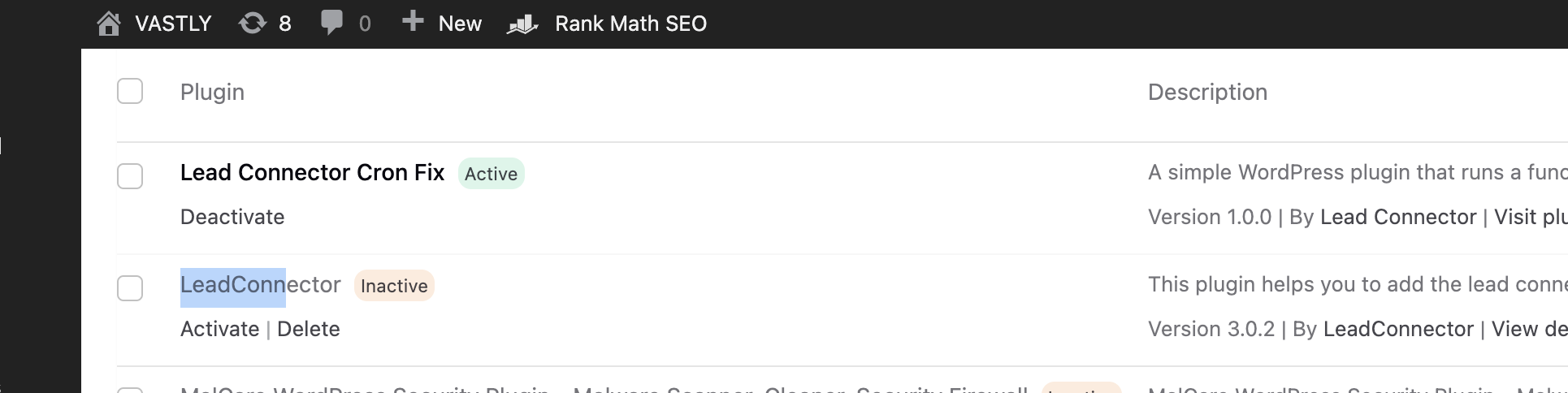
Step 7 –
Lastly Deactivate and Delete the Lead Connector Cron Fix Plugin and you are all set!