

Are you looking for an easy way to connect with your website visitors and convert them into customers? LeadConnector Webchat for Weebly is the perfect solution for you!
In this article, we’ll walk you through the steps to start with LeadConnector Webchat for Weebly.
Covered in the article
How to obtain the embed code for web chat for the website:
Here are detailed steps on how to add a custom chat widget to a Weebly website using different methods:
Method 1: Adding a Custom Chat Widget with Weebly’s Header Code Injection Feature
Method 2: Adding a Custom Chat Widget with Weebly’s Custom HTML/ Embed Code Element
How to obtain the embed code for web chat for the website:
Copy the embed code from Sites > Chat Widget > Get Code
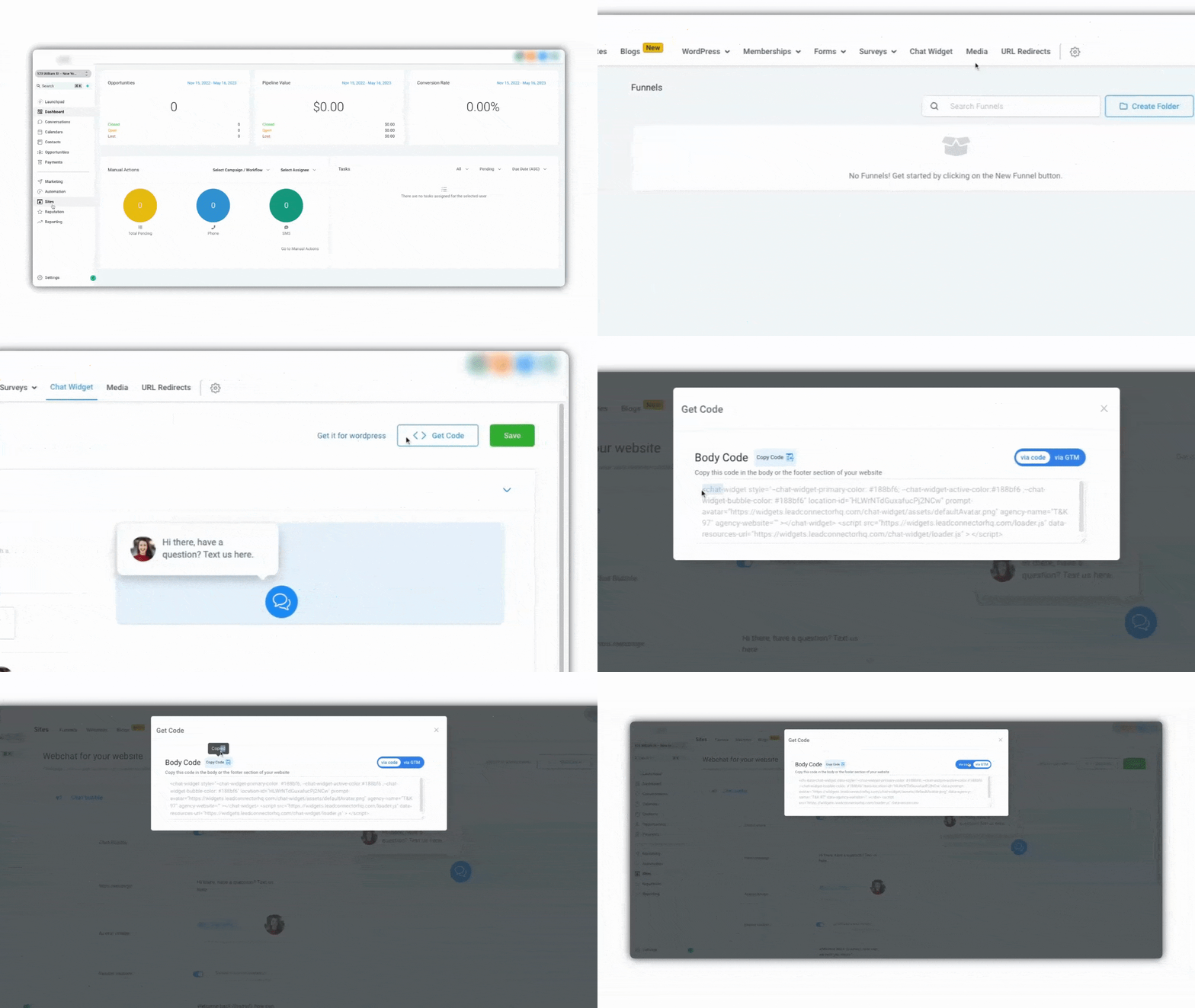
Here are detailed steps on how to add a custom chat widget to a Weebly website using different methods:
Method 1: Adding a Custom Chat Widget with Weebly’s Header Code Injection Feature
- Log in to your Weebly account and navigate to the website editor.
- Click on “Settings”
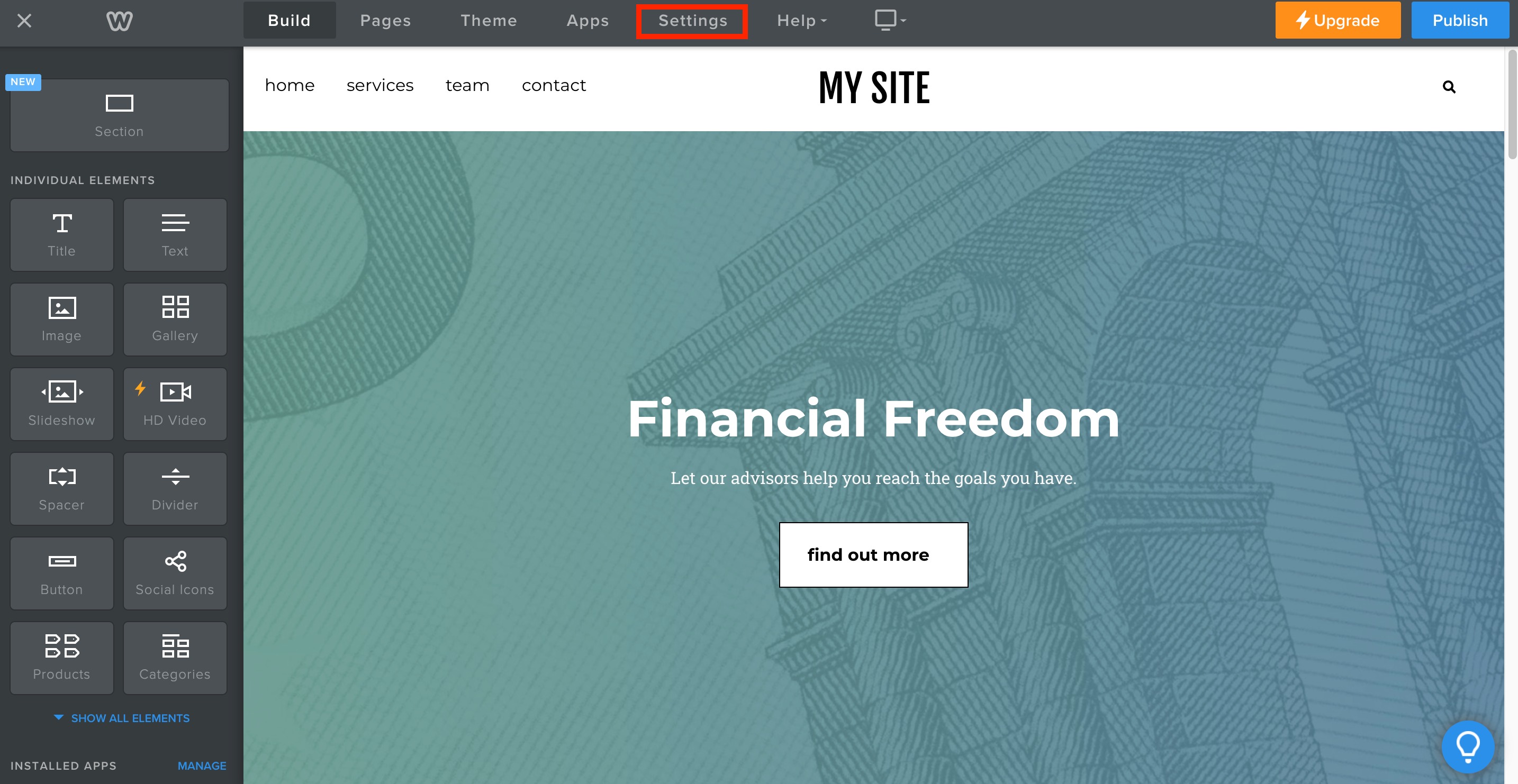
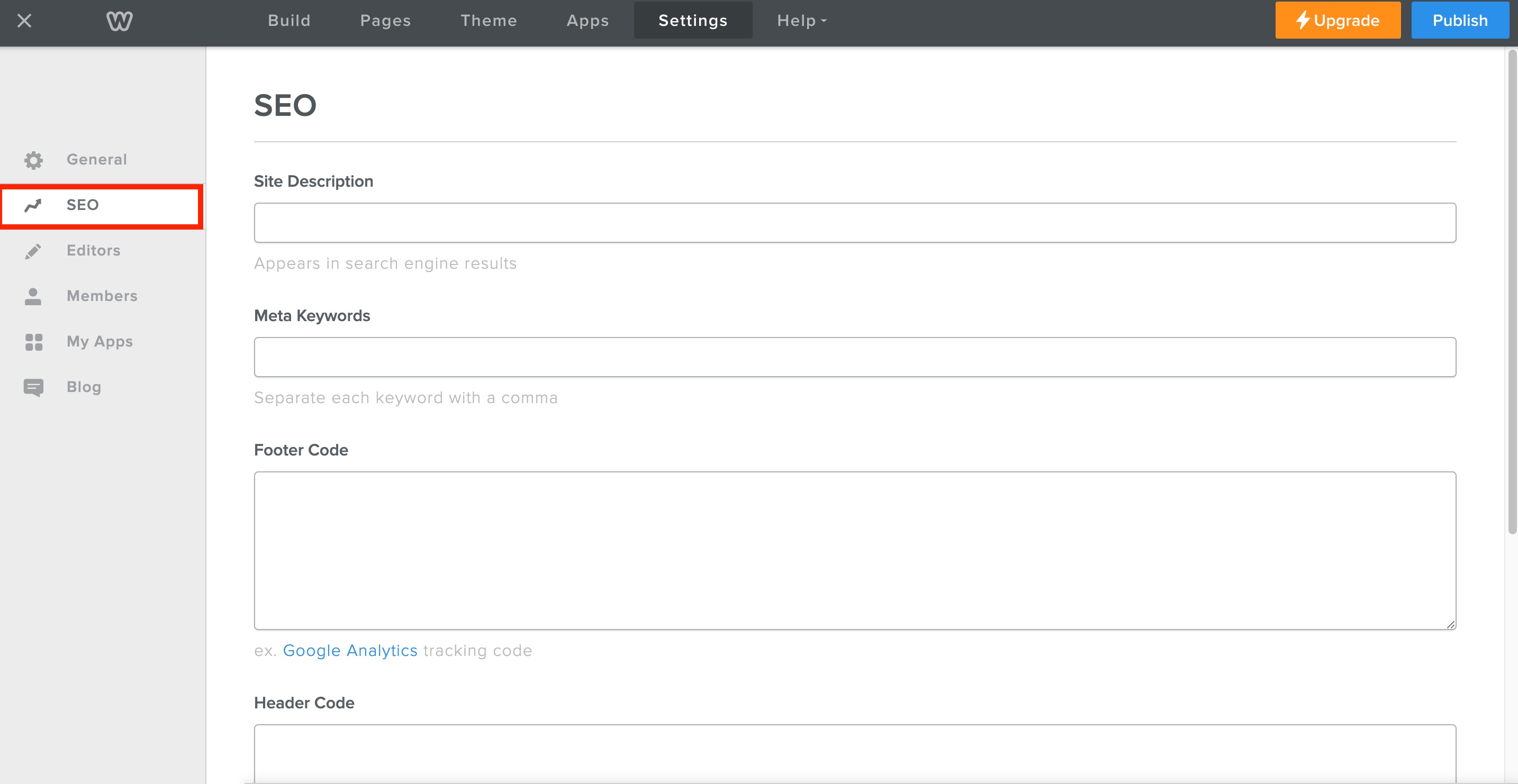
- In the left-hand menu and select “SEO” from the options.
- Scroll to the “Header Code Injection” section and click “Edit”.
- Paste the code into the “Header Code Injection” box in Weebly.
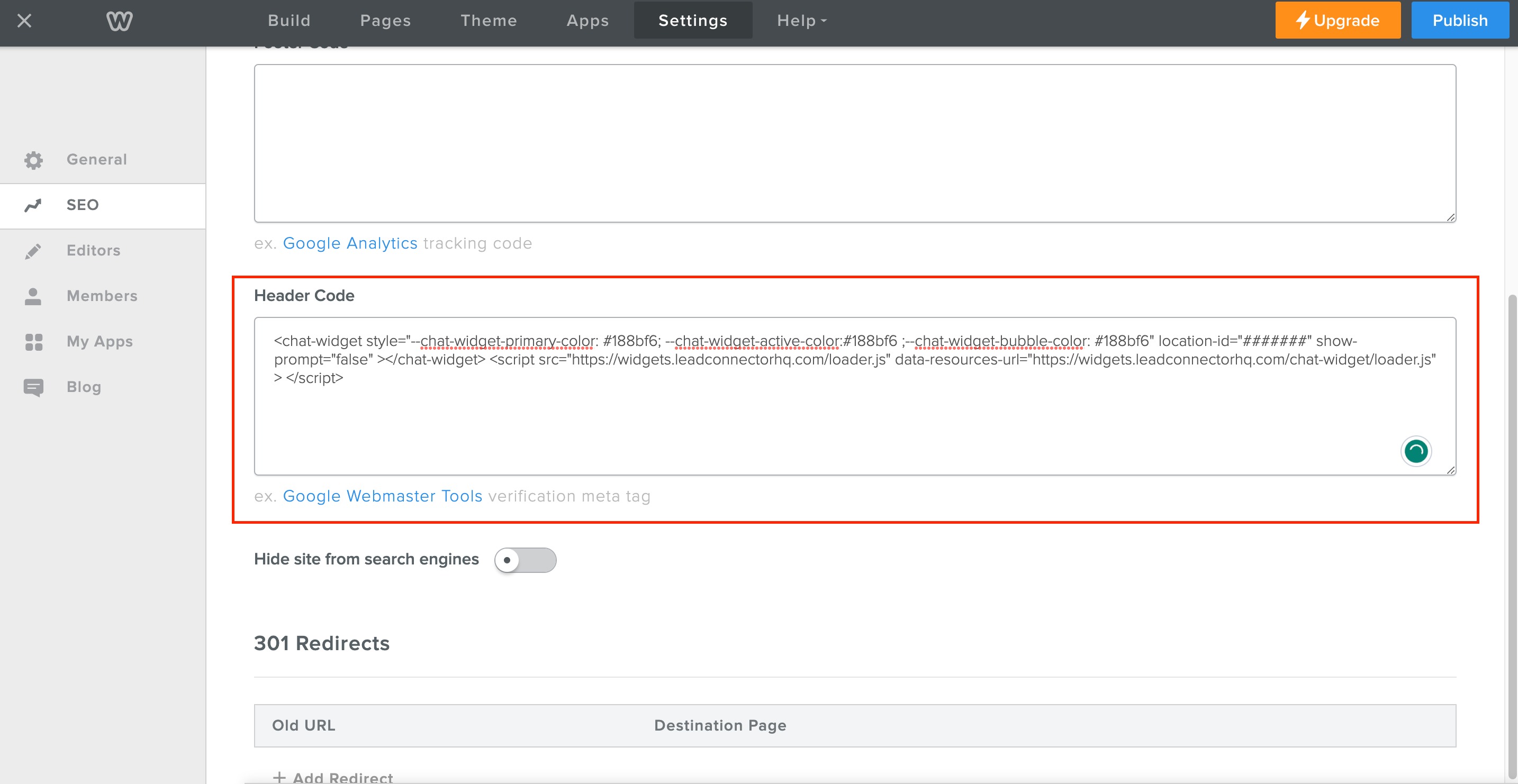
- Click “Save” to save your changes.
Method 2: Adding a Custom Chat Widget with Weebly’s Custom HTML/ Embed Code Element
- Log in to your Weebly account and navigate to the website editor.
- Click on “Elements” in the left-hand menu and select “Custom HTML/Embed Code” from the options.
- Drag and drop the Custom HTML element onto your page where you want the chat widget to appear.
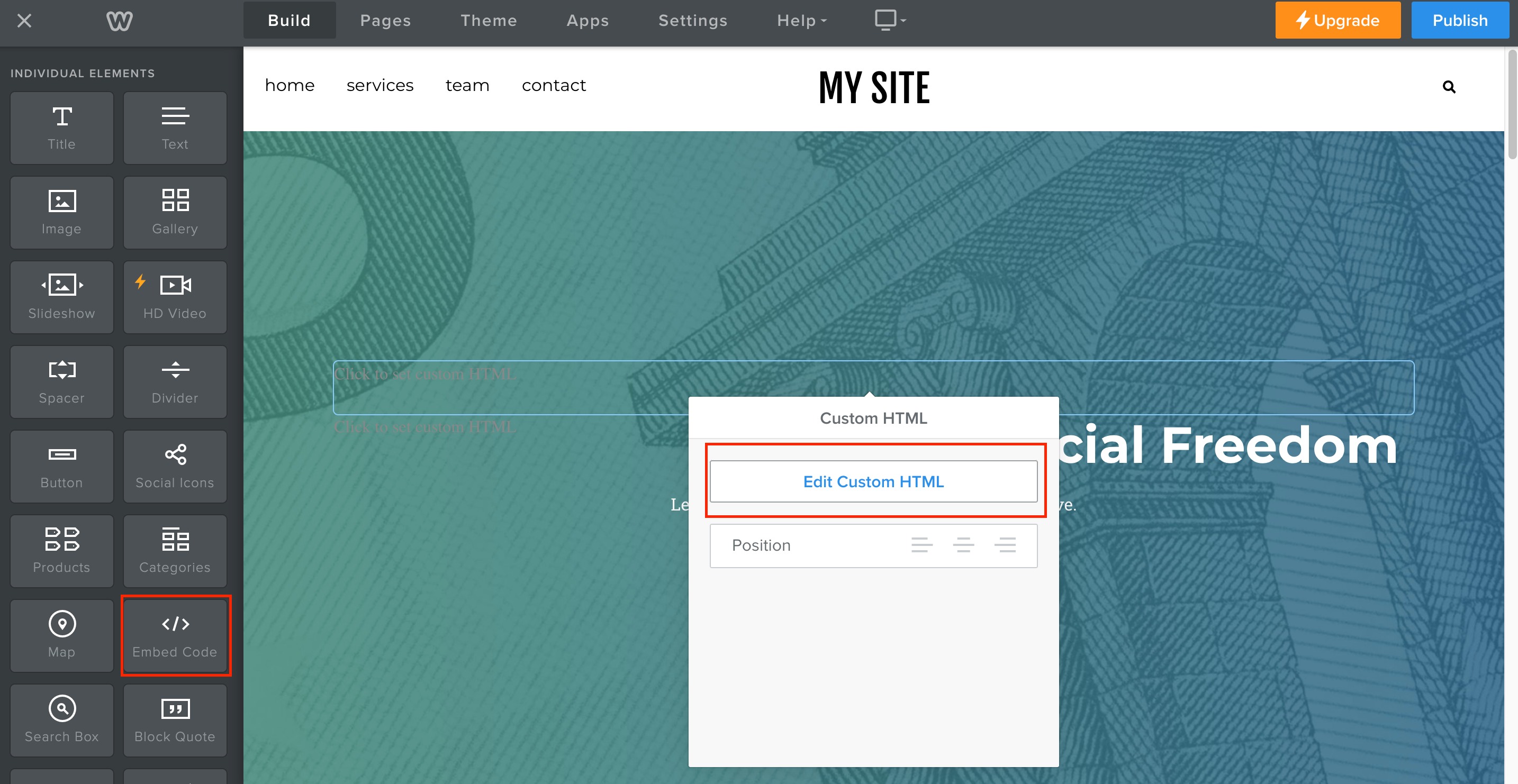
- Paste the Chat code into the Custom HTML element in Weebly.
- Click “Publish” to save your changes.