

Extend your Managed Agents with third-party integrations through Model Context Protocol (MCP) connectors.
What You’ll Learn
MCP connectors allow Managed Agents to interact with external applications such as HubSpot, Notion, Make, Calendly, and more.
Agents can authenticate, access available tools, and perform actions in connected apps based on configured triggers.
This article explains what MCP connectors are, which apps are supported, how to connect them in Agent Studio, and how to manage available tools.
TABLE OF CONTENTS
- What You’ll Learn
- What Are MCP App Connectors?
- Key Benefits
- Supported MCP Apps
- How to Connect an MCP App to a Managed Agent
- Frequently Asked Questions
What Are MCP App Connectors?
MCP, or Model Context Protocol, app connectors allow Managed Agents to securely authenticate and interact with supported third-party applications.
After you connect an app, the agent can access selected tools and perform actions within that application as part of its configured automation.
For example, a Managed Agent connected to Notion can create pages, search content, or update databases in your Notion workspace.
A Managed Agent connected to HubSpot can create contacts, update deals, or log activities directly in HubSpot.
MCP connectors use OAuth authentication or secure login flows to provide the required permissions. You control which tools each agent can access within the connected app.
Key Benefits
MCP app connectors expand what Managed Agents can do by connecting them with external platforms.
Browse and Connect Apps in Agent Studio — Add supported MCP apps directly from Agent Studio without leaving the platform.
Secure Authentication — Connect through OAuth or supported secure login flows. Agents receive only the permissions you authorize.
Granular Tool Selection — Choose which tools each agent can use within a connected app. This helps limit access to only the functions the agent needs.
Trigger-Based Actions — Agents can perform actions in connected apps when their configured triggers run.
These actions can include creating records, updating statuses, or retrieving information.
Growing Ecosystem — Additional MCP connectors may become available as supported integrations expand.
Supported MCP Apps
Each MCP connector provides tools that Managed Agents can use to interact with the connected application.
| MCP App | Description |
|---|---|
| HubSpot | Manage contacts, deals, and CRM activities in HubSpot. |
| Notion | Create pages, search content, and organize knowledge in Notion workspaces. |
| Apify | Run web scraping and automation tasks using Apify actors. |
| Make | Trigger Make scenarios and automate multi-app workflows. |
| Fathom | Access analytics and visitor data from Fathom. |
| Calendly | Schedule meetings and manage calendar availability through Calendly. |
| Canva | Generate and manage design assets using Canva’s tools. |
| OpenArt | Create AI-generated artwork and visual content through OpenArt. |
| Monday.com | Manage work in boards, create and update items, and move tasks through statuses. |
| Cal.com | Book, reschedule, and manage meetings on connected calendars automatically. |
| Higgsfield | Generate cinematic AI videos and images from text or reference inputs. |
| GitHub | Read code, manage issues and pull requests, and trigger actions across development workflows. |
| Shippo | Compare carrier rates, purchase and print shipping labels, and track shipments. |
| Windsor.ai | Pull unified marketing and advertising data from 350+ sources and take actions on connected platforms, such as adjusting campaign budgets or pausing ads. |
| Vapi | Trigger and manage AI voice calls, route calls to voice assistants, and retrieve call details. |
| Google Drive | Find, organize, and manage files and folders across Google Drive. |
| Google Docs | Create, read, and edit documents in Google Docs. |
| Google Sheets | Read and update spreadsheets, pull data, write rows, and keep sheets in sync. |
| Google Slides | Create and update presentations and slide content in Google Slides. |
| Google Calendar | Create, update, and look up events across connected calendars. |
| Atlassian | Manage Jira issues, track work, and read or update pages in Jira and Confluence. |
| Trello | Manage boards, create and move cards, update lists, and keep projects moving. |
How to Connect an MCP App to a Managed Agent
Follow these steps to add an MCP app connector to a Managed Agent in Agent Studio.
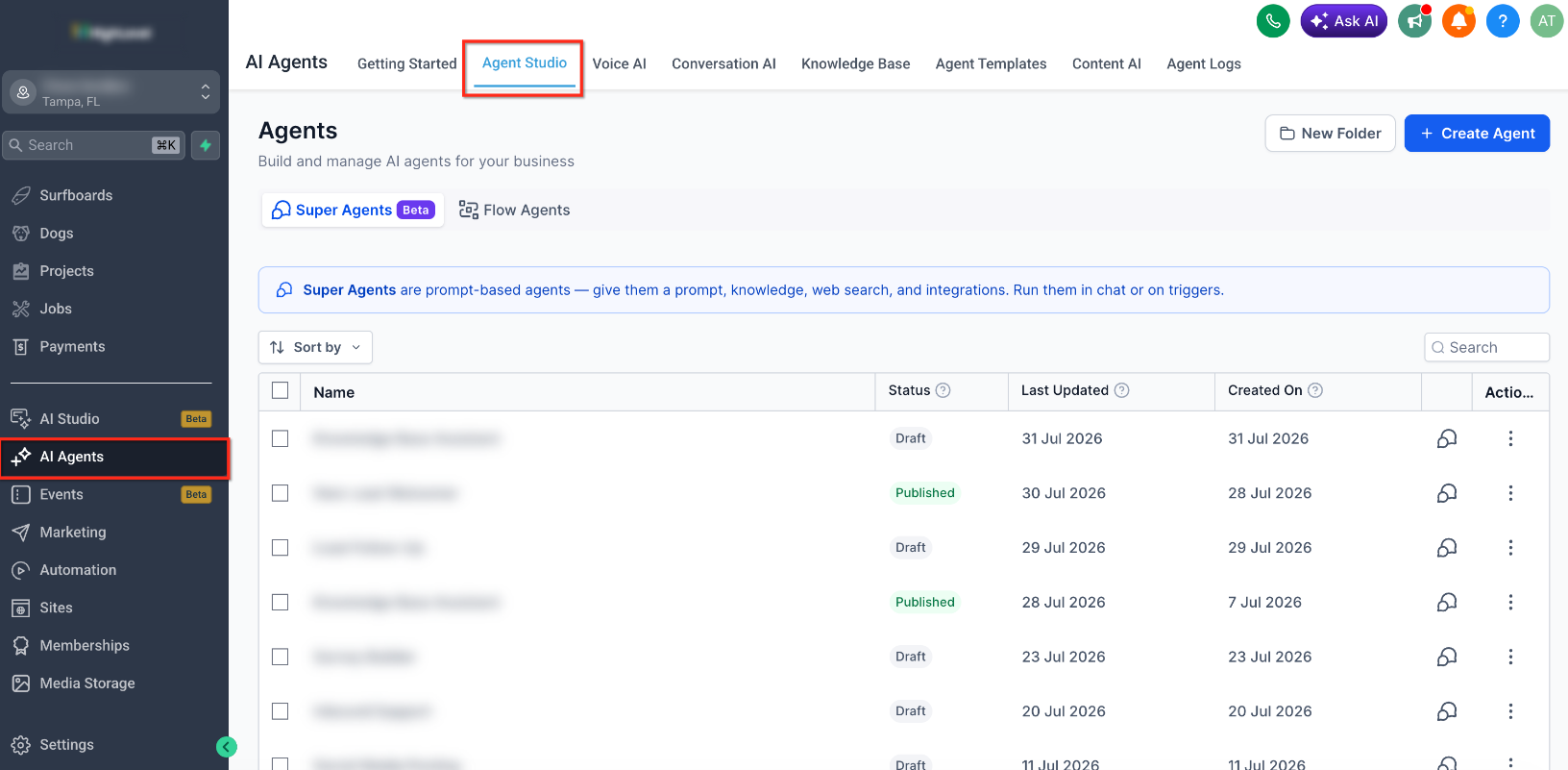
Step 1: Open Agent Studio
Navigate to AI Agents > Agent Studio.
Step 2: Create or Select a Managed Agent
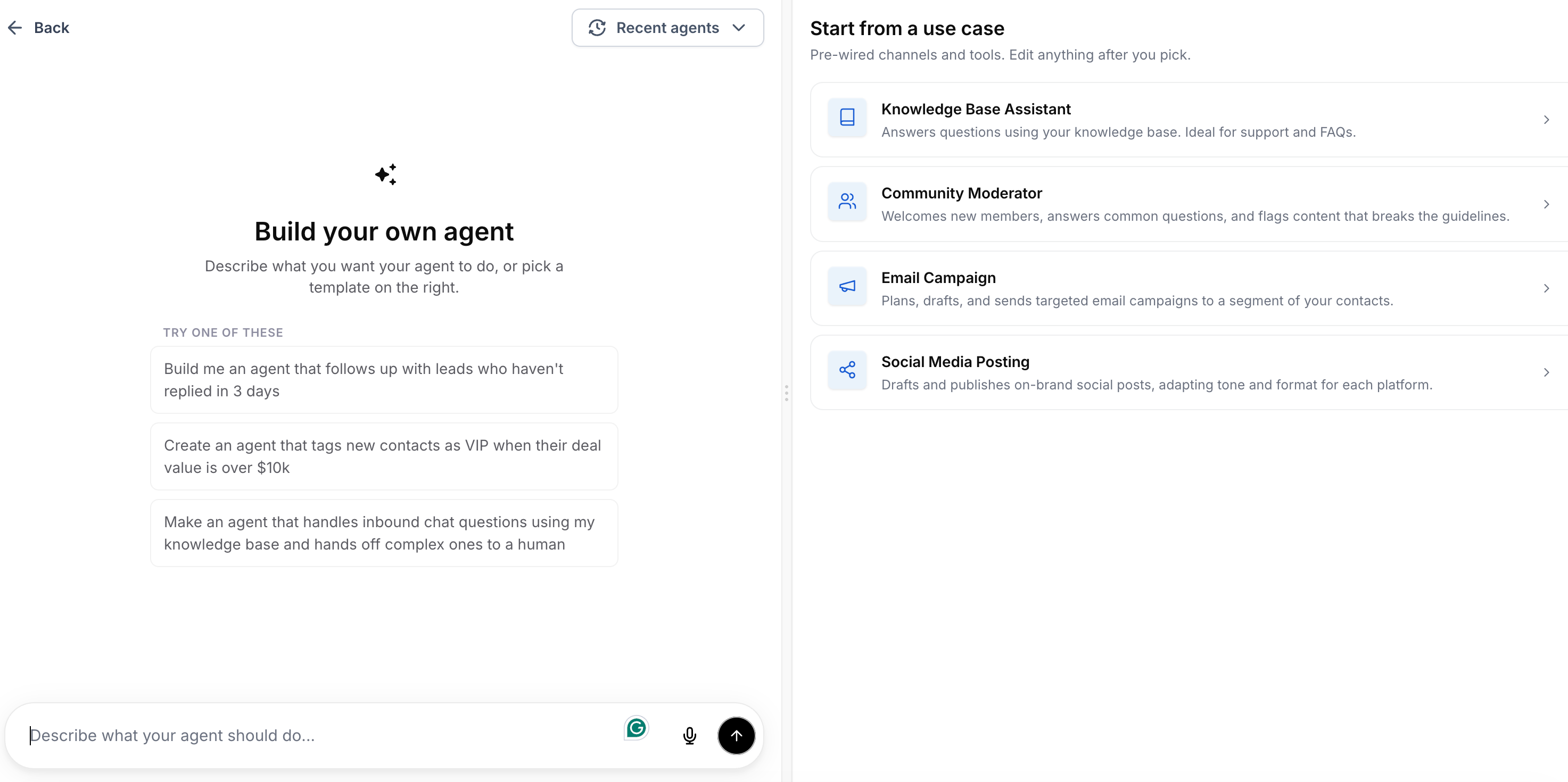
Create a Managed Agent or open an existing one.
You can also ask the agent builder to add an MCP app while creating the agent.
Step 3: Add an MCP App
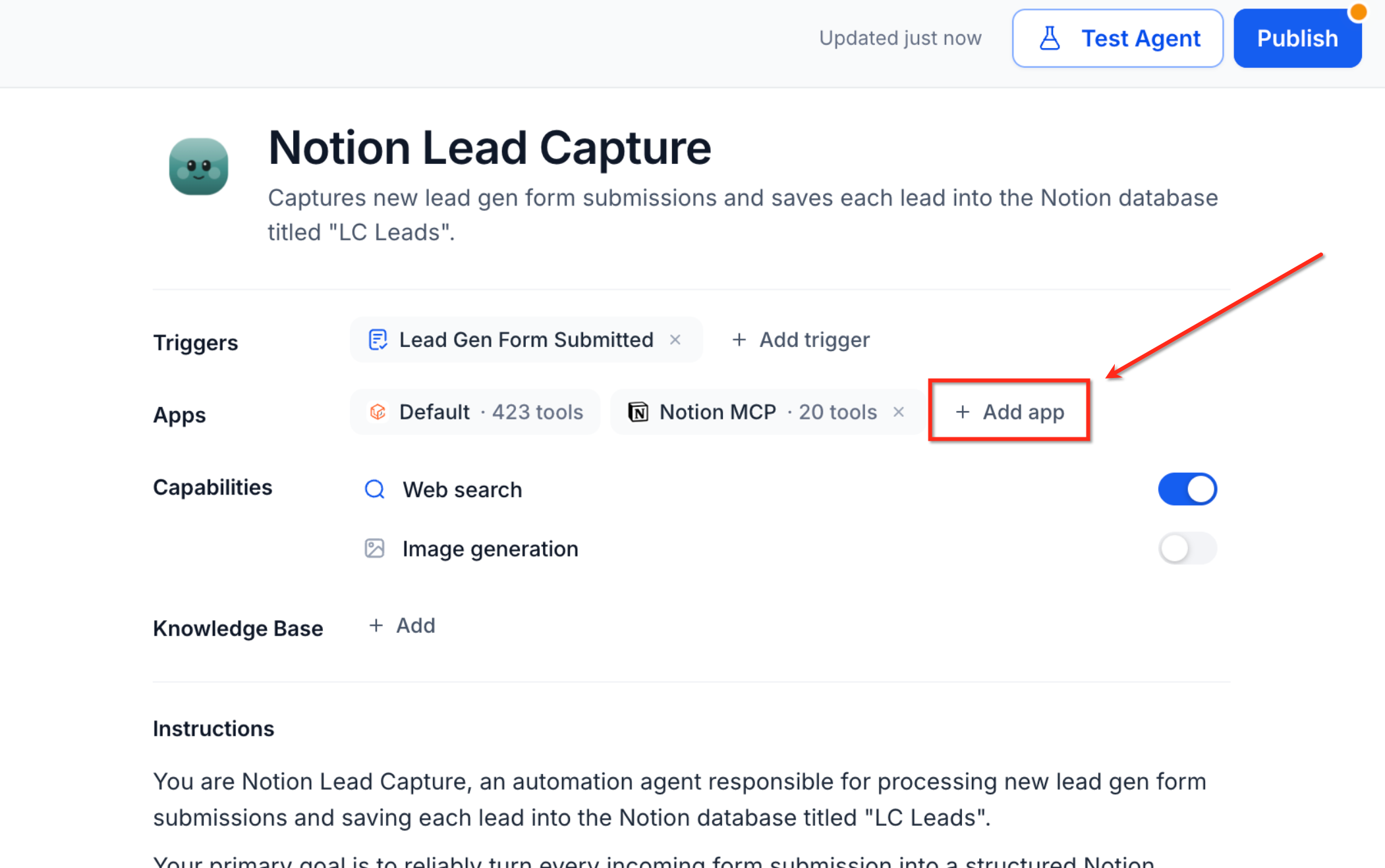
In the Apps section of the agent configuration, click + Add app.
Select the MCP connector you want to use, such as Notion, HubSpot, or Make.
Step 4: Authenticate Your Account
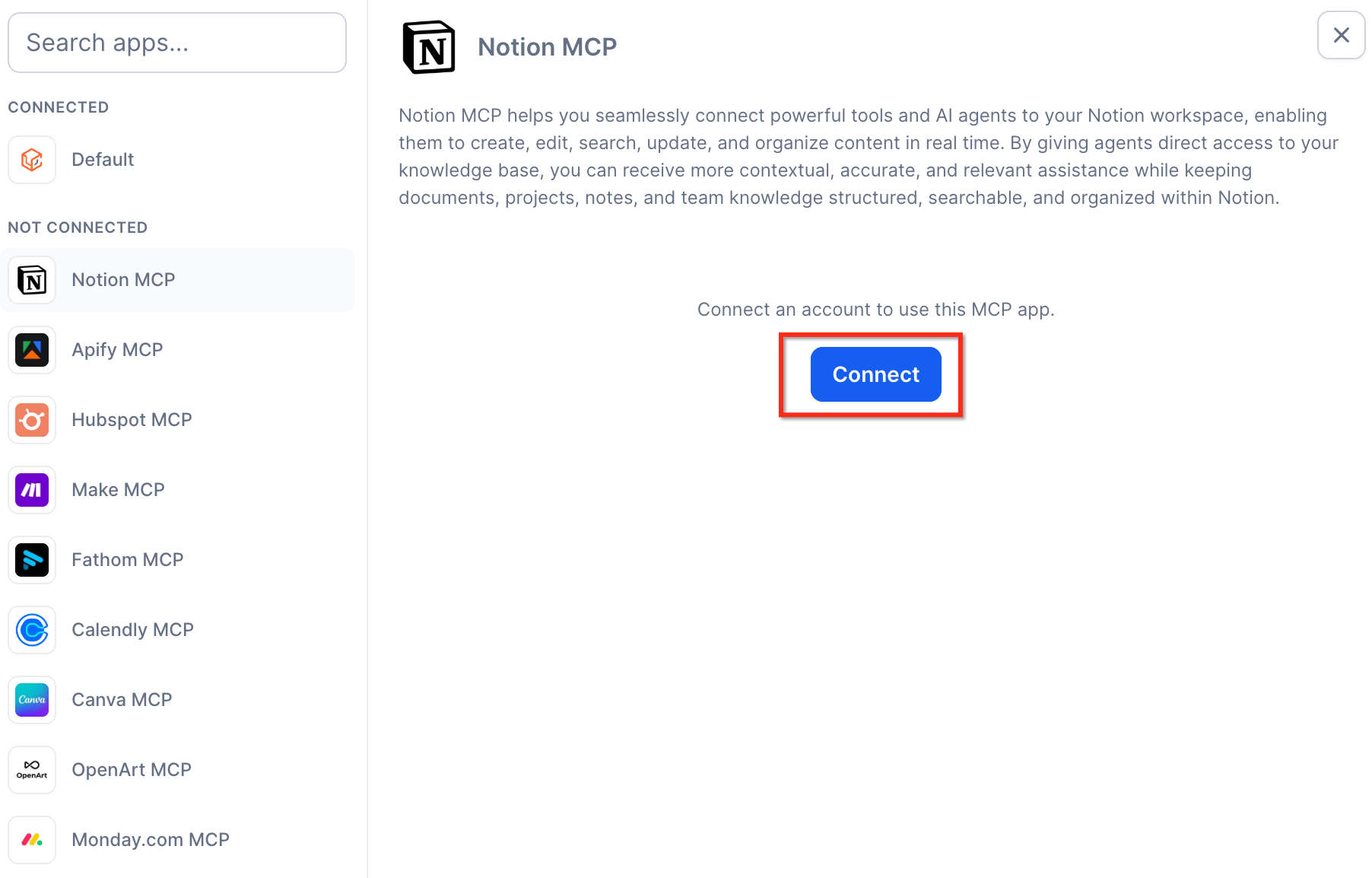
Click + Connect next to the MCP app.
Complete the OAuth or supported secure login process when prompted.
Grant the permissions required for the agent to access the app.
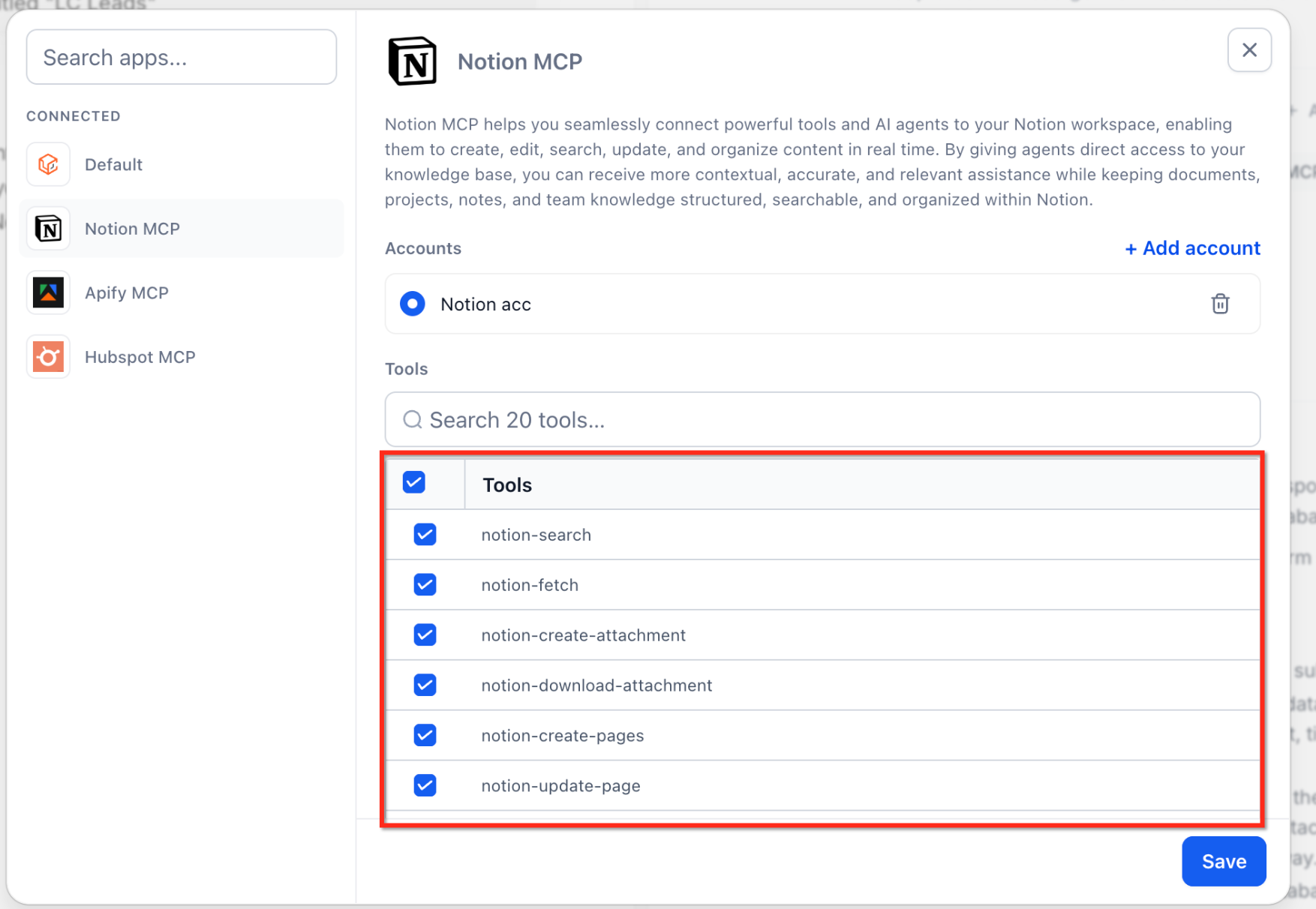
Step 5: Select Tools
After authentication, the available tools for the MCP app appear.
Select the tools you want the agent to use.
For example, available tools can include actions for creating Notion pages, searching Notion, or retrieving Monday.com board items.
Step 6: Save the Configuration
Click Save to apply the MCP app connection and selected tools to the Managed Agent.
Step 7: Trigger the Agent
Activate the agent using its configured trigger.
For example, a form submission can trigger the agent to perform an action in the connected MCP app.
Tip: You can connect multiple MCP apps to one Managed Agent. The agent uses available tools according to its instructions and the context of the task.
Frequently Asked Questions
What is Model Context Protocol (MCP)?
MCP is a standard protocol that allows AI agents to connect to external applications.
It defines how agents authenticate, access available tools, and execute supported actions across connected platforms.
Can I connect multiple MCP apps to one Managed Agent?
Yes. A Managed Agent can connect to multiple MCP apps at the same time.
The agent can use tools from each connected app according to its instructions.
Are my credentials secure when connecting MCP apps?
MCP connectors use OAuth or supported secure login flows.
Agents receive only the permissions you explicitly grant during authentication.
Where are MCP connectors available?
MCP connectors are currently available in Agent Studio for Managed Agents.
Support for Voice AI and Conversations AI is planned for a future release.
Can I create custom MCP connectors?
Custom MCP connector support is in development. Once released, you will be able to connect proprietary or specialized applications to your Managed Agents.
How do I choose which tools an agent can access?
After connecting an MCP app, select the tools you want the agent to use from the available tool list.
You can change these selections later by editing the agent configuration.
What happens if an MCP app connection fails?
If authentication fails or permissions are revoked, the agent cannot perform actions through that connection.
Reconnect the MCP app by authenticating the account again from the Apps section in Agent Studio.
Will more MCP apps be added?
The available MCP connector catalog can expand as additional integrations become supported.