

This guide will help you connect your Facebook Page and Instagram Business Account so that you can manage conversations directly from the CRM.
TABLE OF CONTENTS
FB page messaging setup:
1. Leadconnector should have access to send message and access message for the page (https://www.facebook.com/settings?tab=business_tools&ref=settings)
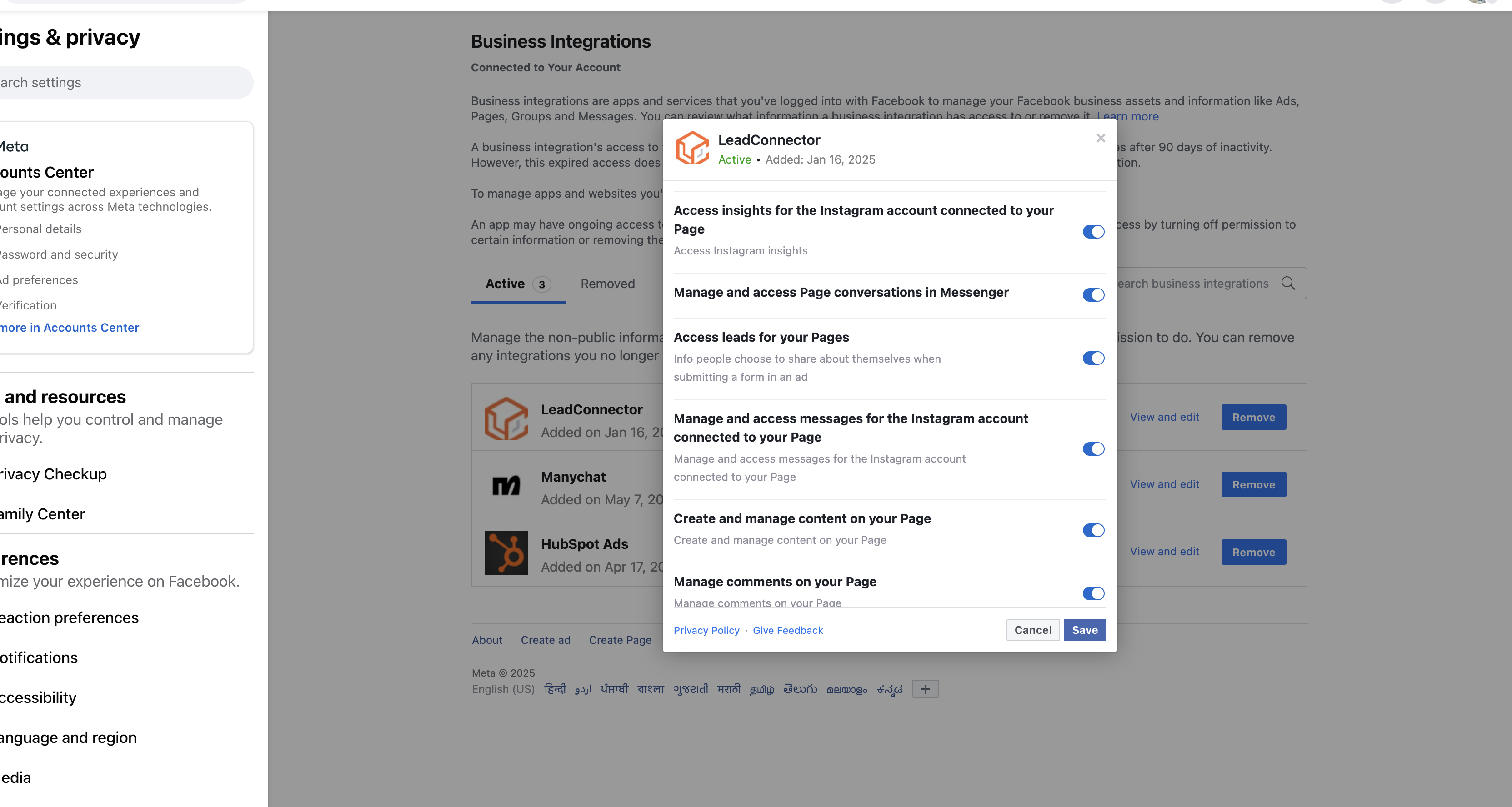
2. User account should have full access to page and should have message access. ( Link: https://business.facebook.com/latest/settings)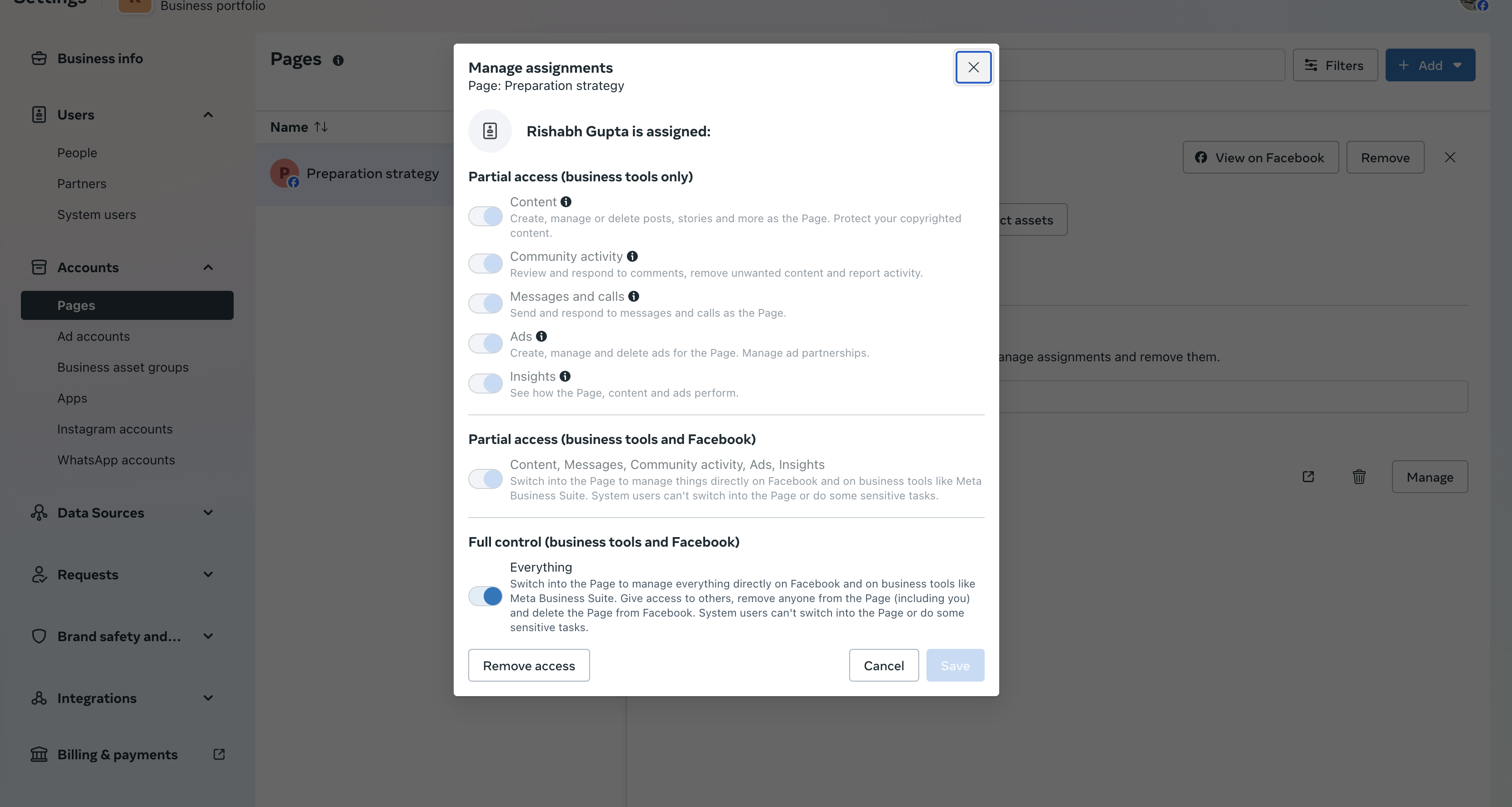
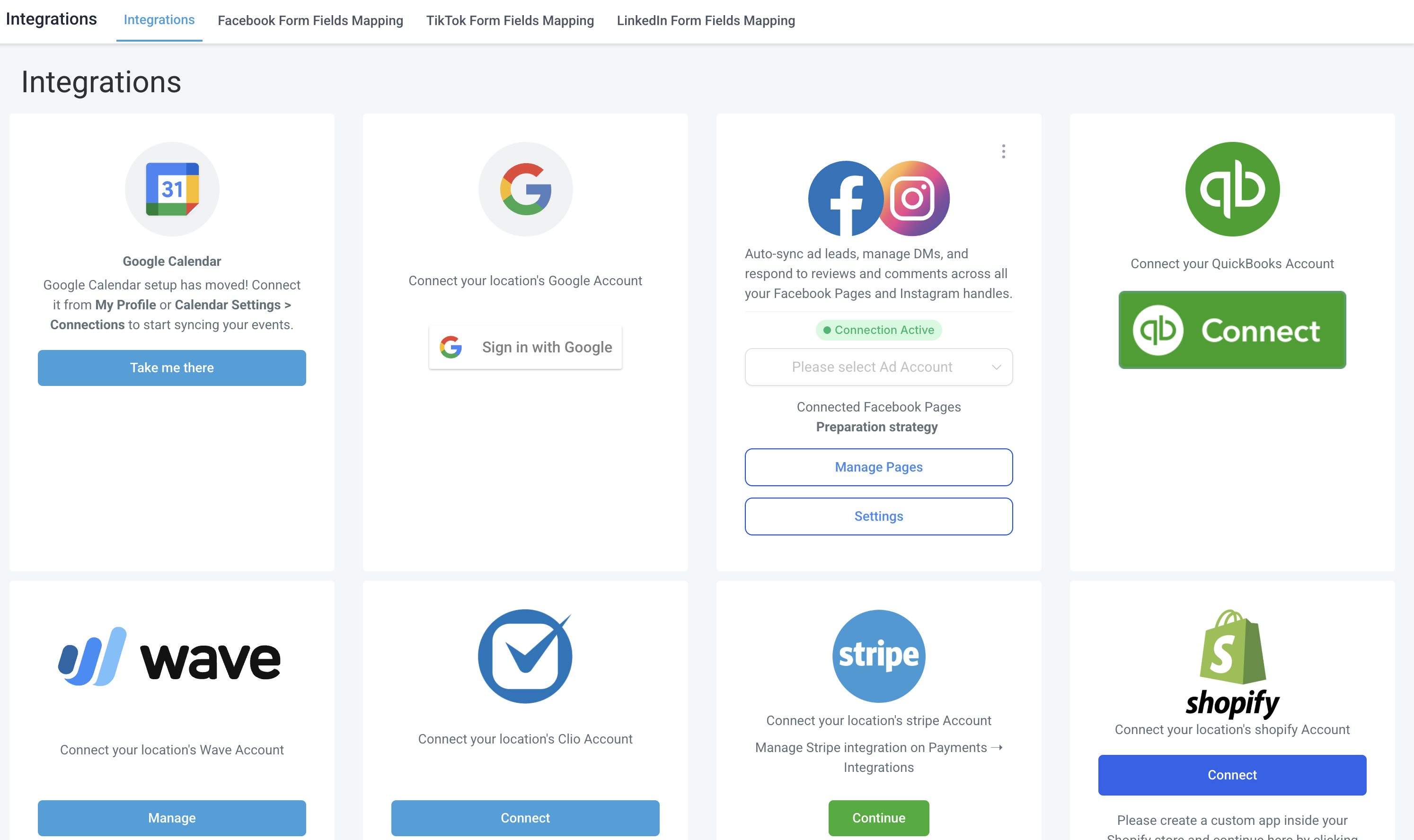
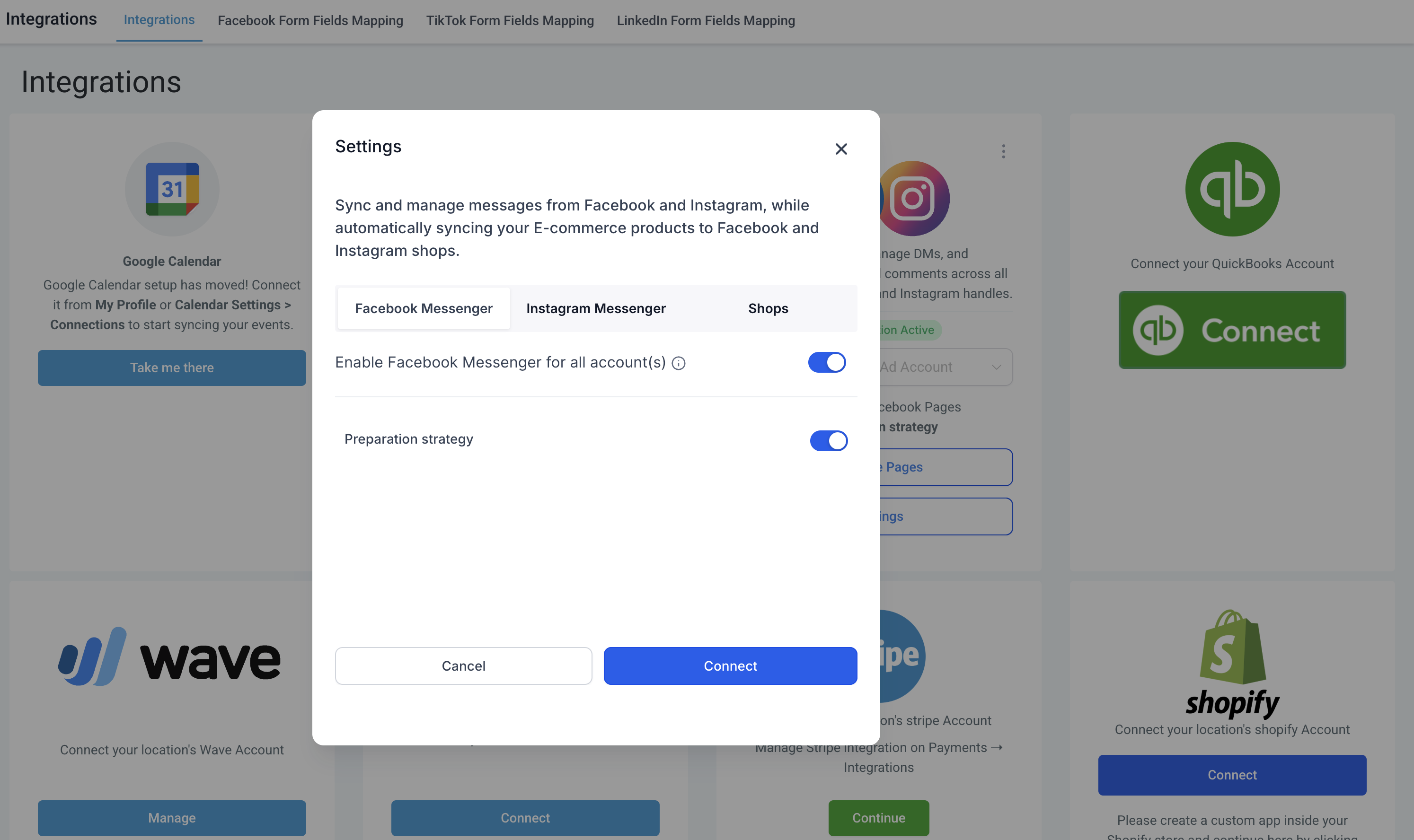
3. FB messenger should be enabled in Settings >> Integration >> Facebook card >> Settings
Instagram Messaging setup:
1. Leadconnector should have access to send message and access message for the page (https://www.facebook.com/settings?tab=business_tools&ref=settings)
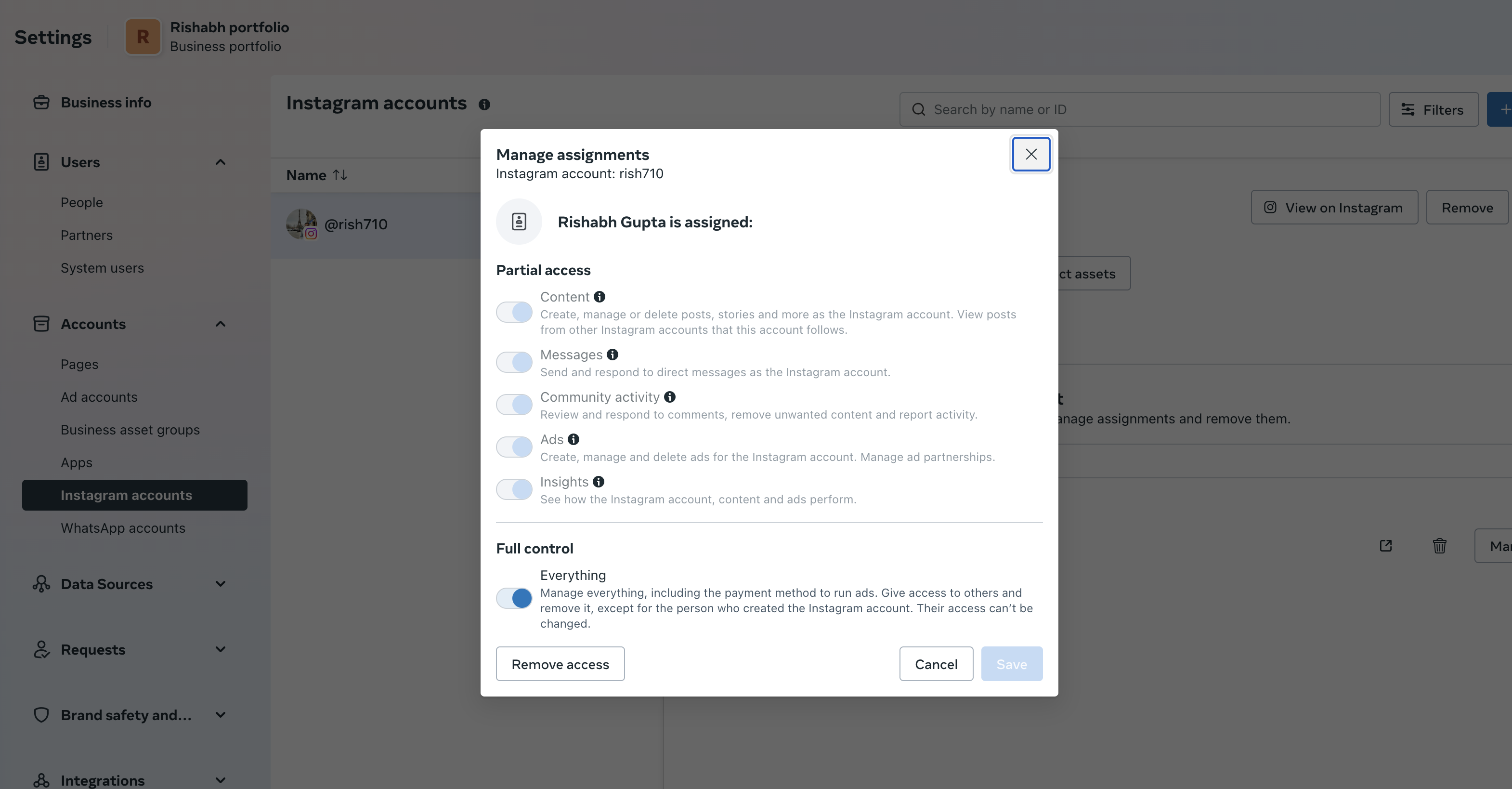
2. Verify that you have access to send and receive message on instagram under instagram accounts ( https://business.facebook.com/latest/settings)
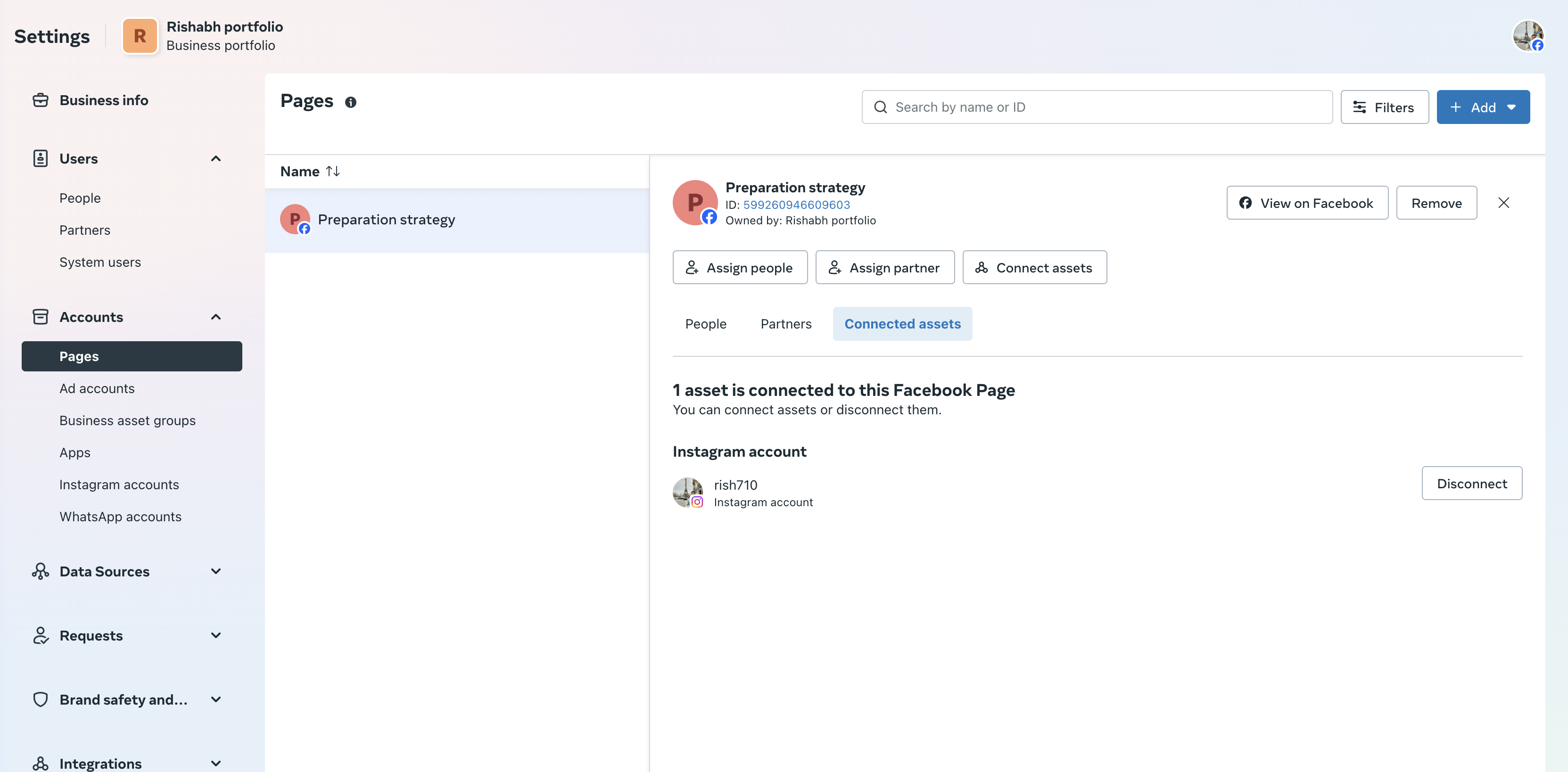
3. Verify instagram account is present in connected assets list in the page connected.
4. Instagram messaging is enabled in Settings >> Integration >> Facebook card >> Settings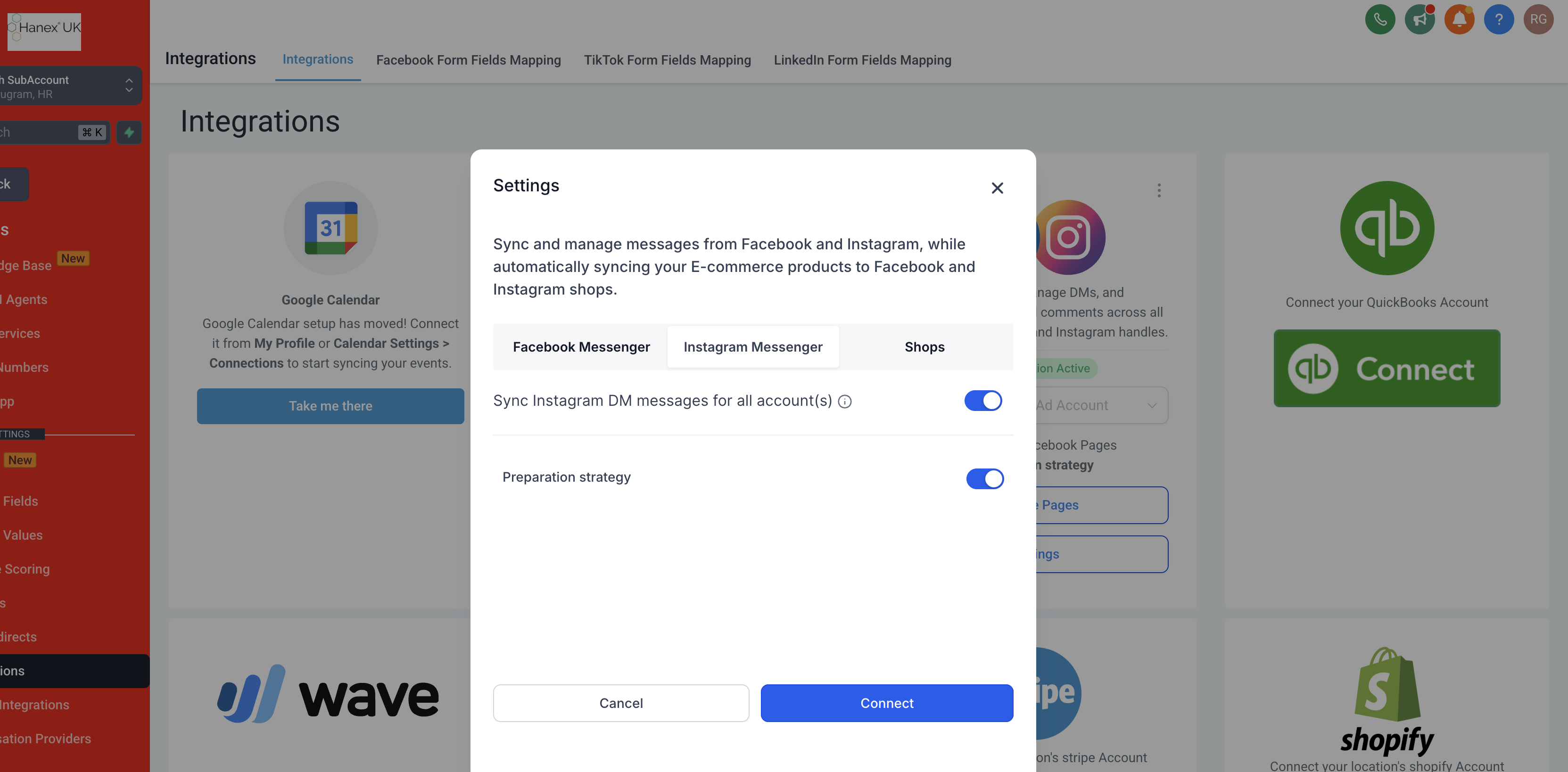
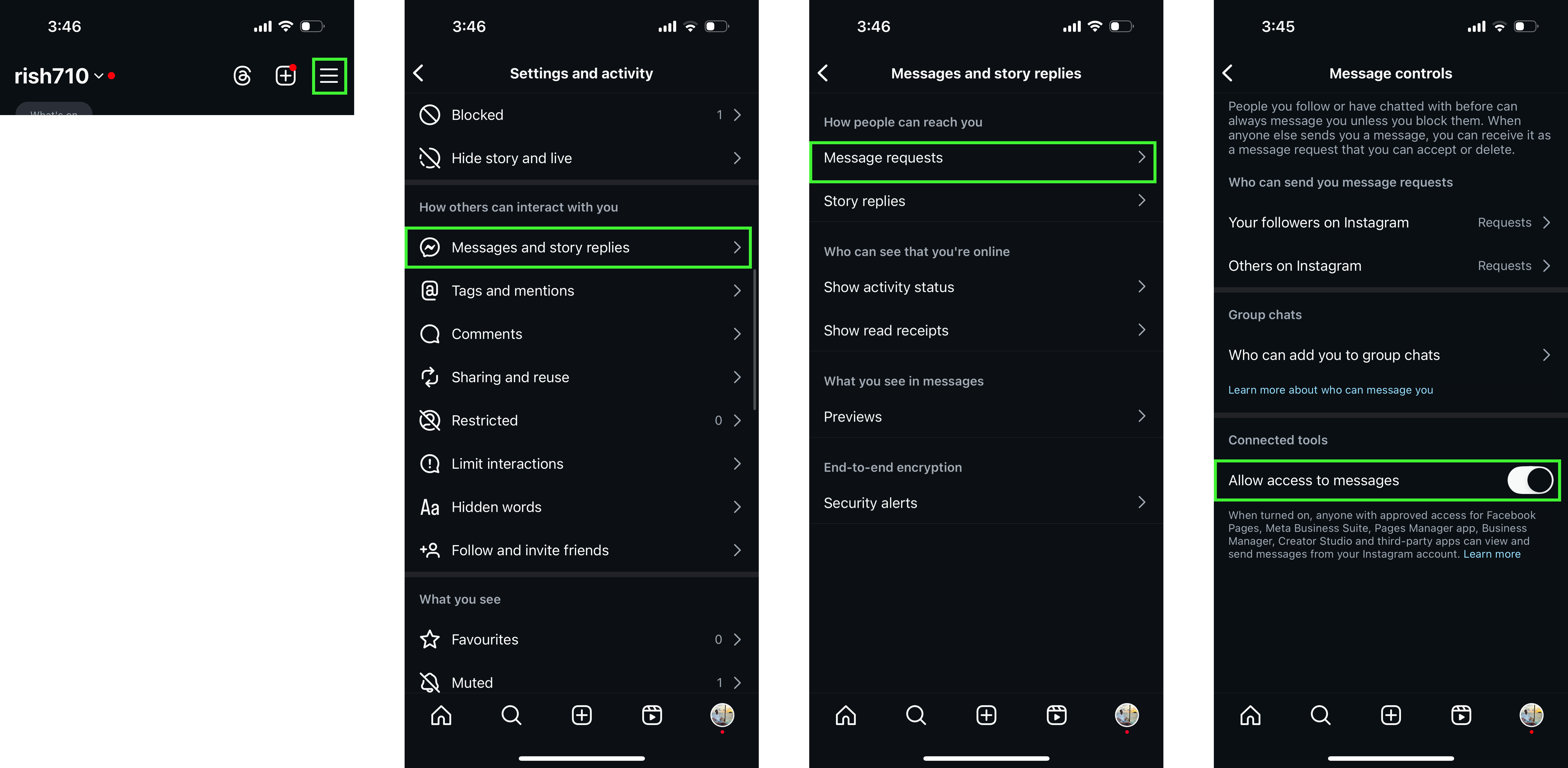
5. Also, confirm if connected tools have access over instagram messages. The below setting needs to be checked over instagram app:
- Login to Instagram App
- Go to settings and activity.
- Under Messages and Story reply, go to messages request.
- Allow access to connected tools
 Other facebook/instagram related support guides: