

Meta Pixel tracking for Events helps organizers measure how visitors move from viewing an event to completing an RSVP or ticket order. By connecting a Meta Pixel to an individual event, you can map attendee actions to Meta events and measure important conversion points.
Ticketed events can also send purchase details such as order value, currency, ticket quantities, and ticket identifiers.
TABLE OF CONTENTS
- Table of Contents
- What is Meta Pixel Tracking for Events?
- Key Benefits of Meta Pixel Tracking for Events
- Supported Meta Pixel Tracking Events
- Purchase Data Sent to Meta
- How to Set Up Meta Pixel Tracking for Events
- Frequently Asked Questions
- Related Articles
What is Meta Pixel Tracking for Events?
Meta Pixel Tracking for Events connects attendee activity with Meta conversion events. This gives organizers better visibility into registration intent, completed registrations, and ticket purchases generated through event marketing.
Meta Pixel tracking is configured independently for each event under Settings → Link & tracking.
Key Benefits of Meta Pixel Tracking for Events
-
Conversion visibility: Measure attendee activity from the initial event page visit through a completed RSVP or ticket order.
-
Flexible event mapping: Choose which Meta event fires for each supported attendee action.
-
Event-level configuration: Configure Meta Pixel tracking independently for each event.
-
Ticket purchase insights: Track multiple stages of the ticket checkout journey.
-
Purchase context: Send supported purchase details with completed ticket orders.
-
Duplicate-event protection: Session-based deduplication helps reduce repeated conversion signals.
Supported Meta Pixel Tracking Events
RSVP and Ticketed events use different attendee journeys, so the available tracking actions correspond to the steps visitors complete for each event type.
| Event Type | Supported Attendee Actions |
|---|---|
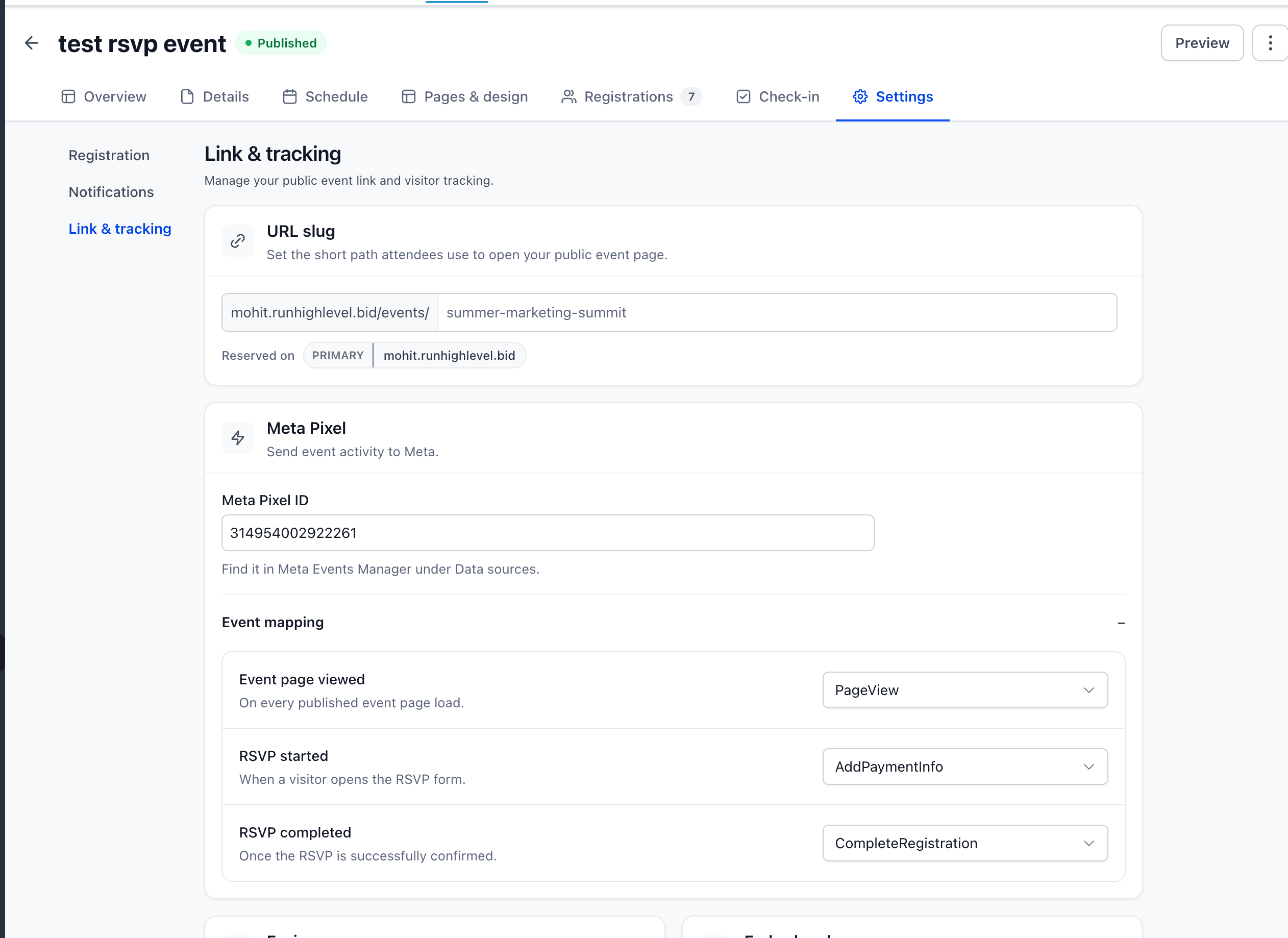
| RSVP Events | Event page viewed, RSVP started, RSVP completed |
| Ticketed Events | Event page viewed, Checkout started, Ticket selection completed, Registration form submitted, Payment details submitted, Ticket order completed |
When Each Action Fires
| Event Type | Attendee Action | When It Fires |
|---|---|---|
| RSVP | Event page viewed | When a published event page loads |
| RSVP | RSVP started | When a visitor opens the RSVP form |
| RSVP | RSVP completed | When the RSVP is successfully confirmed |
| Ticketed | Event page viewed | When a published event page loads |
| Ticketed | Checkout started | When the attendee begins checkout |
| Ticketed | Ticket selection completed | When ticket selection is completed |
| Ticketed | Registration form submitted | When the registration form is submitted |
| Ticketed | Payment details submitted | When payment details are submitted |
| Ticketed | Ticket order completed | When the ticket order is successfully completed |
Purchase data: Completed ticket orders can also send order value, currency, ticket quantities, and ticket identifiers to Meta.
Deduplication: Session-based deduplication helps prevent the same attendee action from being reported multiple times because of browser back navigation, page refreshes, payment redirects, or repeated completion checks.
Purchase Data Sent to Meta
A completed ticket order can provide more context than a registration count alone. Additional purchase details help organizers evaluate the value and composition of ticket purchases generated through event marketing.
Completed ticket orders can include:
-
Order value: The value associated with the completed ticket order.
-
Currency: The currency associated with the order.
-
Ticket quantities: The number of tickets represented in the order.
-
Ticket identifiers: Identifiers associated with the tickets included in the transaction.
This information is associated with completed ticket orders and can support reporting beyond registration counts alone.
How to Set Up Meta Pixel Tracking for Events
Using the correct Meta Pixel ID and mapping the attendee actions that matter to your campaign helps ensure conversion data represents the event journey you want to measure.
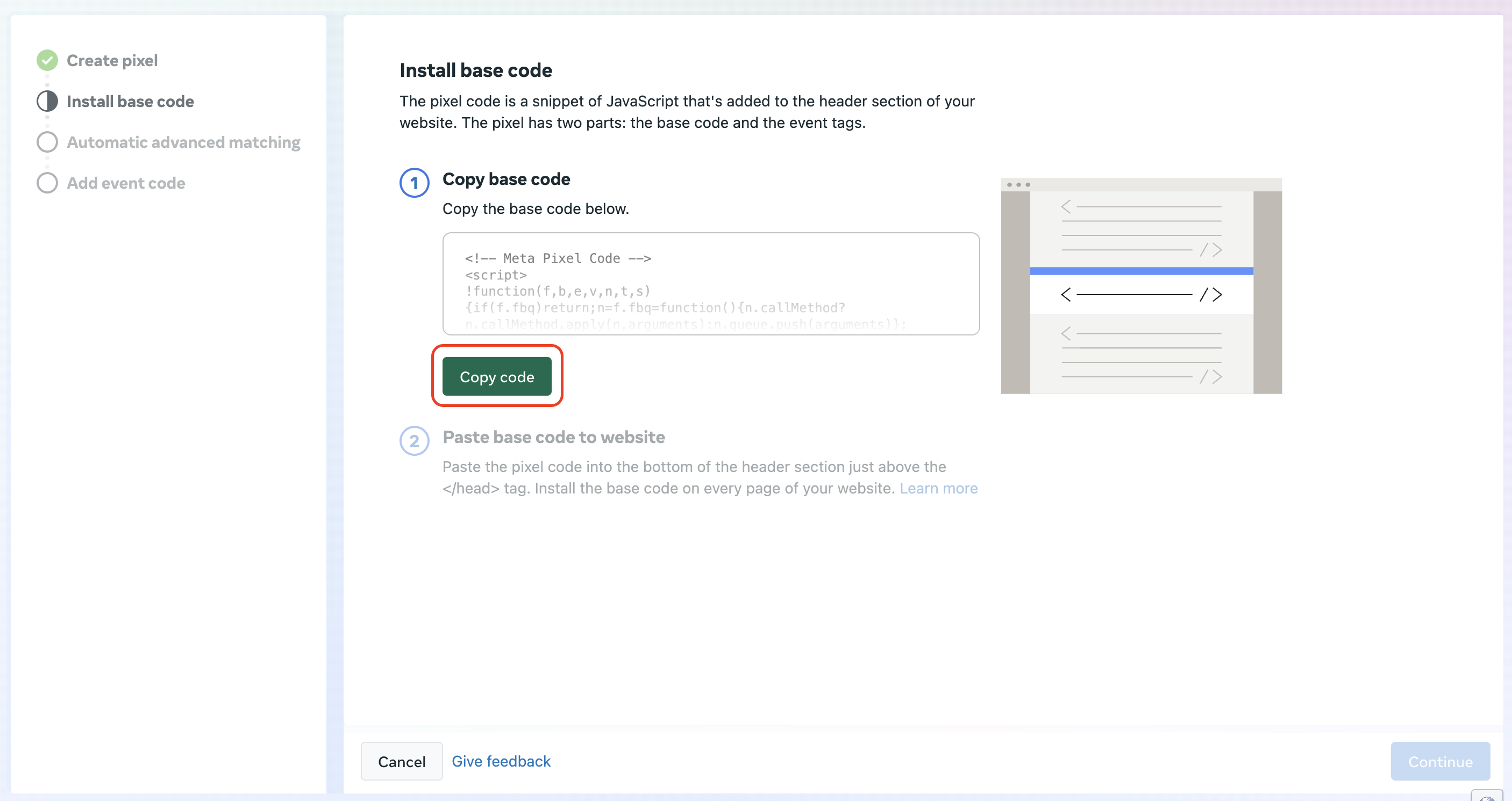
1. Locate Your Meta Pixel ID
Locate the Pixel ID for the Meta data source you want to connect to your event.
You can find the applicable Pixel or Dataset ID in Meta Events Manager.
2. Open Link & tracking
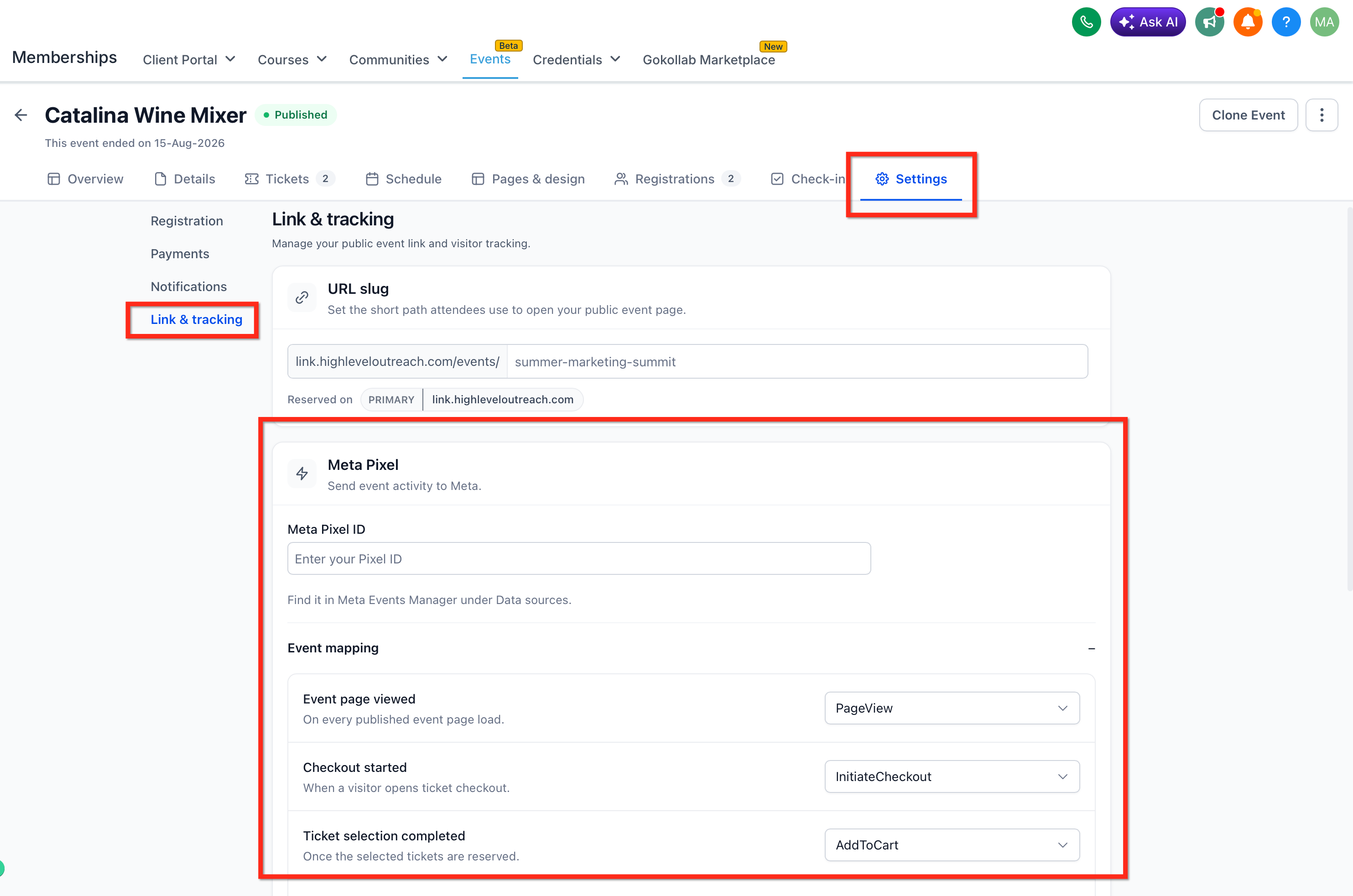
-
Go to Memberships → Events.

-
Select the event you want to track.
-
Open Settings and Select Link & tracking.
-
Locate the Meta Pixel settings.
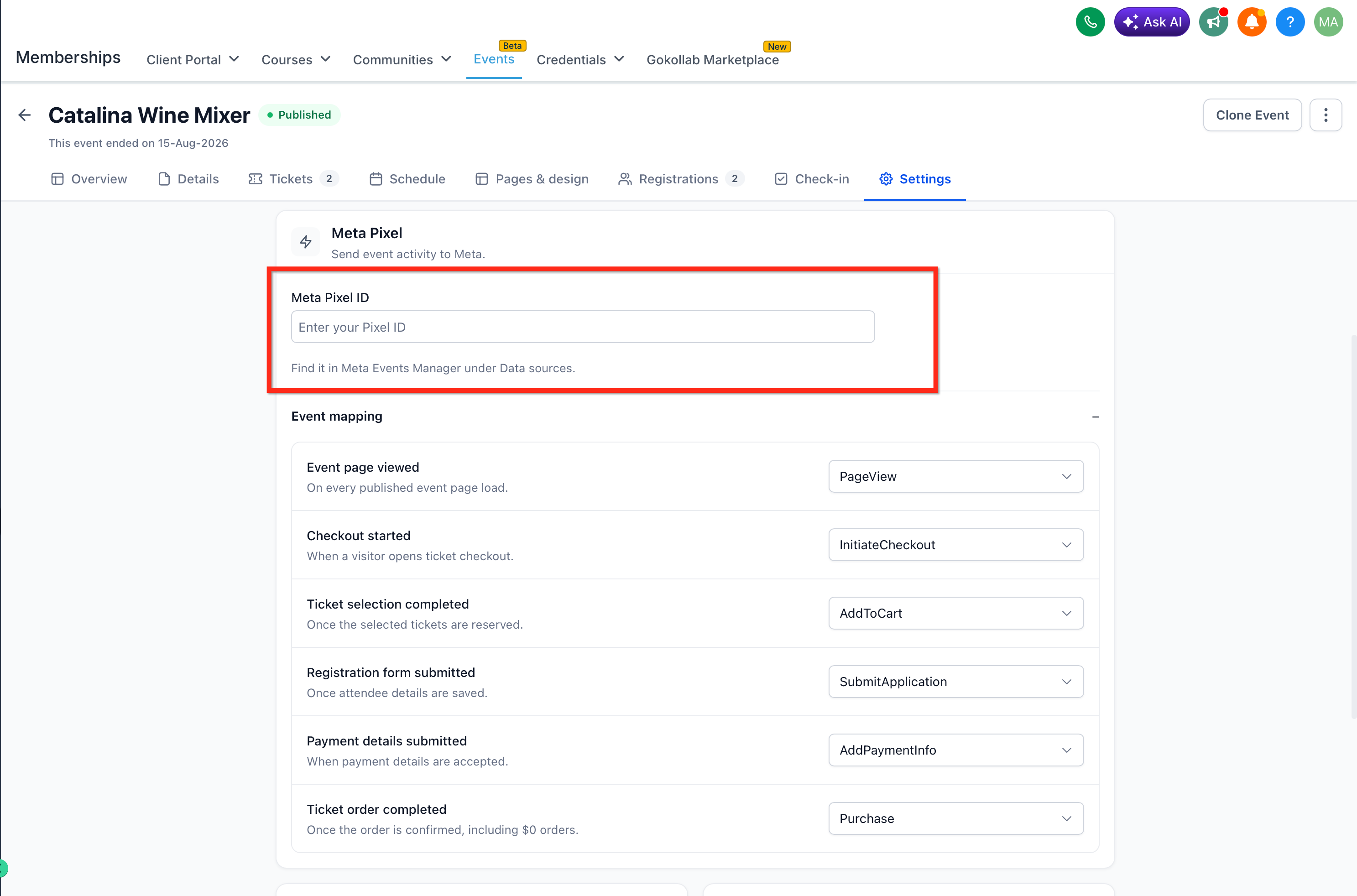
3. Add the Meta Pixel ID
Enter the Meta Pixel ID associated with the Meta data source you want to use for the event.
Meta Pixel tracking is configured independently for each event. Confirm that you are editing the correct event before configuring the mappings.
4. Map Attendee Actions to Meta Events
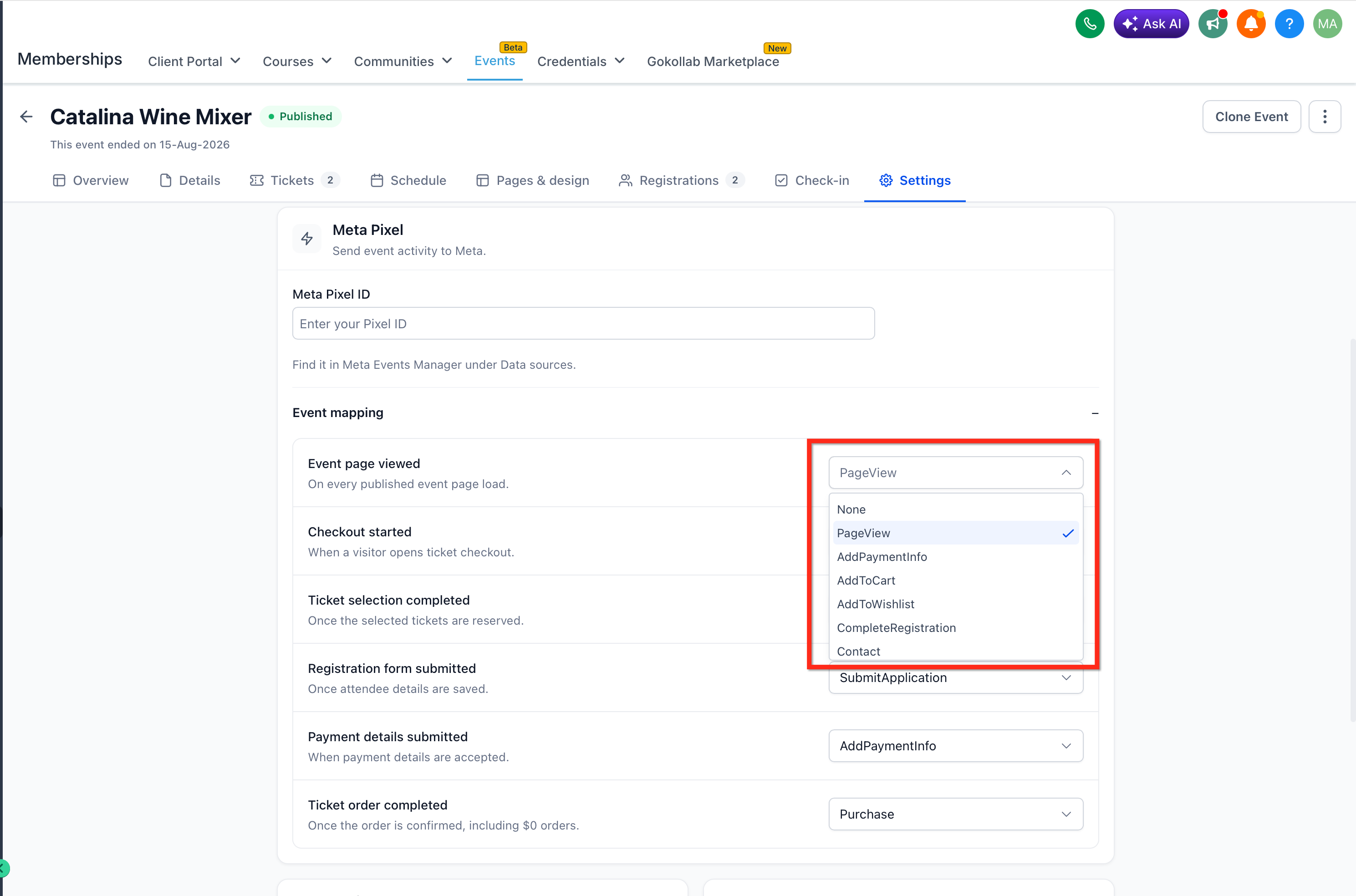
Use the Event mapping options to choose which Meta event fires for each supported attendee action.
For RSVP events, configure mappings for:
-
Event page viewed
-
RSVP started
-
RSVP completed
For Ticketed events, configure mappings for:
-
Event page viewed
-
Checkout started
-
Ticket selection completed
-
Registration form submitted
-
Payment details submitted
-
Ticket order completed
5. Test the Attendee Journey
Use the published event experience to verify the actions that matter to your tracking plan.
The Event page viewed action occurs when a published event page loads. Test against the public event experience to validate this part of the journey.
For an RSVP event, test:
-
Loading the event page
-
Opening the RSVP form
-
Successfully completing an RSVP
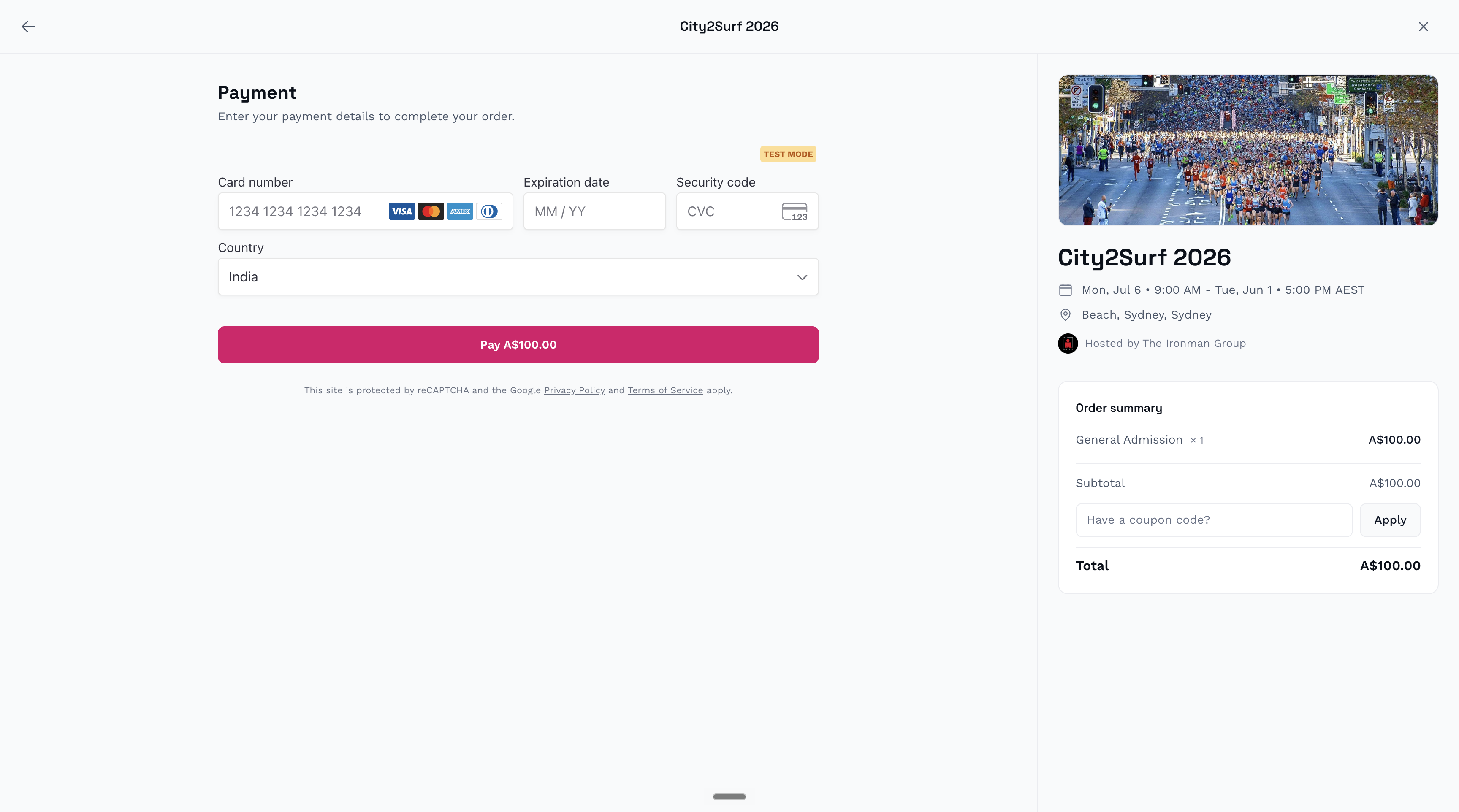
For a Ticketed event, test the relevant checkout stages through a successfully completed ticket order.
Frequently Asked Questions
Is Events Meta Pixel tracking the same as Ad Manager conversion tracking?
No. Events Meta Pixel tracking is configured directly within an individual event under Settings → Link & tracking. Ad Manager conversion tracking uses a separate configuration process.
Do I need to install Funnel tracking code to use Meta Pixel tracking for Events?
No. The native Events integration is configured directly in the event using the Meta Pixel ID and Event mapping settings.
Funnel tracking code belongs to a separate Funnel or Website tracking setup.
Can Meta Pixel tracking report attendee check-ins?
Check-in is not listed as a supported Meta Pixel tracking action for this feature. Event workflow triggers can be used separately for registration and check-in automation.
Does previewing an unpublished event trigger Event page viewed?
No. The Event page viewed action is defined as occurring when a published event page loads.