

Learn how to connect a Mistral AI account, choose between Chat Completion, Embeddings, and Vision actions, map workflow data into each action, reuse AI outputs in later steps, and troubleshoot common connection and execution issues.
Mistral AI currently provides workflow actions, not workflow triggers. Start the automation with a standard workflow trigger, then add a Mistral AI action after it. Mistral AI actions are also currently labeled Beta, so available models, fields, and behavior may change over time.
2. Key Benefits of Mistral AI in Workflows
3. Connecting Your Mistral AI Account
4. Available Mistral AI Actions
5. Using Mistral AI Outputs in Workflows
6. Billing, Beta Status, and Limits
7. How To Set Up Mistral AI in Workflows
8. Common Use Cases
9. Frequently Asked Questions
10. Need Help?
What is Mistral AI in Workflows?
Mistral AI in Workflows is an integration that lets an automation send prompts, text, or image inputs to supported Mistral models. When the workflow reaches a Mistral AI action, the configured request is processed and the result is returned as workflow output data.
That result can then be used in later steps such as Send SMS, Send Email, Internal Notification, field updates, webhooks, or If/Else conditions. This allows AI-generated content and analysis to become part of a larger automation without requiring a separate custom integration for each request.
Key Benefits of Mistral AI in Workflows
Mistral AI actions add language generation, semantic processing, and image understanding to existing workflow logic. This makes it possible to automate tasks that normally require manual interpretation or a separate AI integration.
- AI-Generated Responses: Create replies, summaries, rewritten content, classifications, and structured answers using workflow data.
- Multilingual Automation: Generate content in multiple languages while guiding tone and behavior through prompts.
- Image Understanding: Analyze receipts, IDs, screenshots, business cards, documents, and other image-based inputs.
- Semantic Matching: Convert text into embeddings so external systems can compare meaning instead of relying only on exact keywords.
- Workflow-Native Outputs: Reuse results in messages, field updates, notifications, webhooks, and conditional logic.
- Flexible Model Selection: Choose from the models currently available in the action based on the workflow’s quality, speed, and processing needs.
Connecting Your Mistral AI Account
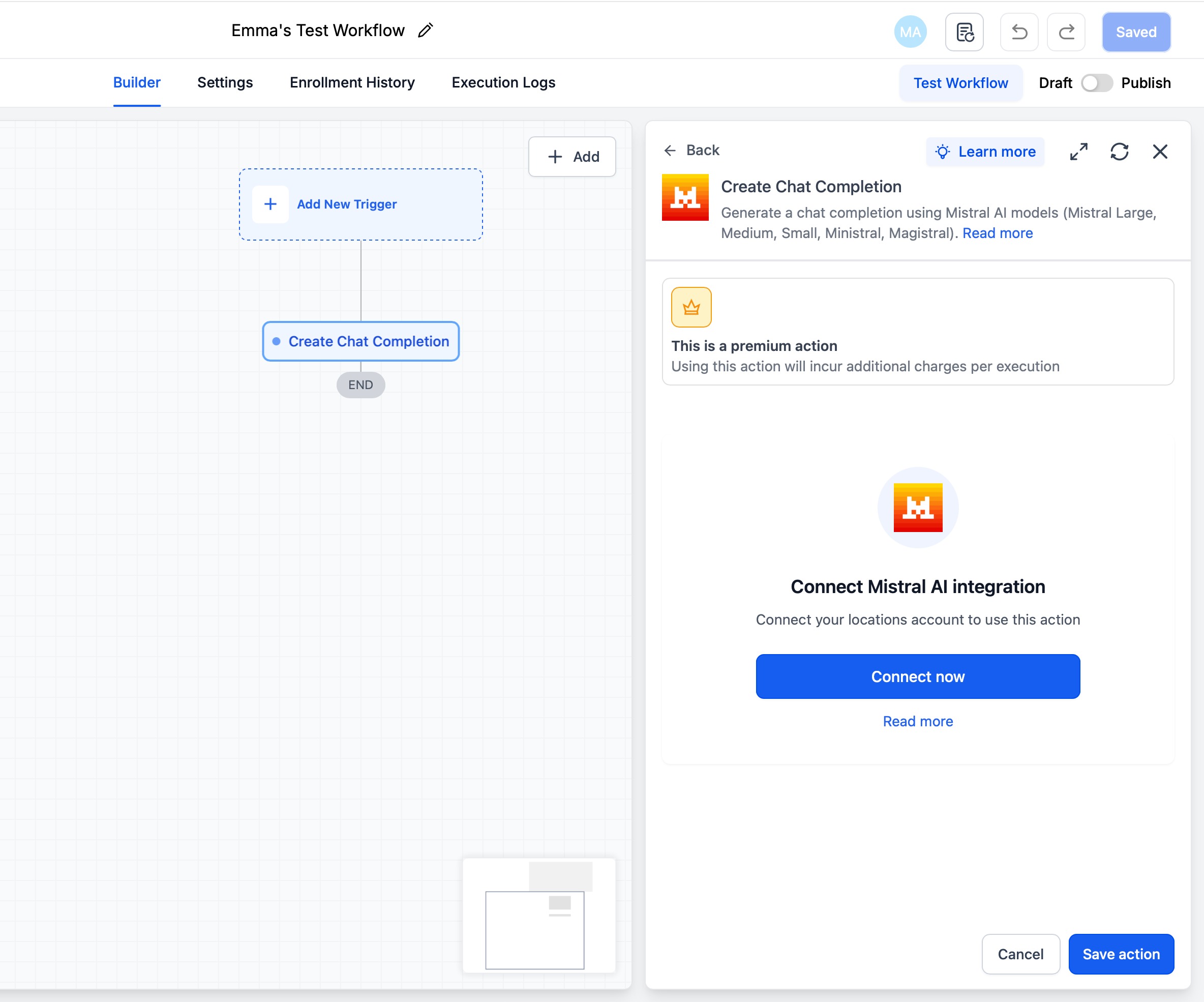
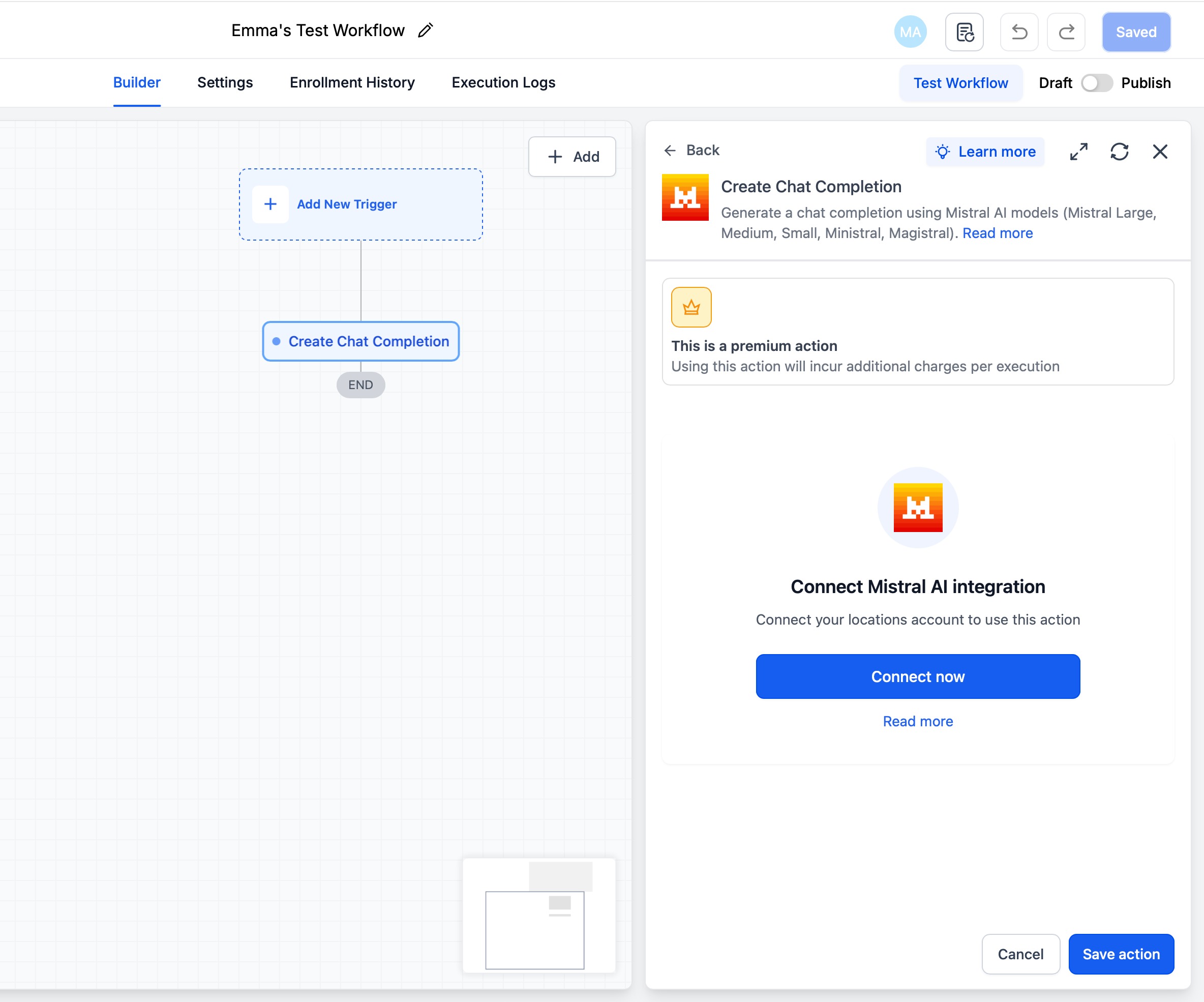
A Mistral AI connection is required before the workflow can send requests to Mistral models. Connect the appropriate Mistral workspace before configuring prompts, model settings, or image inputs so the action can load its available fields.
| Connection Method | How To Access It |
|---|---|
| From a Workflow | Add a Mistral AI action and click Connect Now when prompted. |
| From Settings | Go to Settings → Integrations → Mistral AI → Connect. |
A Mistral account or workspace is required for the integration. Mistral API and model usage is associated with the connected Mistral workspace.
Available Mistral AI Actions
Each Mistral AI workflow action is designed for a different type of AI task. Choosing the correct action determines the input fields you configure and the type of output the workflow receives.
| Action | Purpose | Typical Uses |
|---|---|---|
| Create Chat Completion | Generate text using a supported Mistral language model. | Replies, summaries, rewriting, classification, extraction, and structured responses. |
| Create Embeddings | Convert text into numerical vector representations using mistral-embed. |
Semantic search, retrieval workflows, classification, clustering, and vector lookup. |
| Analyze Image (Vision) | Analyze image-based inputs with a supported vision-capable model. | Receipts, IDs, screenshots, documents, business cards, and image-based intake. |
No Mistral trigger is required: Start the automation with a standard workflow trigger such as Customer Replied, Form Submitted, Inbound Webhook, or another appropriate trigger. Add Mistral AI afterward as an action.
Create Chat Completion
Create Chat Completion is best suited for workflows that need generated text. A System Prompt can establish role, tone, rules, or formatting requirements, while the Prompt defines the specific task the model should complete.
- Action Name: Use a descriptive label so the step is easy to identify in the workflow and logs.
- System Prompt: Define role, tone, constraints, or output rules.
- Prompt: Define the task and insert workflow variables when dynamic data is needed.
- Model: Select one of the currently available Mistral models.
- Tuning Parameters: Adjust available controls when you need to influence response behavior, style, or length.
Create Embeddings
Create Embeddings converts text into a vector representation so another system can compare semantic similarity. The action is useful when a workflow needs meaning-based matching rather than direct keyword matching.
- Semantic Search: Compare text based on meaning.
- Retrieval Workflows: Find relevant stored information before another response is generated.
- Classification: Group or label content according to semantic similarity.
- Clustering: Organize similar pieces of text together.
Analyze Image (Vision)
Analyze Image (Vision) sends an image input to a supported vision-capable Mistral model and returns a natural-language response. This is useful when the workflow needs to read, summarize, classify, or extract information from image-based content.
Using Mistral AI Outputs in Workflows
After a Mistral AI action executes, its result becomes available to downstream workflow steps. Using the output directly avoids copying data between systems and allows later actions to respond dynamically to the AI result.
- Customer Messages: Insert a Chat Completion response into Send SMS or Send Email.
- Internal Notifications: Send summaries or extracted information to team members.
- Record Updates: Save generated or extracted text to an appropriate field or note.
- Conditional Routing: Evaluate AI output in an If/Else step and route the workflow based on the result.
- External Processing: Send embedding vectors or AI results to an external system through a webhook or custom integration.
- Chained Automation: Pass the output from one workflow action into a later action as dynamic input.
Billing, Beta Status, and Limits
Understanding provider usage and workflow execution costs before scaling helps prevent unexpected interruptions or charges. Mistral usage and workflow execution are handled separately, and provider-side limits can affect whether an action completes successfully.
- Mistral Usage: API and model usage is billed through the connected Mistral workspace according to its current plan and usage.
- Workflow Execution: Mistral AI actions are displayed as premium workflow actions and may generate additional execution charges.
- Provider Limits: Rate limits and quotas are controlled by the connected Mistral workspace.
- Workspace Changes: If the Mistral workspace or credentials change, reconnect the integration as needed.
- Beta Status: Models, available fields, labels, and behavior may change while the integration remains in Beta.
Recommended: Test with representative data and review current provider and workflow billing settings before running a high-volume automation.
How To Set Up Mistral AI in Workflows
A reliable setup starts with the correct workflow trigger, a valid Mistral connection, carefully mapped inputs, and a test run before publishing. Testing first is especially important for dynamic prompts, image URLs, output variables, and Beta functionality.
Go to Automation → Workflows. Open an existing workflow or create a new one.
Choose the standard trigger that should start the automation. Mistral AI does not currently provide workflow triggers, so the workflow must begin with another supported trigger.
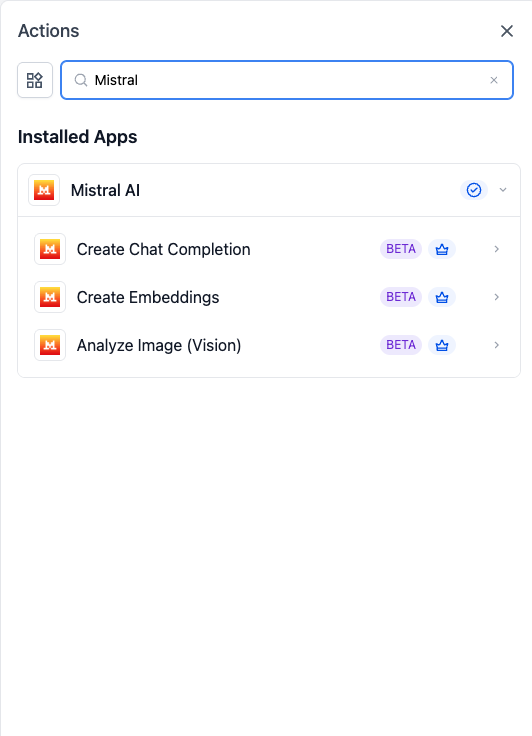
Click the add-action control and search for Mistral AI. Select the action that matches the task you want the workflow to perform.
If the integration is not already connected, click Connect Now and complete the Mistral authorization flow. You can also connect from Settings → Integrations → Mistral AI.
Complete the fields required for the selected action. Depending on the action, these may include:
- Action Name
- System Prompt
- Prompt or text input
- Image URL
- Model
- Available tuning parameters
Insert contact fields, custom fields, trigger payload values, or outputs from earlier workflow steps wherever dynamic input is needed.
Add the next action in the workflow and insert the Mistral AI output where needed. Common destinations include messages, field updates, internal notifications, webhooks, and If/Else conditions.
Run the workflow with representative test data. Review Execution Logs or Enrollment History to confirm the action received the expected inputs and returned a usable output.
Publish the workflow after testing succeeds. Continue monitoring execution logs after launch, especially when changing models, prompts, credentials, or dynamic input mappings.
Common Use Cases
Mistral AI actions can support both customer-facing automation and background data processing. Combining each action with standard workflow triggers and downstream steps makes it possible to build practical AI-assisted processes without putting every task into one action.
Multilingual Customer Reply Generation
Generate a response from an inbound customer message and send the result through an appropriate communication action.
Semantic FAQ Matching
Create an embedding from an inbound question, send the vector to an external search system, and use the returned match in a later workflow step.
Receipt or Document Extraction
Analyze an image submitted through a workflow, extract the information requested in the prompt, and use the response to update records or route the automation.
Frequently Asked Questions
Need Help?
If a Mistral AI workflow action is not working as expected, identify whether the issue occurs during connection, input mapping, provider processing, output generation, or the downstream workflow step.
- Mistral action is not available: Confirm you are adding an action, not looking for a Mistral workflow trigger.
- Connect Now continues to appear: Reopen the integration connection and confirm the Mistral authorization process completed successfully.
- Model or fields are missing: Refresh the action after reconnecting and remember that available models and fields can change while the integration is in Beta.
- Prompt returns an unexpected result: Test with a simpler prompt, review the System Prompt, and verify that mapped workflow values contain the expected data.
- Image analysis fails: Confirm the image URL points directly to a supported image and can be reached when the workflow executes.
- Action fails intermittently: Review Mistral workspace rate limits, quotas, and current provider availability.
- Output is missing downstream: Review Execution Logs or Enrollment History to verify the Mistral step completed successfully before checking the output mapping in the next action.
- Issue continues: Collect the workflow name, action type, model selected, affected execution, error message, relevant input mapping, and screenshots of the execution logs before contacting support.