

The updated Bulk Email Action lets you build, review, and send emails seamlessly with pre-send contacts filtering and advanced tracking tools.
Overview
The Bulk Email Action in Contacts now has a unified, streamlined UI like Campaigns and Workflows. You can quickly create, review, and send emails with pre-send contact filtering, tracking, and template options, all in one place.
What’s New
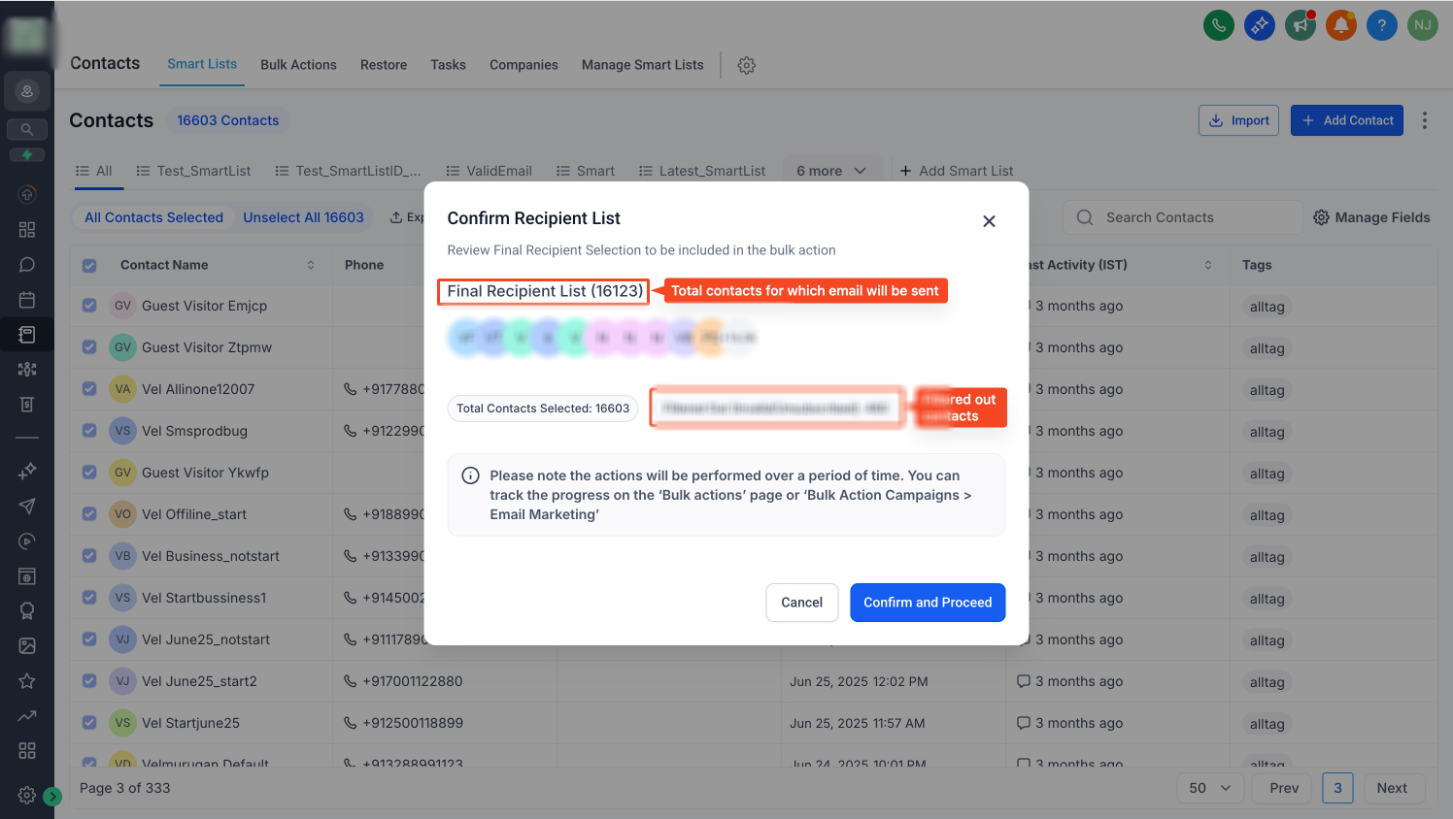
Pre-send Contact Filtering
Before sending, a confirmation modal now filters out:
-
Invalid email addresses
-
Unsubscribed bounced contacts
This ensures your email is only delivered to valid and opted-in recipients, giving you better deliverability and peace of mind.
Unified Email Creation Flow
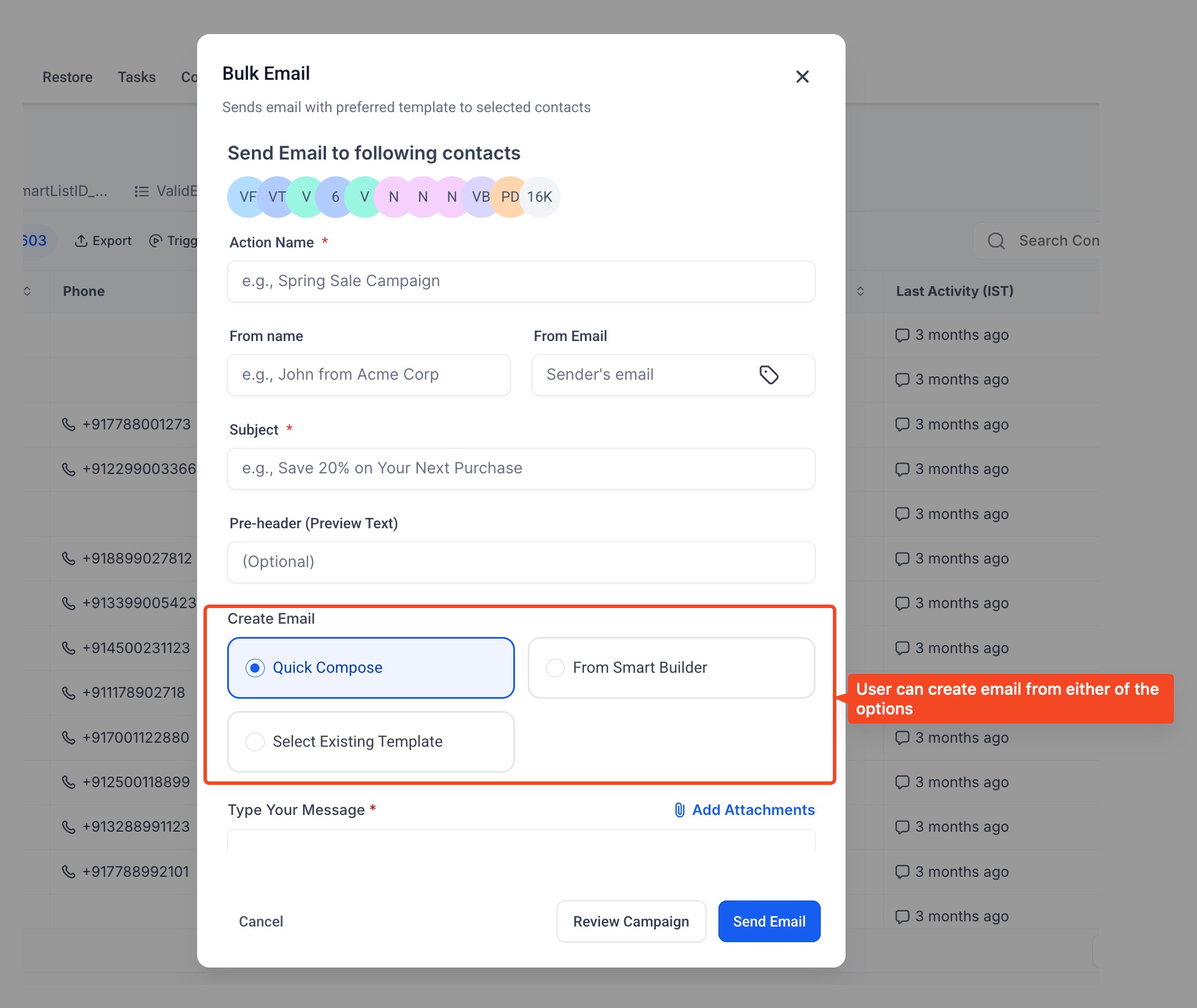
All email builders in Bulk action, Workflows, and Campaigns now share the same UI and workflow.
You can start from:
-
Quick Compose (default) → Simple editor for fast messages.
-
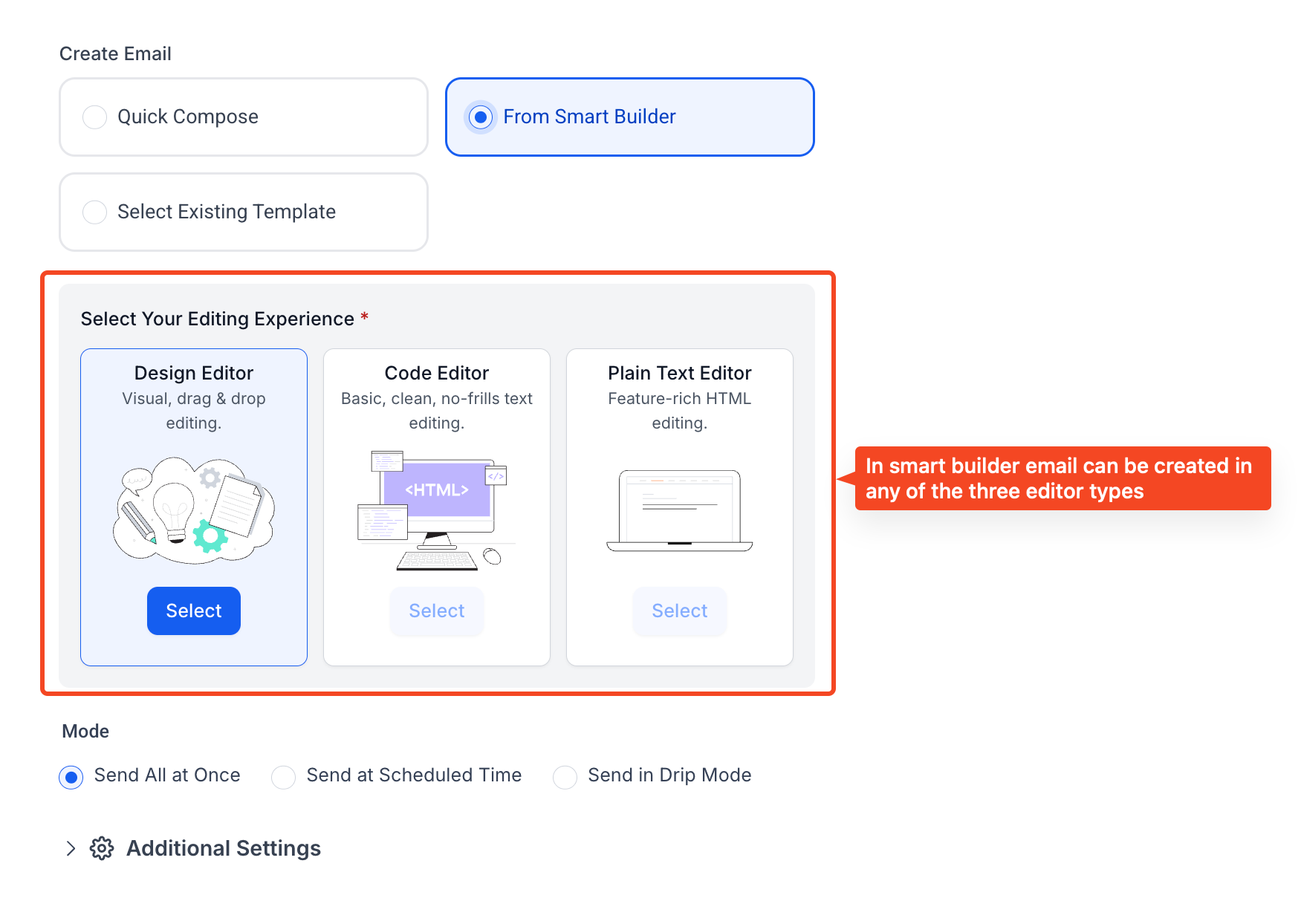
Smart Builder → Choose Design, Code, or Plain Text editors to create custom emails.
-
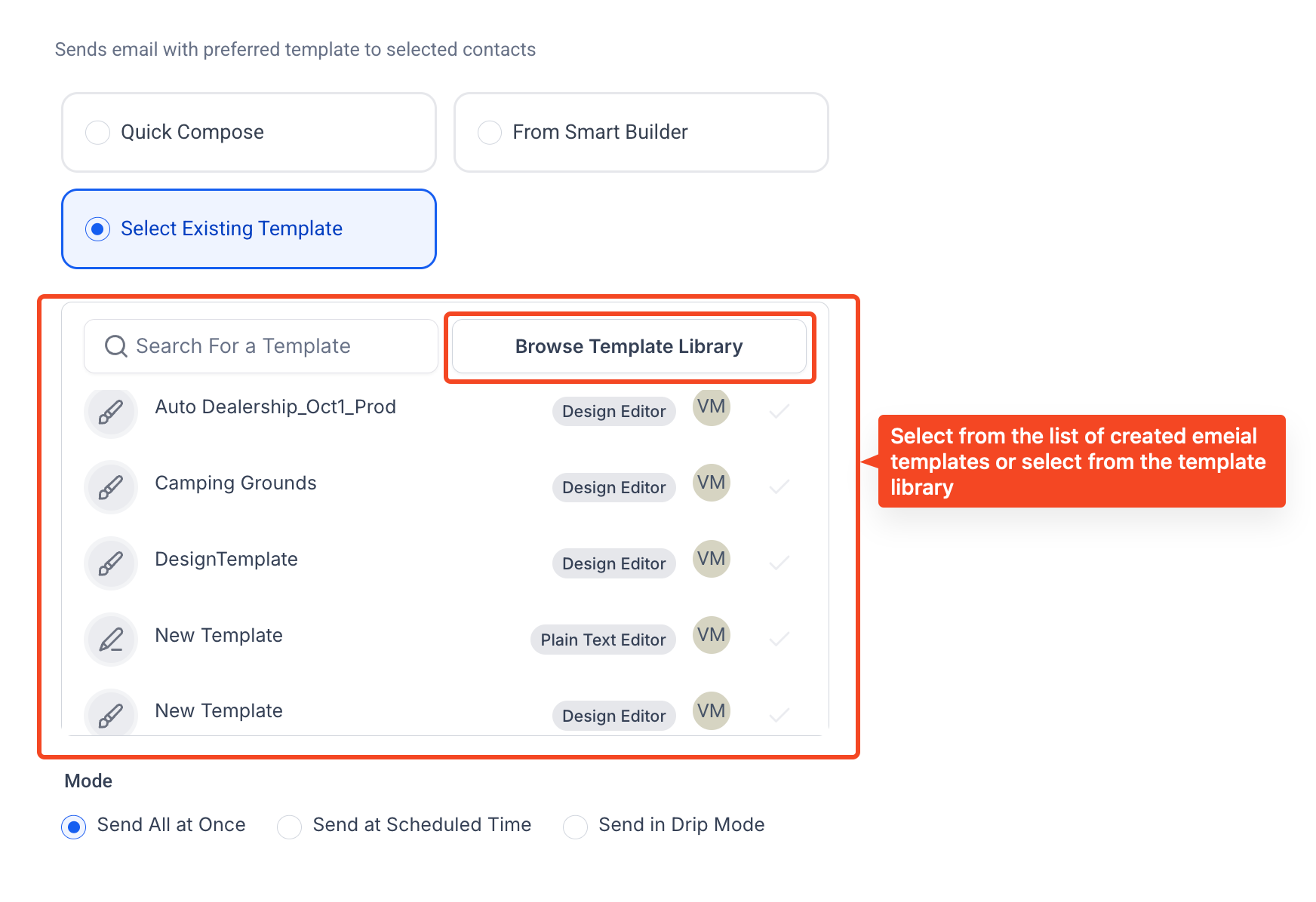
Select Template → Pick from My Templates or the Template Library.
Advanced Settings
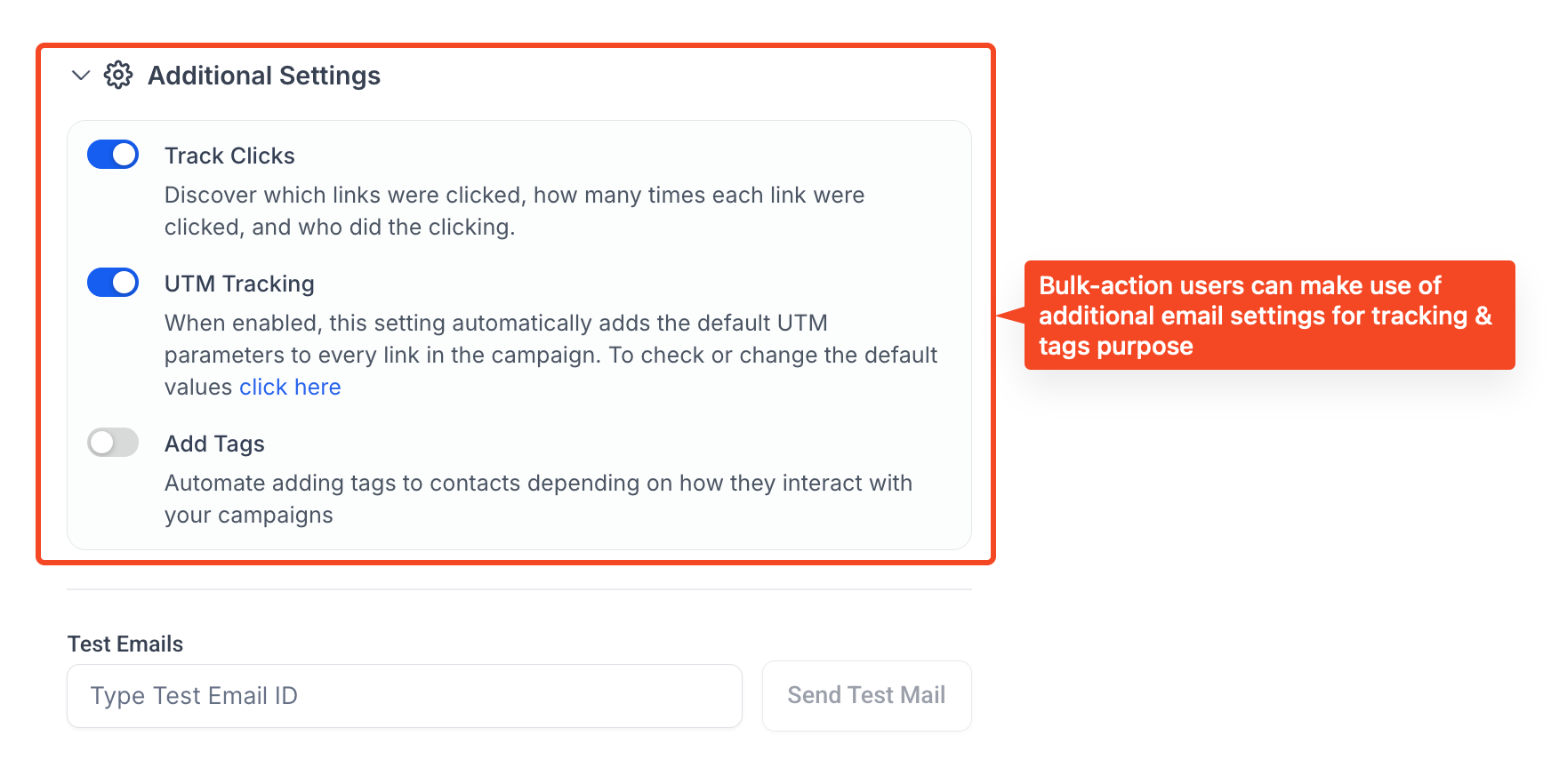
Expand Advanced Settings to enable:
-
Link Tracking → See clicks and CTR for every link.
-
UTM Parameters → Add tracking tags for campaign analytics.
-
Add Tags → Automatically tag contacts based on opens or clicks.
How to Use
-
Go to Contacts → Smart Lists.
-
Select contacts and click Send Email.
-
Choose:
-
Quick Compose – Fast, simple emails.
-
Smart Builder – Design, Code, or Plain Text editor.
-
Select Template – From saved templates or Template Library.
-
-
Expand Advanced Settings to add Link Tracking, UTM tags, or Action Tags.
-
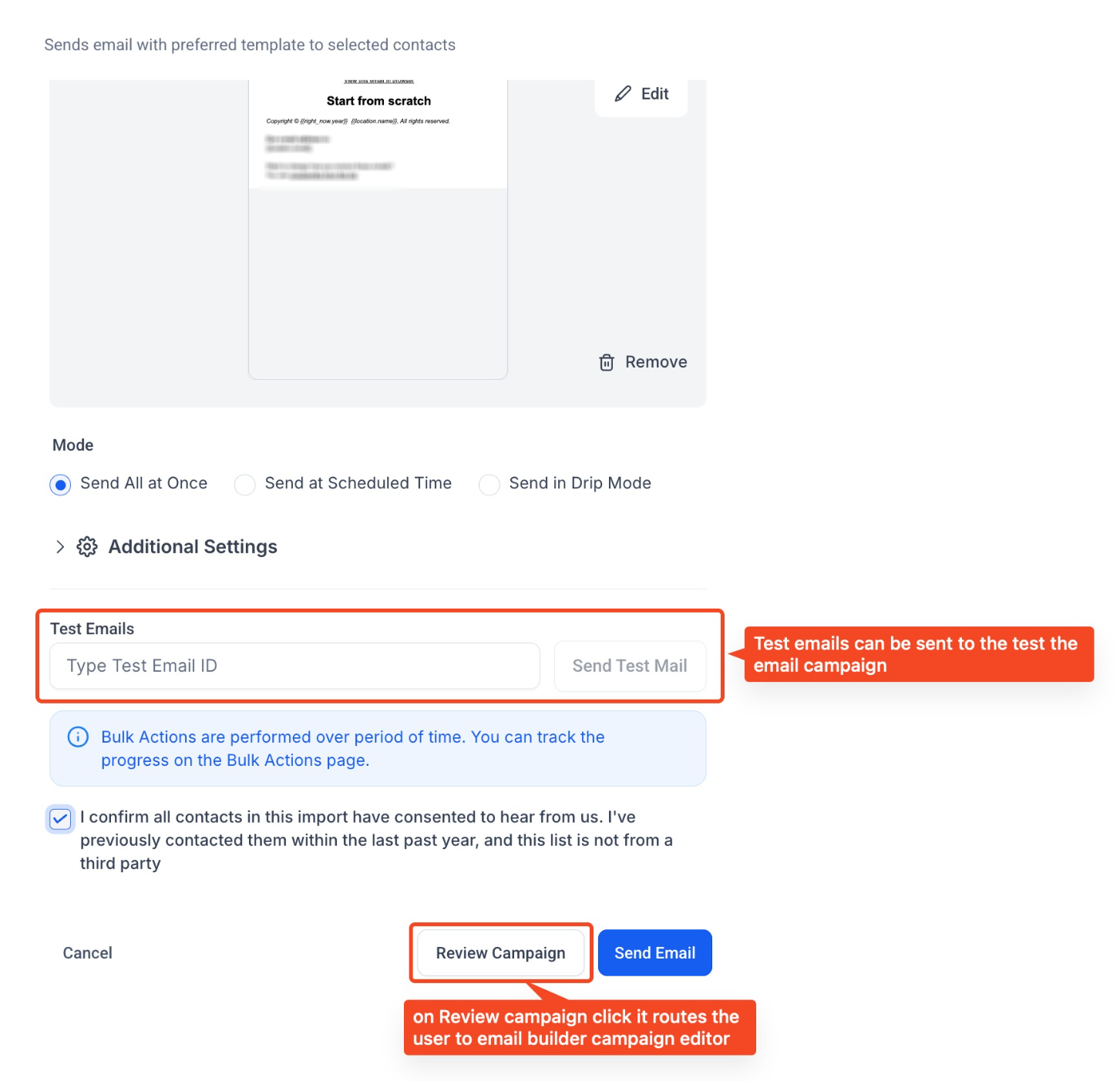
Review recipients in the confirmation modal → filtered list shows only valid contacts.
-
Click Send.
Benefits
-
Sends only to valid, subscribed contacts.
-
Consistent experience across all builders.
-
Better tracking and automation with minimal setup.
Frequently Asked Questions
Q: What’s new in the Bulk Email Action?
A clean, unified email builder with pre-send contact filtering, advanced tracking, and the same experience as Campaigns and Workflows.
Q: What does the pre-send contact filter do?
It automatically removes invalid or unsubscribed contacts before sending, ensuring your email only reaches valid recipients.
Q: Can I use templates when sending bulk emails?
Yes, you can select from Existing Templates or the Template Library while composing your email.
Q: Can I tag contacts based on engagement?
Yes, use Add Tags to automatically tag contacts based on opens or clicks for smarter segmentation.