

A Service Calendar is built specifically for businesses that offer structured, in-person services and want to make booking intuitive for customers. It allows individual services to be created, categorized, and presented through a unified booking experience known as a service menu.
Service Calendars automatically align with staff availability, support configurable service durations, allow buffer times between appointments, and can collect customer details or payments during booking. This approach reduces scheduling friction while presenting services in a clear, professional format.
TABLE OF CONTENTS
- Enabling Service Calendars Before Creation
- Creating a New Service Calendar
- Defining Core Service Information
- Organizing Services into Categories
- Customer Booking Experience
- Configuring Availability and Time Rules
- Collecting Information and Handling Payments
- Customizing Service Presentation
- Managing Rooms and Equipment
- Key Highlights of Service Calendars
- Frequently Asked Questions
- Need More Help?
Enabling Service Calendars Before Creation
Before a Service Calendar can be created, service-based scheduling must be enabled in calendar preferences. Once enabled, additional options such as service menus, rooms, and equipment become available during setup.
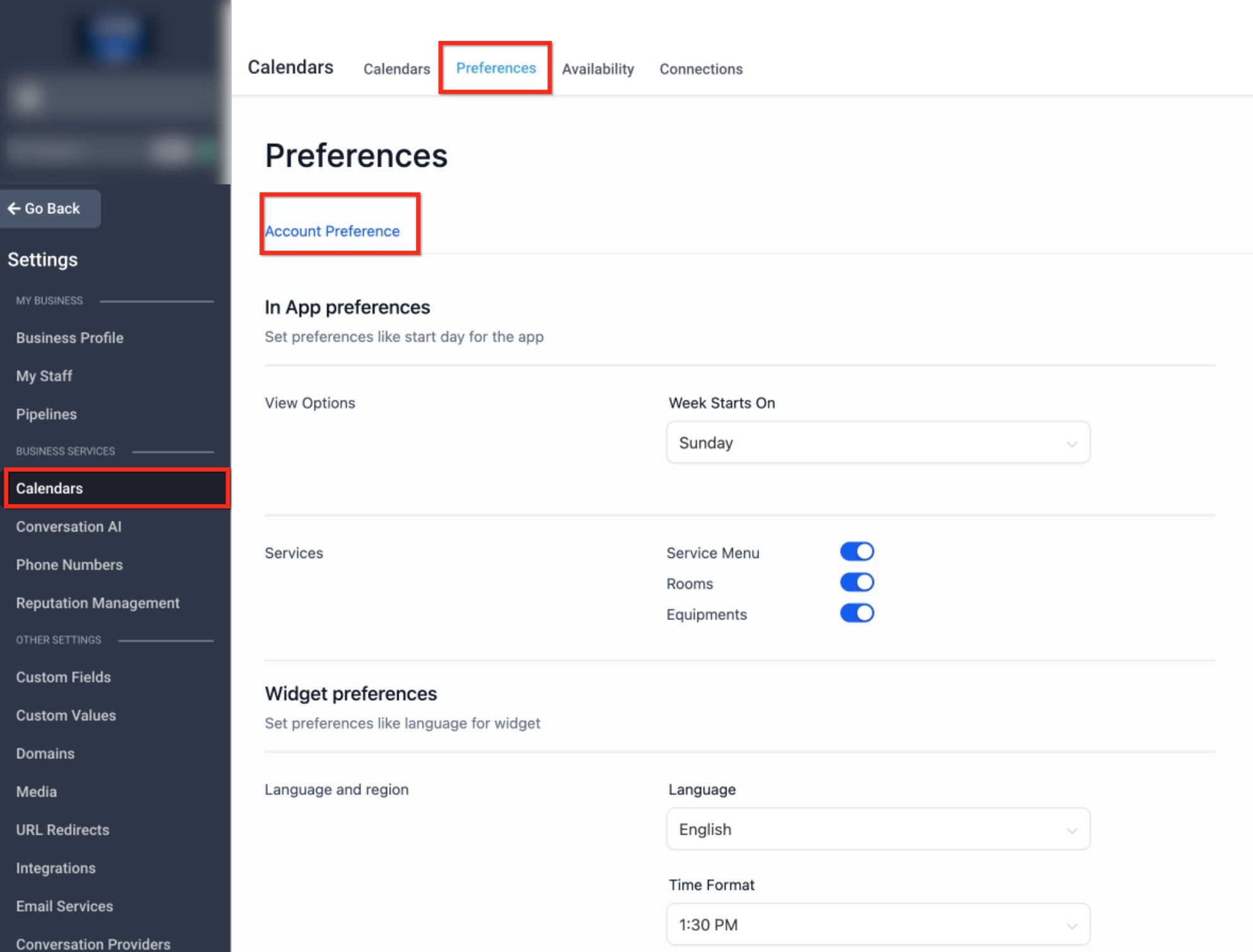
This image shows where service-based scheduling is enabled so service calendars and service menus can be created and managed.
Creating a New Service Calendar
Once service scheduling is enabled, a new calendar can be created by selecting the service-based calendar type. This calendar type unlocks service-specific configuration options that are not available in standard calendars.
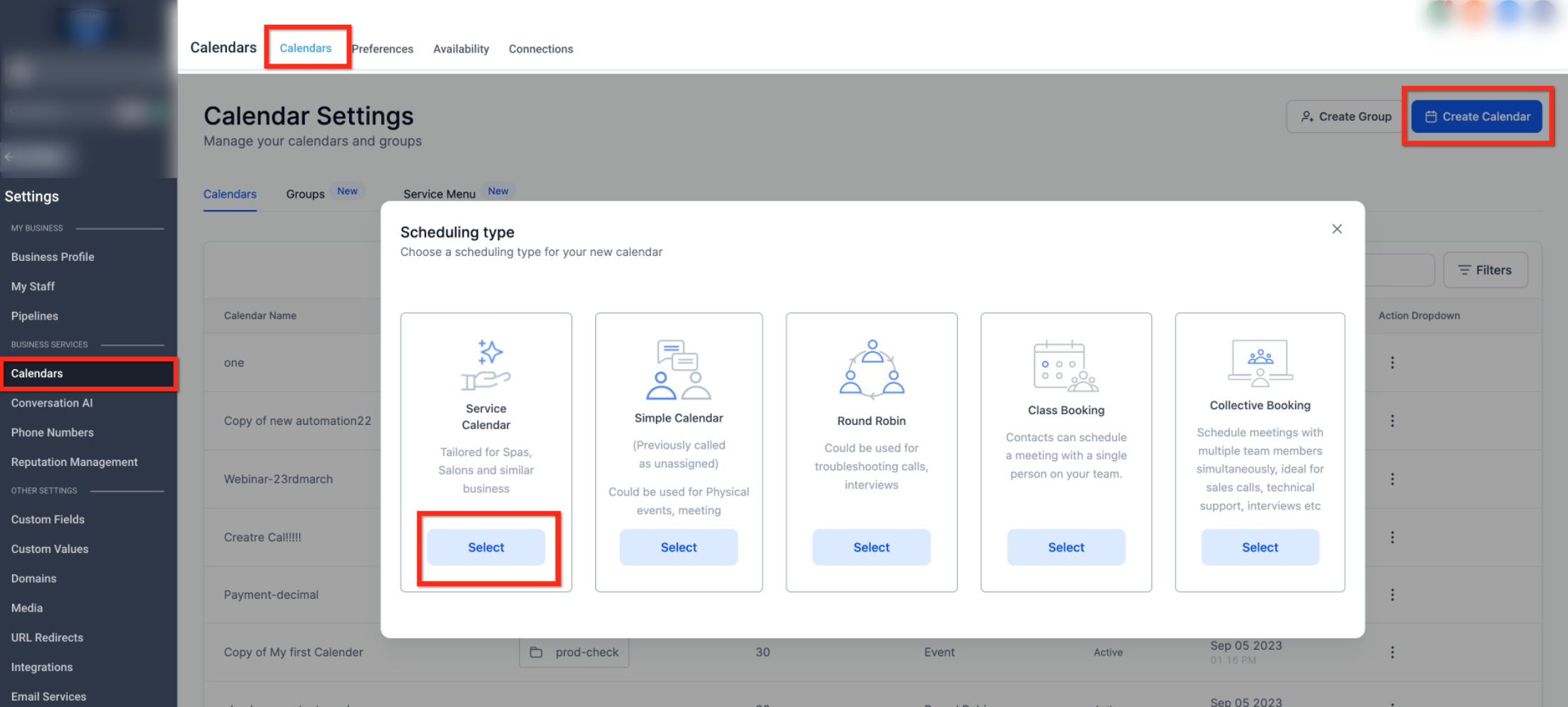
This view highlights the selection of a service-based calendar during calendar creation.
Defining Core Service Information
Each Service Calendar represents one service. Here, you define the service name, description, booking link, assigned staff, and duration. These details are displayed to customers when they browse or book services.
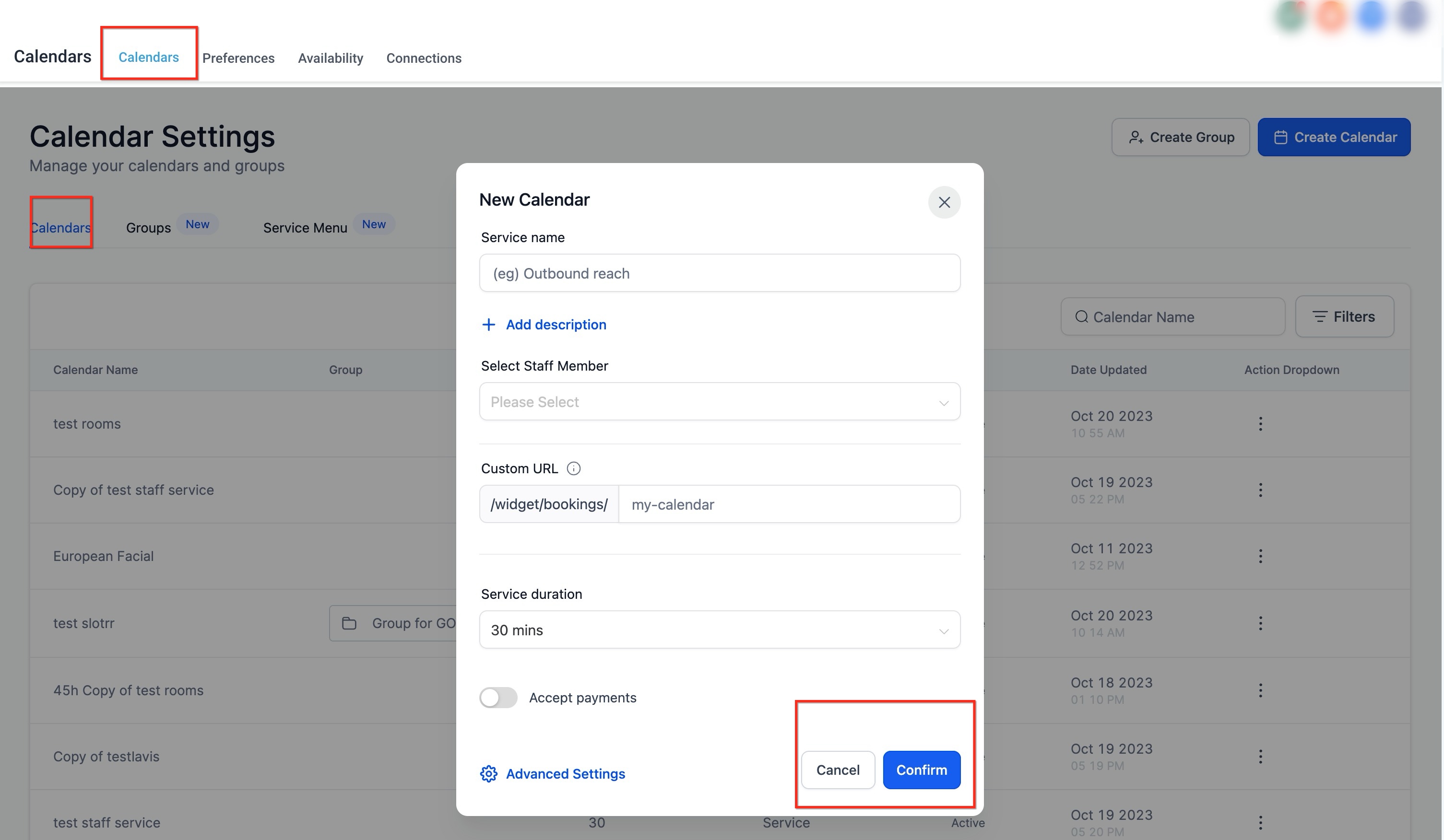
This screen shows where service names, descriptions, staff assignments, and booking links are configured.
Organizing Services into Categories
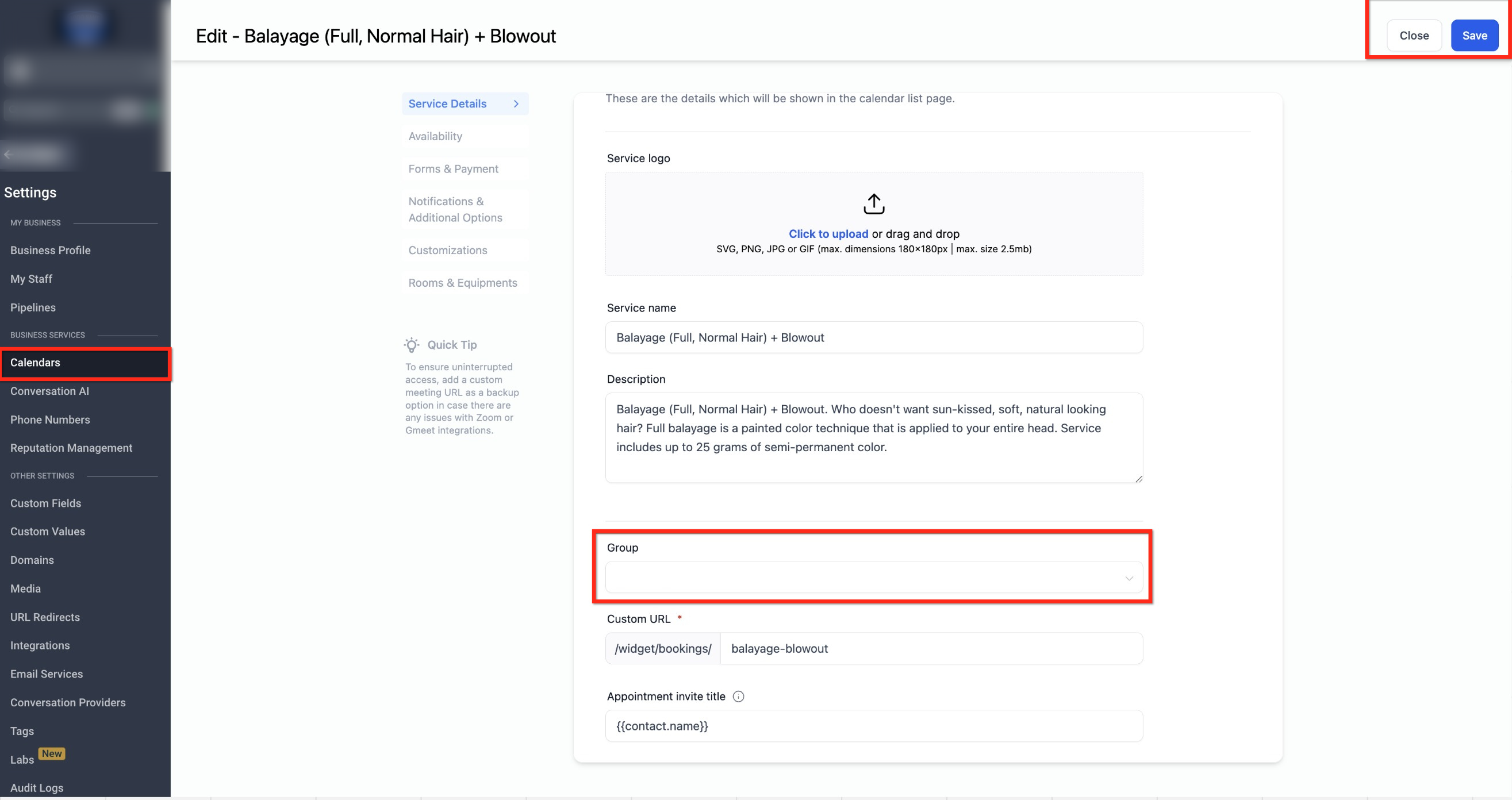
Services can be grouped into categories to create a service menu. Grouping helps customers browse related services and book from a single scheduling page.
This image shows how individual services are assigned to groups so they appear together in a unified service menu.
Customer Booking Experience
When customers access the booking link, they can view available services, select a staff member if applicable, and choose a date and time. Availability is calculated automatically based on staff schedules.
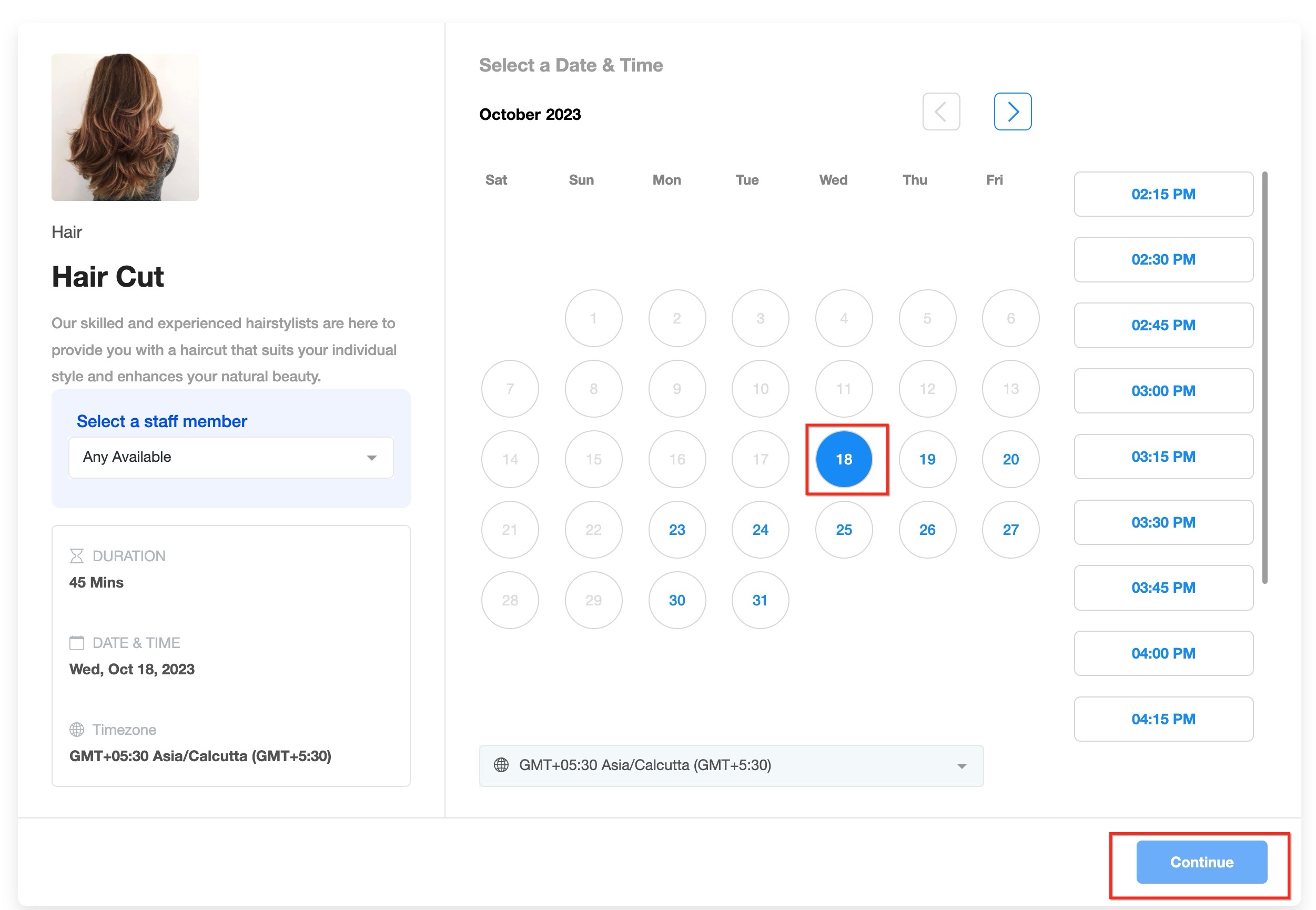
This screen demonstrates how customers browse services and select available appointment times.
Configuring Availability and Time Rules
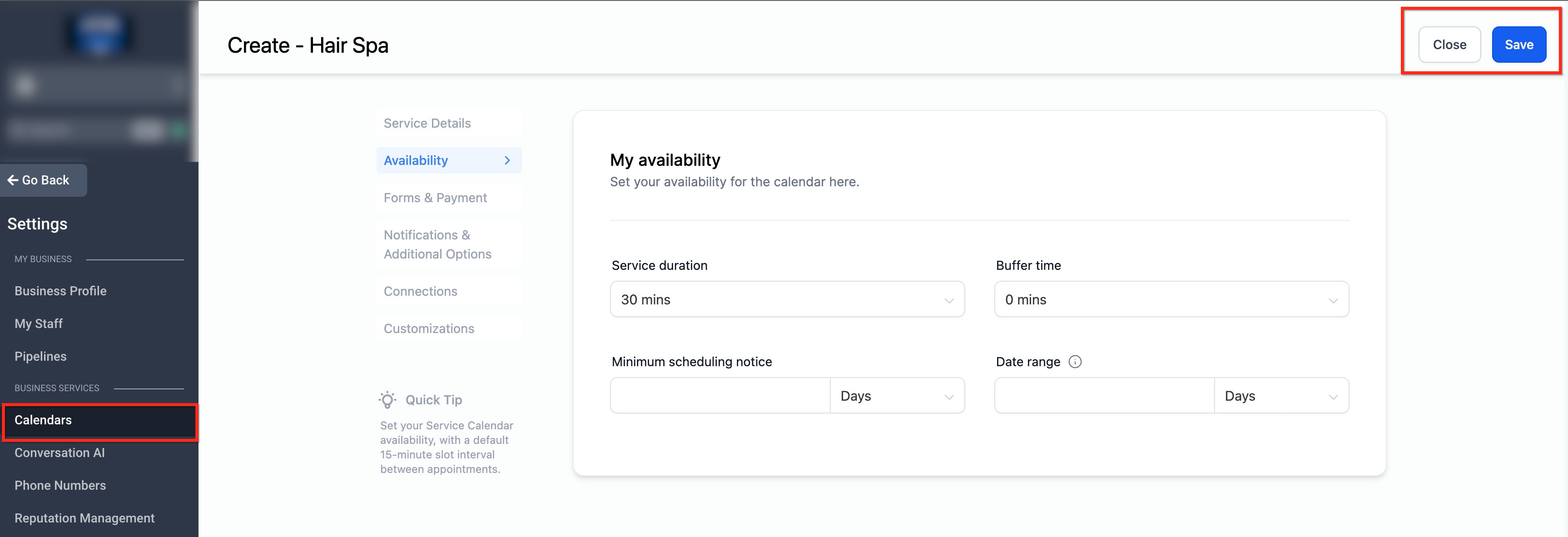
Service availability is driven entirely by staff schedules. You can configure appointment duration, buffer time, minimum scheduling notice, and how far into the future bookings are allowed.
This image shows where service duration, buffer time, booking notice, and date range are configured.
Collecting Information and Handling Payments
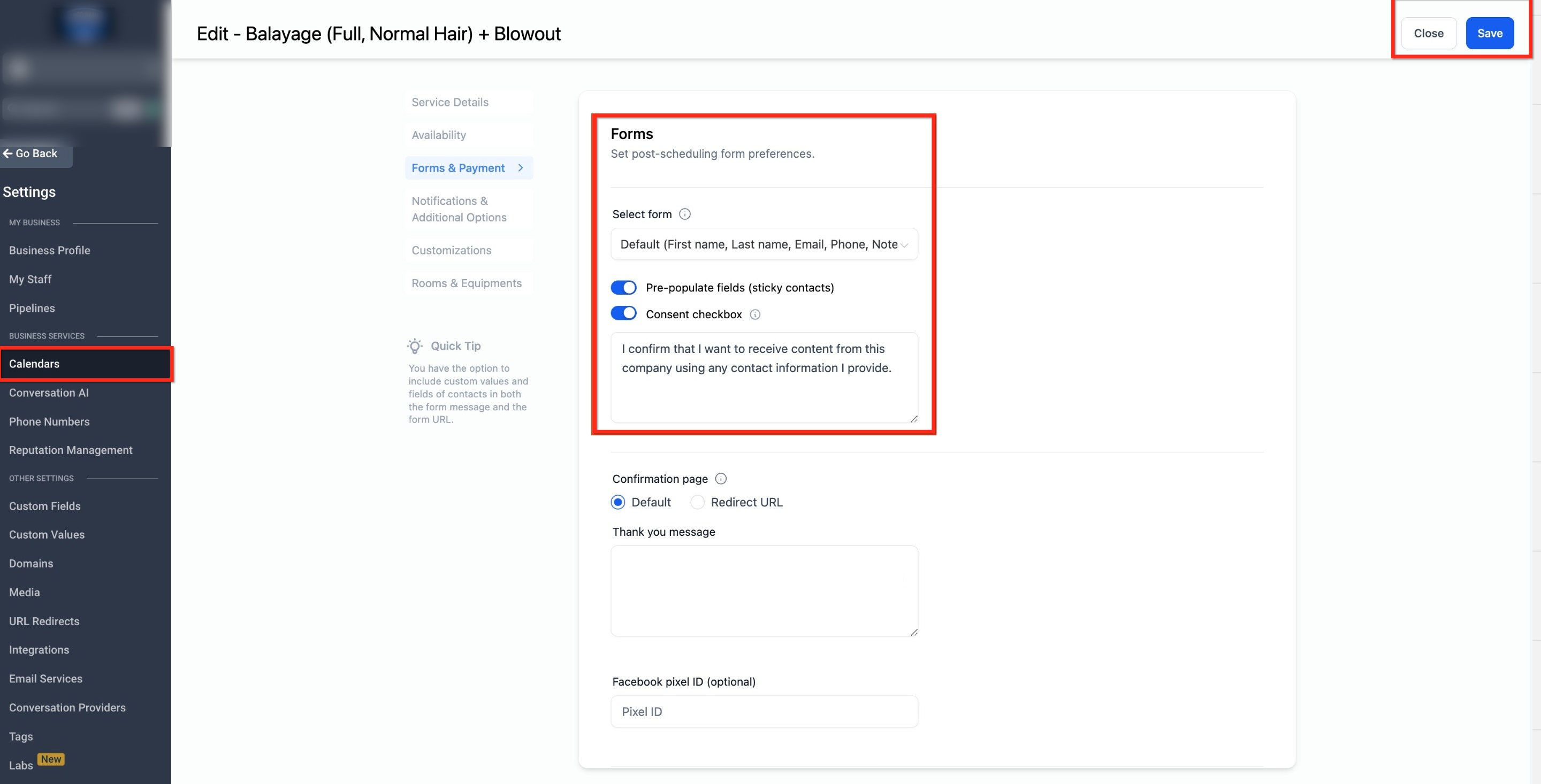
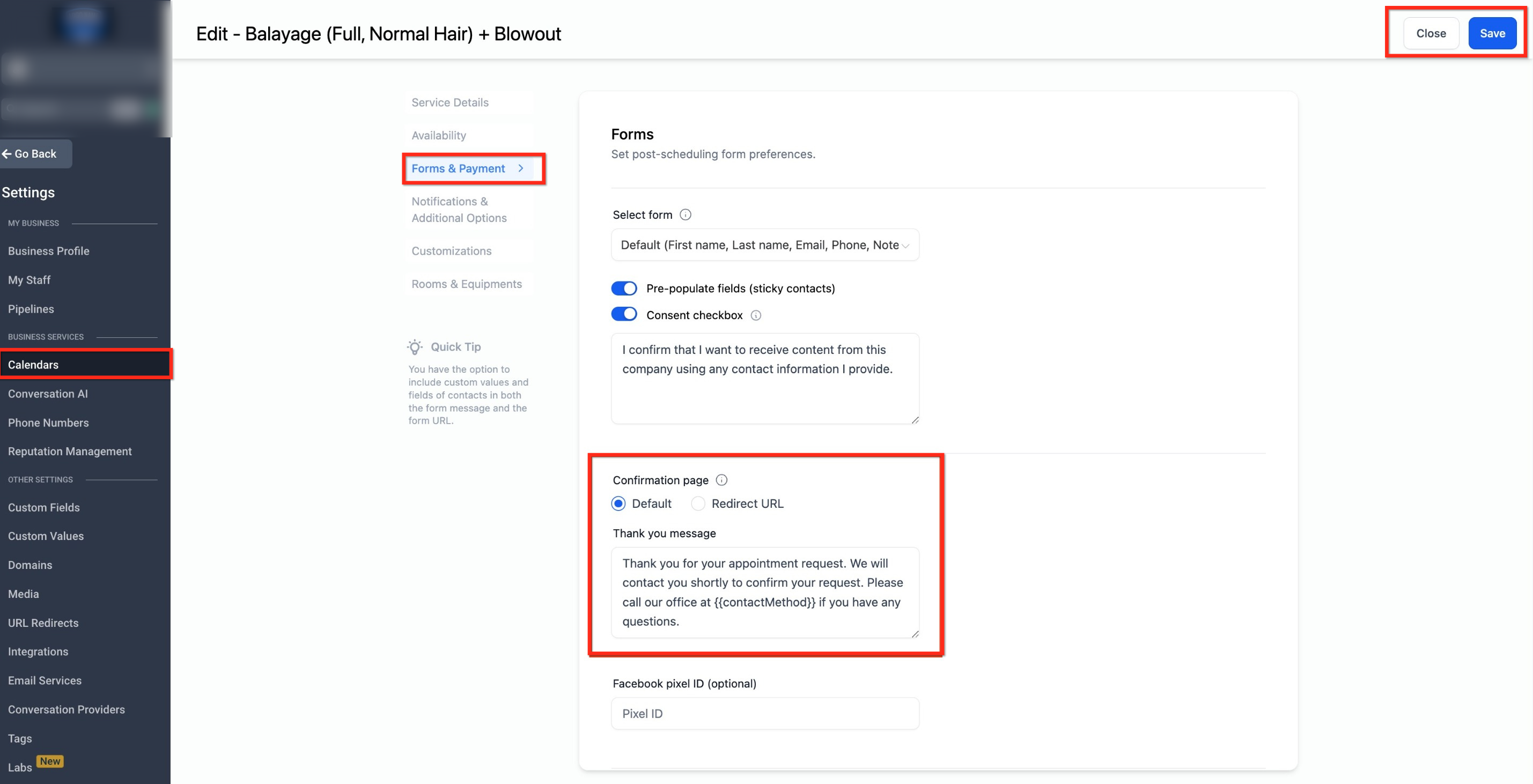
During booking, customers can be asked to complete a form and, if enabled, submit payment. You can choose between default or custom forms and decide how confirmations are displayed after booking.
This screen shows how customer forms, consent messaging, payment options, and confirmation behavior are managed.
Customizing Service Presentation
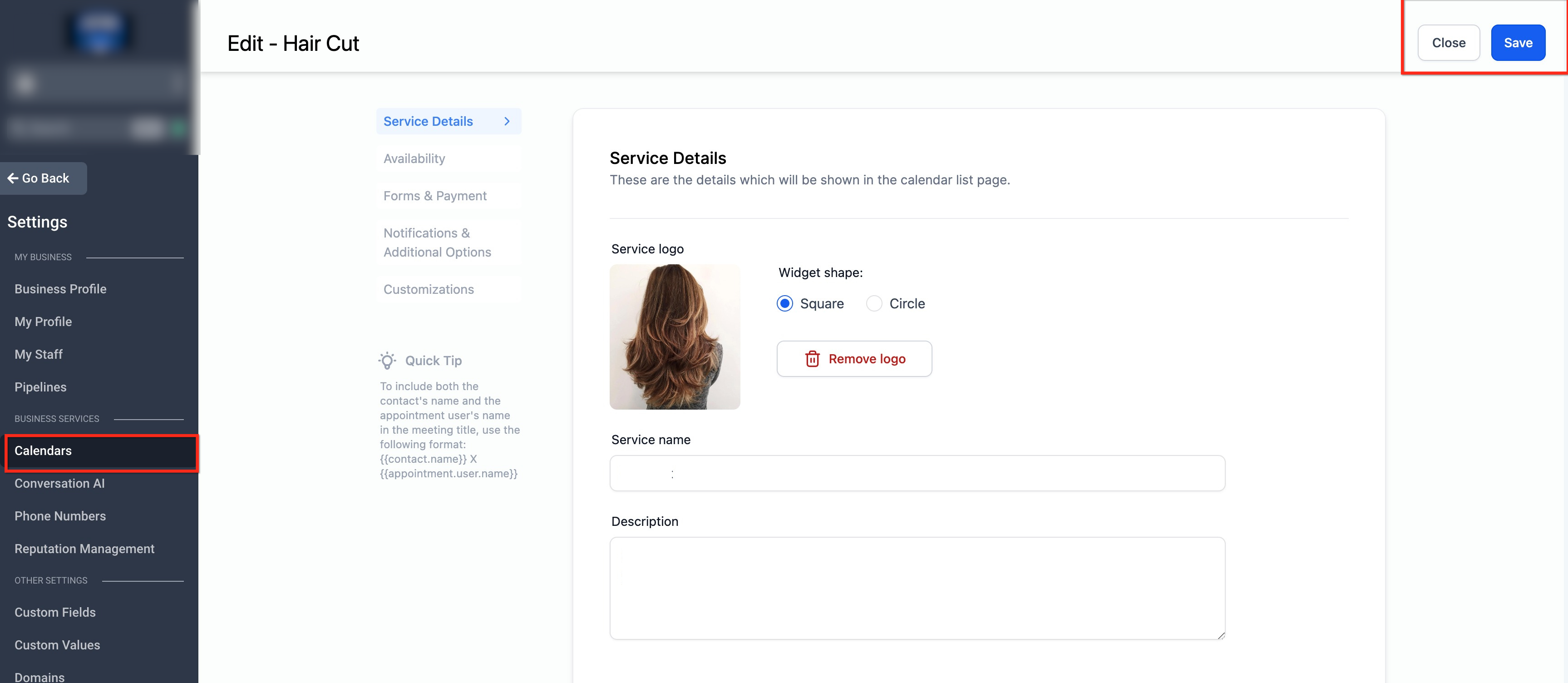
Service Calendars support visual customization to improve clarity and presentation. Service cover images appear in the service menu, while additional notes can be included in calendar invitations.
This image highlights where service cover images and additional service information are configured.
Managing Rooms and Equipment
If services require physical resources, rooms and equipment can be assigned to a Service Calendar. These resources are automatically reserved when a booking is made, preventing conflicts.
This screen shows how rooms and equipment are linked to services so availability is managed automatically.
Key Highlights of Service Calendars
Service Calendars allow customers to book multiple services for themselves or guests, operate on a fixed 15-minute slot interval, and always reflect real-time staff availability. To display multiple services on a single booking link, services must first be grouped and then included in a service menu.
Frequently Asked Questions
Q: Can customers book more than one service in a single appointment?
Yes. Service calendars allow customers to combine multiple services or include services for guests, depending on configuration.
Q: Can the booking slot interval be changed?
No. Service calendars use a fixed 15-minute slot interval, but buffer times can be added between appointments.
Q: Do service calendars support virtual meeting locations?
No. Service calendars are designed for in-person services only.
Q: Does availability update automatically when staff schedules change?
Yes. Availability always reflects the schedules of assigned staff members.
Need More Help?
If you need help organizing services, configuring availability, or managing service menus, open the in-app help section and search for related scheduling topics. Additional assistance is available if bookings or availability are not displaying as expected.