

Prospect by AI automatically delivers 2–3 high-quality business recommendations to your dashboard each week based on your selected niche and location. Instead of manually searching for leads, the system intelligently analyzes business data and surfaces strong-fit prospects ready for outreach.
Once enabled, recommended businesses appear directly inside your Prospecting dashboard, where you can instantly generate audit reports and begin engagement.
TABLE OF CONTENTS
- Who Can Use Prospect by AI
- Plan & Report Type Behavior
- How to Enable Prospect by AI
- Enable at Account Level
- How to Configure Prospect by AI
- Where to View AI-Generated Prospects
- Frequently Asked Questions
- Need Help
Who Can Use Prospect by AI
Prospect by AI can be enabled inside:
-
Agency-level view
-
Individual account-level view
The feature must first be activated inside Labs before configuration options become available.
Plan & Report Type Behavior
Prospect by AI works across plans, with report behavior based on subscription level:
-
Free Plan: AI generates prospects with Basic audit reports.
-
Premium Prospecting Subscription: AI generates prospects with Premium audit reports.
You do not need separate configuration for report type. The system automatically applies the appropriate report level.
How to Enable Prospect by AI
Enable at Agency Level
-
Open Labs inside your agency.
-
Turn ON Prospect by AI.
-
Navigate to Prospecting → Settings → AI Report Configuration.
-
Enable the AI Recommendations toggle.
-
Click Save.
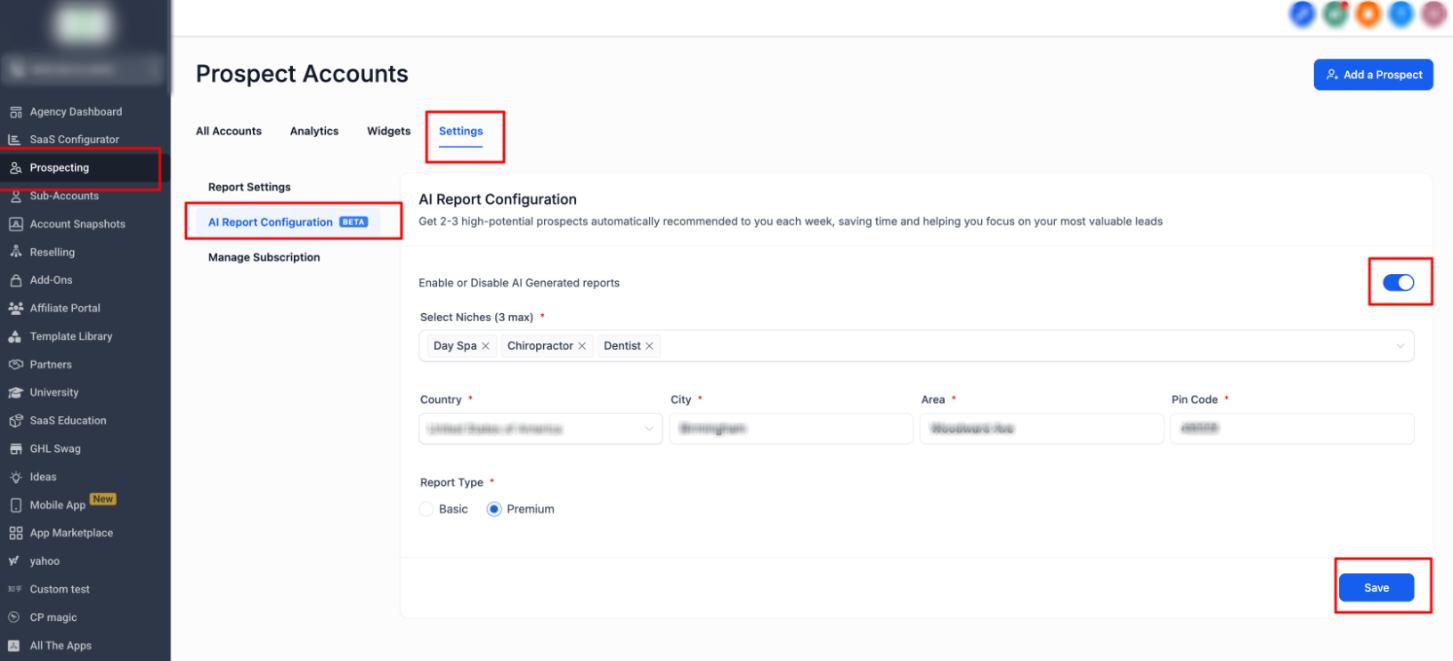
This screen displays:
-
Prospecting selected in the navigation
-
Settings tab active
-
AI Report Configuration section visible
-
AI Recommendations toggle enabled
-
Save button highlighted
Action: Turn ON the AI Recommendations toggle and click Save to activate automated prospect delivery.
Enable at Account Level
-
Open Labs inside the account.
-
Toggle ON Prospect by AI.
-
Navigate to Marketing → Prospecting → Settings → AI Report Configuration.
-
Turn ON the AI toggle.
-
Click Save.
Important: Prospecting must first be enabled at the agency level before accessing it inside accounts.
How to Configure Prospect by AI
Once enabled, define your targeting criteria:
-
Select up to three niches
-
Choose Country
-
Enter City
-
Specify Area
-
Enter Pin Code
These inputs guide the system in identifying businesses that match your expertise and geographic focus.
You can update these settings at any time and save changes.
Where to View AI-Generated Prospects
AI recommendations appear directly inside your Prospecting dashboard.
You will see:
-
An AI Generated Prospect card
-
Business summary details
-
A View Report option
-
Notification banner when new recommendations are available
Recommendations refresh approximately every 2–3 days.
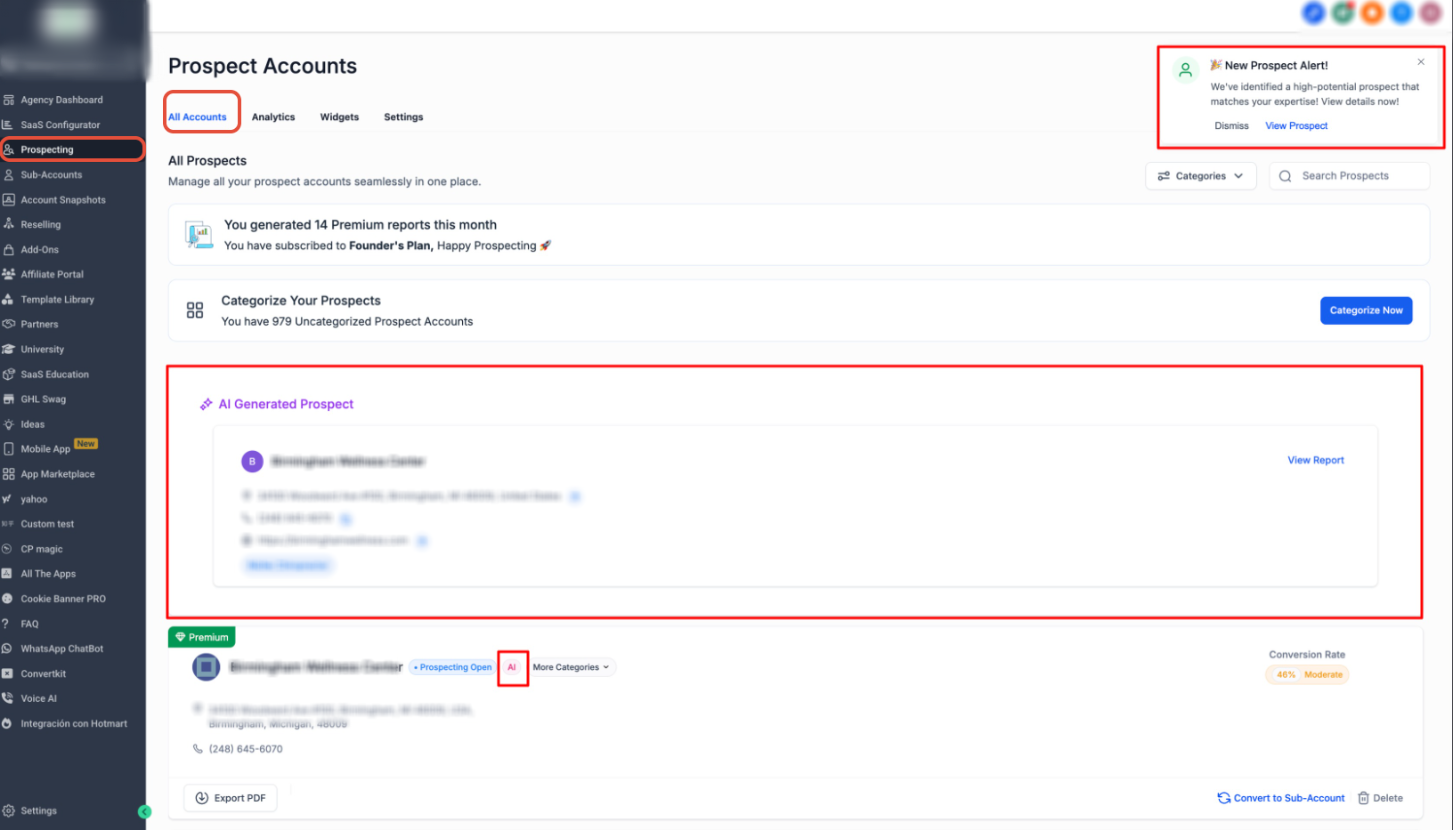
This screen shows:
-
AI Generated Prospect section
-
Recommended business displayed
-
“View Report” button available
-
Notification alert for new prospect
Action: Click View Report to review and generate the audit report for the recommended business.
Frequently Asked Questions
Q: How many prospects does Prospect by AI generate each week?
Prospect by AI delivers 2–3 recommended businesses per week based on your selected niche and location criteria.
Q: Do I need a Premium subscription to use Prospect by AI?
No. The feature works on all plans. Premium subscription enables Premium audit reports instead of Basic reports.
Q: How often are AI recommendations refreshed?
Recommendations refresh approximately every 2–3 days.
Q: Can I change my niche or location settings?
Yes. You can update your niche and location preferences anytime inside AI Report Configuration.
Q: Do I still need to manually search for leads?
No. Prospect by AI automatically delivers curated recommendations without manual searching.
Need Help
If AI-generated prospects are not appearing:
-
Confirm Prospect by AI is enabled in Labs.
-
Verify the AI Recommendations toggle is turned ON.
-
Ensure at least one niche and location field is configured.
-
Confirm you clicked Save after making changes.
-
Refresh the Prospecting dashboard.
If recommendations still do not appear, contact Support and provide:
-
Screenshot of your AI Report Configuration settings
-
Confirmation that Labs toggle is enabled
-
Your selected niche and location details
Support can help verify eligibility and configuration status.