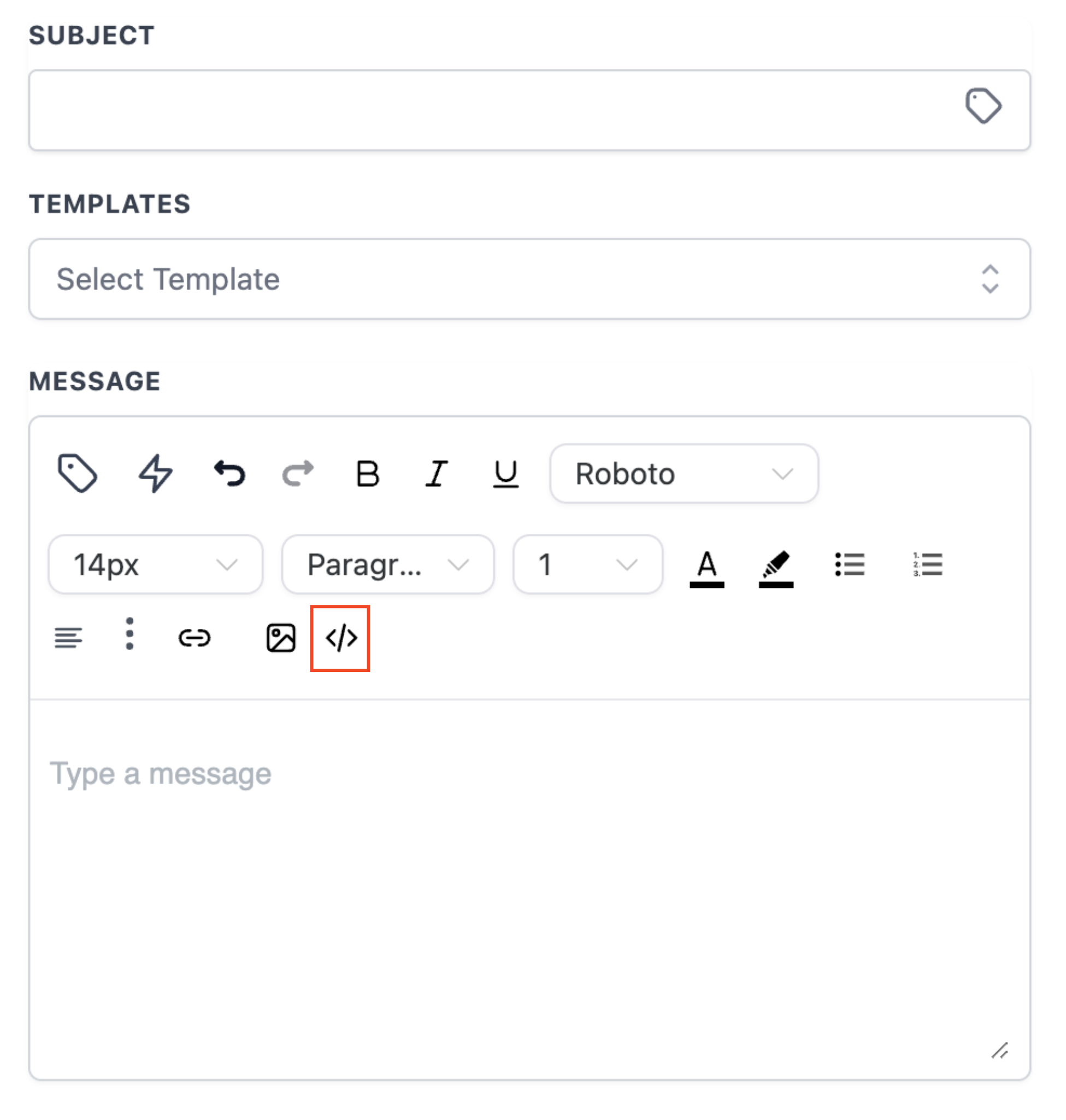
We are thrilled to announce some exciting UI changes in for the Text Editor. This document will take you through all the functionalities of the new editor.
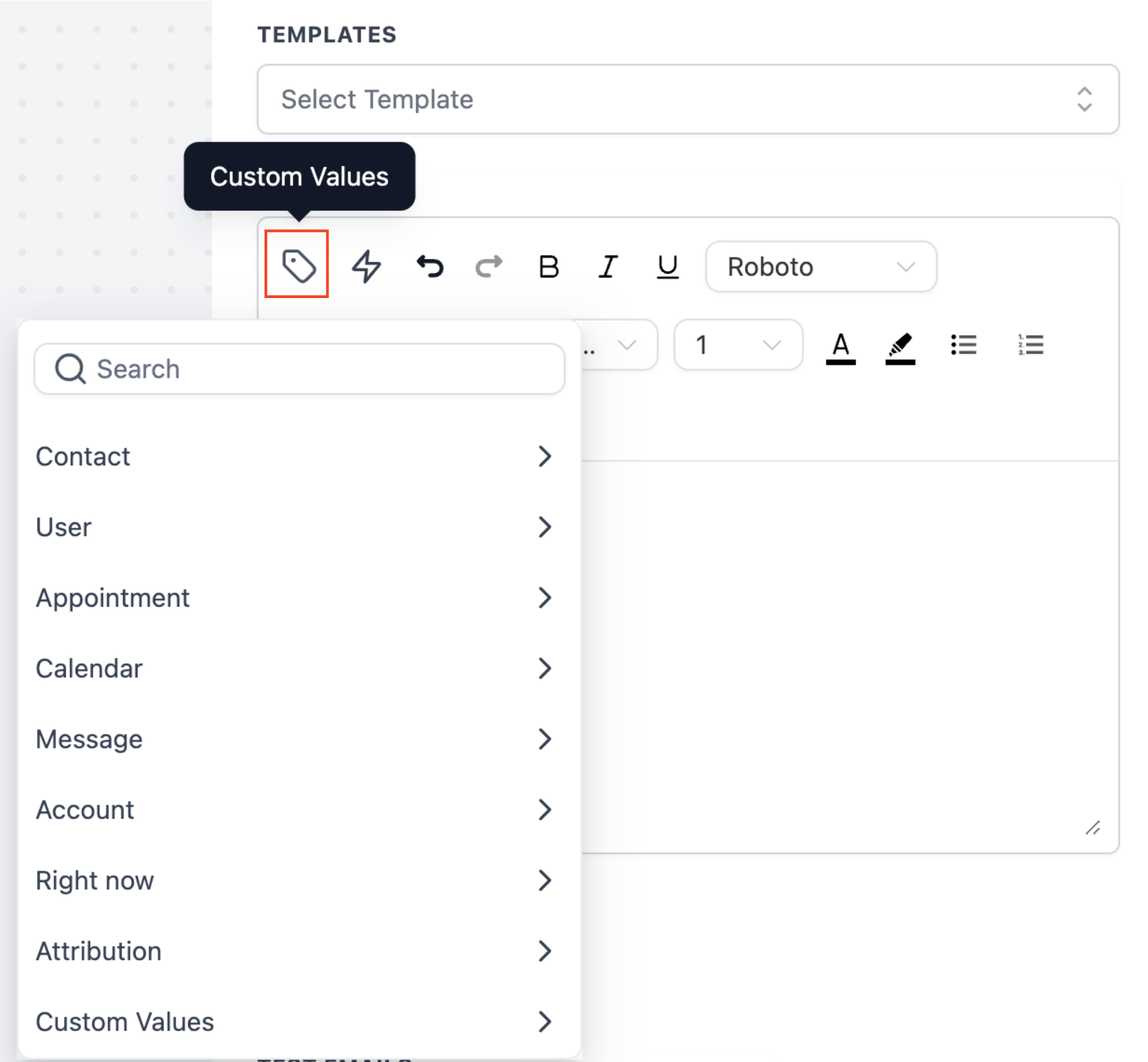
- When “Custom Values” icon is clicked it will populate all the options from where you can select the custom values for the template.
-
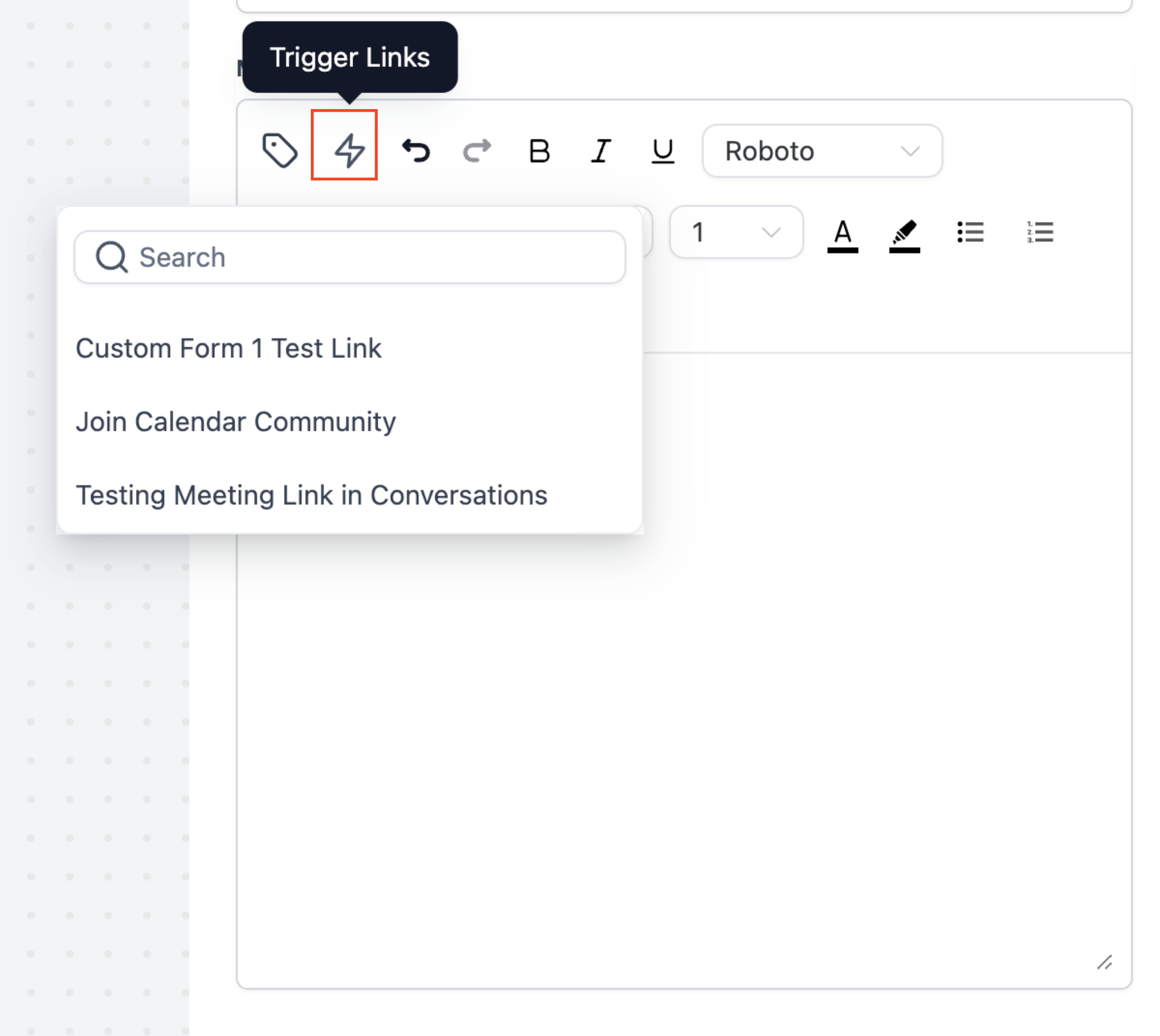
By clicking on “Trigger Links” you can select from the links available in the dropdown to add in the template.
-
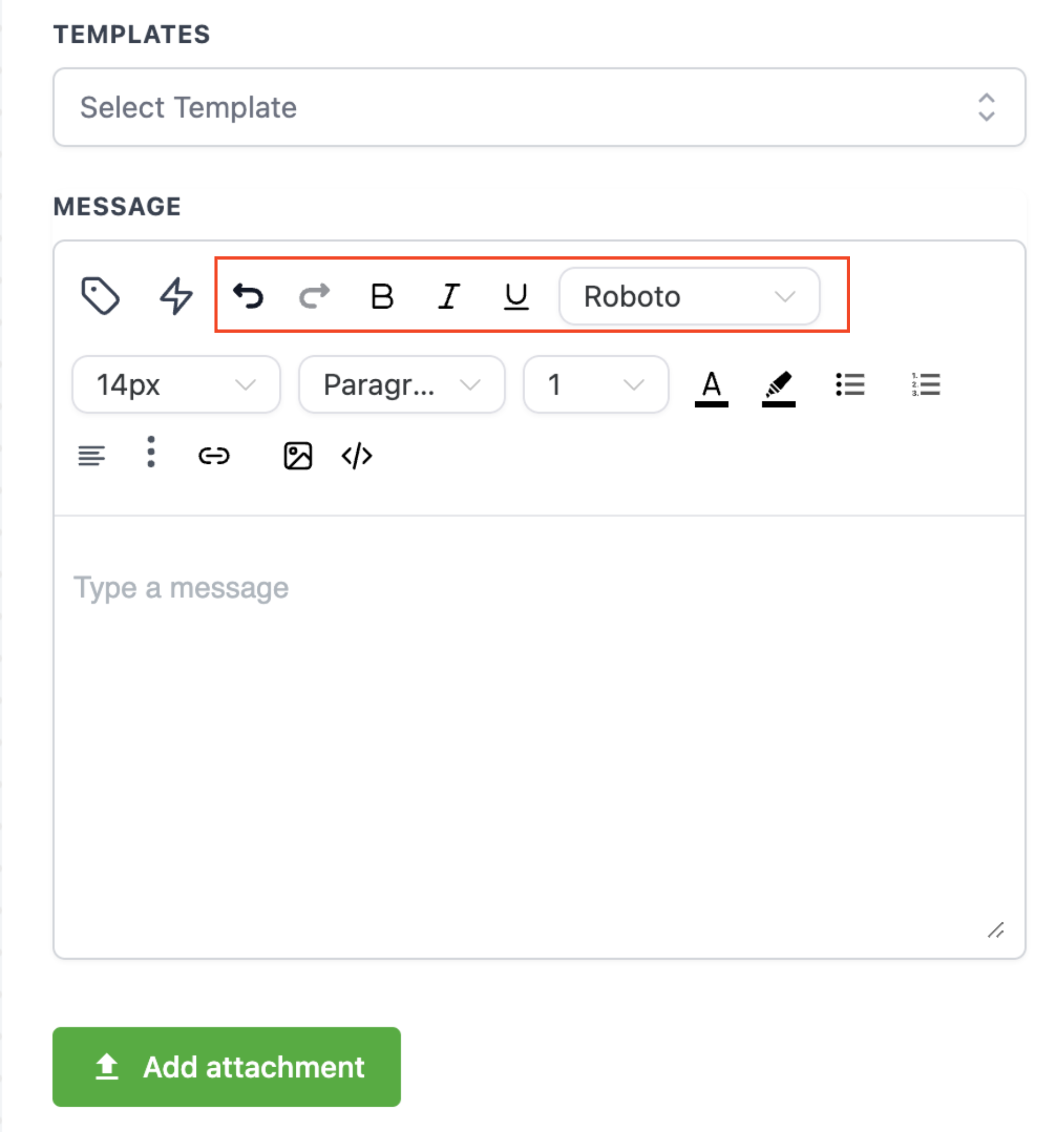
Below mentioned functions are highlighted in the next screenshot
- Undo
- Redo
- Bold
- Italic
- Underline
- Font Type
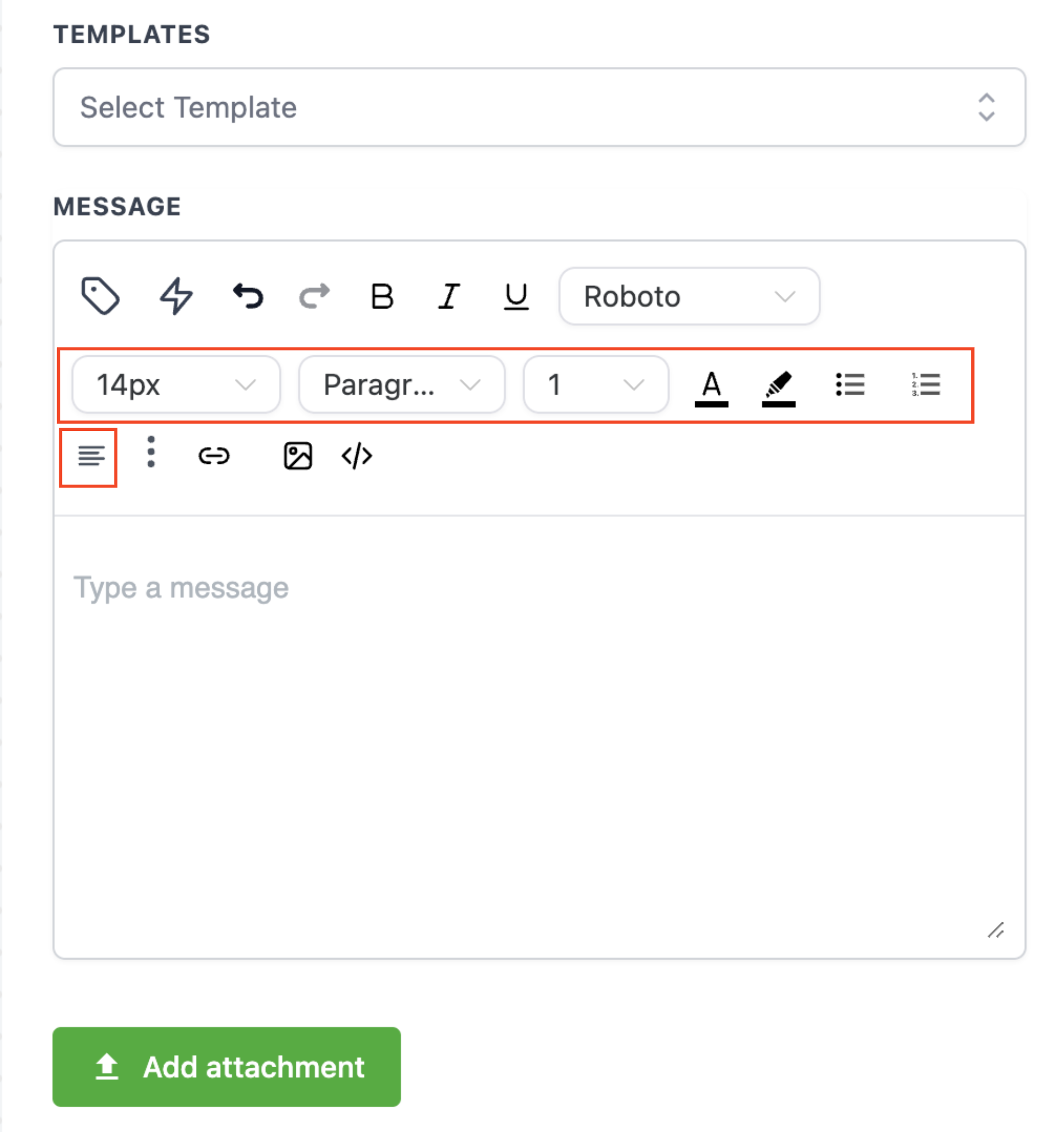
- Below mentioned functions are highlighted in the next screenshot
-
Font Size
-
Paragraph Format
-
Line Height
-
Text Color
-
Background Colour
-
Disc List
-
Decimal List
-
Text Align
-
-
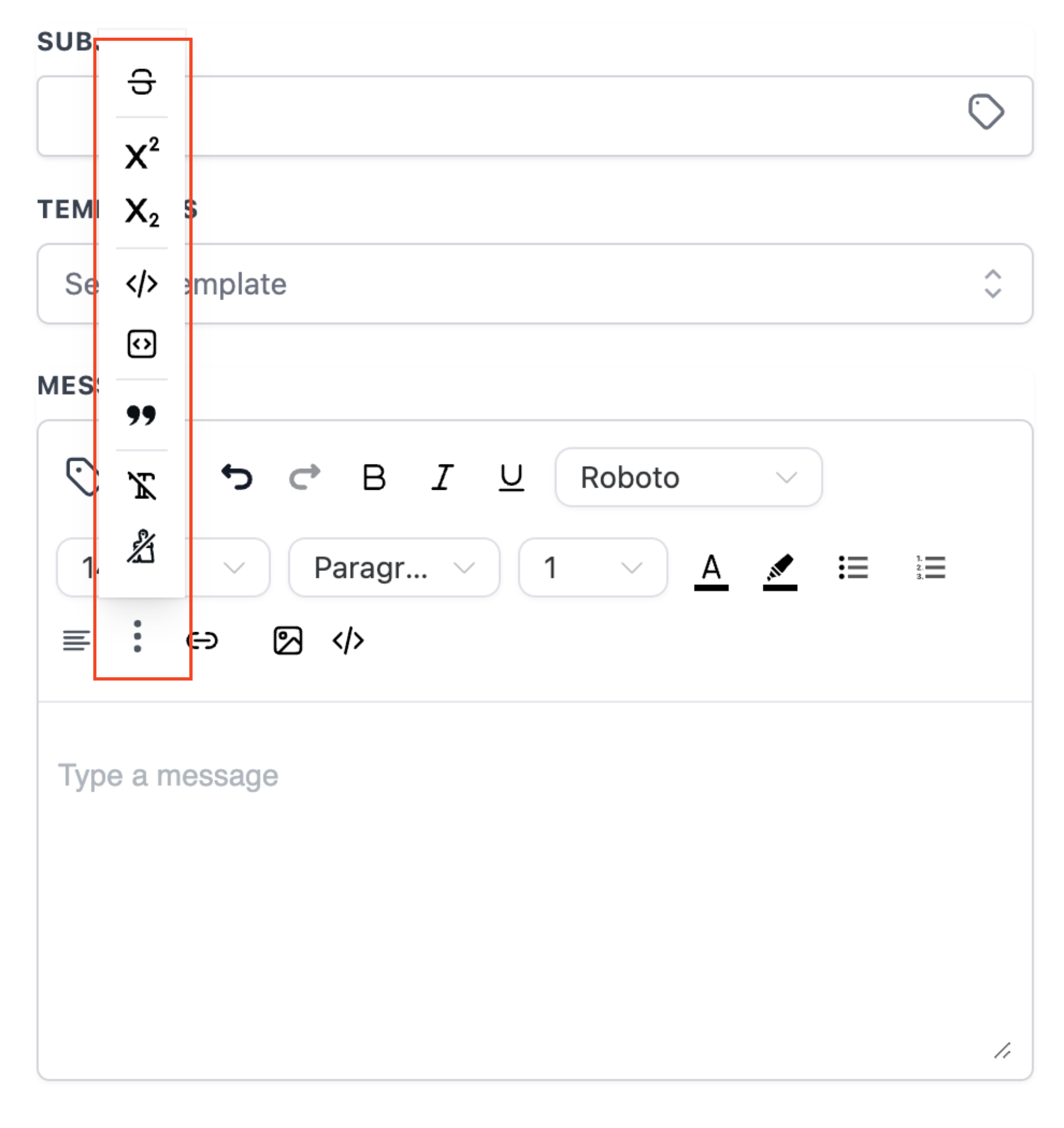
On clicking the more options icon (3 dots) you will be able to select from the below mentioned actions
- Strike
- Super Script
- Sub Script
- Code
- Code Block
- Block Quote
- Format Selected
- Format all document
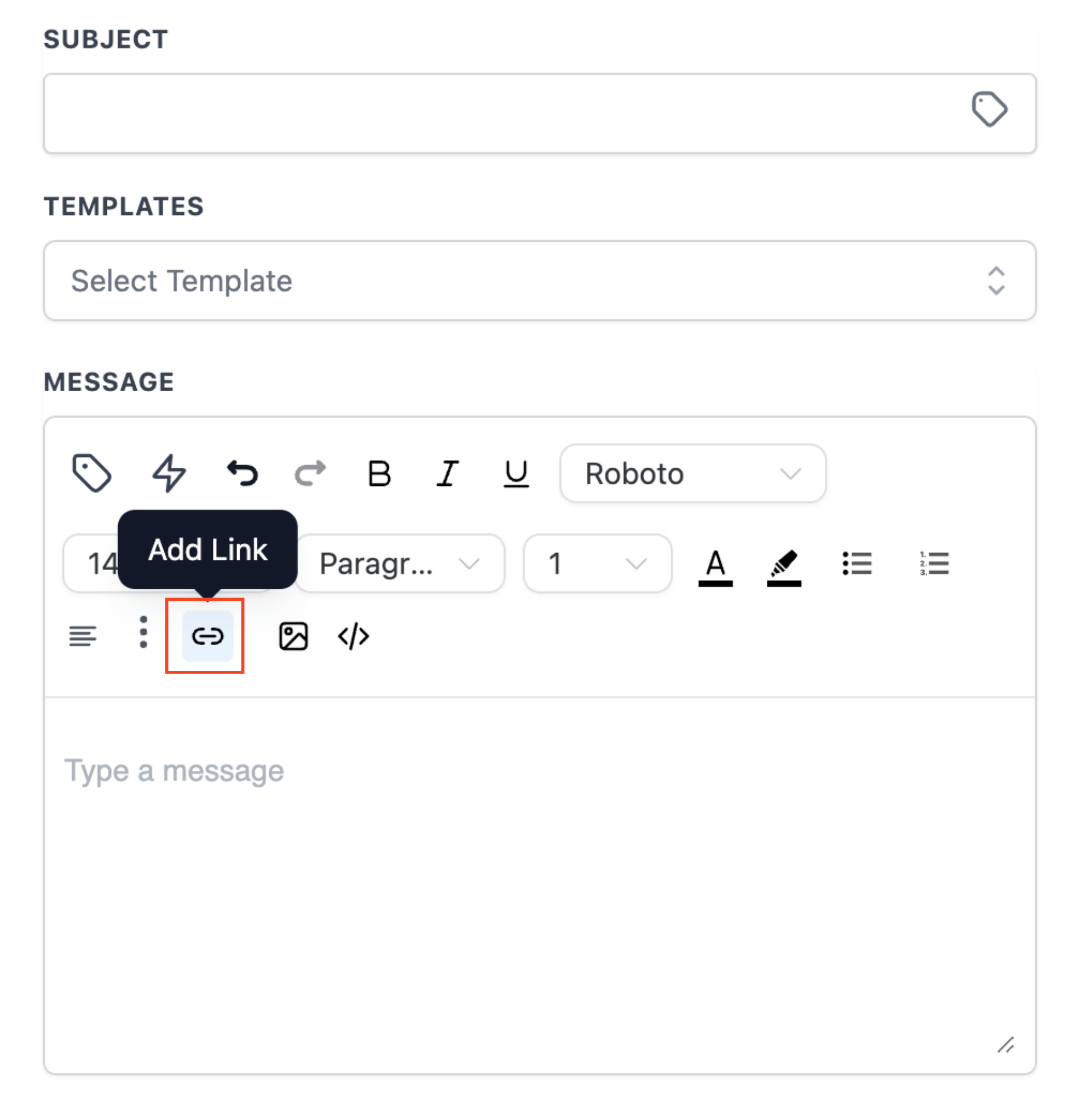
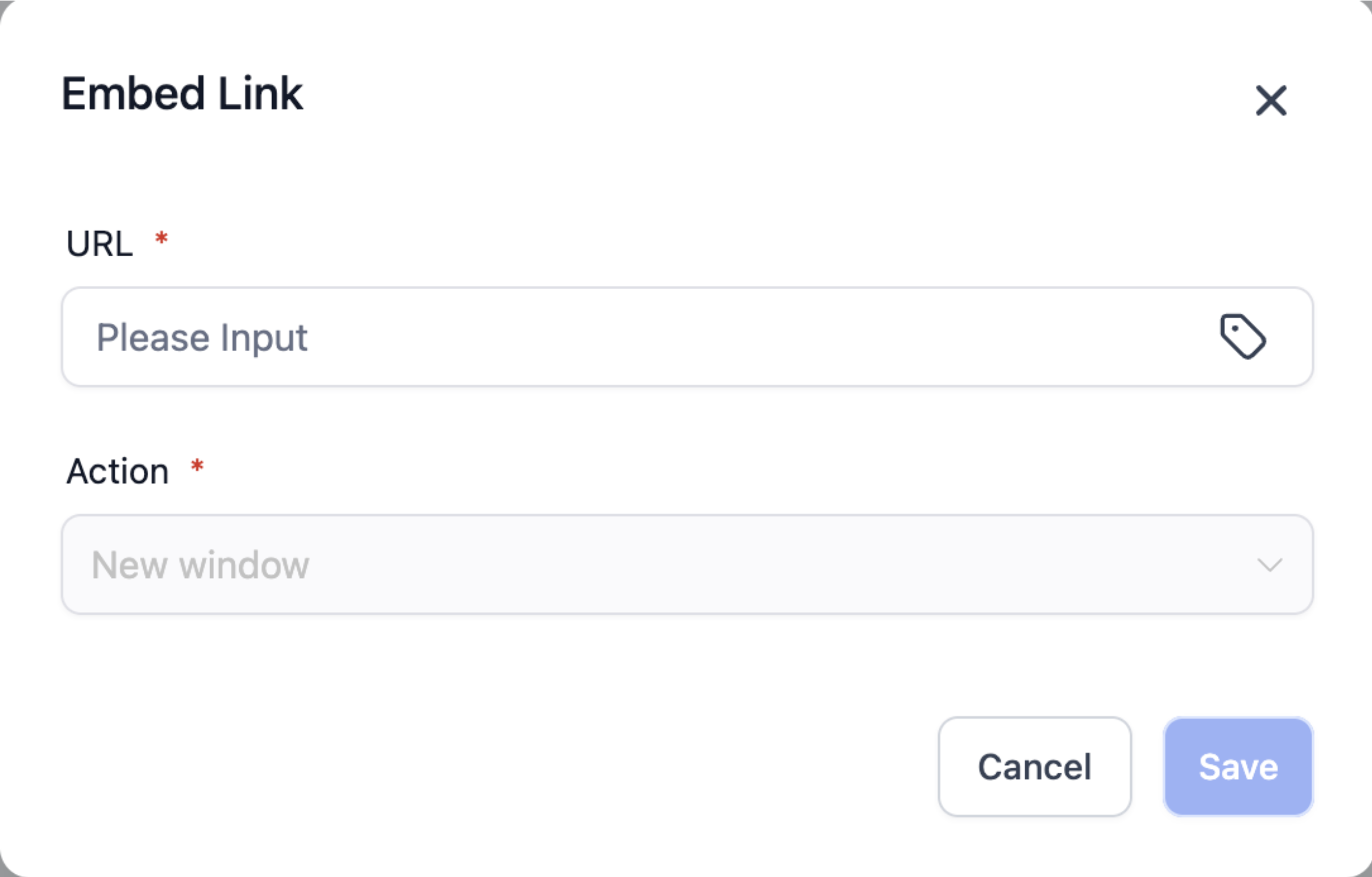
- When the “Add Link” icon is clicked a new window will open. In this pop up window you can paste the URL or select a trigger link by clicking on the icon in the right. Select the “Action: from Self or New Window and click on Save.
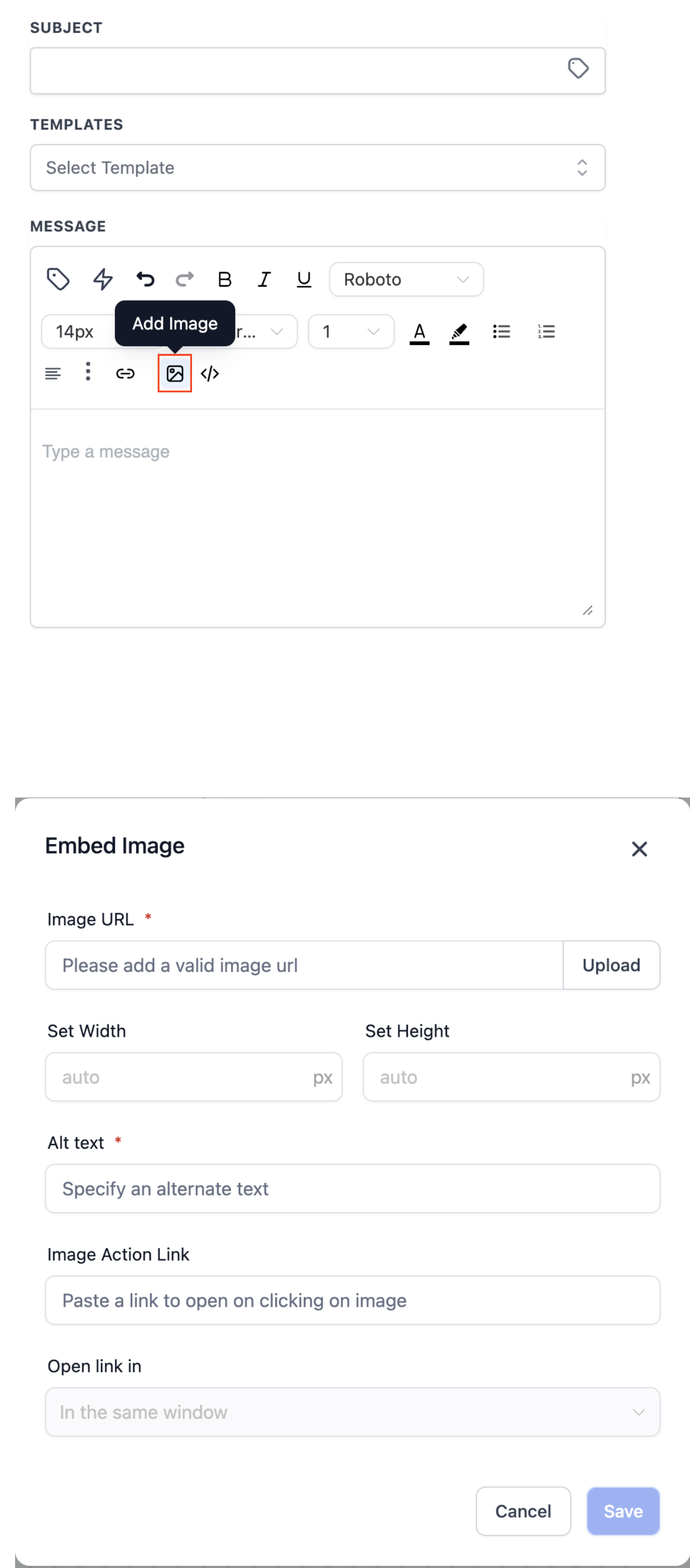
- When the “Image” icon is clicked a new window will open. In this pop up window you can
- Add URL of your Image
- Upload the Image by clicking on the “Upload” button
- Set the Width and Height
- Enter an Alternative Text
- Enter a link you want to open when user clicks on the Image
- Open Link In – This field is only editable if “Image Action Link” is selected. You can select the link should open in same or different window
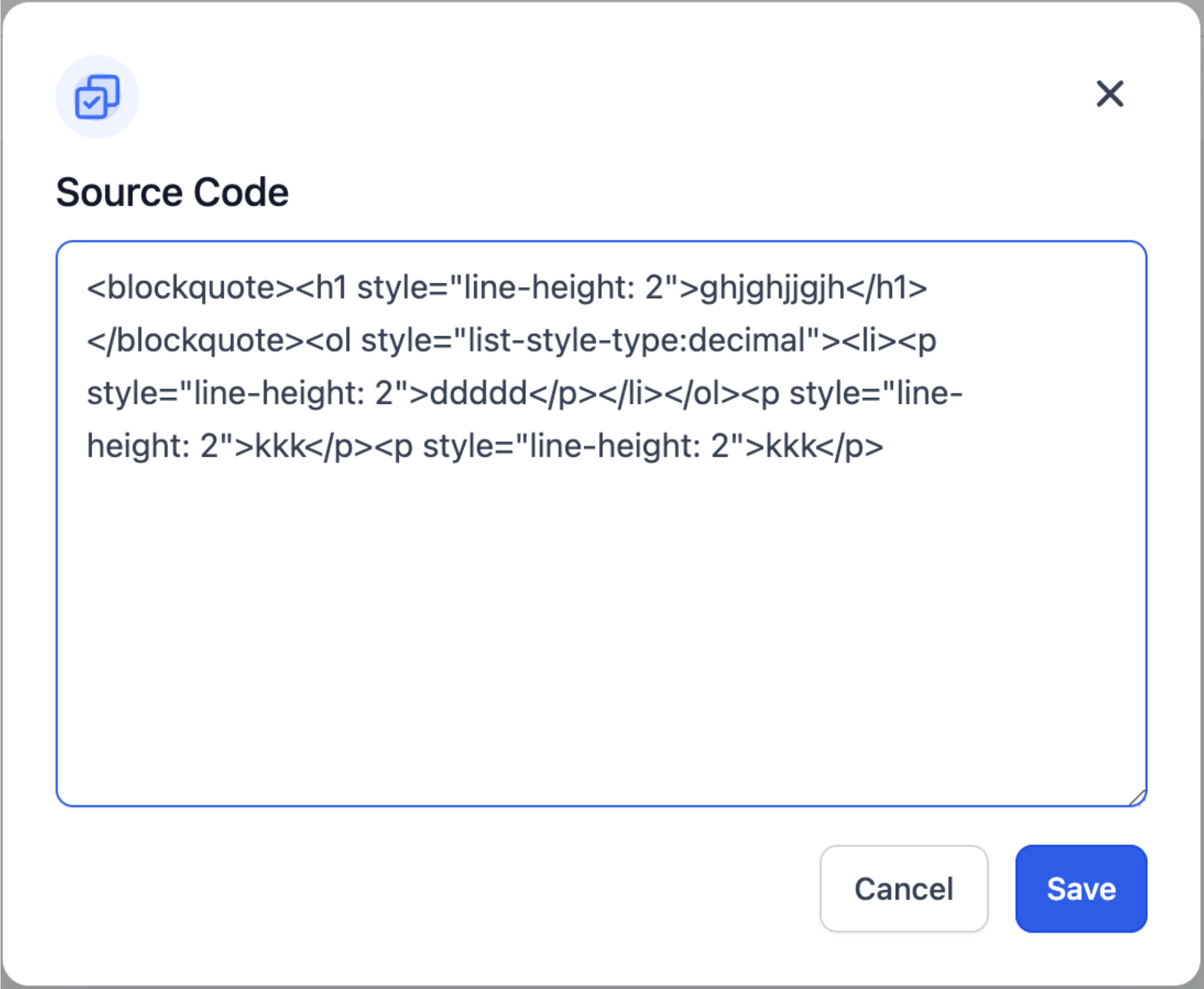
- When the “Source Code” icon is clicked a new window will open. In this pop up window you can see the Source Code for the template and edit the same.