

TABLE OF CONTENTS
What Are Forms/ Surveys Elements?
The Forms/ Surveys Element allows you to add pre-built or custom feedback forms (1-10 scoring, like/dislike, 5 stars, etc.). It helps collect and analyze responses via the Submissions tab under campaign statistics.
When to Use It:
- Collect product feedback (1-10 scale).
- Gather service reviews (5-star ratings).
- Use Like/Dislike forms for simple feedback.
- Export data for users with low ratings.
How to Use:
- Go to Email Marketing and create a new campaign.
- Add the Form Element.
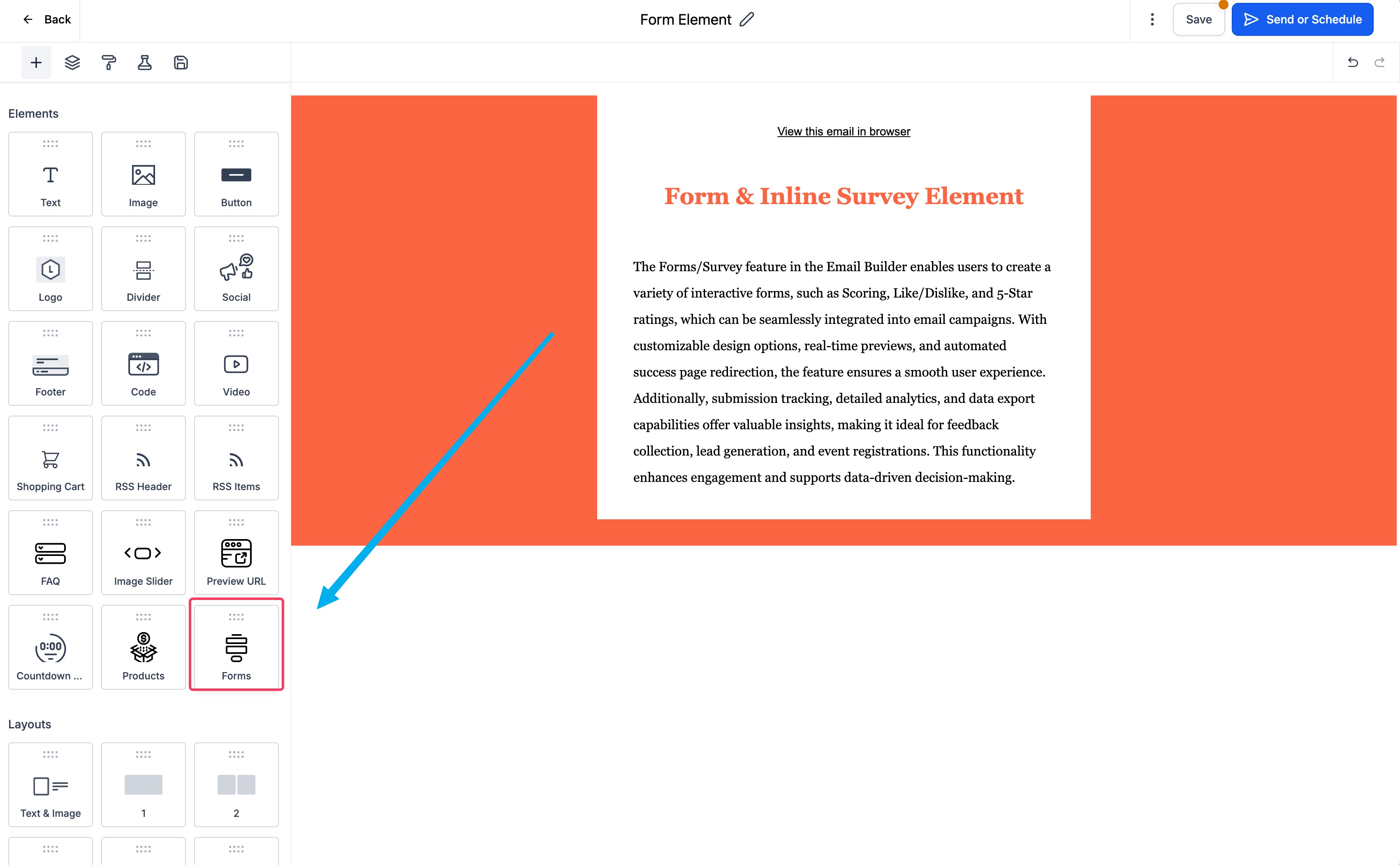
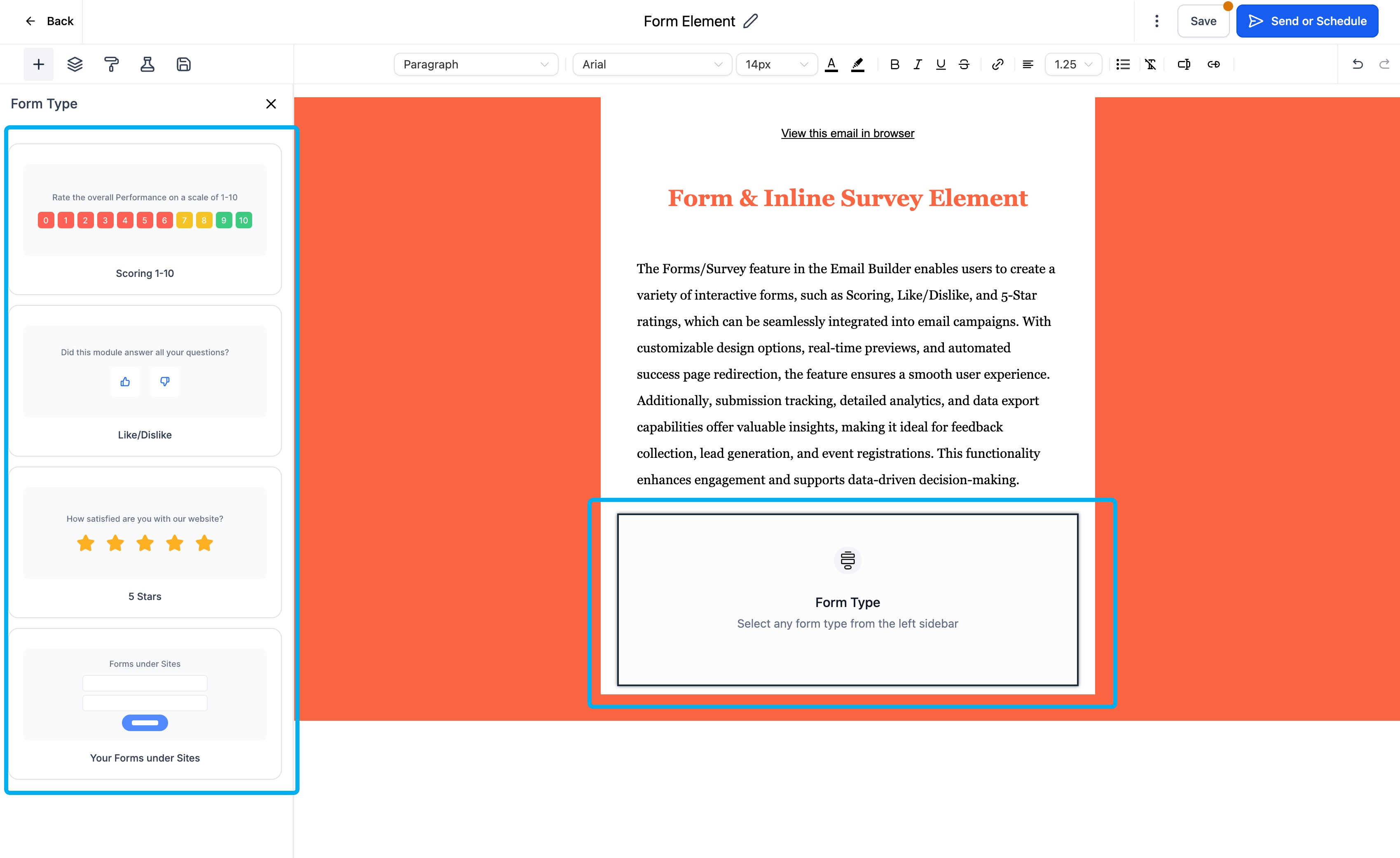
- Choose the feedback type (NPS, ratings, etc.).
- Customize the form design and settings.
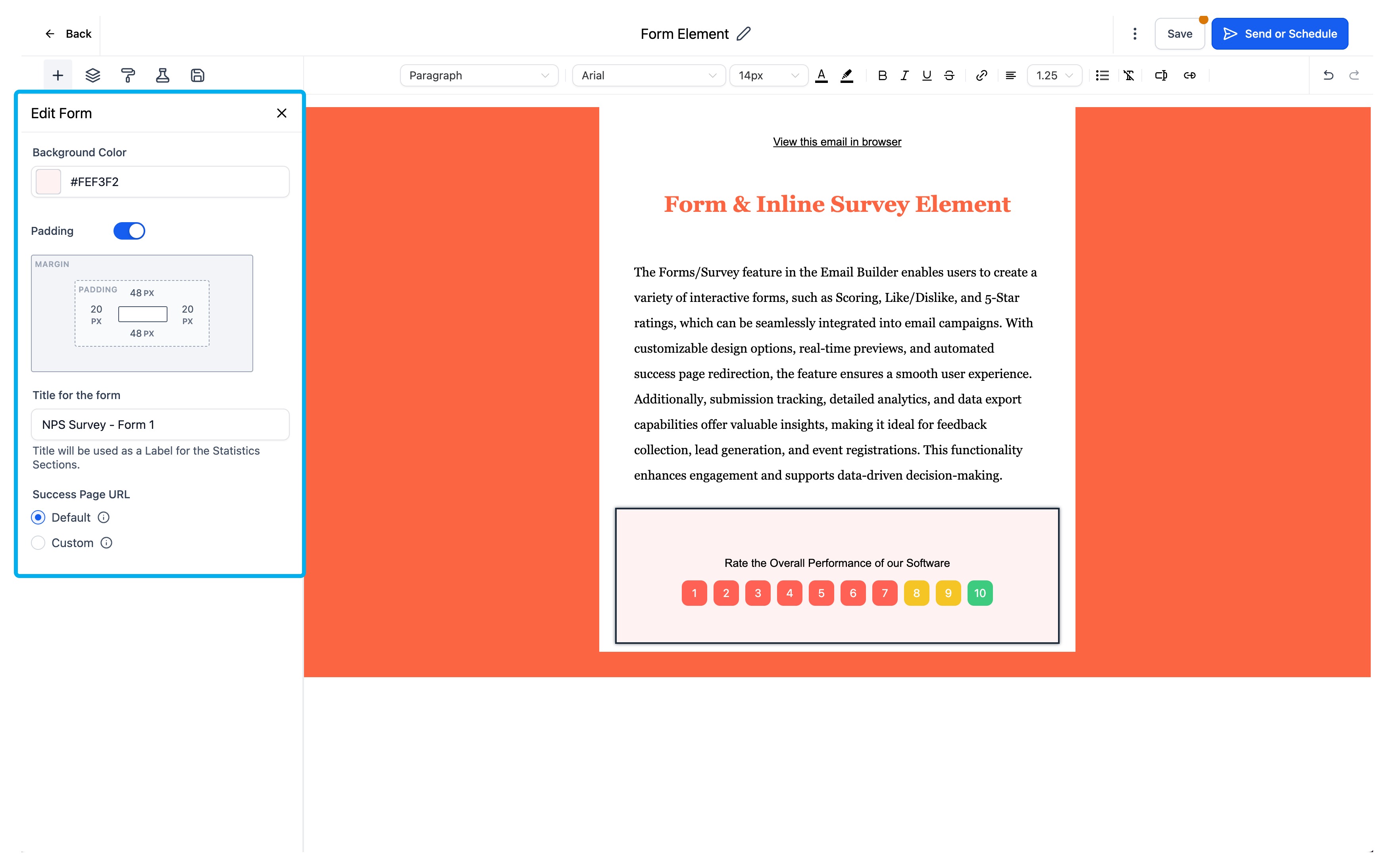
- Name the form in the Title field.
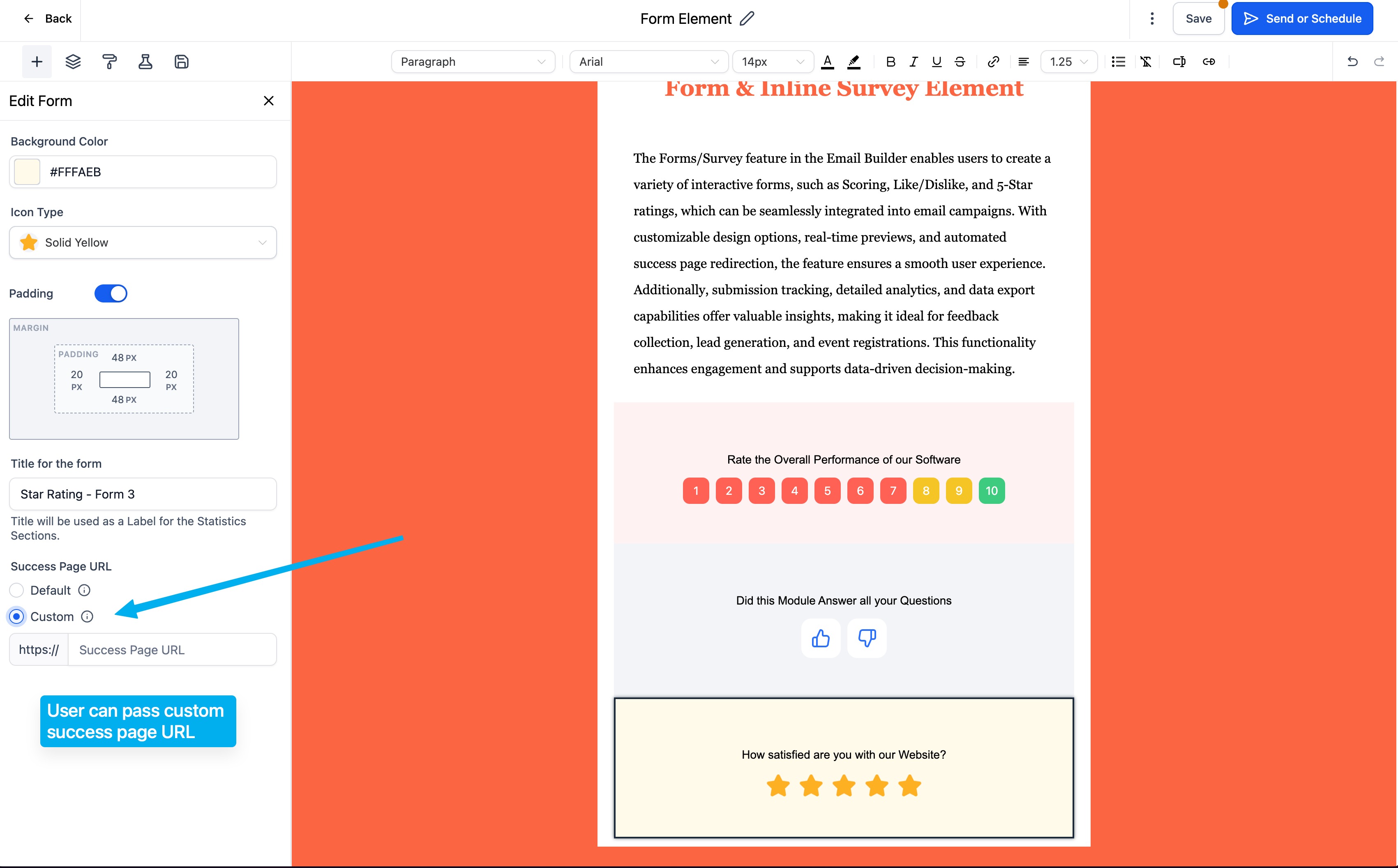
- Set a custom success page.
- Send your campaign and monitor responses via Campaign Statistics > Submissions.
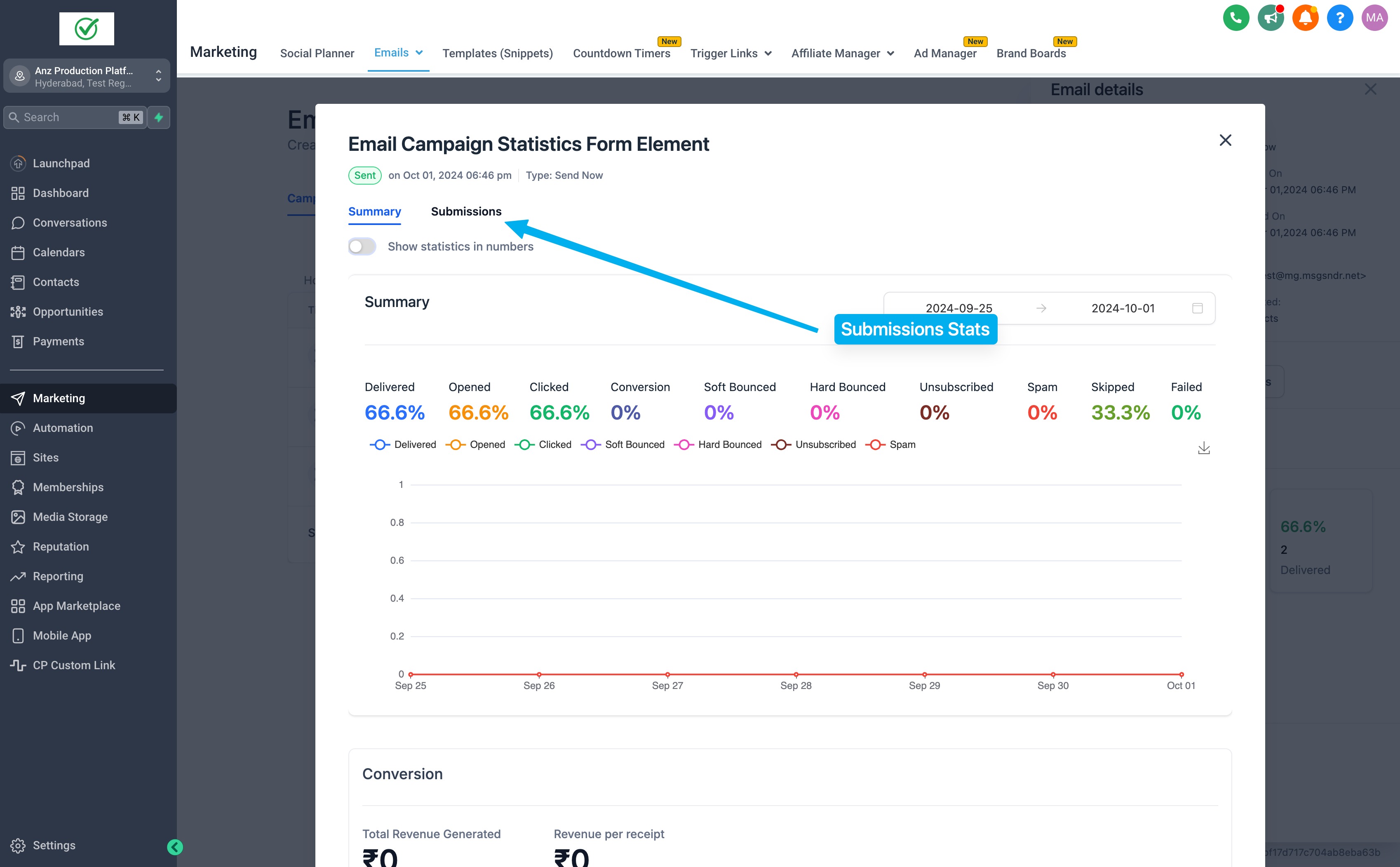
- Export the list of respondents if needed.
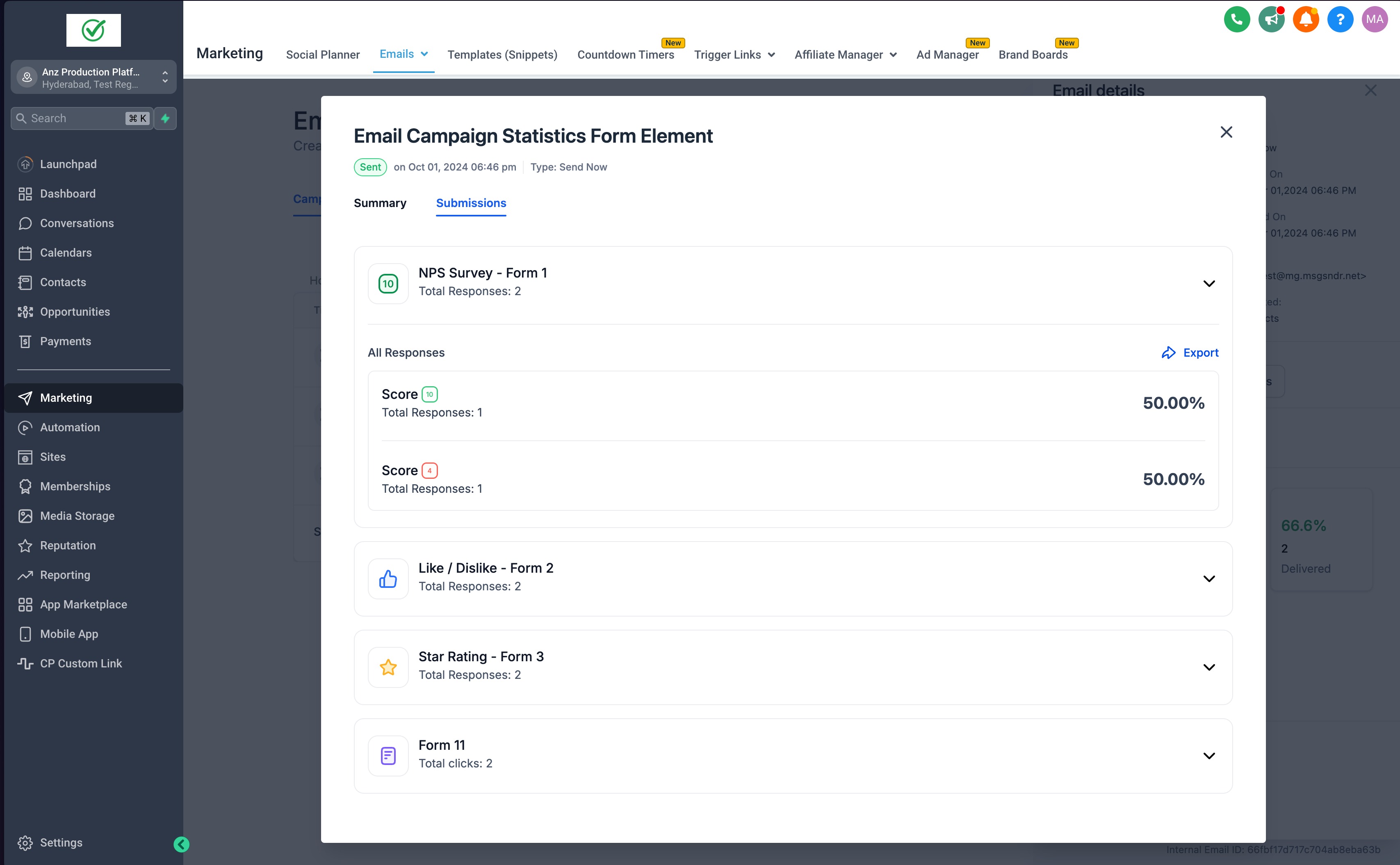
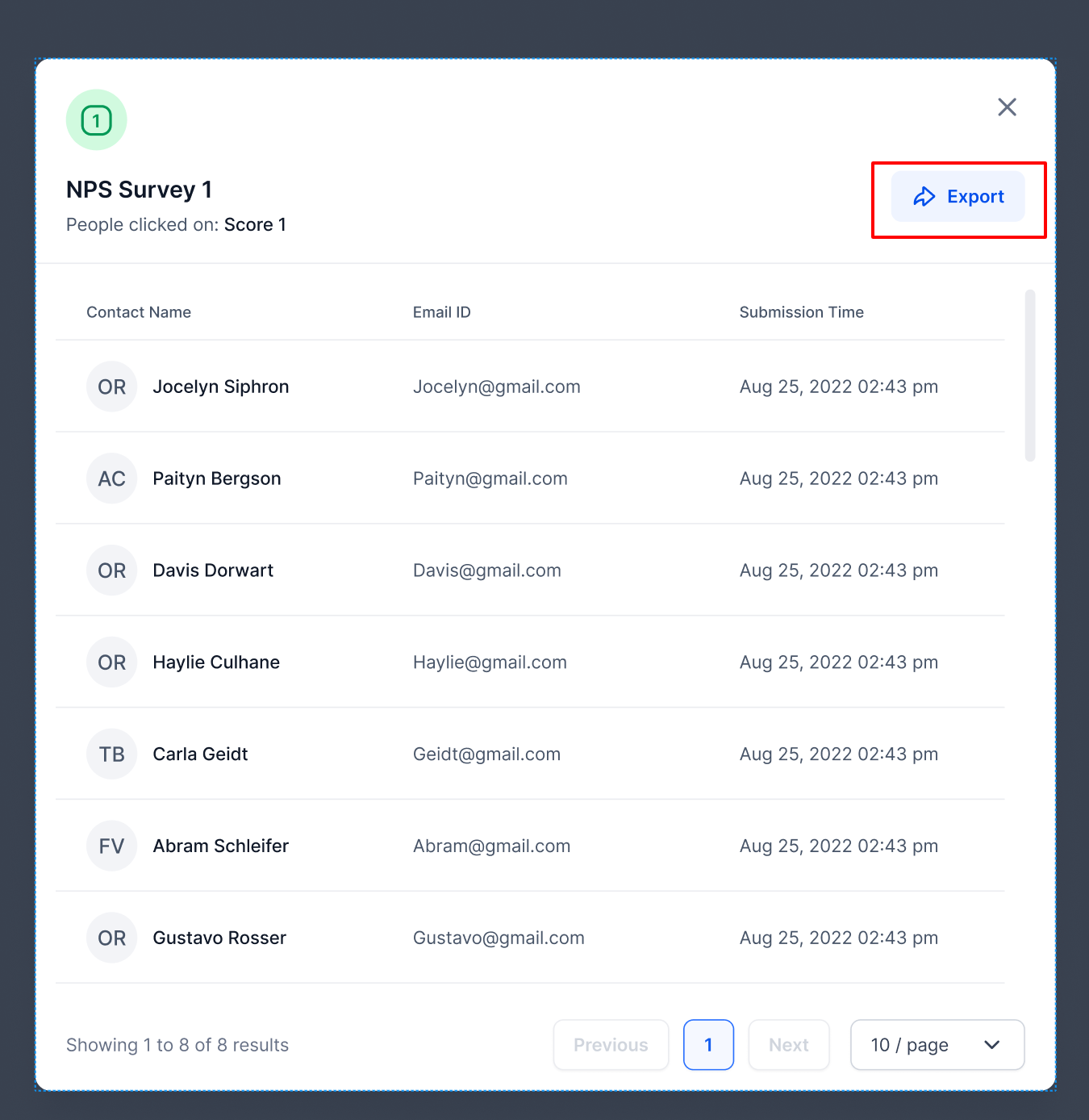
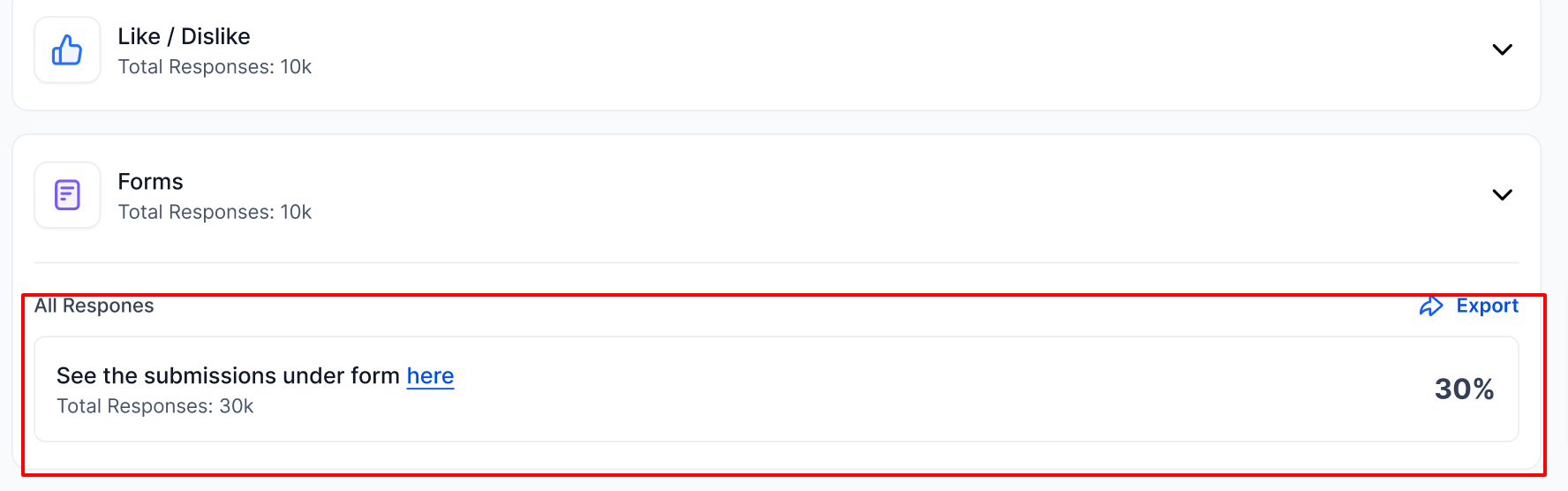
- For pre-built forms, navigate directly to the submission page.
Frequently Asked Questions
Q:Do I need a custom success URL for form responses to be tracked in email campaigns?
No. Form submissions including ratings, Like/Dislike, and scoring are tracked as soon as a contact clicks on the element inside the email.
A custom success URL is completely optional. It’s only used to control where the user is redirected after clicking (for example, to a thank-you page or external link).
Even if you don’t set a redirect, the submission will still appear in your campaign statistics under the Submissions tab. To identify each form’s response clearly, be sure to give your form a unique title during setup.