In This Article
- Understanding One-Time Links
- Key Benefits of Integrating One-Time Links into Your Workflow
- How to Generate Dynamic One-Time Links
Related Article
One Time Link
Understanding One-Time Links
A one-time link is a unique scheduling link that automatically expires upon booking. With the ‘Generate One-Time Booking Link’ action, users can now effortlessly create these links directly within their workflow.
Key Benefits of Integrating One-Time Links into Your Workflow
- Streamlined Scheduling: Eliminates the manual effort involved in link creation, ensuring a seamless and error-free scheduling process.
- Versatility in Workflow Integration: Adapts to diverse use cases by seamlessly fitting into tailored workflows, making it a versatile tool for various scheduling scenarios.
- Enhanced Booking Management: Offers a dynamic, effective, and flexible approach to managing bookings, providing users with greater control and adaptability.
How to Generate Dynamic One-Time Links
To generate dynamic One-Time Links within your workflow, follow these simple steps:
1. Create a Workflow: Start by creating a workflow in your account. Define the trigger that initiates the workflow based on your specific needs.
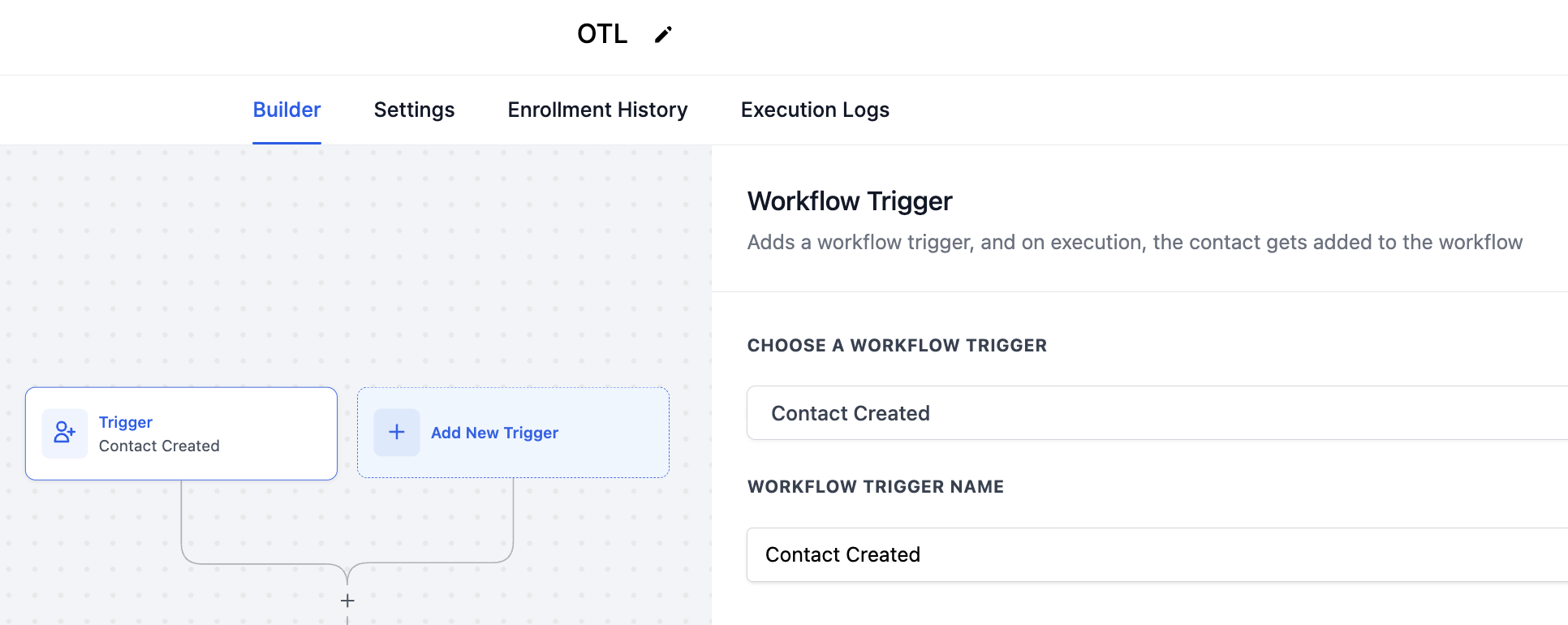
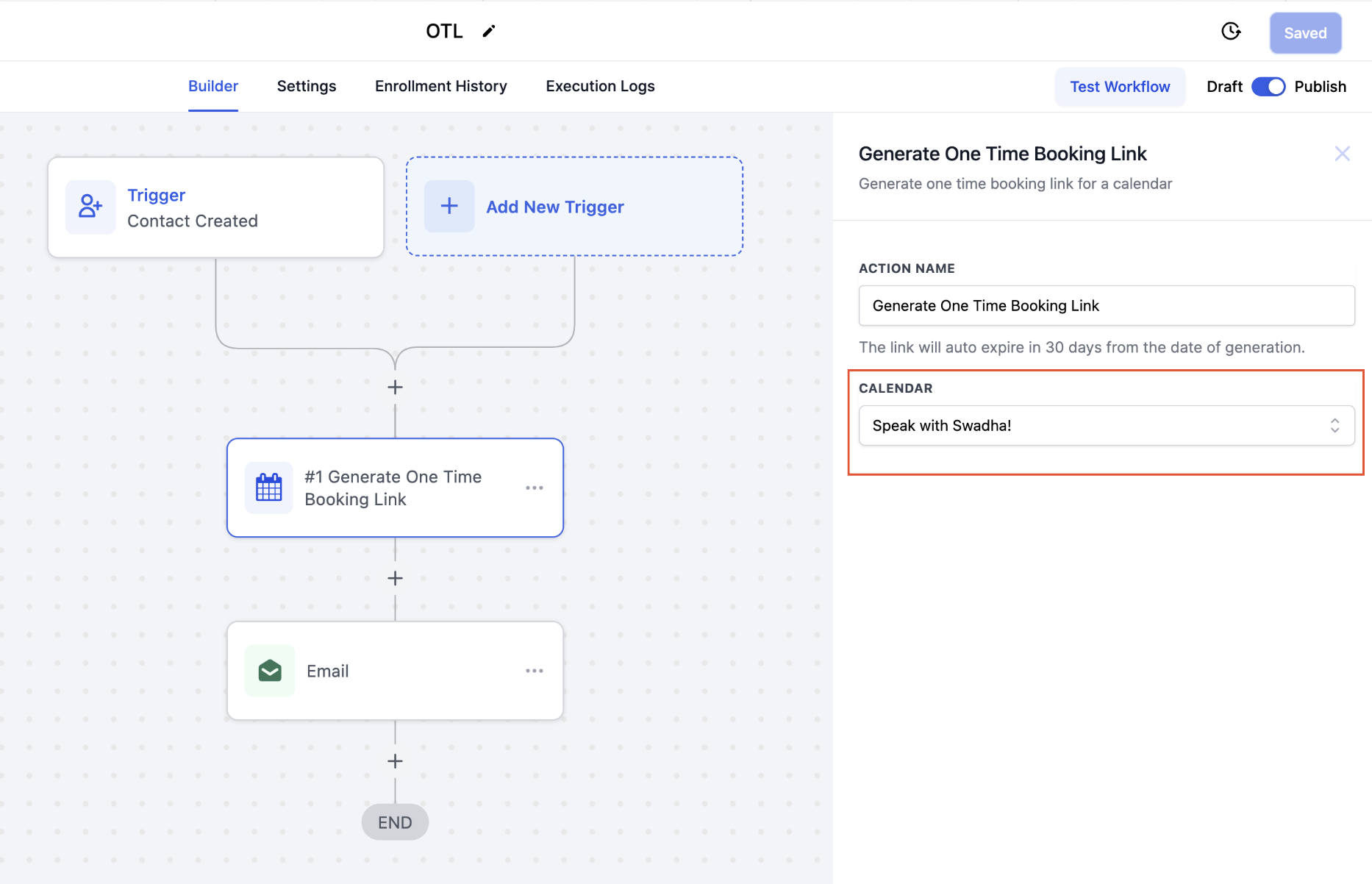
2. Add the ‘Generate One-Time Booking Link’ Action: Within your workflow, add an action. Navigate to the ‘Appointments’ category and select ‘Generate One Time Booking Link.’

3. Choose the calendar for which you want to generate the one-time link.
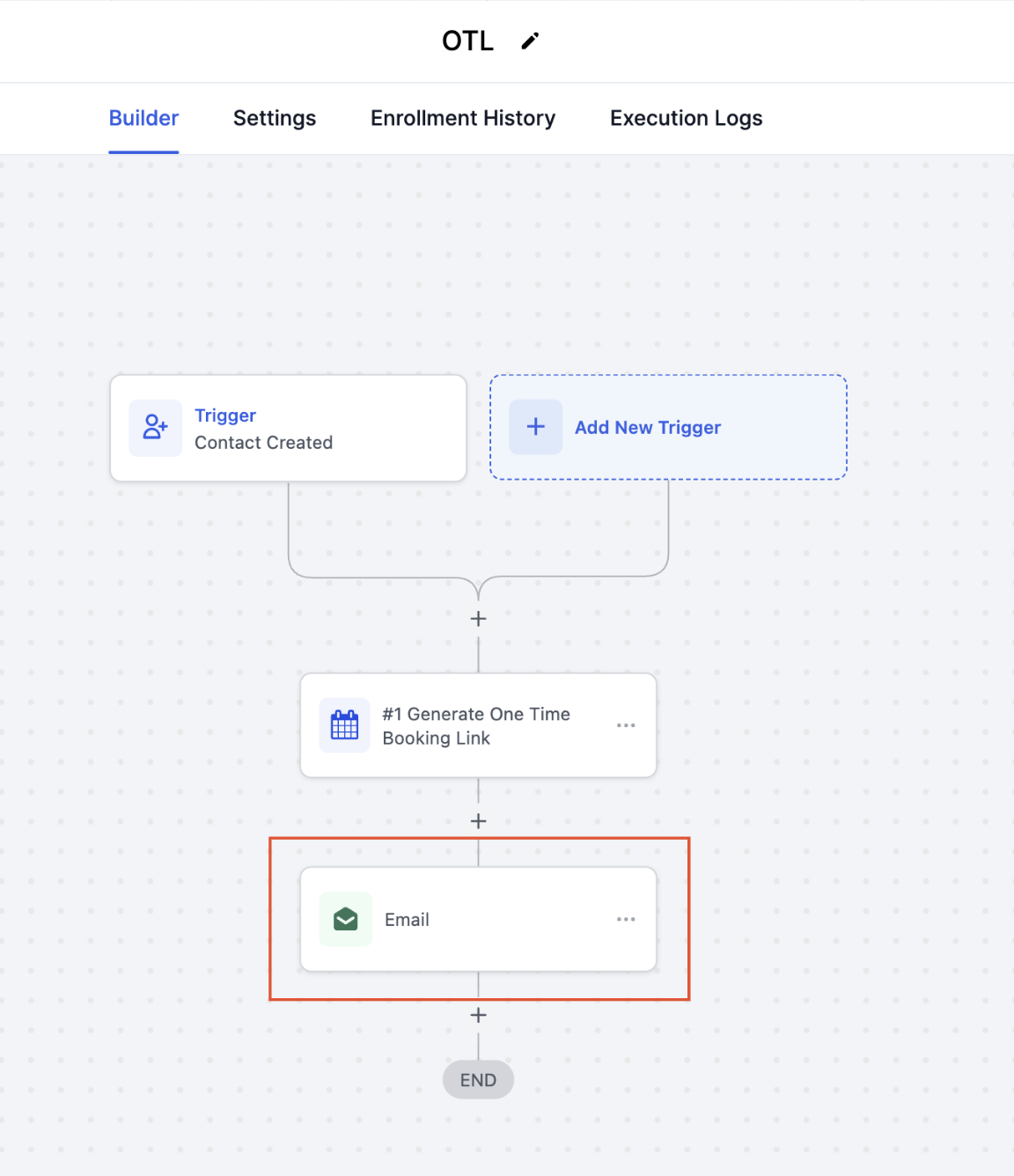
4. Share the Generated Link: To share the link with your contact, add a communication action (e.g., email) to your workflow.
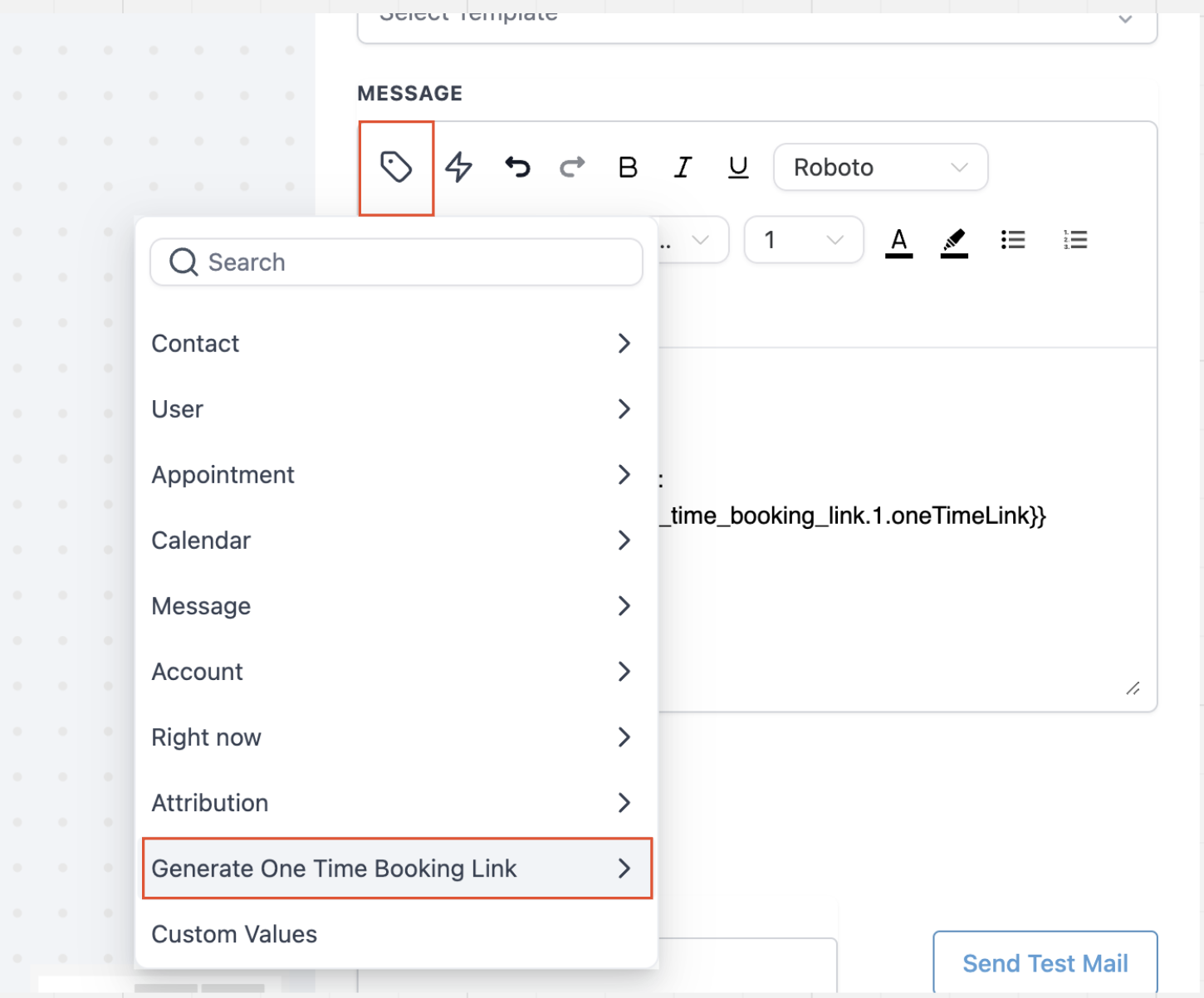
5. Add the Custom Value: Insert the unique one-time link that will get generated each time a trigger is activated, into the email body using a custom value. Select ‘Generate One Time Booking Link’ and choose ‘One Time Link.’