Array Functions
To handle array data in workflow
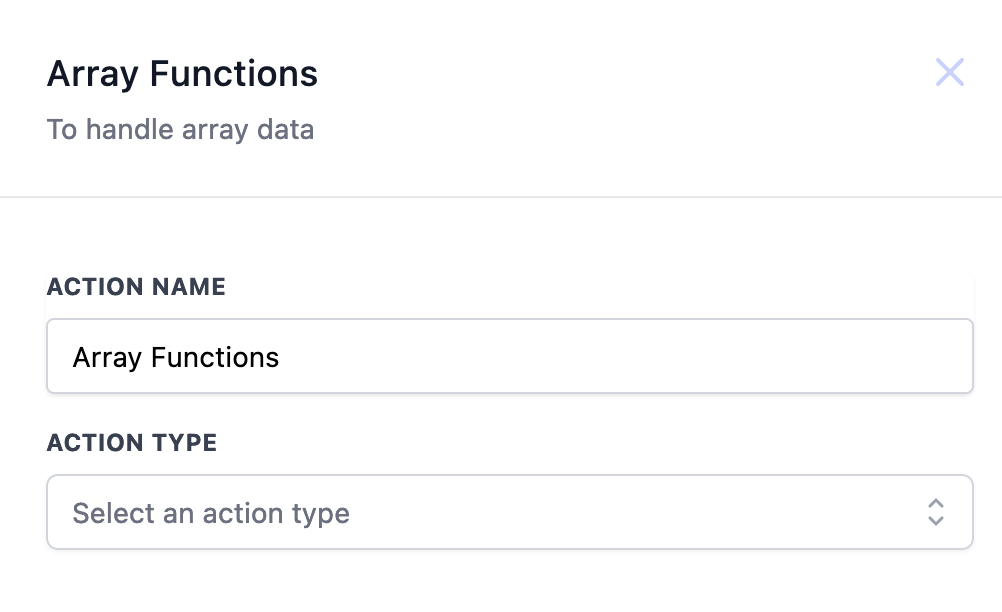
Select Action Typ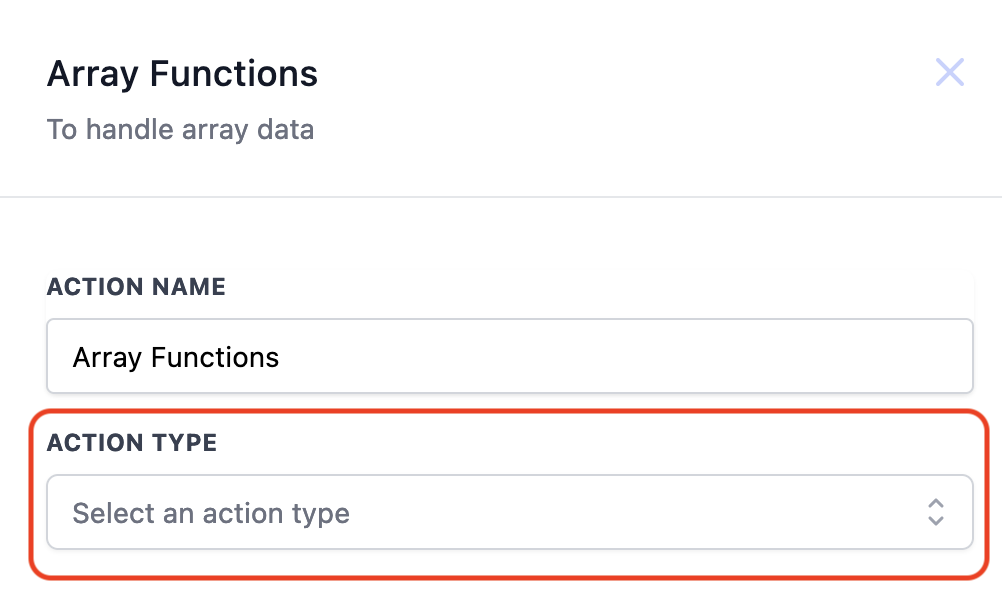
Action Type: Find
To find the matching key-value’s in an array of objects and return the object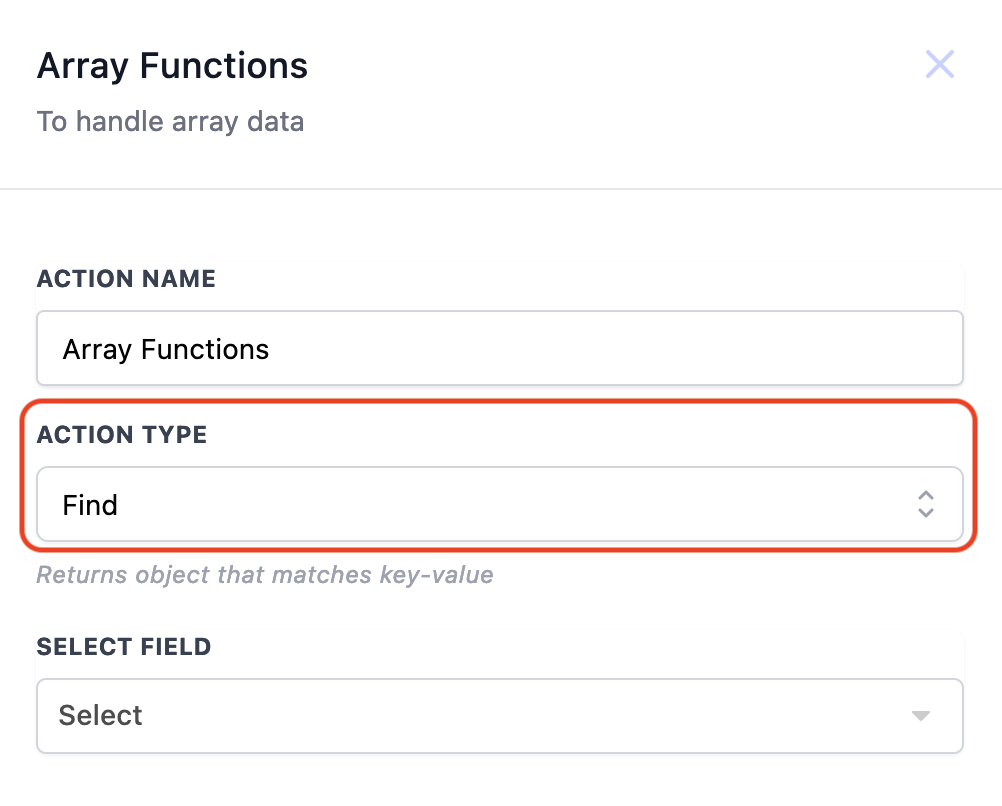
Select Field
All the fields with data type array available in the workflow are listed here. The list of available array data is collected from Shopify Triggers, Inbound Webhook Trigger and Custom Webhook action response data.
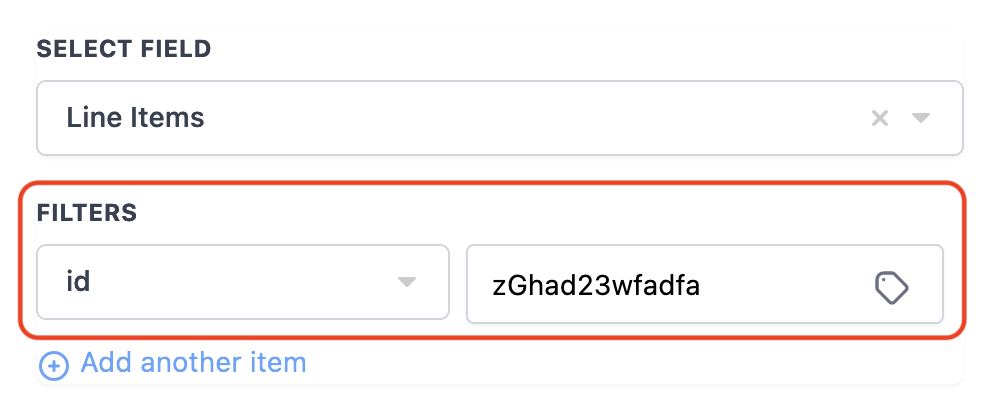
In the below example we are using Shopify Order Placed Trigger and checking if a product with product id “zGhad23wfadfa” is part of the shopify line items
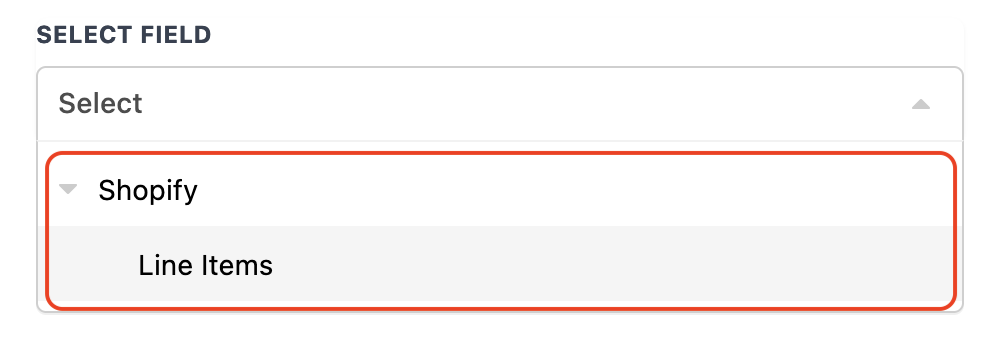
Select Shopify > Line Items
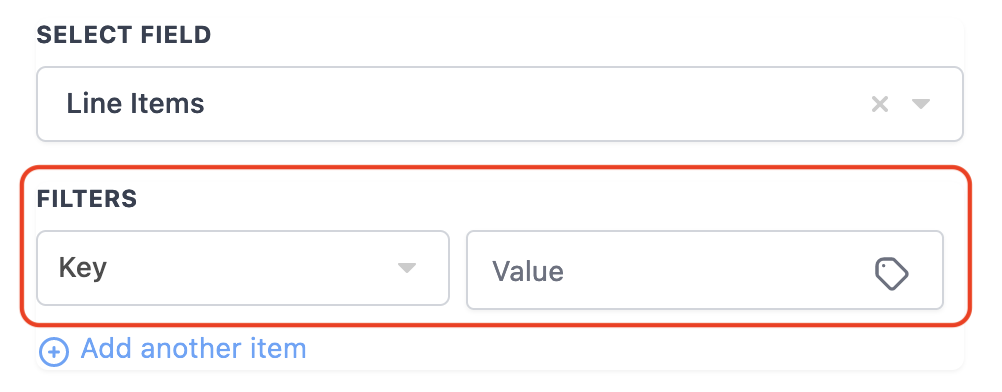
Select Key-value to find matching object
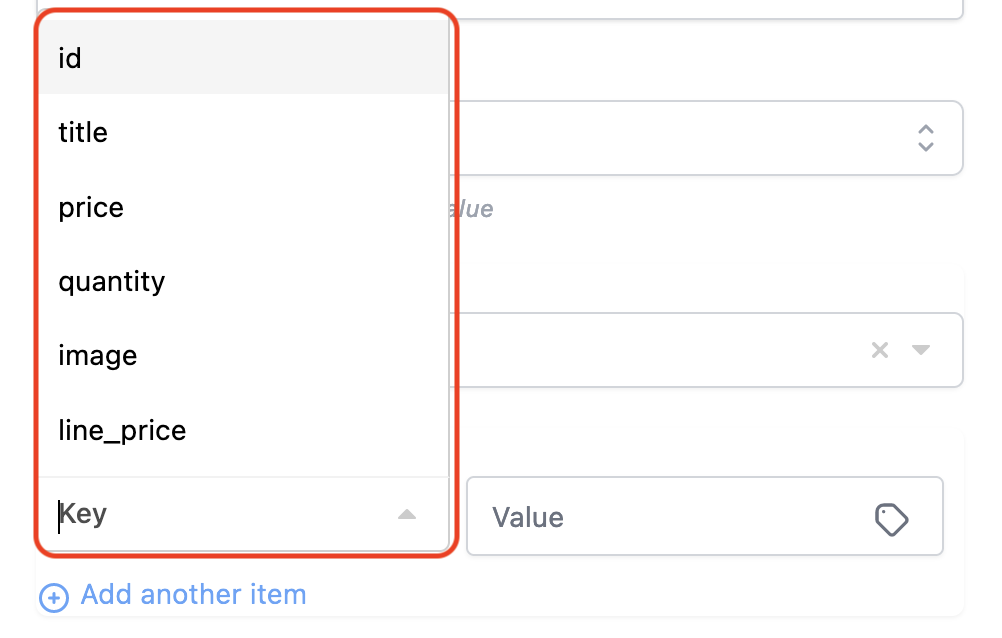
Select Key
The list of key variables from the selected array field are listed here. In this example, the list of shopify line items key variables are listed.
Enter value to find the match
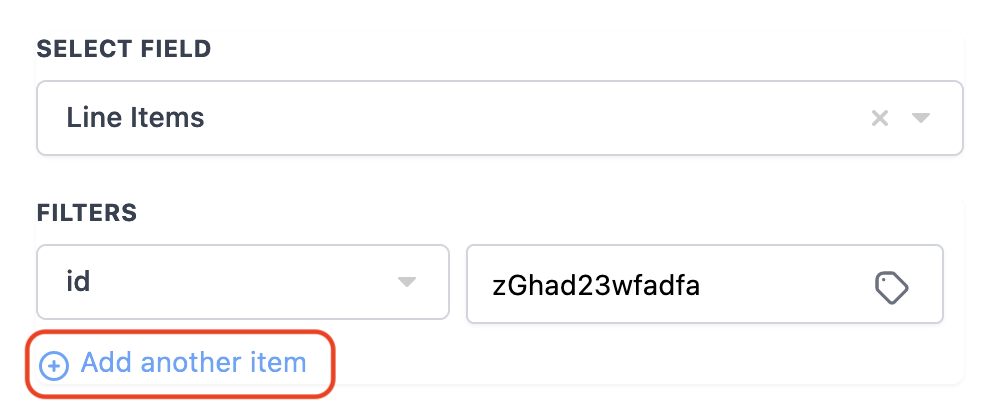
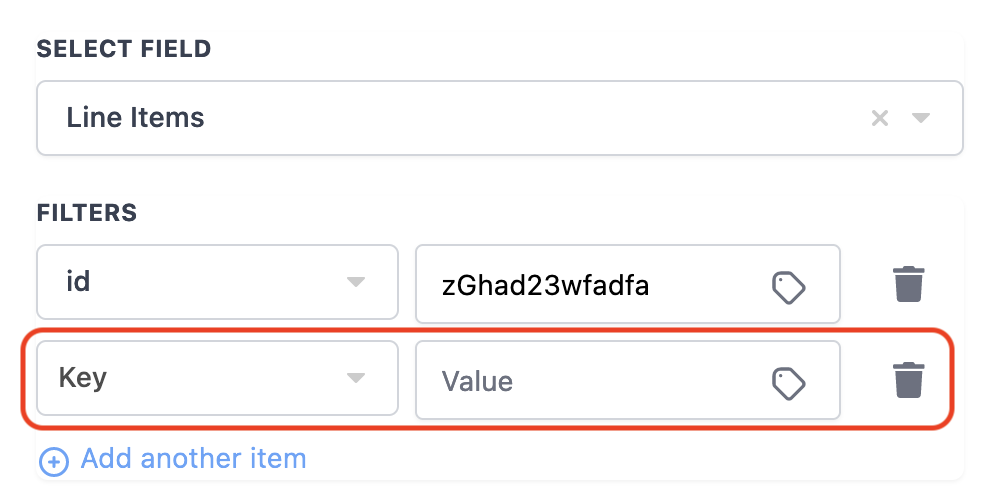
Add another item
You can also find the matching object with multiple key-value pairs by adding another key-value item
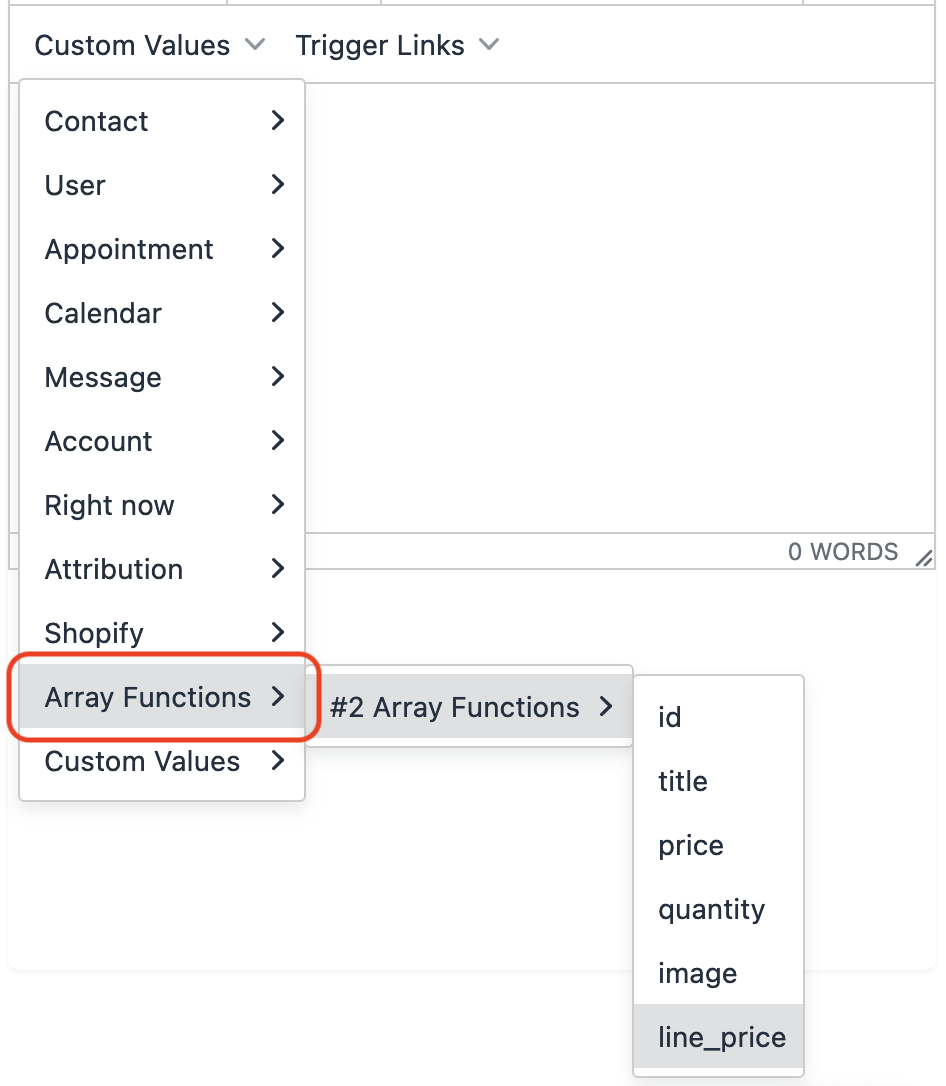
By completing the above steps, you can now use the returned object variables from Array Function as custom values in email, sms, if/else, etc. In the below example, the shopify line items variables are listed in the custom values.