

Managing opportunities efficiently is essential for maintaining an organized and effective sales pipeline. The Opportunity Changed workflow trigger allows you to automate actions whenever an opportunity record is updated. This ensures real-time responsiveness when changes occur within your pipeline.
Unlike the Opportunity Status Changed trigger, which only tracks status updates, Opportunity Changed detects broader modifications such as lead value adjustments, pipeline changes, reassignments, tag updates, and custom field updates. This guide explains how the trigger works, how to configure filters, and how to use it to streamline automation.
TABLE OF CONTENTS
- What Is Opportunity Changed Workflow Trigger?
- Key Benefits
- How to Configure the Opportunity Changed Trigger
- Available Filter Types
- Setting Up Workflow Actions
- Frequently Asked Questions
- Need Help?
What Is Opportunity Changed Workflow Trigger?
The Opportunity Changed workflow trigger activates whenever any update occurs within an opportunity record.
This includes:
-
Assignment changes
-
Pipeline movements
-
Lead value updates
-
Lost reason updates
-
Status changes
-
Tag updates
-
Custom field modifications
Because it tracks all opportunity field changes (not just status), it provides more flexibility for automation compared to status-only triggers.
Key Benefits
Comprehensive Tracking
Trigger automation based on any opportunity update — not just status changes.
Real-Time Notifications
Instantly notify team members when important opportunity changes occur.
Improved Pipeline Visibility
Keep sales and operations teams aligned when records are updated.
Customizable Automation
Apply filters to control exactly when workflows execute.
Flexible Operators
Use operators such as Equals, Has Changed, and Has Changed To for precise control.
How to Configure the Opportunity Changed Trigger
Step 1: Access Workflows
-
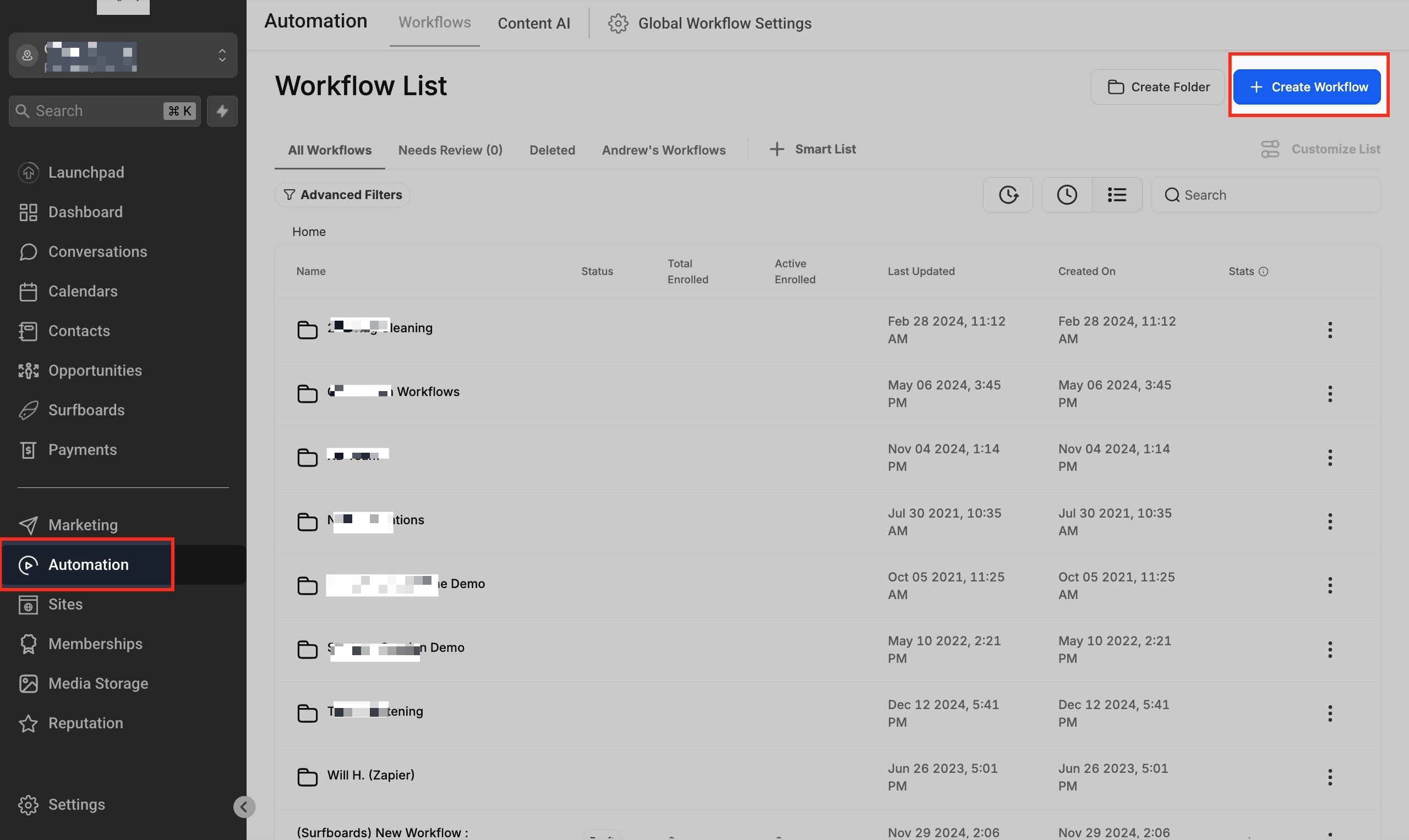
Navigate to Automation.
-
Click Workflows.
-
Select an existing workflow or click Create Workflow.
Step 2: Add the Opportunity Changed Trigger
-
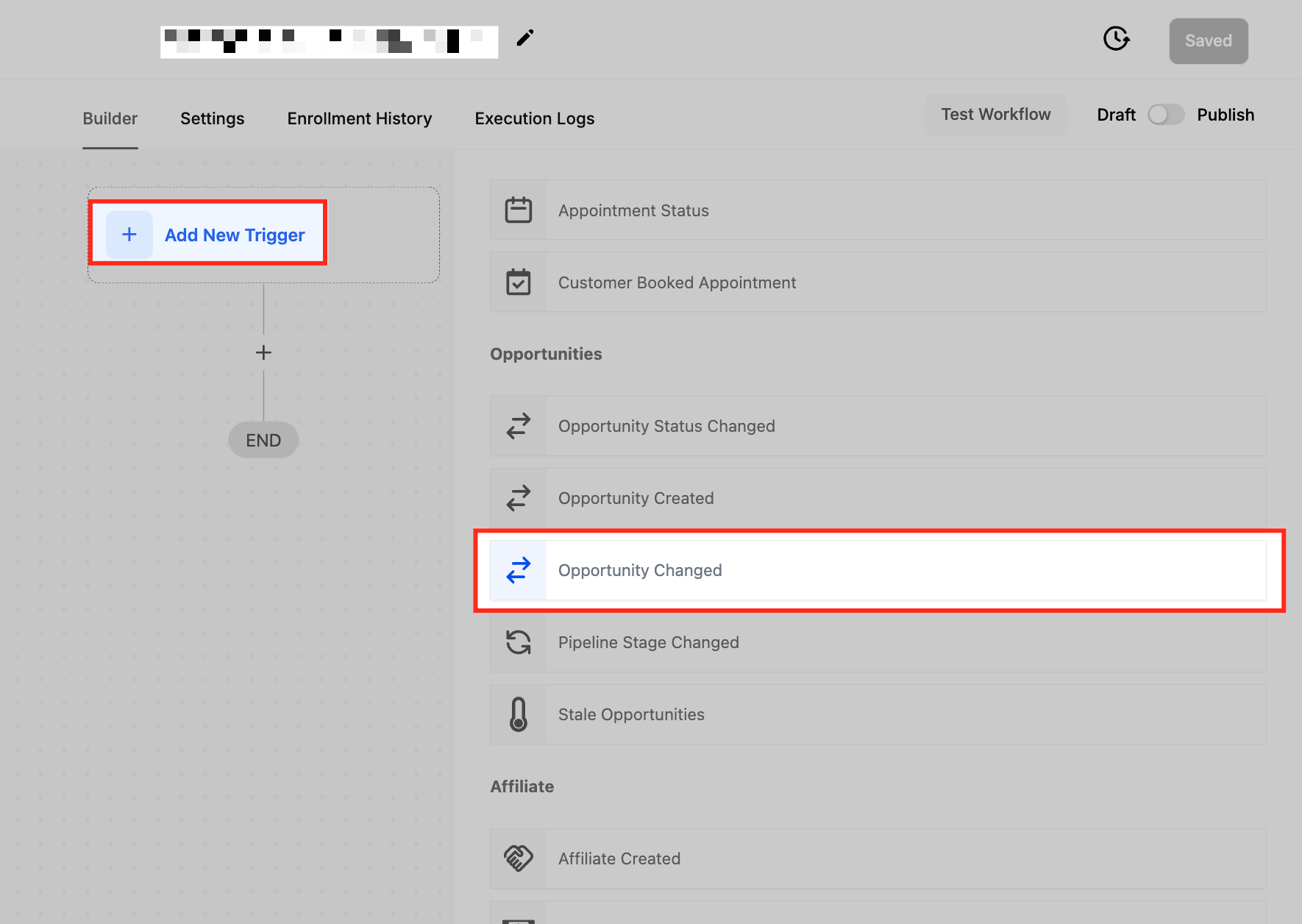
Click Add New Trigger.
-
Search for Opportunity Changed.
-
Select it from the list.
Step 3: Name the Trigger
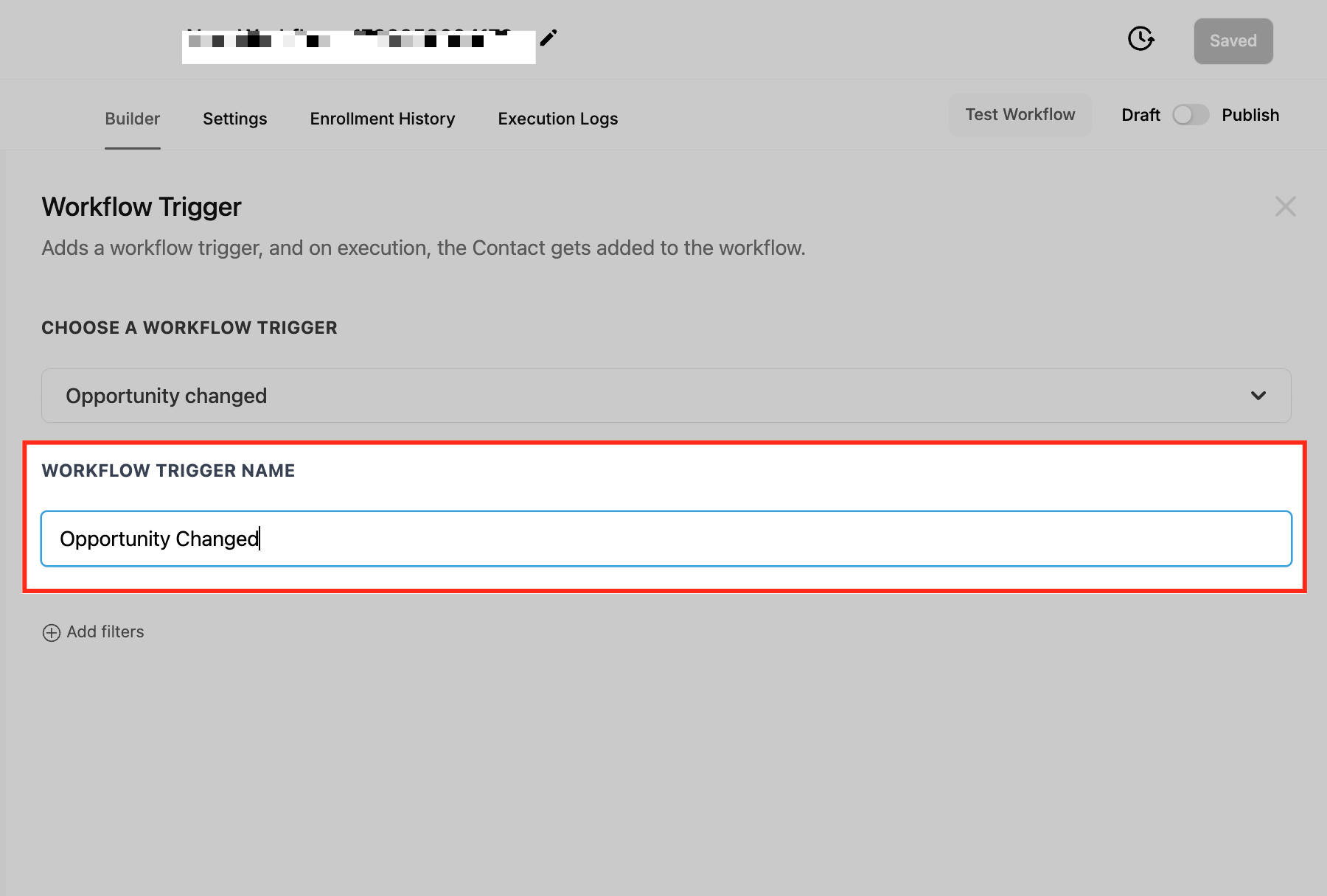
Enter a descriptive name in the Workflow Trigger Name field.
Clear naming helps when managing multiple workflows.
Step 4: Apply Filters
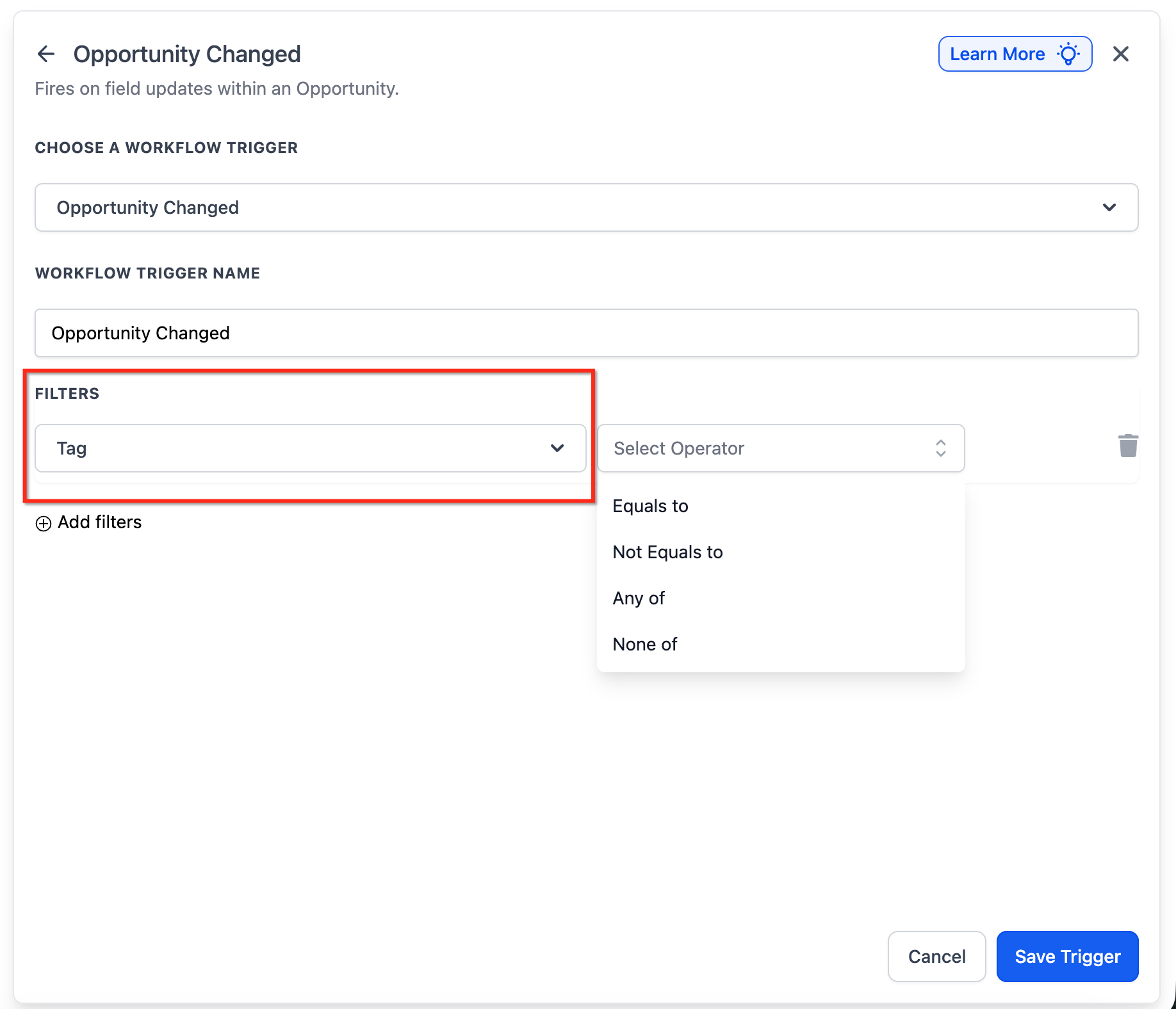
Filters define when the workflow should execute.
Click Add Filters to refine trigger behavior.
Available Filter Types
Below are the most commonly used filters and how they work.
Assigned To Filter
Triggers when ownership of an opportunity changes.
Available operators:
-
Has Changed — fires when assigned user changes to anyone
-
Has Changed To — fires only when assigned to a specific user
-
Equals — fires when changes occur on opportunities assigned to a selected user
Tag Filter
Triggers when opportunity tags are updated.
Use this to automate based on applied tags like:
-
Hot Lead
-
Follow-Up Needed
-
VIP

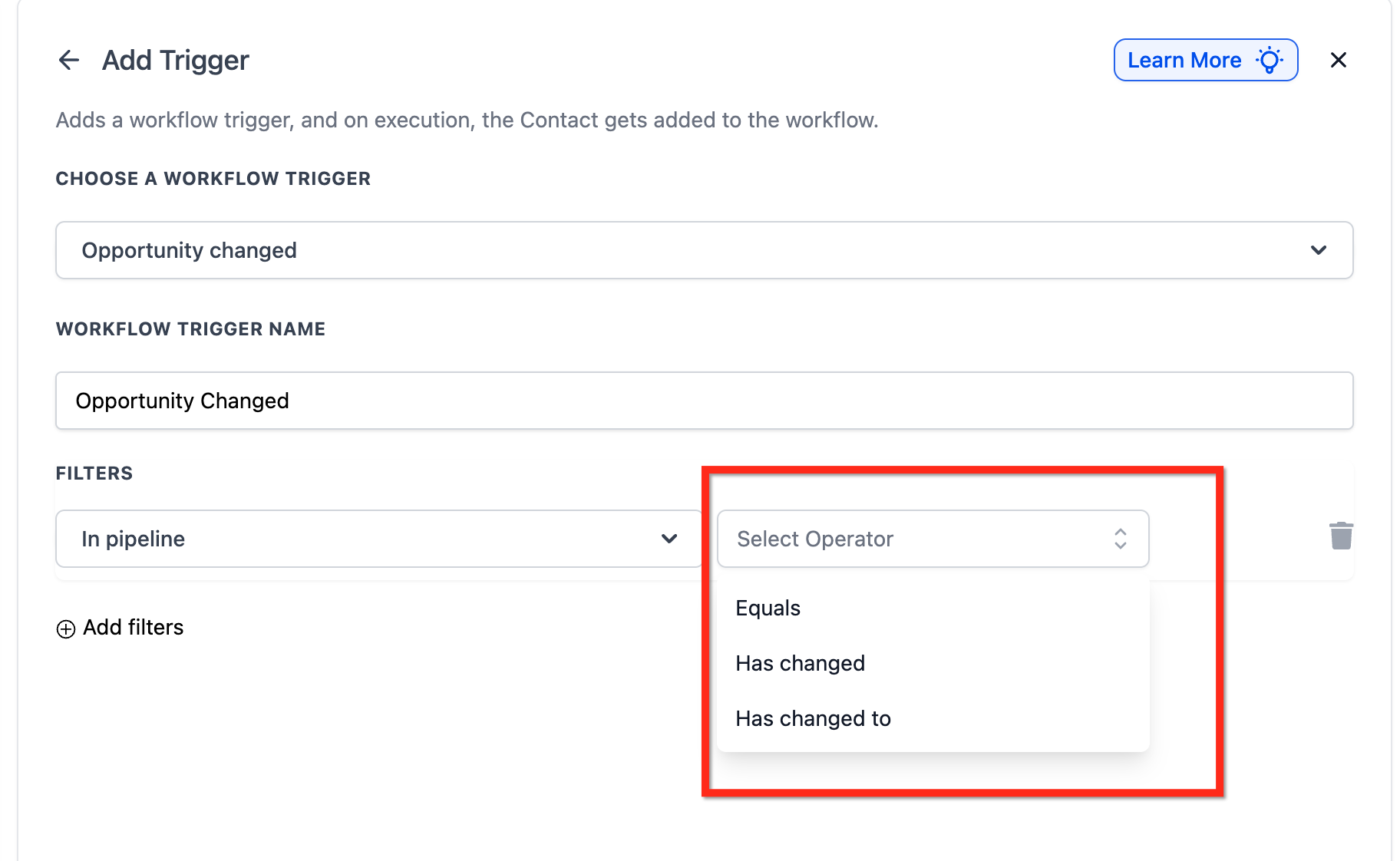
In Pipeline Filter
Controls execution based on pipeline changes.
Operators:
-
Has Changed
-
Has Changed To
-
Equals
Useful when managing multiple pipelines (Sales, Support, Retention).
Lead Value Filter
Triggers when opportunity monetary value changes.
Use this to:
-
Alert sales managers when value increases
-
Trigger review workflows when value drops
-
Route high-value leads differently
Operators include:
-
Equals
-
Greater than
-
Less than
-
Has Changed
Lost Reason Filter
Triggers when a lost reason is added or updated.
Operators:
-
Has Changed
-
Has Changed To
-
Equals
Example: Automatically send a discount follow-up if Lost Reason equals “Price Too High.”
Status Filter
Triggers when opportunity status changes.
Operators:
-
Is
-
Is Not
-
Has Changed
-
Has Changed To
Custom Field Filters
Custom opportunity fields can also be used as filters.
Supported field types:
Checkbox Fields
-
Added
-
Removed
-
Equals
Radio Select Fields
-
Has Changed
-
Has Changed To
-
Equals
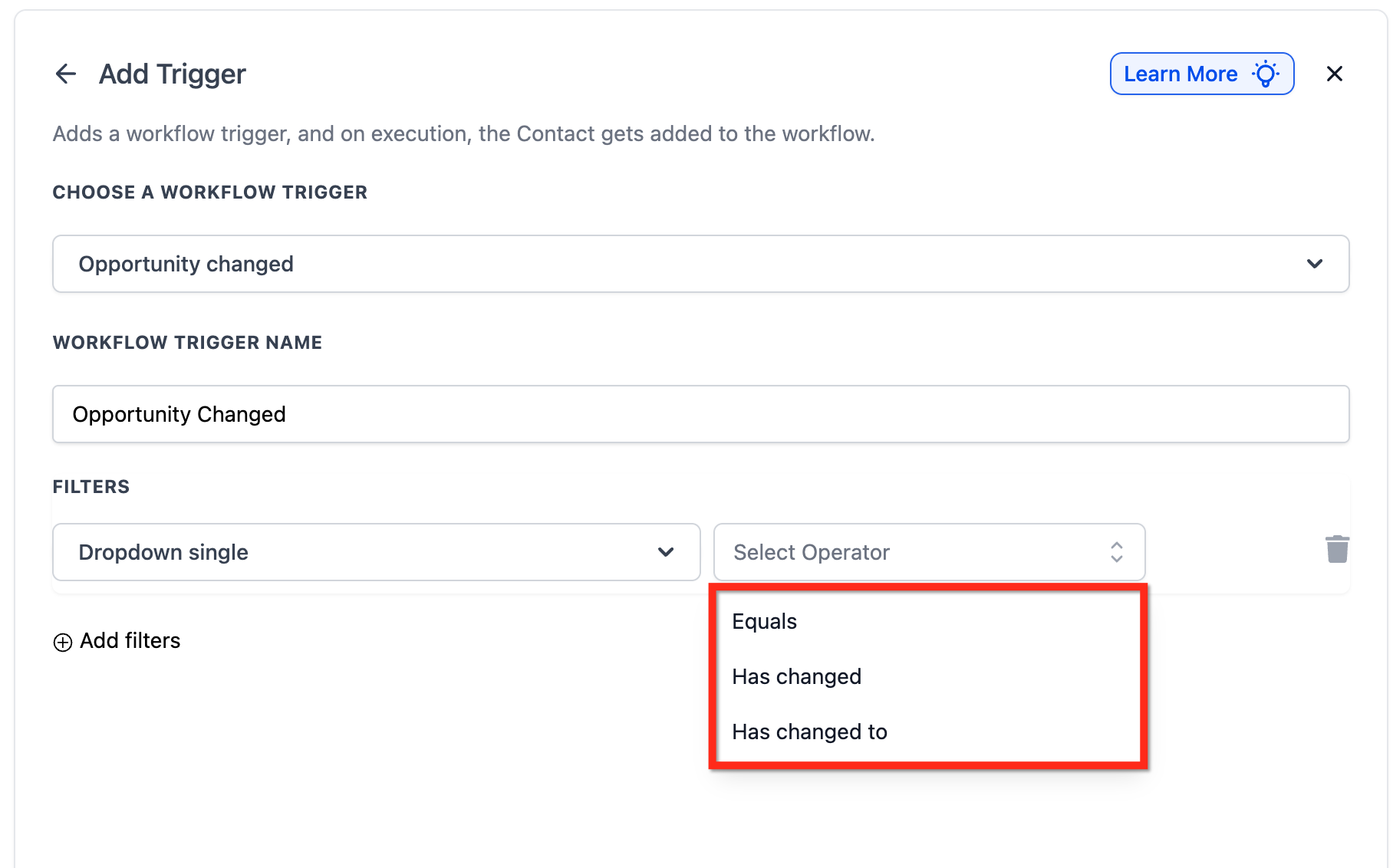
Dropdown Fields (Single & Multi-Select)
-
Has Changed
-
Has Changed To
-
Equals
Date Fields
-
Has Changed
-
Has Changed To
-
Equals
These allow precise automation based on structured data changes.
Setting Up Workflow Actions
After configuring the trigger and filters:
-
Click Save Trigger.
-
Add the desired workflow actions.
Common actions include:
-
Send Email or SMS
-
Create or Update Task
-
Update Contact Record
-
Move Opportunity
-
Trigger another workflow
-
Click Save.
-
Use Test Workflow.
-
Toggle Publish to activate automation.
Frequently Asked Questions
Q: How is this different from Opportunity Status Changed?
Opportunity Changed tracks any update within an opportunity record. Opportunity Status Changed only tracks status modifications.
Q: Can I use multiple filters?
Yes. Multiple filters can be combined to refine execution conditions.
Q: How do I test the trigger?
Update an opportunity manually and review the Execution Logs tab.
Q: Does this work with custom fields?
Yes. All opportunity custom fields can be used as filters.
Q: What is the difference between Has Changed and Has Changed To?
Has Changed fires when the field changes to any value.Has Changed To fires only when it changes to a specific selected value.
Need Help?
If the Opportunity Changed trigger is not behaving as expected:
-
Confirm the correct filters are configured
-
Ensure the workflow is published
-
Review the Execution Logs
-
Verify field values are updating correctly
If issues persist, gather your workflow configuration details and provide a sample opportunity update when contacting support.