

Zapier is a platform that allows different apps to communicate instantaneously to automate workflows. By integrating CRM with Zapier, you can automate tasks such as lead capture, updating contacts, and much more.
Please follow below steps to connect:
Step 1: Log in to your Zapier account.
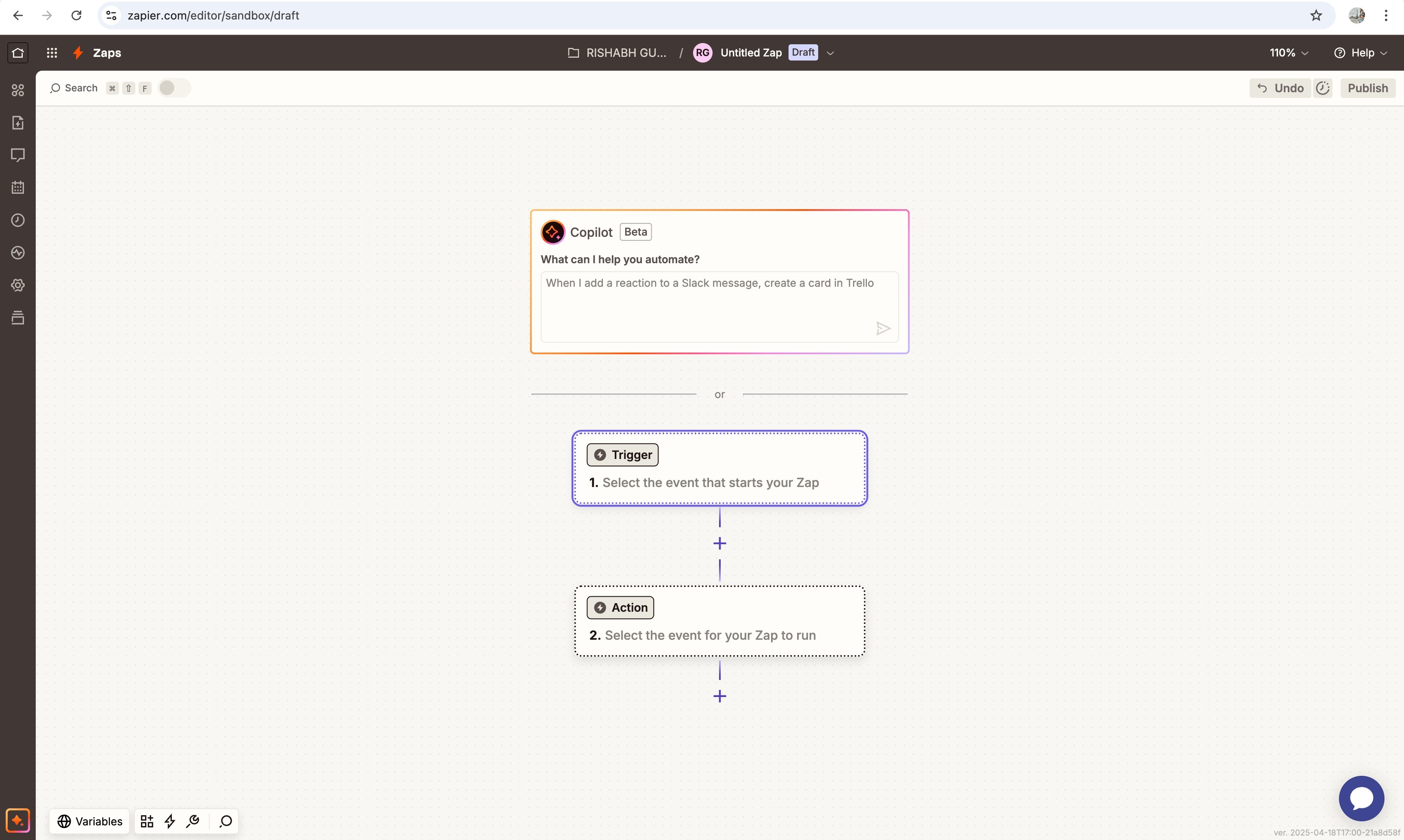
Step 2: On the home screen, click Create > Zap.

Step 3: In the Zap editor, click on the Trigger block and search for WL app name from the list of apps.
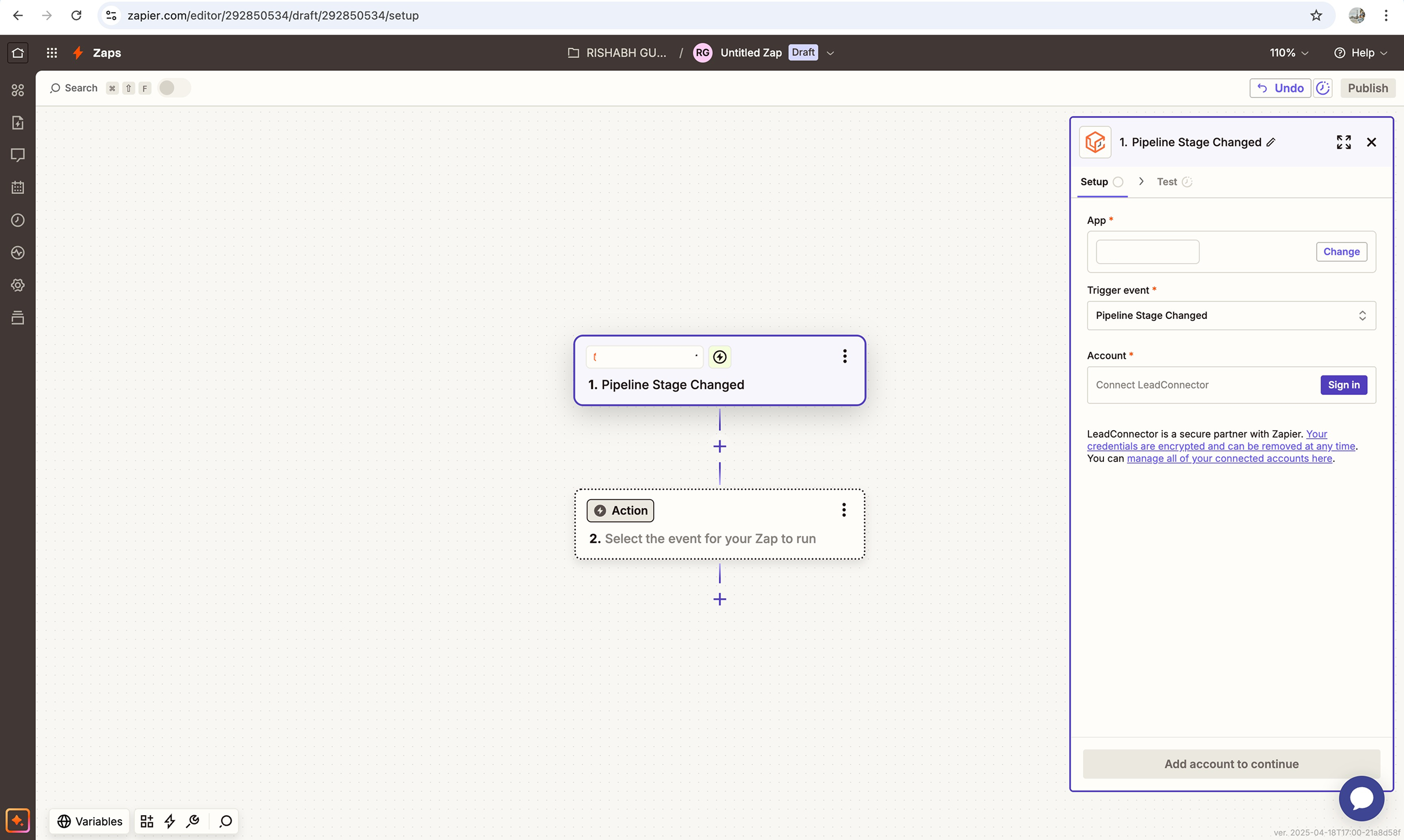
Step 4: Under the account section of the trigger setup, click on the “Sign In” button.
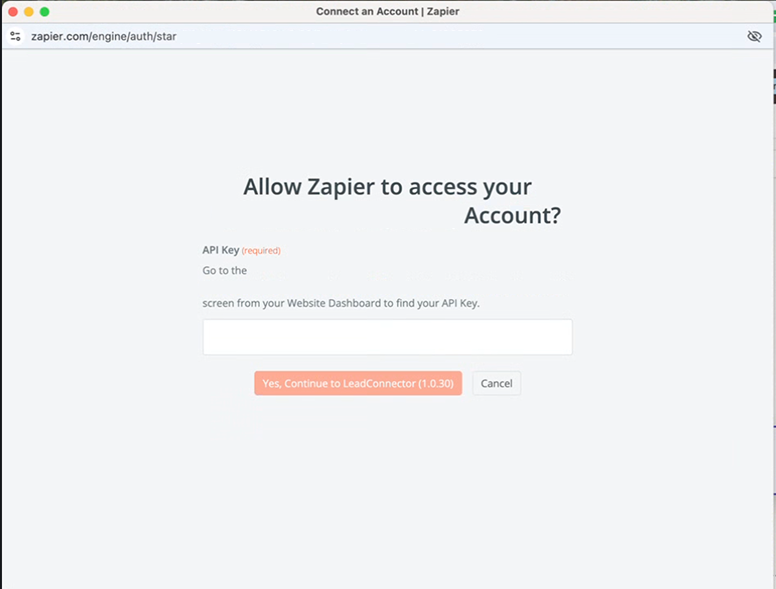
Step 5: You will be redirected to the screen below and will be asked to enter API key.
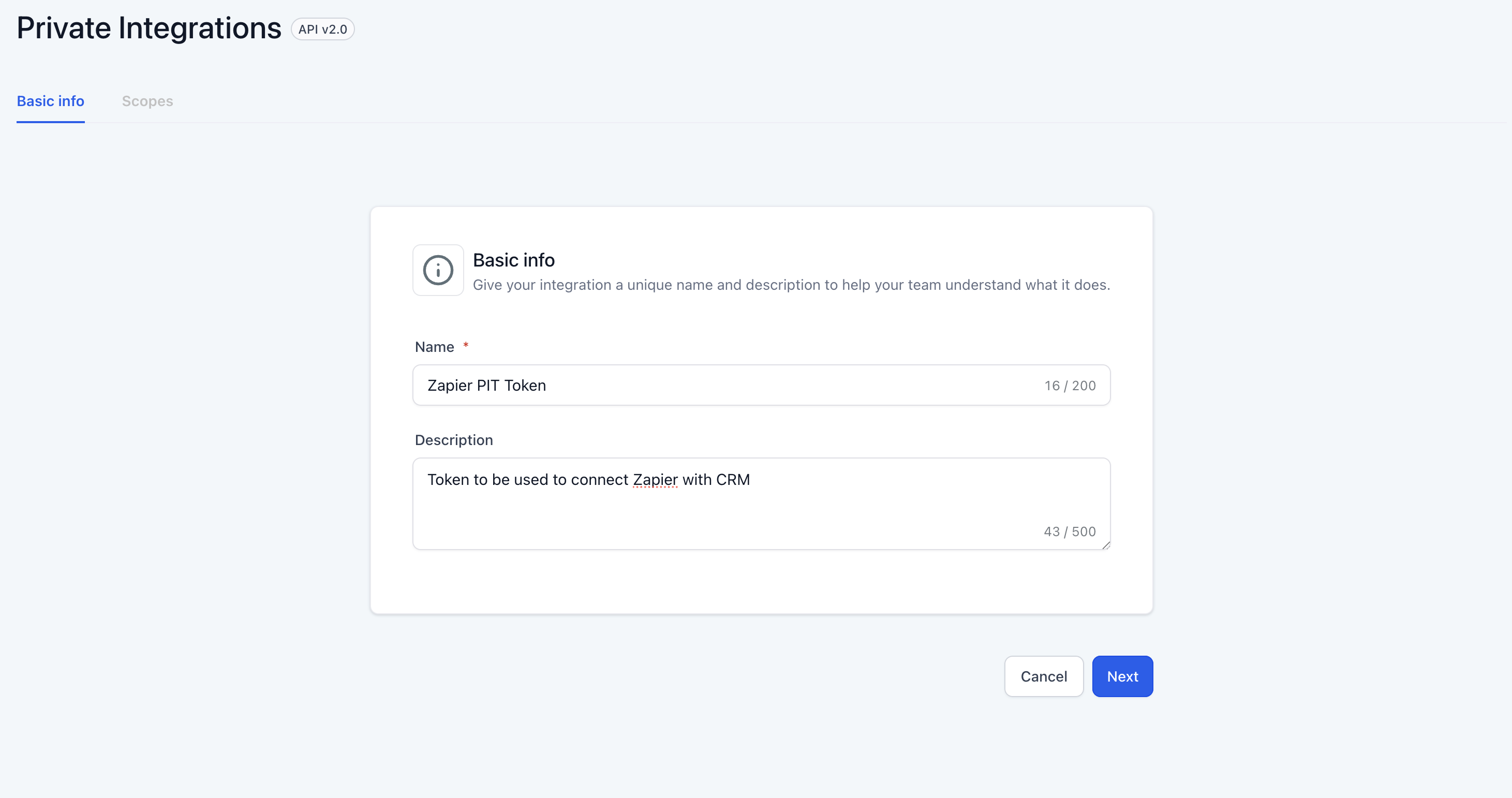
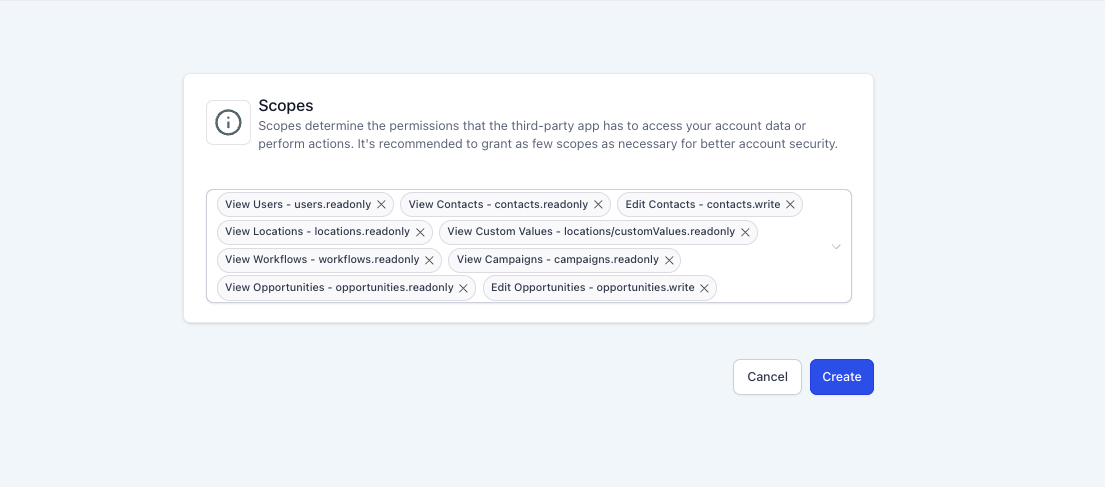
Step 6: Create a PIT token from Location >> Settings >> Private Integration, Add a name for the token to identify and description as per need. Click on next and add scopes as per below screenshot:
** Please make sure to add all the scopes as highlighted in the below screenshot to ensure proper functioning.
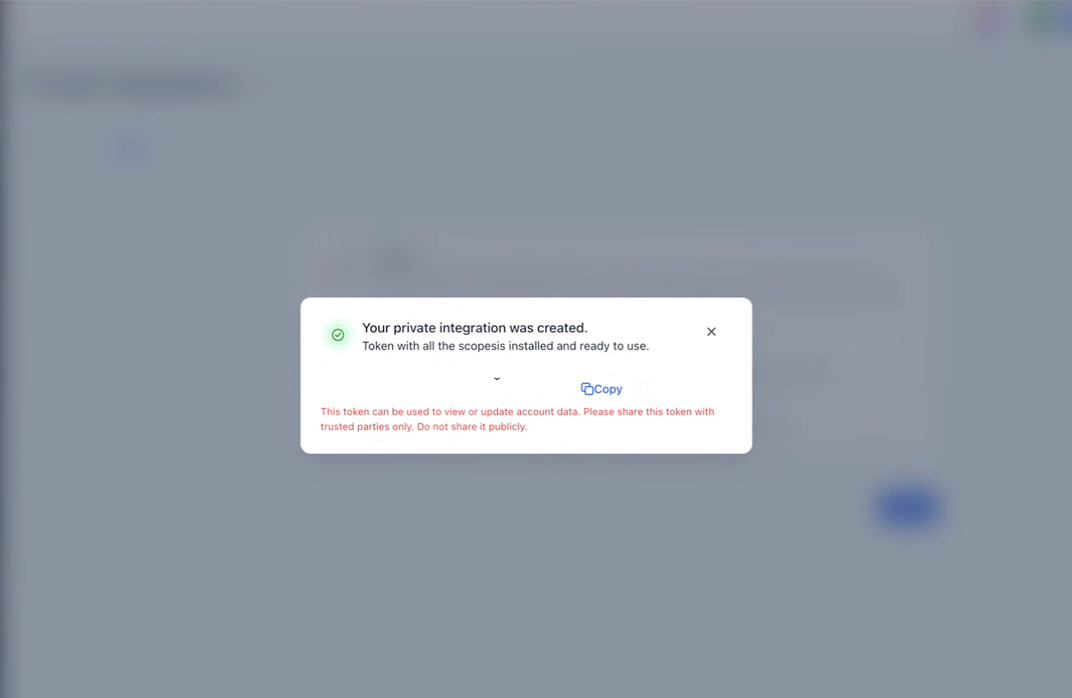
Step 7: User the PIT token in Step 5 to connect zapier to sub-account.