

Learn how One-Step, Two-Step, and Dynamic unsubscribe flows work, how to configure the account-level setting, and how Dynamic determines when confirmation is required.
What Are Unsubscribe Flows?
Unsubscribe flows determine what happens after a recipient clicks an unsubscribe link. Depending on the selected flow, the contact may be unsubscribed immediately or required to complete a confirmation step.
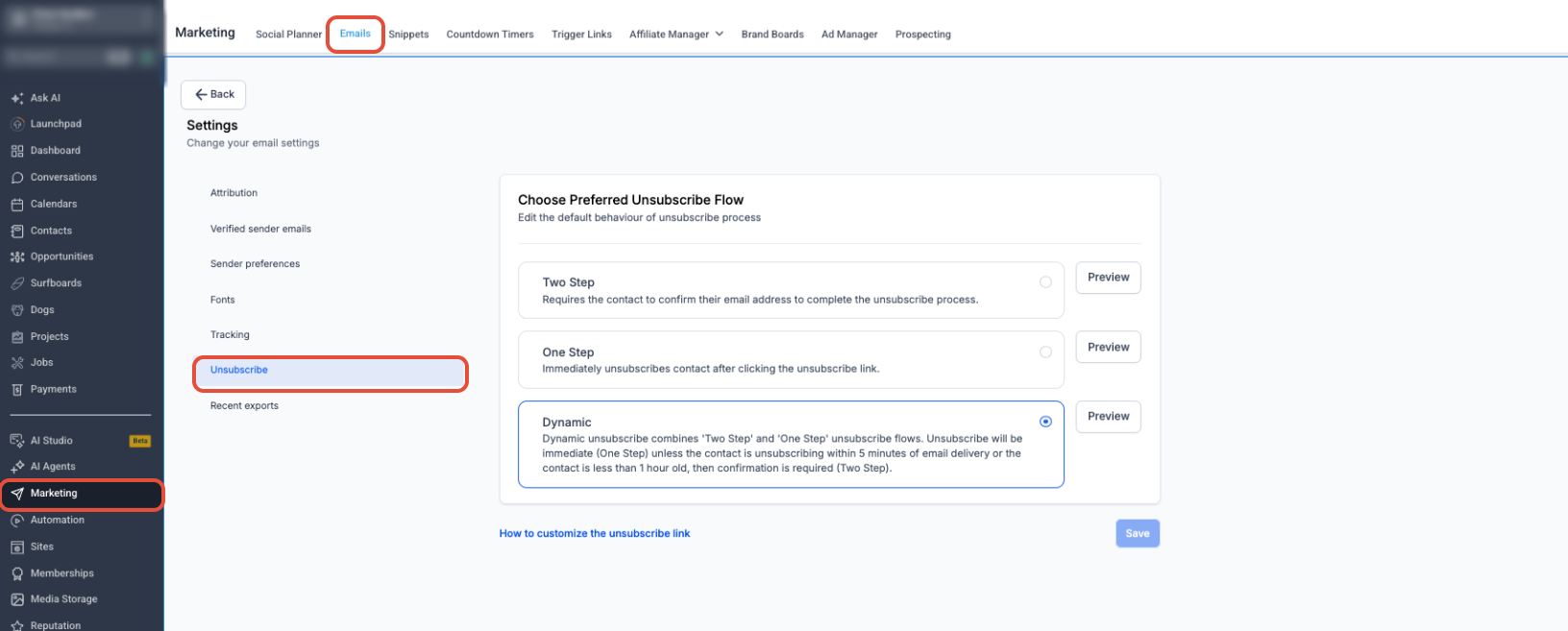
Unsubscribe Flow Options
Each flow determines when an unsubscribe is completed and whether confirmation is required.
One-Step Flow
The contact is unsubscribed immediately after clicking the unsubscribe link. They can then provide optional feedback.
Two-Step Flow
The contact must complete a confirmation step before the unsubscribe is finalized.
Dynamic Flow
Dynamic combines One-Step and Two-Step behavior. The unsubscribe is immediate unless the contact clicks the unsubscribe link within 5 minutes of email delivery or the contact record is less than 1 hour old. In either case, confirmation is required.
How to Configure an Unsubscribe Flow
The unsubscribe flow is configured at the account level, so the selected behavior applies to emails sent from that account until the setting is changed.
- Go to Marketing → Emails → Campaigns.
- Click the Settingsgear icon.
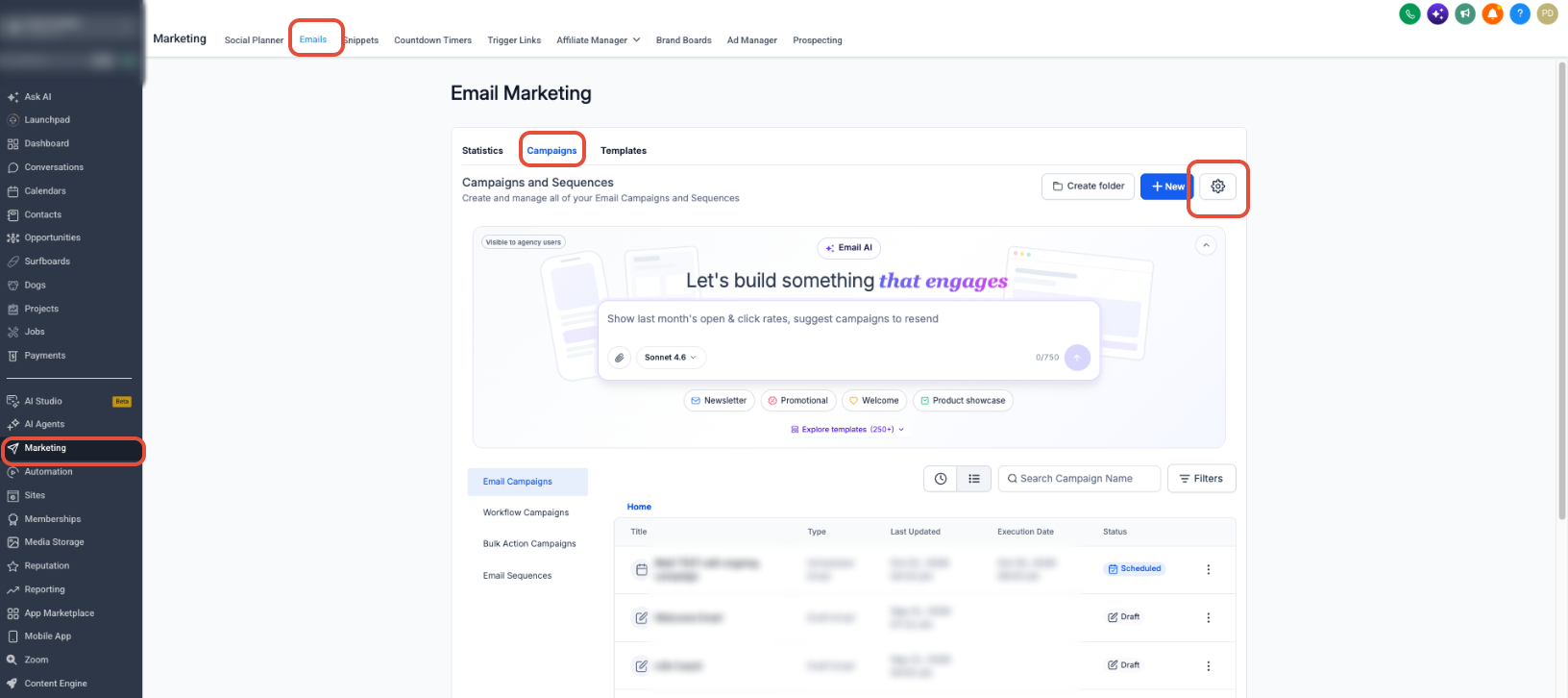
- Select Unsubscribe.
- Choose One Step, Two Step, or Dynamic.
- Use Preview to review the unsubscribe experience.
- Click Save.
Managing the Unsubscribe Link
The unsubscribe flow controls what happens after a contact uses an unsubscribe link. Link placement and custom unsubscribe experiences are managed separately.
Note: Changing the unsubscribe flow does not change the placement or appearance of the unsubscribe link itself.
Frequently Asked Questions
Need Help?
- Cannot find the unsubscribe settings: Go to Marketing → Emails → Campaigns, open Settings, and select Unsubscribe.
- Dynamic is not showing a confirmation step: Test by clicking the unsubscribe link within 5 minutes of delivery or by using a contact created less than 1 hour ago.
- Your selected flow is not taking effect: Confirm the correct flow is selected and click Save.
- Still need assistance? Contact your administrator or support team with the affected account and unsubscribe-flow details.