

Learn how recipient Segments work, how to build and save a Segment in an email campaign, how AND/OR filtering works, and how Segments differ from Smart Lists.
What Is a Recipient Segment?
A recipient Segment is a dynamic group of contacts built from filter conditions such as tags, contact fields, email activity, or engagement. Contacts automatically enter or leave the Segment as their data changes.
Saved Segments can be reused when selecting recipients for other email campaigns.
How to Build a Recipient Segment
Build a recipient Segment while preparing an email campaign to target contacts that match the filter conditions you define.
- Go to Marketing → Email → Campaigns.
- Create a new campaign or open an existing campaign.
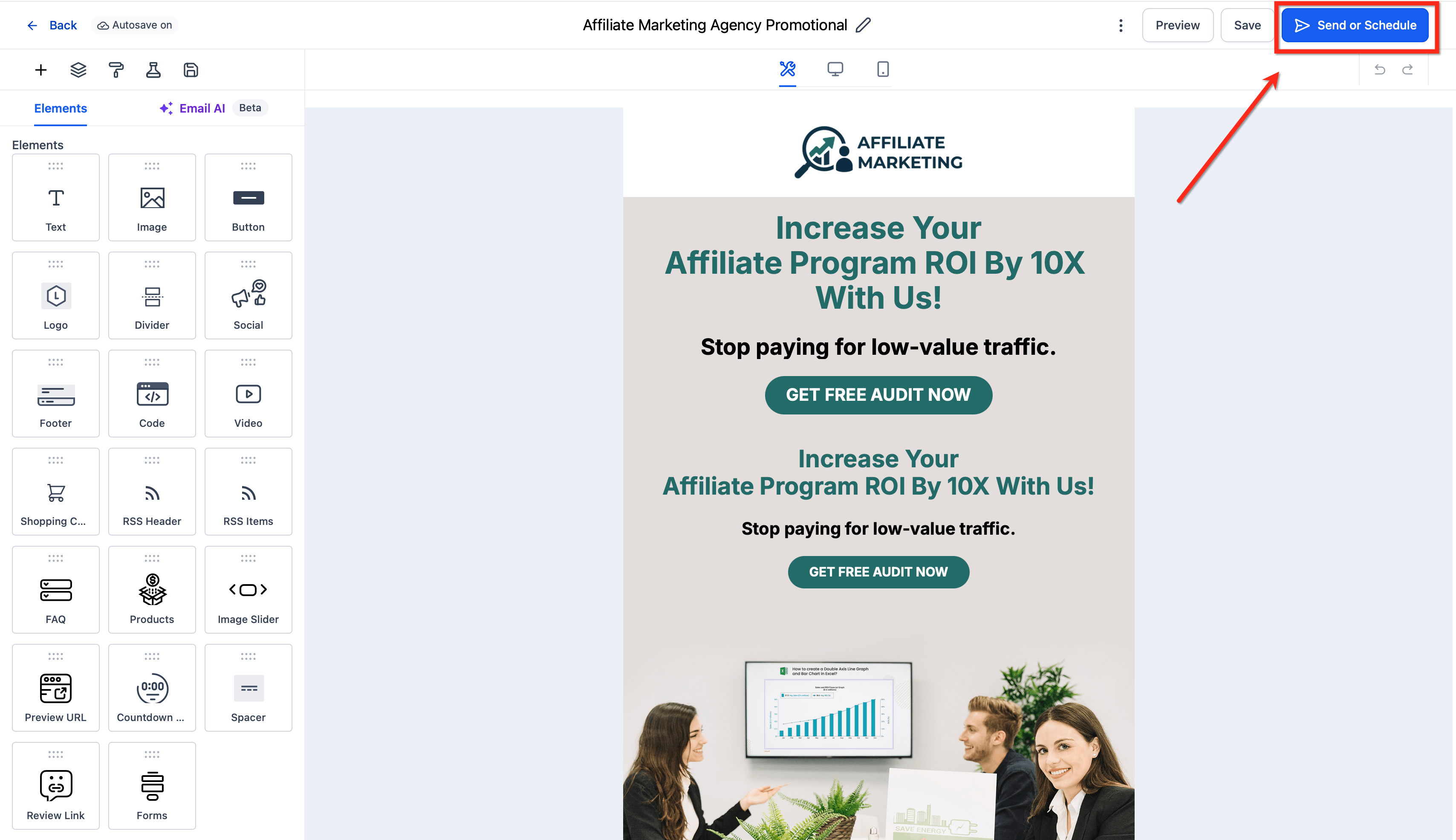
- In the Email Builder, click Send or Schedule.
- In the Recipient (To) area, select Build Segments.
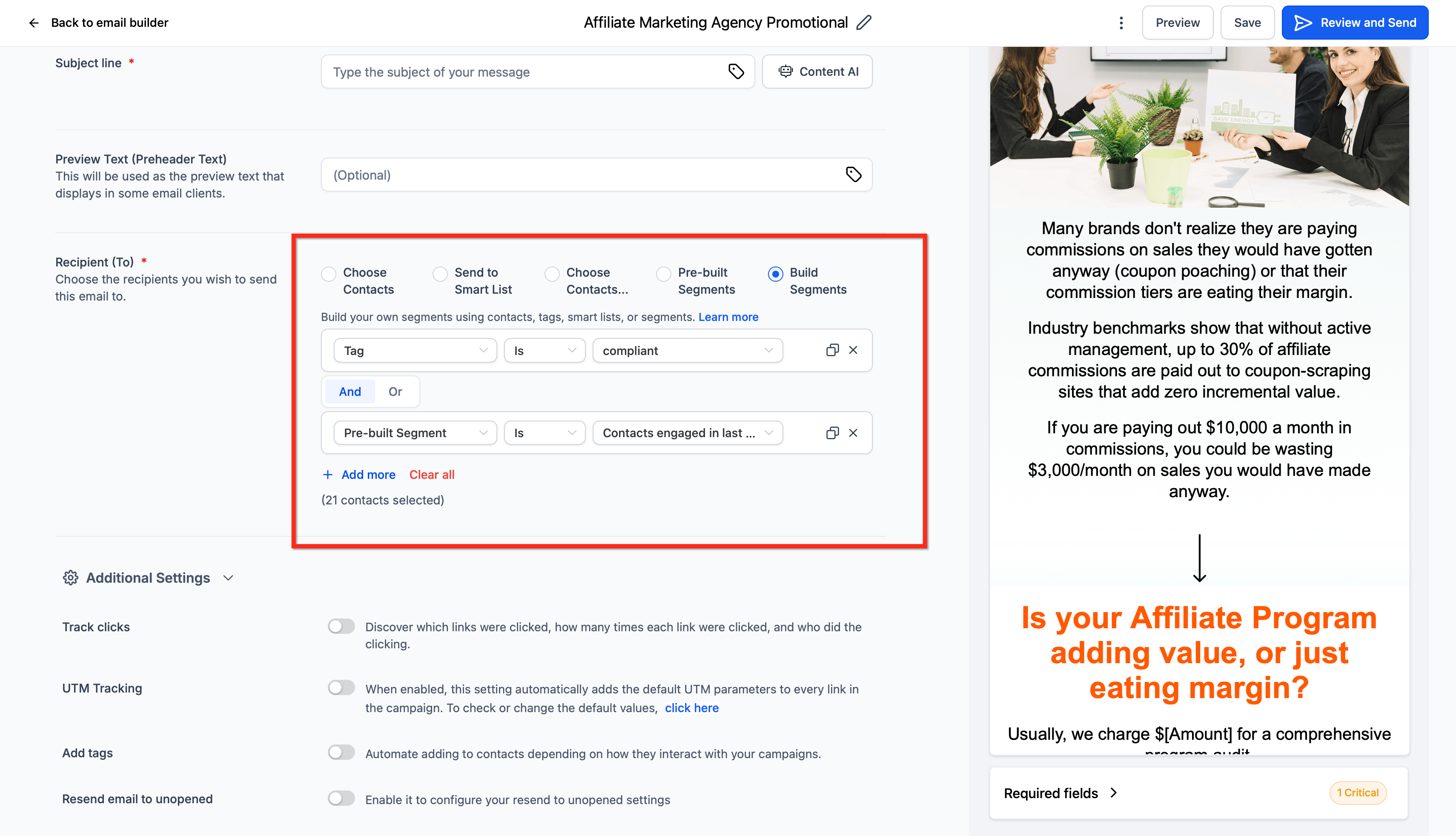
- Choose the filters for the Segment. For example:
- Tag is Compliant
- AND Pre-Built Segment is Contacts Engaged in Last 7 Days
- Use Add Filter to add additional conditions or Add OR Filterto create alternate condition groups.
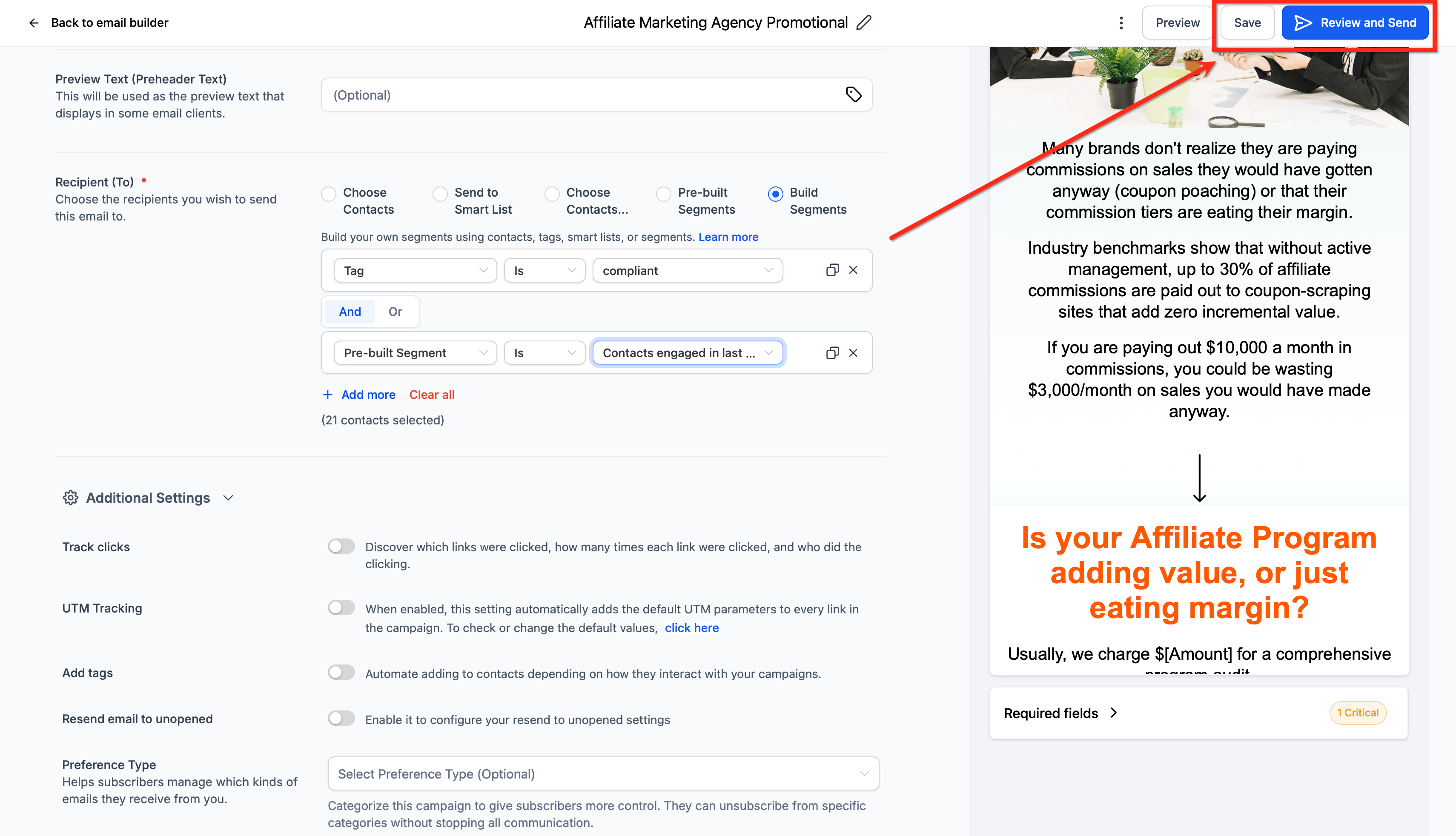
- Click Save to reuse the Segment later, or continue to Review and Send when preparing the campaign.
Smart Lists vs. Recipient Segments
Smart Lists and recipient Segments are both dynamic, filter-based groups, but they serve different purposes. Smart Lists are primarily used to organize and work with contacts, while recipient Segments are built for selecting audiences in email campaigns.
| Feature | Smart Lists | Recipient Segments |
|---|---|---|
| Primary location | Contacts | Email Campaign Builder |
| Primary purpose | Dynamic contact views | Email campaign recipient targeting |
| Updates automatically | Yes | Yes |
| Uses filter criteria | Yes | Yes |
| Reusable | Yes | Yes |
| Manual contact inclusion | No; contacts qualify through filters | No; contacts qualify through filters |
Frequently Asked Questions
Need Help?
- Cannot find Build Segments: Open an email campaign and select Send or Schedule, then review the Recipient (To) area.
- A contact is missing from a Segment: Review the Segment filters and confirm the contact currently meets all required conditions.
- A contact remains in a Segment unexpectedly: Review the contact record and confirm whether it still matches any AND/OR filter group.
- Need a manually controlled group: Apply a tag to the contacts and use that tag as one of the Segment filter conditions.
- Still need assistance? Contact your administrator or support team with the affected campaign and Segment details.